Overdue Asset Report
The Overdue Asset Report in DreamzCMMS Asset Rentals helps you identify assets that have not been returned by their expected return date. It provides customer details, rental dates, overdue duration, and financial information — enabling your team to take prompt follow-up action. Key highlights include:
- Identify all assets that are past their expected return date
- View the customer name, rent-out date, and expected return date for each overdue asset
- See the number of overdue days for each asset
- View cost price and sales price details for financial context
- Export the report in Excel or PDF format
Overview
The Overdue Asset Report is accessible from the Reports menu in the Asset Rentals module of DreamzCMMS. It is designed to help rental teams quickly identify assets that customers have not returned on time. For each overdue asset, the report shows the customer name, rent-out date, expected return date, and the number of overdue days — making it easy to prioritise follow-up actions. Cost price and sales price information is also included to help assess the financial impact of delayed returns. The report supports Excel and PDF export for easy communication and record-keeping.
Here is a reference video:
Step by Step Description to View the Overdue Asset Report
Step 1 – Navigate to Reports
Click on Reports from the left-hand panel to access the reports section of the Asset Rentals module.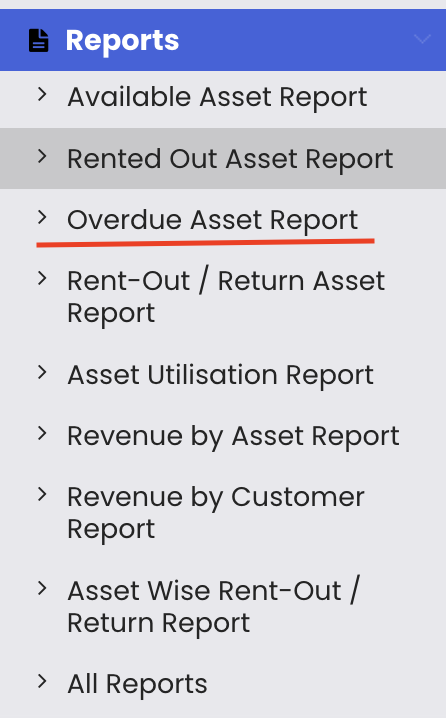
Step 2 – Select the Overdue Asset Report
From the reports list, click on "Overdue Asset Report." The report will load and display all assets that have not been returned by their expected return date.
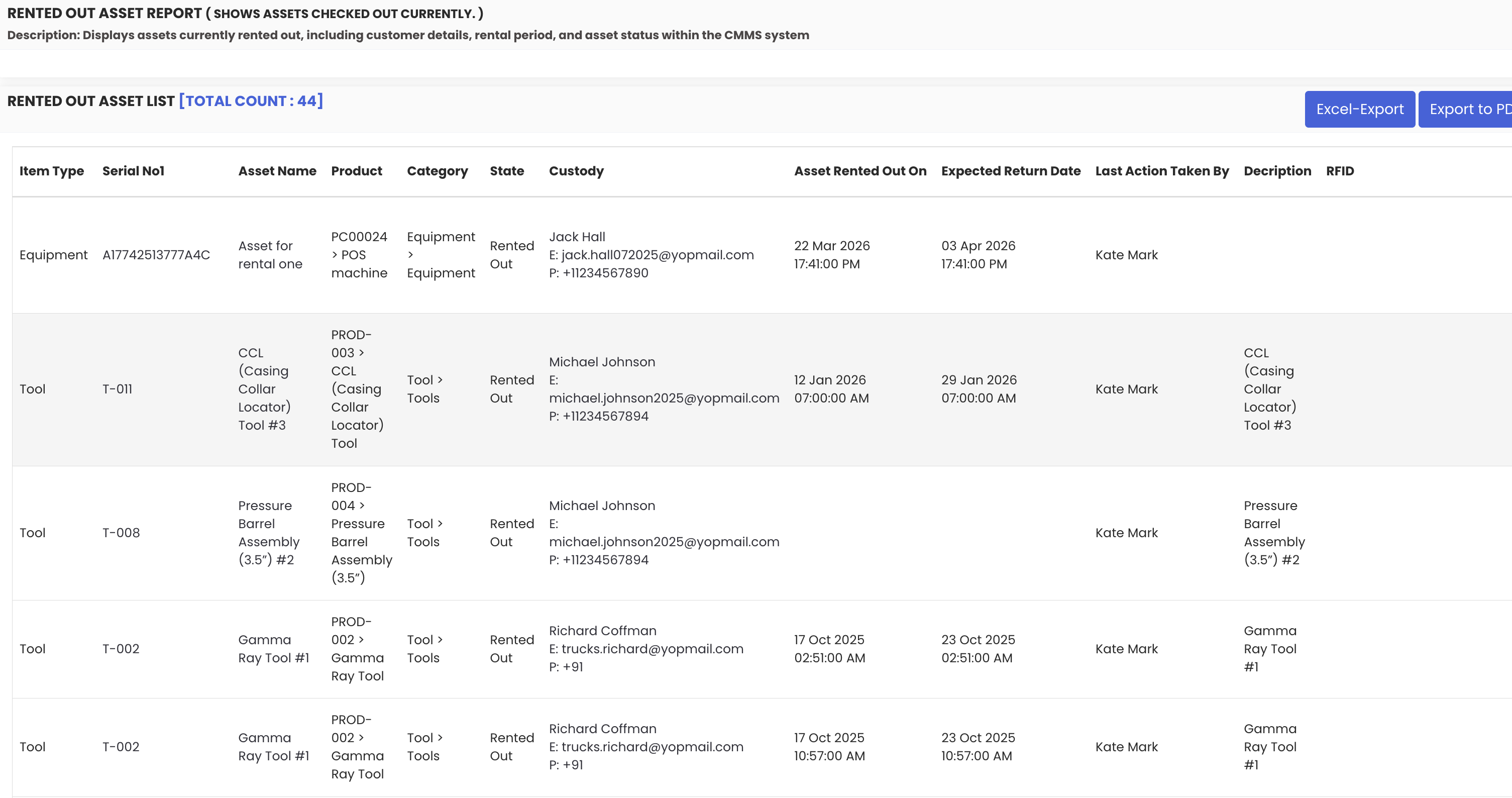
Step 3 – Review Overdue Asset Details
The report displays the following information for each overdue asset:
- Customer name – the customer to whom the asset has been rented
- Rent-out date – when the asset was rented out
- Expected return date – the date by which the asset should have been returned
- Overdue days – the number of days the asset is past its return date
- Cost price and sales price – financial details for each overdue asset
Step 4 – Export the Report
Use the available export options to save or share the report:
- Excel export – download the report data as a spreadsheet
- PDF export – export the report as a PDF for sharing or escalation

Tips for Using the Overdue Asset Report
- Review the Overdue Asset Report daily to stay on top of late returns and take prompt action before overdue periods extend further.
- Use the overdue days column to prioritise follow-up — assets with the highest number of overdue days should be contacted first.
- Export the report to PDF and use it as a basis for customer follow-up communications, including formal overdue notices if applicable.
- Check whether delay charges have been applied for overdue returns by cross-referencing this report with the Rental Return records in the system.
- Use the cost price and sales price data to assess the financial risk posed by high-value assets that are significantly overdue.
Frequently Asked Questions
What does the Overdue Asset Report show?
The Overdue Asset Report displays all assets that have not been returned by their expected return date. It includes the customer name, rent-out date, expected return date, number of overdue days, cost price, and sales price.
How do I access the Overdue Asset Report?
Click on "Reports" from the left-hand panel in the Asset Rentals module and select "Overdue Asset Report" from the list.
How are overdue days calculated?
Overdue days are calculated as the difference between the expected return date and the current date. The report automatically computes this for each overdue asset at the time the report is generated.
Can I export the Overdue Asset Report?
Yes. The report supports both Excel and PDF export options, making it easy to share the data with your team or use it for customer follow-up communications.
How does this report relate to the Rental Return process?
The Overdue Asset Report helps you identify which rentals need a return to be processed. Once a return is completed in the system using the Rental Return feature, the asset will no longer appear in this report.
Related Articles
- Available Asset Report
- Rented-Out Asset Report
- Rent-Out Return Asset Report
- Rental Return
- Rental Dashboard Overview