Rented-Out Asset Report
The Rented-Out Asset Report in DreamzCMMS Asset Rentals gives you a comprehensive view of all assets that are currently out on rent. It provides key details such as rent-out dates, expected return dates, asset condition, and financial information — helping you monitor active rentals and manage your fleet effectively. Key highlights include:
- View all assets that are currently rented out
- See rent-out dates and expected return dates for each asset
- View facility, condition, properties, cost price, and sales price details
- Export the report in Excel or PDF format
Overview
The Rented-Out Asset Report is accessible from the Reports menu in the Asset Rentals module of DreamzCMMS. It provides a detailed listing of all assets currently on rent, along with their rent-out and expected return dates. Additional information includes the facility each asset belongs to, its current condition, relevant properties, cost price, and sales price — giving operations and finance teams a complete picture of active rental activity. The report supports Excel and PDF export for easy sharing and record-keeping.
Here is a reference video:
Step by Step Description to View the Rented-Out Asset Report
Step 1 – Navigate to Reports
Click on Reports from the left-hand side panel to access the reports section of the Asset Rentals module.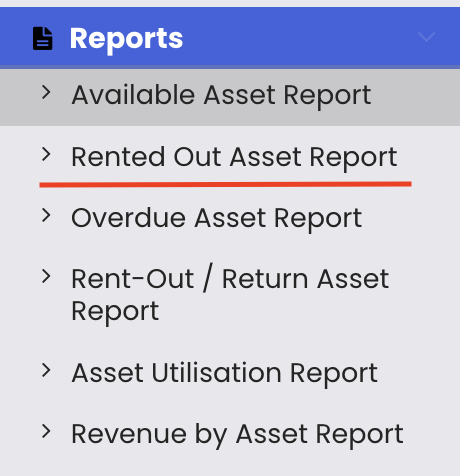
Step 2 – Select the Rented-Out Asset Report
From the reports list, select "Rented-Out Asset Report." The report will load and display all assets currently out on rent.
Step 3 – Review Active Rental Details
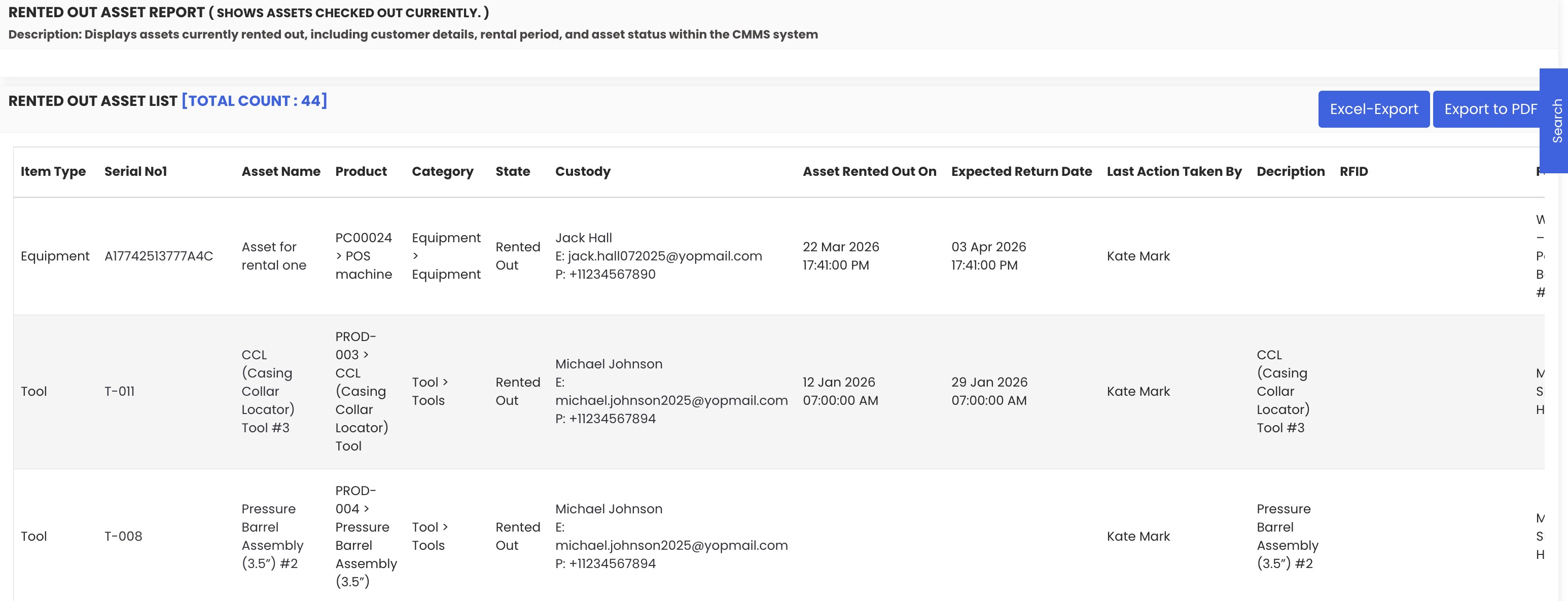
The report displays the following information for each rented asset:
- Rent-out date – when the asset was rented out
- Expected return date – when the asset is due back
- Facility – which facility the asset belongs to
- Condition – the current condition of the asset
- Properties – relevant asset properties
- Cost price and sales price – financial details for the asset
Step 4 – Export the Report
Use the available export options to save or share the report:
- Excel export – download the report data as a spreadsheet
- PDF export – export the report as a PDF for sharing or archiving

Tips for Using the Rented-Out Asset Report
- Review the expected return dates in this report daily to anticipate which assets are due back and plan their next rental or maintenance window accordingly.
- Use the cost price and sales price columns to quickly assess the financial exposure of your currently rented fleet.
- Cross-reference this report with the Overdue Asset Report to identify any active rentals that have exceeded their expected return date.
- Export the report to Excel periodically to maintain a historical log of rental activity for auditing or performance review purposes.
- Use the facility and condition columns to monitor whether high-value or condition-sensitive assets are being tracked and returned appropriately.
Frequently Asked Questions
What does the Rented-Out Asset Report show?
The report displays all assets that are currently rented out, along with their rent-out date, expected return date, facility, condition, properties, cost price, and sales price.
How do I access the Rented-Out Asset Report?
Click on "Reports" from the left-hand panel in the Asset Rentals module and select "Rented-Out Asset Report" from the list.
Can I export this report?
Yes. The report supports both Excel and PDF export options, allowing you to download or share the data as needed.
How is this report different from the Overdue Asset Report?
The Rented-Out Asset Report shows all assets currently on rent, regardless of whether they are overdue. The Overdue Asset Report specifically highlights assets that have not been returned by their expected return date.
Does this report show financial details for each asset?
Yes. The report includes cost price and sales price for each rented asset, giving you a financial overview of your currently active rentals.
Related Articles
- Available Asset Report
- Overdue Asset Report
- Rent-Out Return Asset Report
- Revenue by Asset Report
- Rental Dashboard Overview