Convert Work Request to Job
When a work request is submitted, it can be converted into a work order so that a technician can be assigned to resolve it. This guide walks you through the full process of converting an open work request into a job within DreamzFSM, including assigning a technician, adding a labour task checklist, and configuring notifications.
- Access the work request from the Request Portal.
- Convert an open request directly into a job.
- Set job details including due date, type, and priority.
- Assign the job to an internal technician or sub-contractor.
- Attach a labour task checklist to the job.
- Configure messaging notifications for the assigned technician.
Overview
Work requests submitted by employees or customers are managed through the Request Portal in DreamzFSM. Once a request is reviewed and ready to be actioned, it can be converted into a job with a single click. The job creation form automatically carries over the request details, allowing the manager or dispatcher to assign a technician, set priorities, add tasks, and configure notifications before saving. This ensures a seamless handoff from request to resolution.
Here is a reference video:
How to Convert a Work Request into a Job
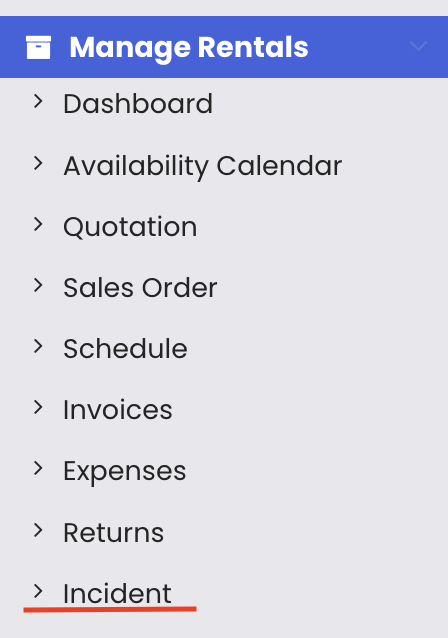
Step 1 – Navigate to the Request Portal
From the main menu, click Request Portal to access the incidents and requests section.
Step 2 – Select the Requests Option
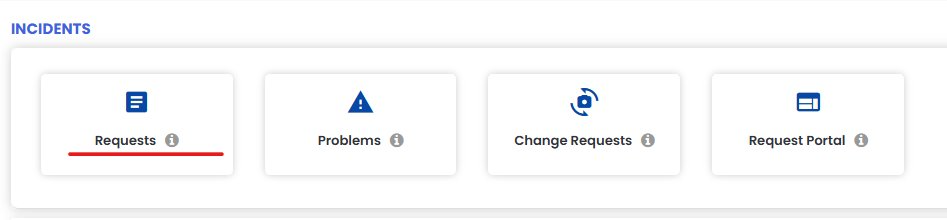
Under the Incidents section, click on Requests to open the work request list view, where all submitted requests are displayed.
Step 3 – Click the Job Icon for an Open Request
In the Request List, locate the request you want to convert. Click on the Job icon in the Action column for the request that has a status of Open. This will open the job creation form pre-populated with the request details.

Step 4 – Update the Job Details
On the Job page, review and update the required fields as needed. Update the Due Date, select the appropriate Maintenance Type, set the Priority, and enter a descriptive Title in the title text box to clearly identify the job.

Step 5 – Assign the Job to a Technician
Scroll down to the Assignee section. Select Internal or Sub Contractor as appropriate, then choose the technician from the Technician dropdown and select the relevant Department if required.

Step 6 – Add a Labour Task Checklist
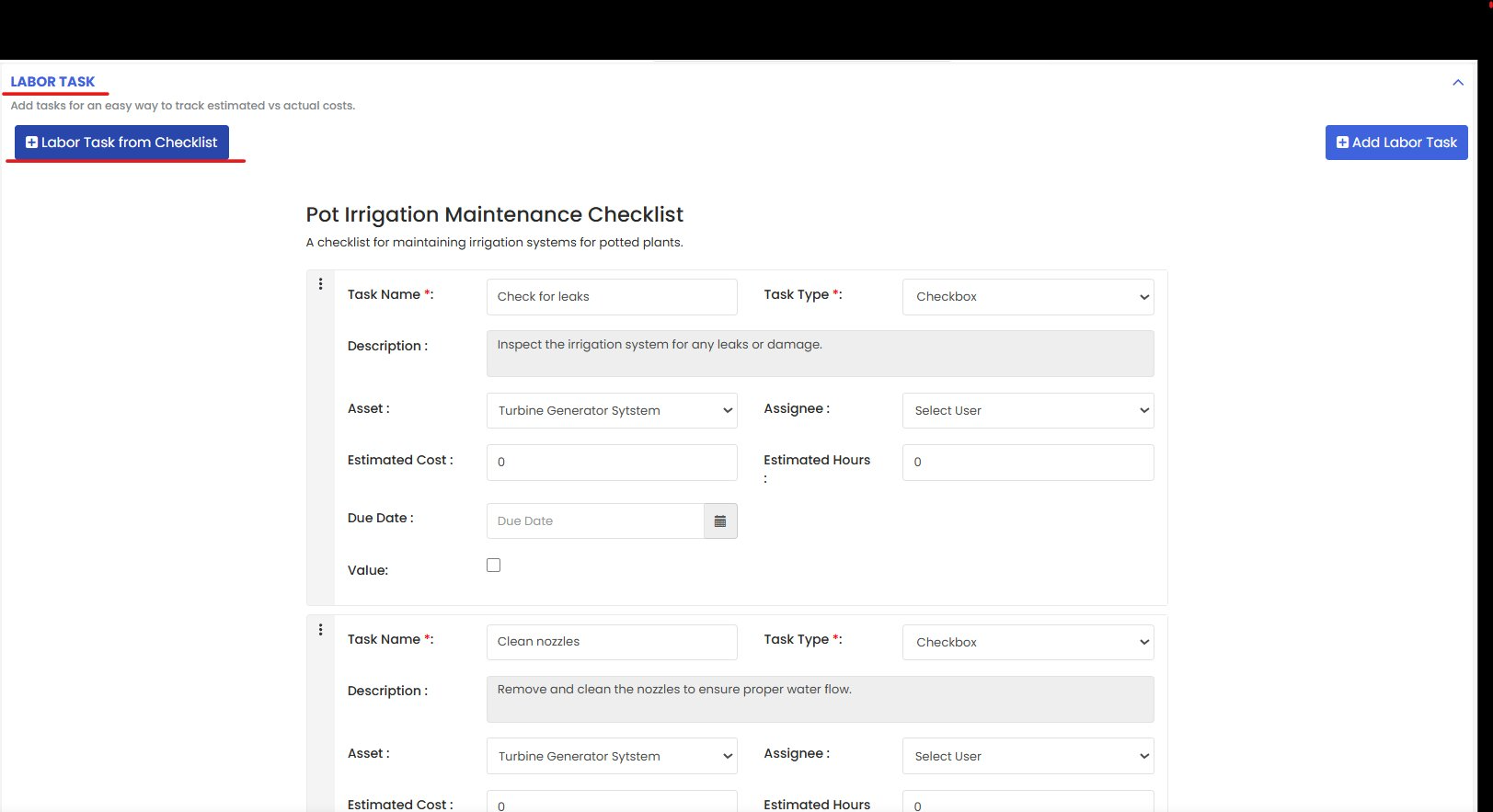
Scroll to the Labour Task section. Click Labour Task from Checklist to attach a pre-defined checklist to the job. The checklist tasks will be added to the job, allowing the technician to track progress against each item during the work.
Step 7 – Configure Messaging Notifications
Scroll to the Messaging Settings section. Select the technician from the dropdown and click Add User. Use the checkboxes to enable notifications for the relevant events: Notify On Assignment, Notify On Status Change, Notify On Completion, Notify On Task Completed, and Notify On Online/Offline. Once all settings are configured, click Save to create and process the job.

Tips for Converting Work Requests to Jobs
- Always verify the request status is Open before converting it to a job — only open requests can be actioned and converted.
- Update the Due Date and Priority fields at the time of conversion to ensure the technician has clear expectations for the work.
- Use the Labour Task from Checklist option rather than manually adding tasks — this saves time and ensures consistency across similar job types.
- Enable all relevant notification checkboxes in the Messaging Settings section to keep the assigned technician informed at every stage of the job lifecycle.
- Use the Check Assignee Allocation button in the Assignee section to verify the technician's current workload before assigning the job.
Frequently Asked Questions
Can I convert a work request that is not in Open status?
No. Only requests with a status of Open can be converted into a job. Requests that have already been actioned or closed will not have the Job icon available in the Action column.
Will the original work request details carry over to the job?
Yes. When you click the Job icon, the job creation form is pre-populated with the details from the work request, including the title and description. You can review and update these fields before saving.
Can I assign the job to a sub-contractor instead of an internal technician?
Yes. In the Assignee section, select the Sub Contractor option and then choose the relevant sub-contractor from the available options.
What is the Labour Task from Checklist option?
This option allows you to attach a pre-defined task checklist to the job. The checklist contains individual tasks that the technician must complete as part of the job, and it helps track estimated versus actual costs and hours.
What happens to the original work request after it is converted to a job?
The work request remains visible in the Request List and its status will update as the linked job progresses. This allows managers to track the resolution of the original request through to completion.