Change Requests
Change Requests in Incident Management capture proposed modifications to fix root causes or improve services like configuration updates, procedure changes, or component swaps. In DreamzCMMS, a change records scope, impact/urgency, risk, approvers, and rollout schedule; it links to related incidents/problems, routes through approval, and tracks implementation and back out plans. This ensures controlled, auditable changes that reduce repeat issues and downtime.
Here is a reference video:
How to Create a Change Request
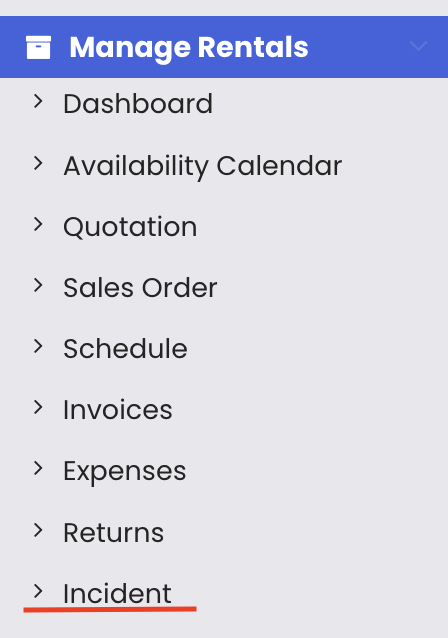
Step 1 – Navigate to Change Request
From the menu, click on Incidents and then click on Change Request.
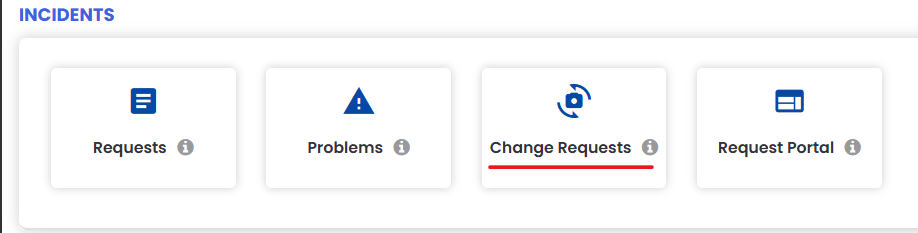
Step 2 – Open the Change Request List
Click on Change Request to open the list of all change requests.
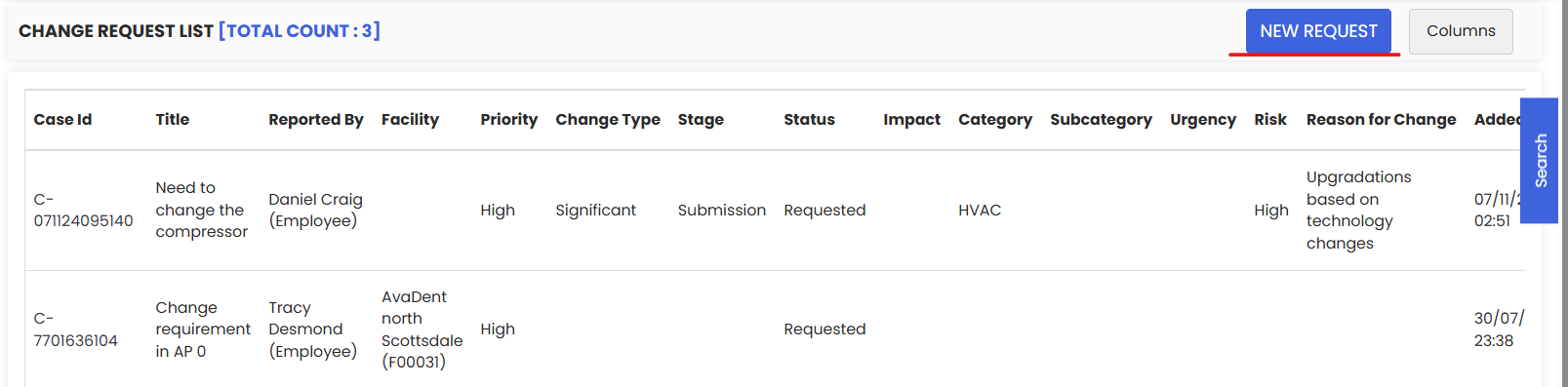
Step 3 – Create a New Request
To report a change request, click on New Request.
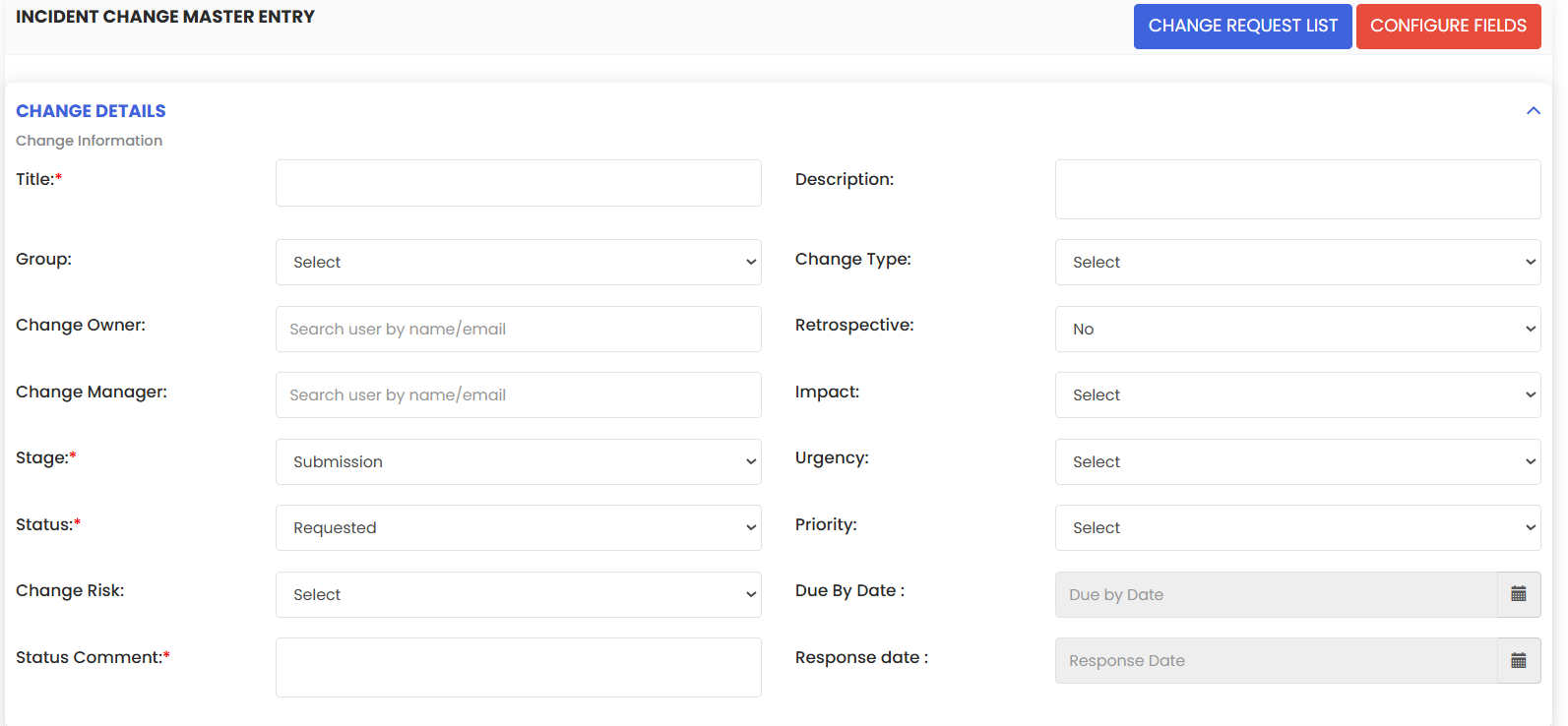
Step 4 – Fill in the Required Details
Fill in all the necessary details for the change request.
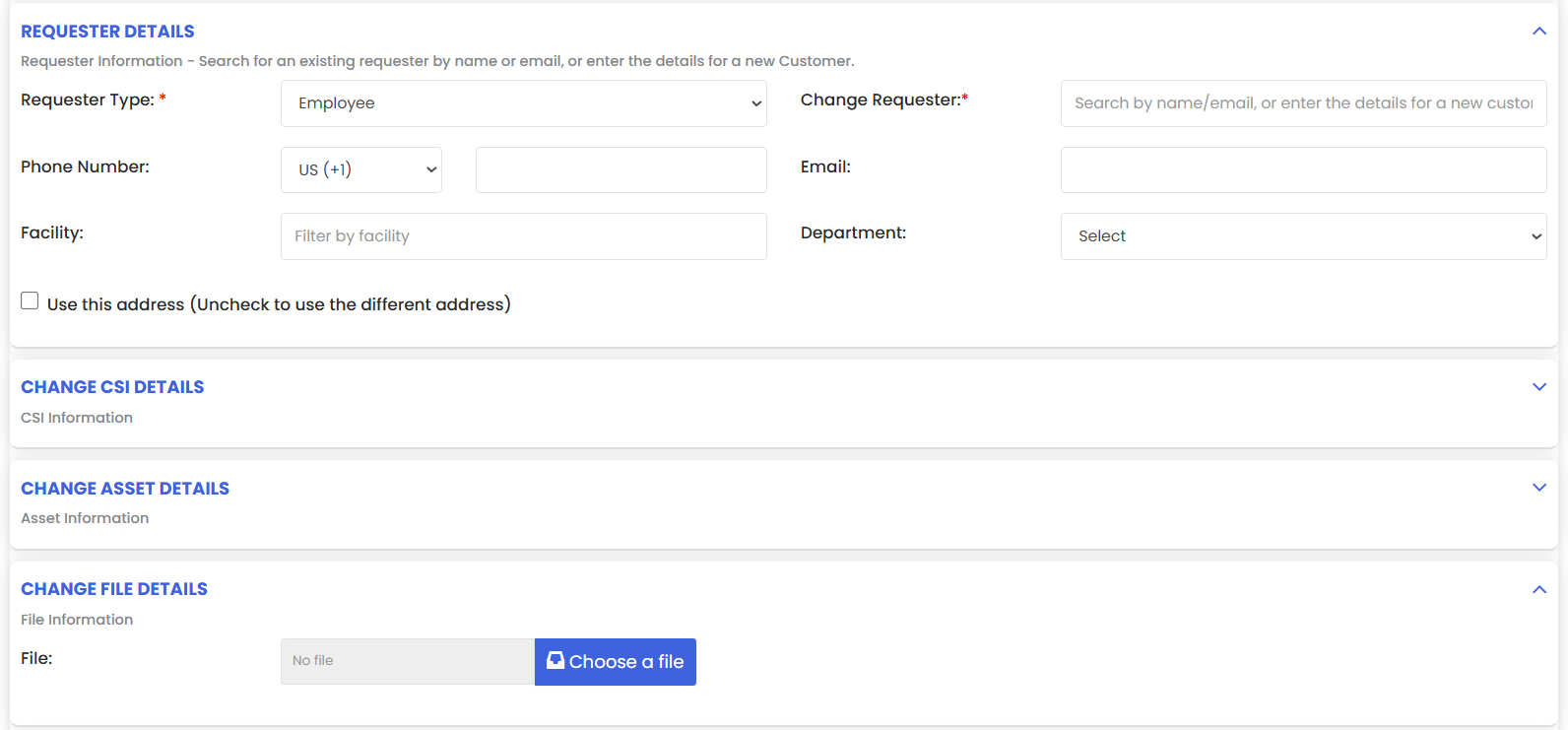
Step 5 – Save the Change Request
Click Save and the change request will be added to the listing. The listing includes several action buttons: Edit, Update Status, Add Note, View, Convert to Work Order, Add Purchase Request, and Delete.
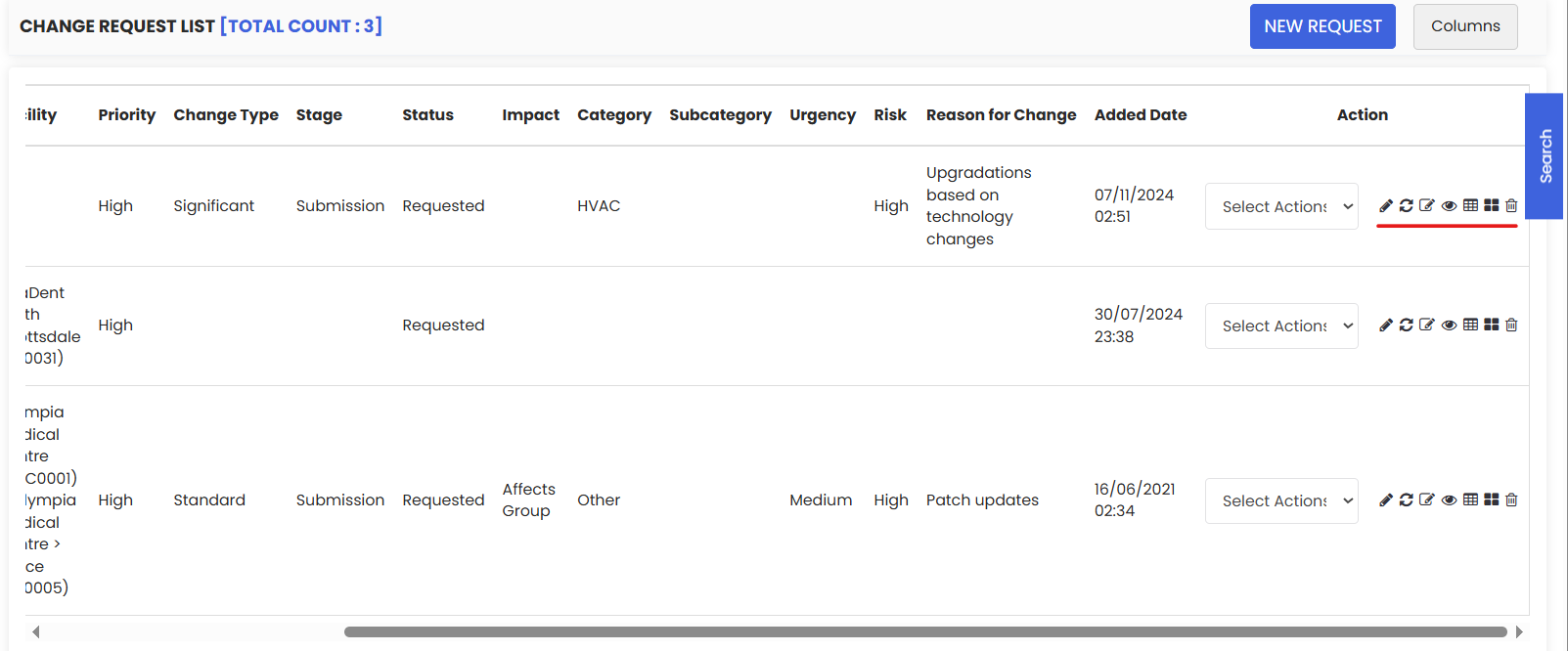
Tips for Managing Change Requests
- Always provide a clear and descriptive title when creating a change request — this helps approvers and technicians quickly understand the scope of the change.
- Link the change request to any related incidents or problems to maintain a full audit trail and help identify recurring issues.
- Use the Update Status action button to keep the change request status current as it moves through the approval and implementation process.
- Use the Add Note button to document any observations, decisions, or updates during the change lifecycle — this supports accountability and transparency.
- If the change requires parts or materials, use the Add Purchase Request action to raise a purchase request directly from the change record.
Frequently Asked Questions
What is a Change Request in DreamzCMMS?
A Change Request is a formal record used to capture proposed modifications to fix root causes or improve services. It records scope, impact, urgency, risk, approvers, and rollout schedule, and links to related incidents or problems.
Who can create a Change Request?
Any user with access to the Incidents module and appropriate permissions can create a Change Request from the Request Portal in DreamzCMMS.
Can a Change Request be converted into a Work Order?
Yes. From the Change Request listing, you can use the Convert to Work Order action button to turn an approved change request into a work order for implementation.
Can I add a purchase request to a Change Request?
Yes. The listing includes an Add Purchase Request action button, which allows you to raise a purchase request directly linked to the change record when parts or materials are required.
Can I delete a Change Request after it has been created?
Yes. The Delete action button is available in the Change Request listing. However, it is recommended to only delete requests that were created in error, as removing records may affect audit trails.