Problems
Problems (under Incidents) capture recurring or significant issues for root-cause analysis — separate from day-to-day requests so you can prevent repeat failures.
- Navigate to the Problems section under Incidents.
- Create a new problem request with subject, description, and priority.
- Fill in requester details and link the related asset.
- Upload supporting files and save the problem record.
- Manage problems from the listing using action buttons.
- Customise the listing view using the Columns option.
Overview
The Problems module in DreamzCMMS is designed to capture and manage recurring or significant issues that require deeper investigation beyond a standard work request. Unlike day-to-day requests, problems are logged specifically for root-cause analysis — helping teams identify the underlying cause of repeat failures and put measures in place to prevent them from occurring again. Each problem record can be linked to a specific asset, assigned a priority, and actioned directly into a job or work order, ensuring a seamless path from identification to resolution.
Here is a reference video:
How to Create a Problem
Step 1 – Navigate to Problems
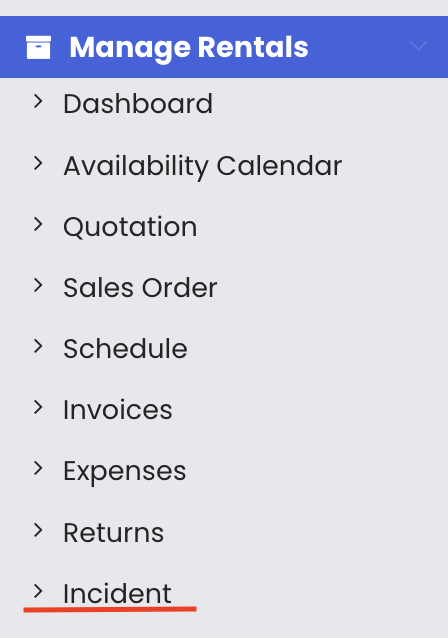
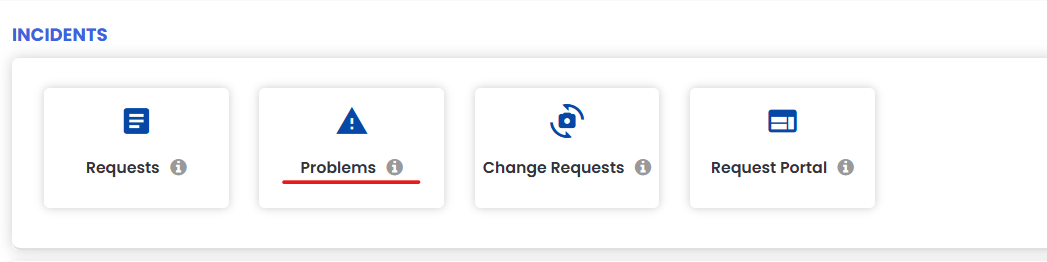
From the menu, click on Incidents and then click on Problems.
Step 2 – Create a New Request
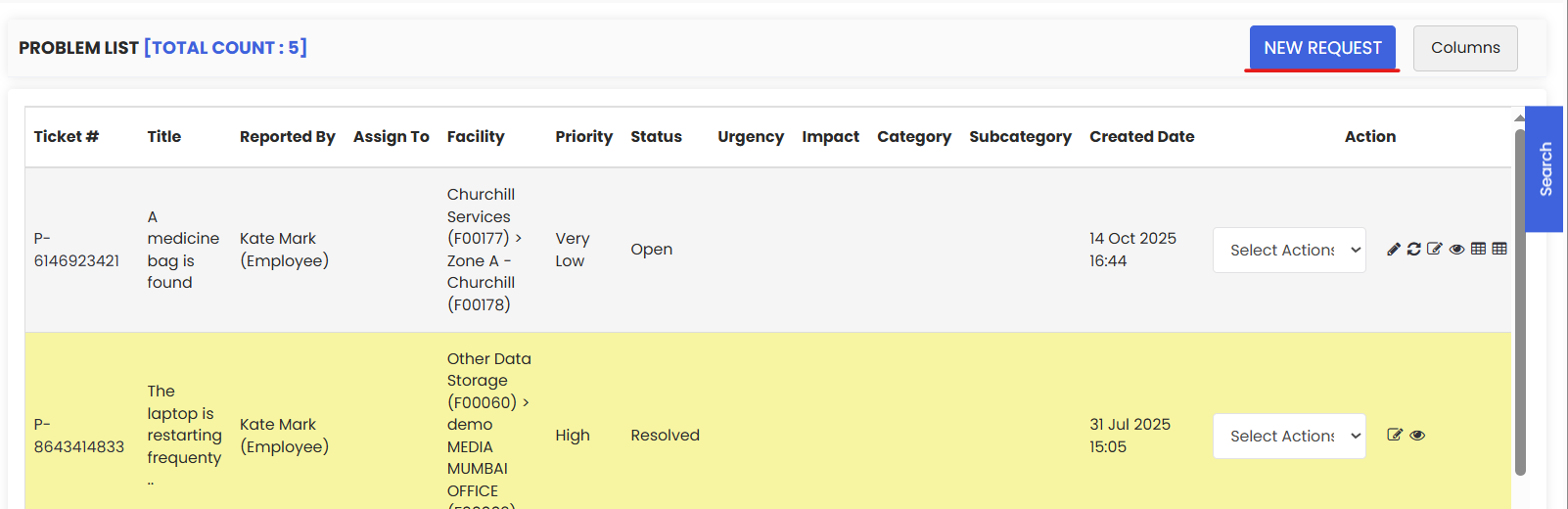
To report a problem, click on New Request.
Step 3 – Fill in the Request Details
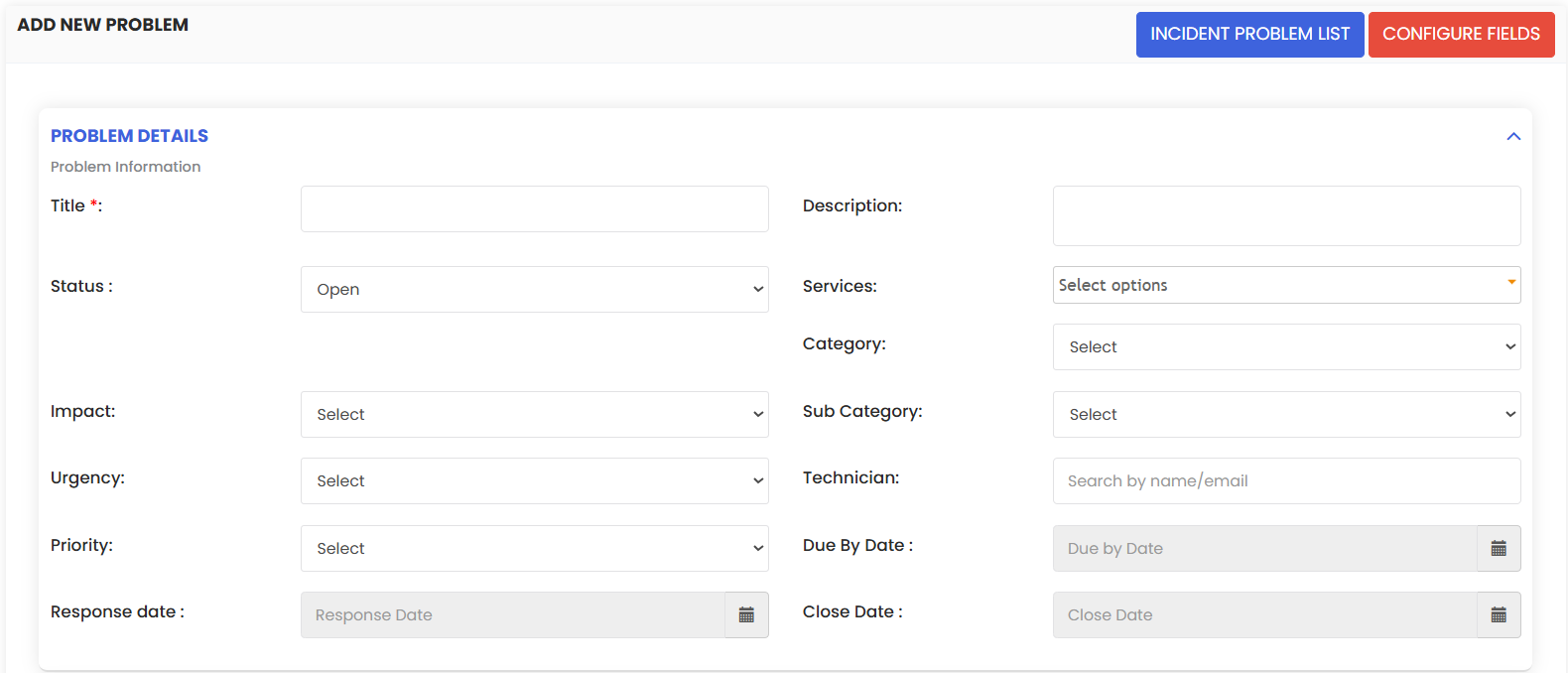
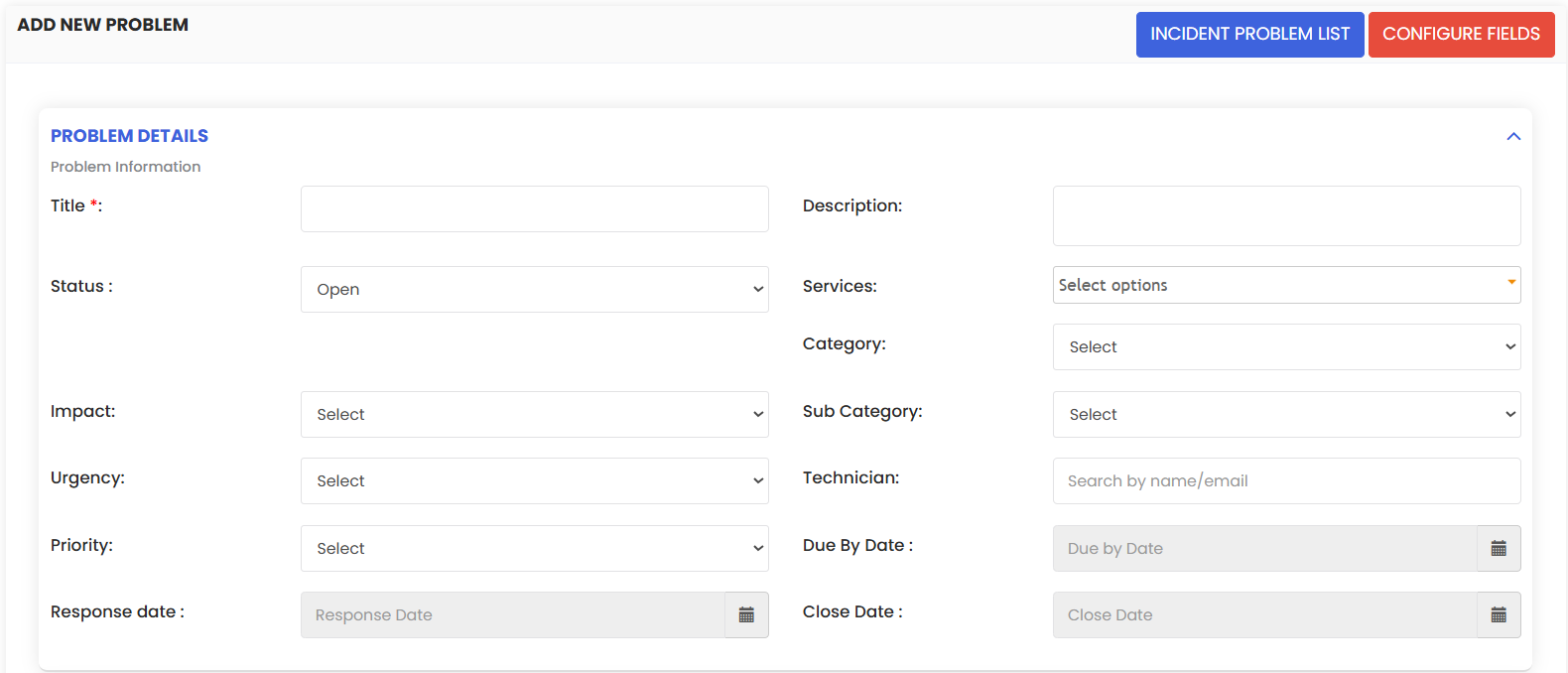
Fill in the problem information under the Request Details section.
Step 4 – Enter Subject, Description and Priority
Type the Subject and Description. Select the Request Type, Priority, and other details. Based on the priority, the Due Date and Response Date will be populated according to the Incident Priority Master.
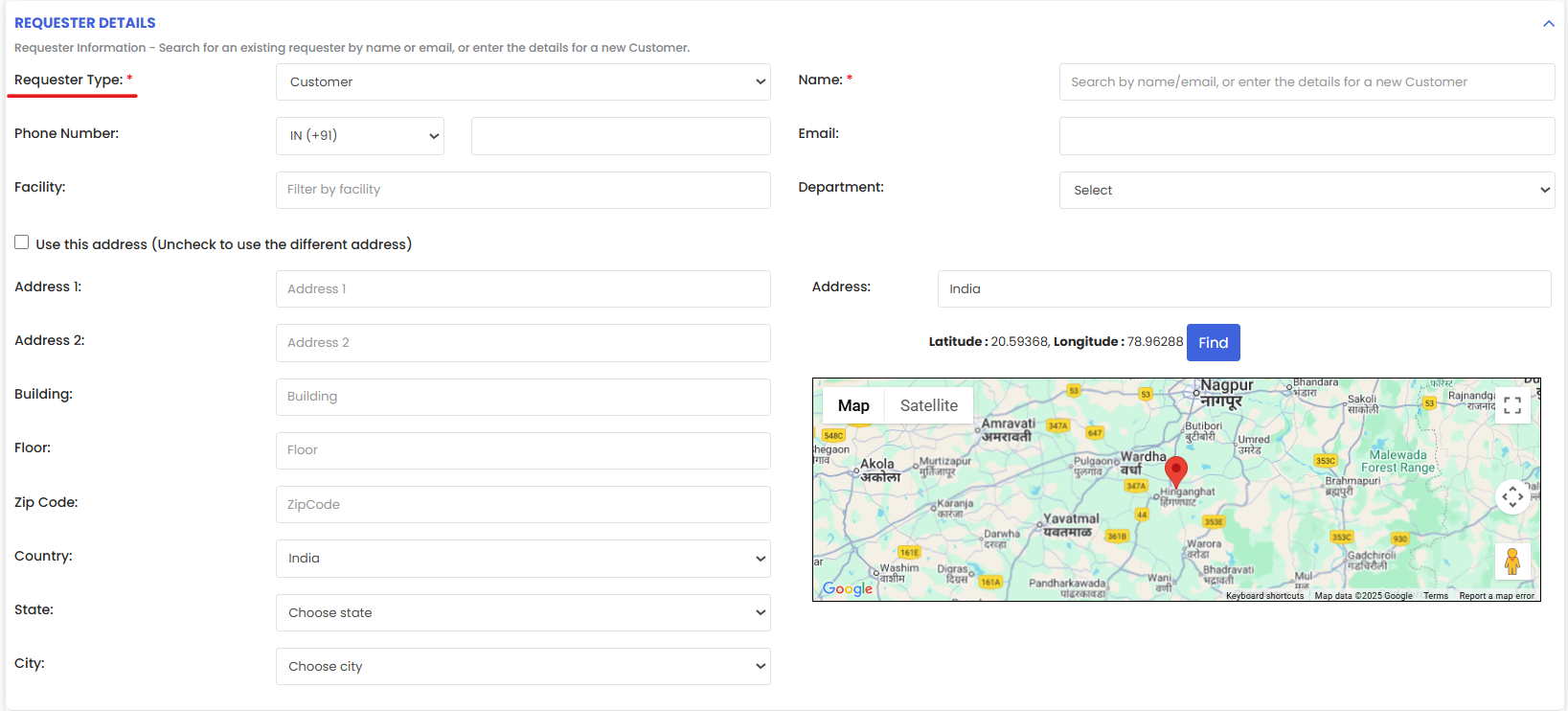
Step 5 – Fill in the Requester Details
Fill in the requester details. The requester type can be either a Customer or an Internal Employee. Enter the name in the text box, and if it exists, a name suggestion will appear for you to select.
Step 6 – Select the Related Asset
Select the related asset for which the problem is recorded.
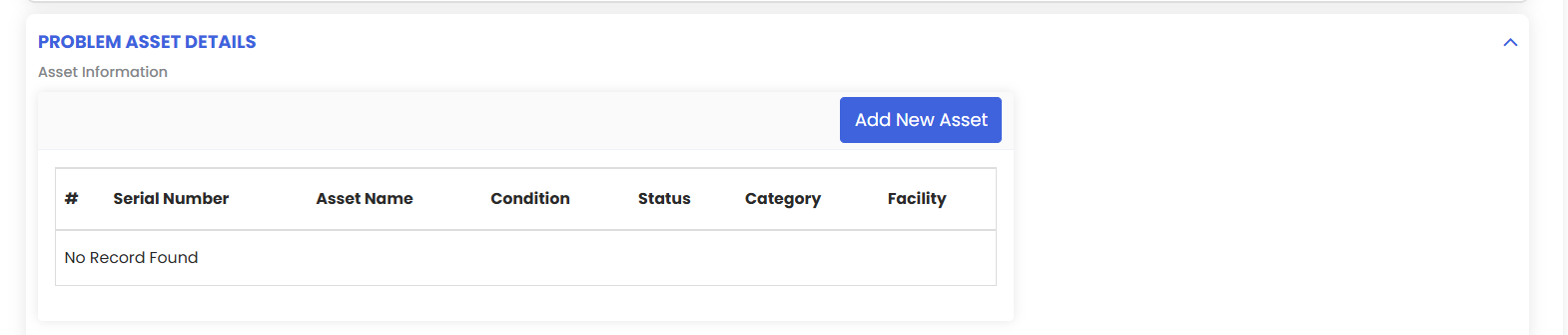
Step 7 – Add Asset and Upload Files
Before selecting the related asset, ensure that the facility or asset location has been added. You can also filter by asset from the asset popup. Click on Add New Asset to open the asset popup, then:
- Select the checkbox for the respective asset and click the Add Asset button.
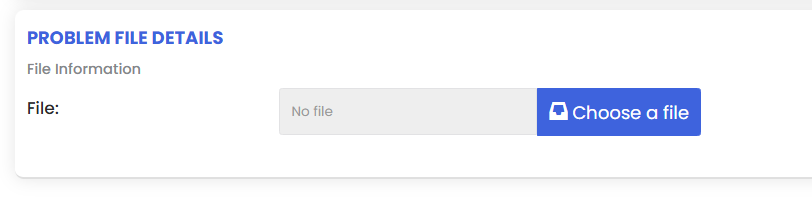
- Click Choose a File to upload a file to the request.
- Click the Save button to save the request.
Step 8 – View the Problem in the Listing
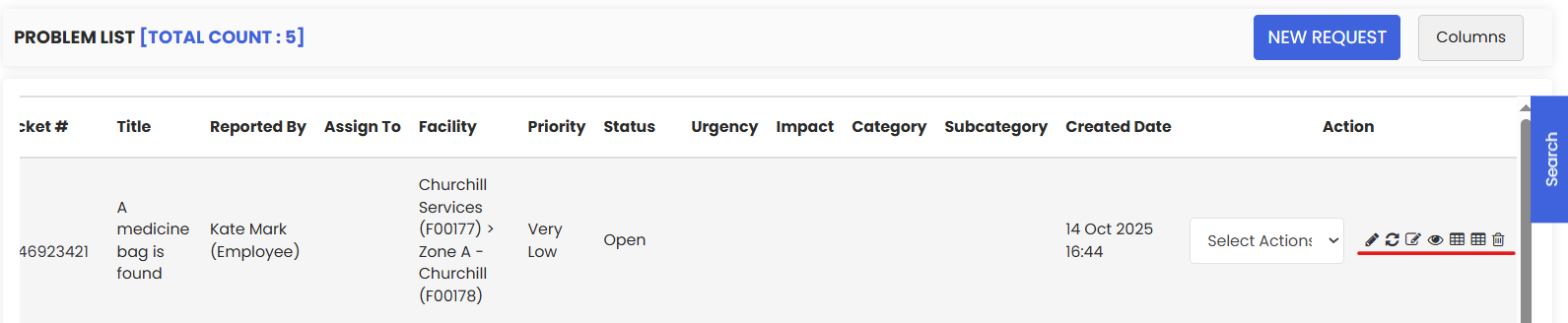
On saving, the request is added to the listing page. The request list includes several action buttons: Edit, Update Status, Note, Convert to Work Order, Convert to Job, Purchase Request, and Delete.
Step 9 – Show or Hide Columns
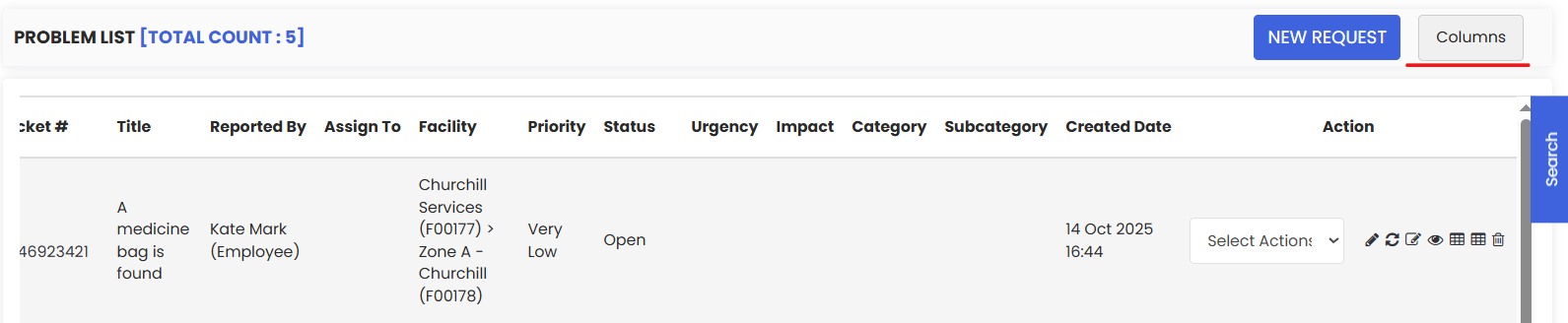
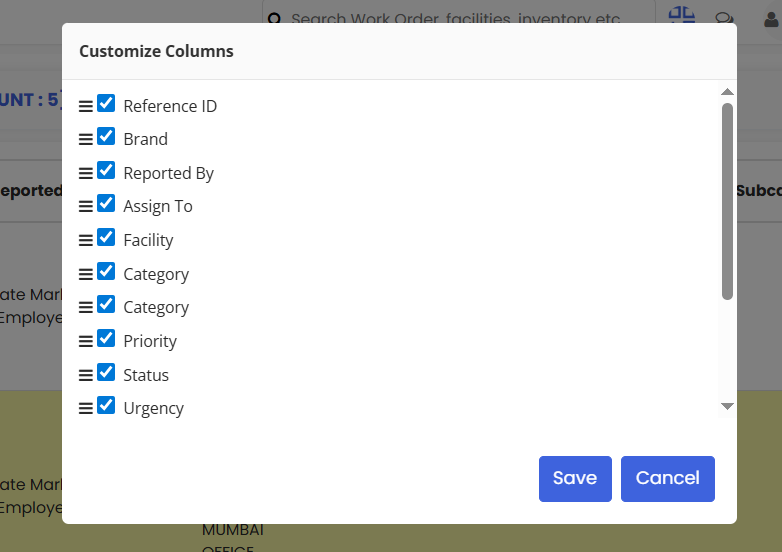
You can also choose to show or hide columns using the Columns option on the top right of the listing page.
Tips for Managing Problems
- Use the Problems module specifically for recurring or significant issues — avoid logging routine day-to-day requests here, as problems are intended for root-cause analysis.
- Always set the correct Priority when creating a problem — this automatically populates the Due Date and Response Date based on the Incident Priority Master, ensuring SLA compliance.
- Link the problem to the relevant Asset so that recurring failures on specific equipment can be tracked and identified over time.
- Use the Convert to Job or Convert to Work Order action buttons from the listing page to action a problem without having to create a separate job manually.
- Use the Columns option on the listing page to customise which fields are visible — this helps teams focus on the data most relevant to their workflow.
Frequently Asked Questions
What is the difference between a Problem and a Work Request?
A Work Request captures a one-off issue or service request submitted by an employee or customer. A Problem is used to record recurring or significant issues that require root-cause analysis to prevent repeat failures.
How are the Due Date and Response Date determined?
The Due Date and Response Date are automatically populated based on the Priority you select, according to the rules configured in the Incident Priority Master.
Can I attach files to a Problem record?
Yes. When adding an asset to the problem, you can click Choose a File to upload supporting documents, images, or any relevant files to the request.
Can a Problem be converted into a Job or Work Order?
Yes. From the Problem listing page, use the Convert to Job or Convert to Work Order action buttons to assign the problem for resolution without creating a separate record manually.
Can I customise the columns shown in the Problem listing?
Yes. Use the Columns option on the top right of the listing page to show or hide columns according to your team's preferences.