Product Management
In DreamzFSM, Products act as asset classifications or types — they define a category of equipment rather than an individual asset. For example, "Air Conditioner" is a product, while "LG Air Conditioner Unit 1" or "Samsung Air Conditioner Unit 2" are individual assets that fall under that product. Managing products allows you to standardise how assets are categorised, grouped, and identified across your organisation.
- Create product classifications with configurable groupings such as asset group, subgroup, type, and class
- Enter identity details including HSN code, barcode, supplier, manufacturer, cost, and model
- Upload product images and supporting documents
- Edit, delete, and manage products from the product listing page
Overview
Products are managed under the Assets module in DreamzFSM. When creating a product, you define its grouping hierarchy, basic details, identity information, and associated files. All grouping dropdowns — such as account group, asset main group, and asset class — are configurable from the settings section and can be customised to match your organization's structure.
Video Tutorial
How to Create and Manage Products
Step 1 – Navigate to Products
From the main menu, click Assets, then select Products. The Product Listing page will open.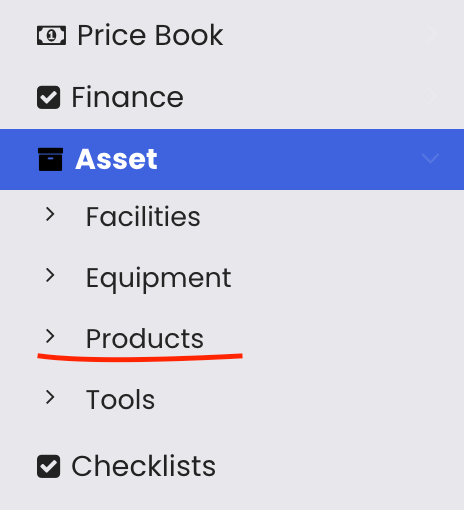
Step 2 – Create a New Product
Click the New Product button to open the product creation form.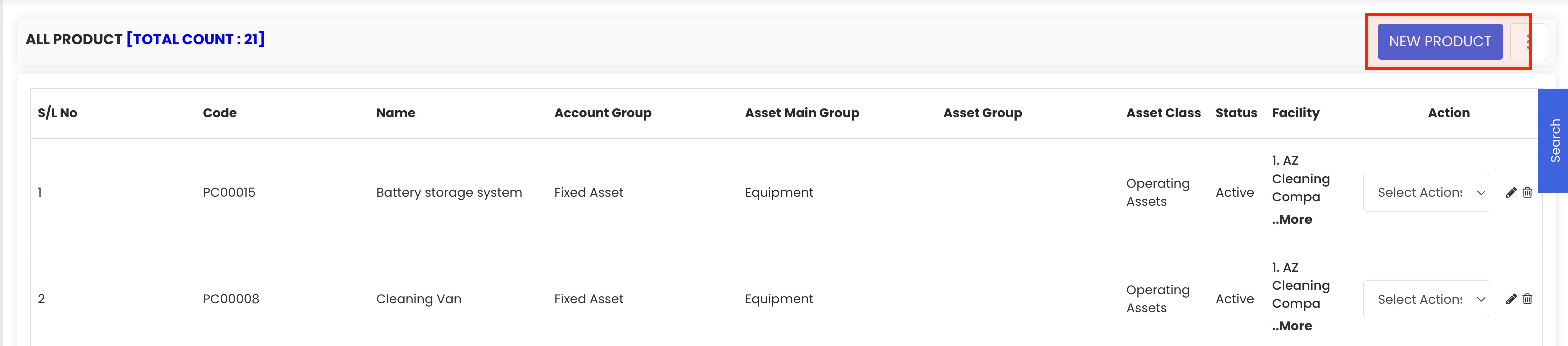
Step 3 – Enter Product Grouping Details
Fill in the product grouping fields to classify the product within your asset hierarchy. These include:
- Account Group, Asset Main Group, Asset Group, Asset Subgroup
- Asset Type, Department, Asset Class
All these dropdowns are configurable and can be managed from the Settings section.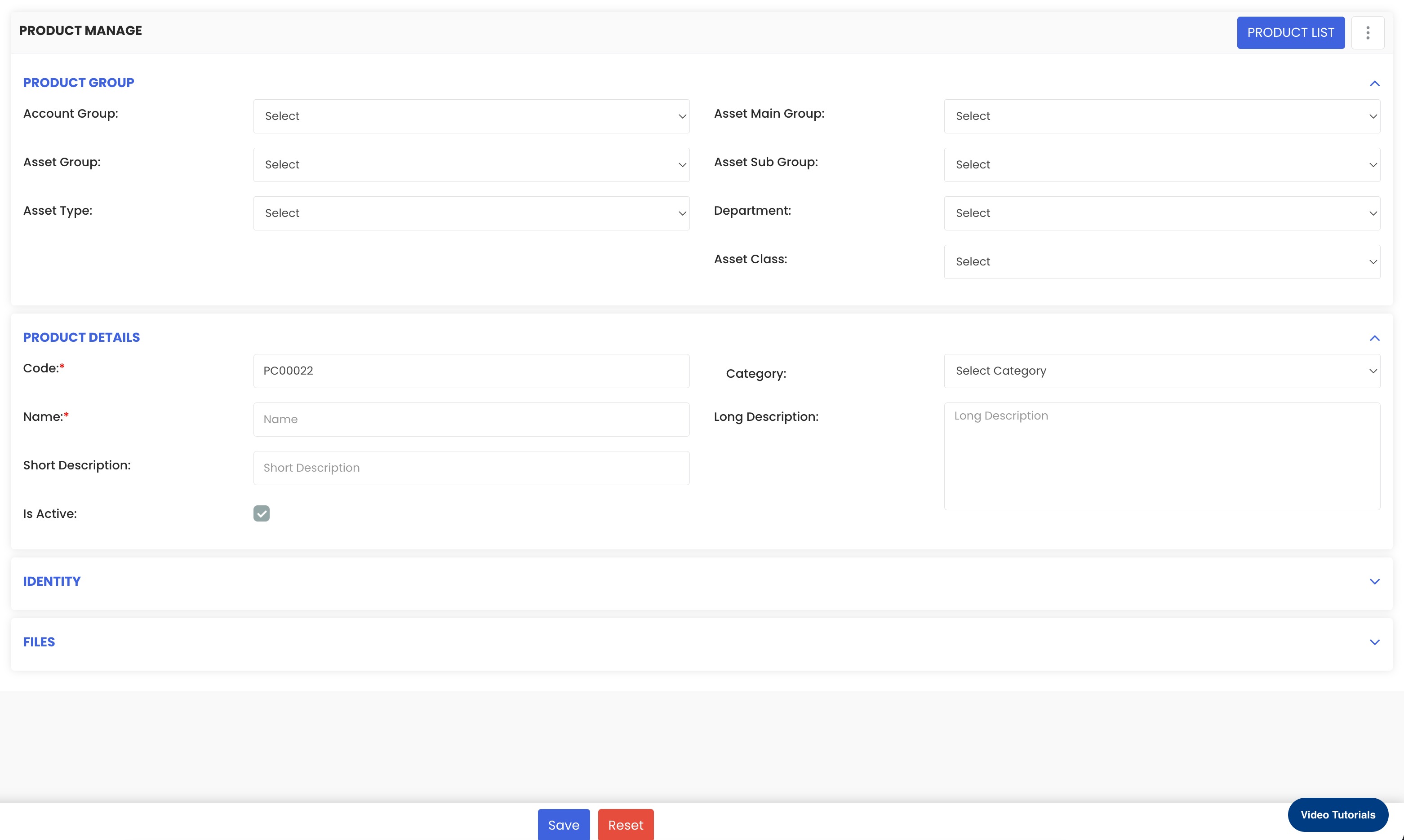
Step 4 – Enter Product Details
Complete the product details section:
- Product Code – Auto-generated by the system, but can be edited if you follow a different coding structure
- Category – Select the appropriate category, such as Equipment or Tool
- Product Name – Enter the name of the product
- Short and Long Description – Add descriptions to provide more context
- Active / Inactive – Set the product status as needed
Step 5 – Enter Identity Information
In the identity section, provide additional product information such as:
- HSN Code, Barcode, ISBN Code
- Supplier, Manufacturer, Cost, Price, Unit
- Model and Series
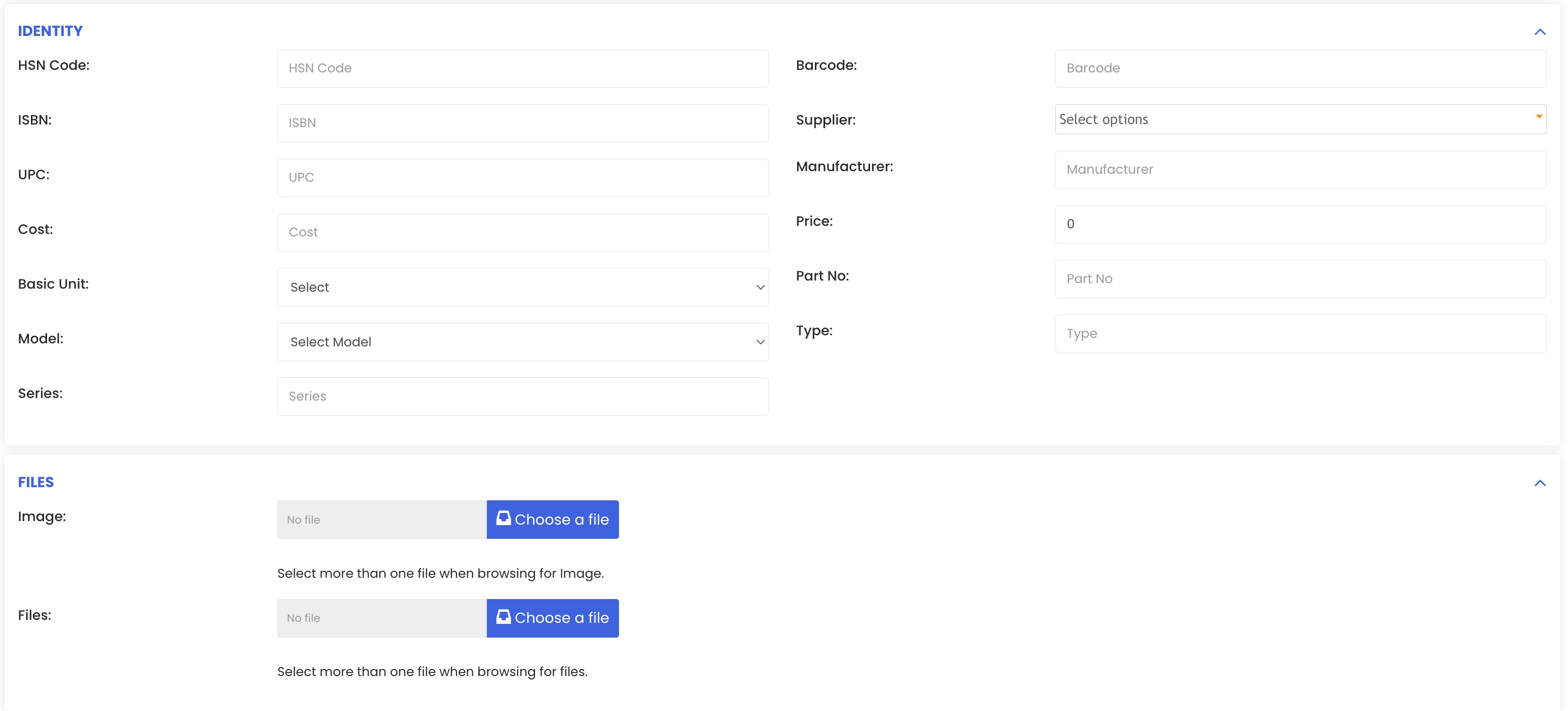
Step 6 – Upload Files
In the Files section, you can upload a product image and any relevant supporting documents associated with the product.
Step 7 – Save the Product
Once all details have been entered, click Save. The product will be added to the Product Listing page and will be available for use when creating individual assets.
Tips for Managing Products
- Think of products as templates or classifications — set them up first before creating individual equipment assets to ensure consistent categorisation across your asset base.
- Configure the grouping dropdowns in Settings before creating products to ensure your classification structure is in place and consistent.
- Use the Short Description for quick identification in lists and the Long Description for detailed specifications or notes.
- Mark products as Inactive rather than deleting them if they are no longer in use — this preserves historical data linked to existing assets.
- Upload a product image to make it easier for technicians and staff to visually identify the correct product type when creating or managing assets.
Frequently Asked Questions
What is the difference between a product and an asset in DreamzFSM?
A product is a classification or type — it defines a category of equipment. An asset (equipment) is an individual physical item that belongs to a product type. For example, "Air Conditioner" is a product, while a specific unit installed at a facility is the individual asset.
Can I customise the grouping dropdown options?
Yes. All grouping fields such as account group, asset group, asset type, and asset class are configurable from the Settings section of DreamzFSM.
Can I edit the auto-generated product code?
Yes. The product code is auto-generated by the system, but it can be manually edited if your organisation uses a different coding convention.
How do I edit or delete a product?
From the Product Listing page, use the action options next to each product to edit or delete it as needed.