Creating and Managing Work Orders
The Work Orders module in DreamzCMMS provides a comprehensive workflow for creating, assigning, and tracking maintenance tasks. From raising a new work order to generating invoices and managing expenses, everything is accessible from one centralised location. Key highlights include:
- Create detailed work orders with title, description, requester, and assignee details
- Tag work orders to projects and configure technician signature and customer visibility options
- Add assets, checklists, and other relevant details to each work order
- View complete work order details across multiple tabs including assets, tasks, assignees, location, files, and inventory
- Perform actions such as purchase requests, quotations, sales orders, invoices, expenses, and printing from the work order
Overview
The Work Orders module in DreamzCMMS is accessible from the Maintenance menu and serves as the central hub for all maintenance and service task management. Users can create new work orders with detailed information including job title, description, project tags, technician assignments, asset links, and checklists. The module also supports customer portal visibility settings and technician signature capture. Once a work order is saved, it can be managed through a detailed multi-tab view that provides a complete picture of all associated information. Additional actions such as generating purchase requests, quotations, sales orders, invoices, and printing are all available directly from the work order.
Here is a reference video:
Step by Step Description to Create and Manage a Work Order
Step 1 – Navigate to Work Orders
Click on Maintenance from the left-hand menu and select Work Orders. You will be redirected to the Work Orders page, which includes the Work Order List, options to create new work orders, rejected work orders, scheduled maintenance, workflow automation, and a map view.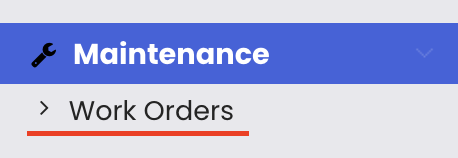
Step 2 – Click "Create Work Order"
Click on "Create Work Order" to open the work order creation form. Some fields may be pre-filled based on your system configuration.
Step 3 – Enter Title and Description
Enter a clear title for the work order (e.g. "AC is not working in the cafeteria") and add a description with relevant details about the issue or task.
Step 4 – Configure Additional Settings
Configure the following optional settings as required:
- Project tag – link the work order to a project if applicable
- Technician signature – enable if a signature is required upon job completion
- Customer panel visibility – enable if the work order should be visible to the customer in their portal
Step 5 – Fill in Requester Details
Select a customer as the requester. When a customer is selected, their related details will be automatically populated in the requester fields.
Step 6 – Assign Technician or Team
Assign the work order to a technician or team. You can also add assets, include a checklist, and configure other relevant details before saving.
Step 7 – Save the Work Order
Once all details are entered, click "Save." You will be redirected to the Work Order List page, where the new work order will appear.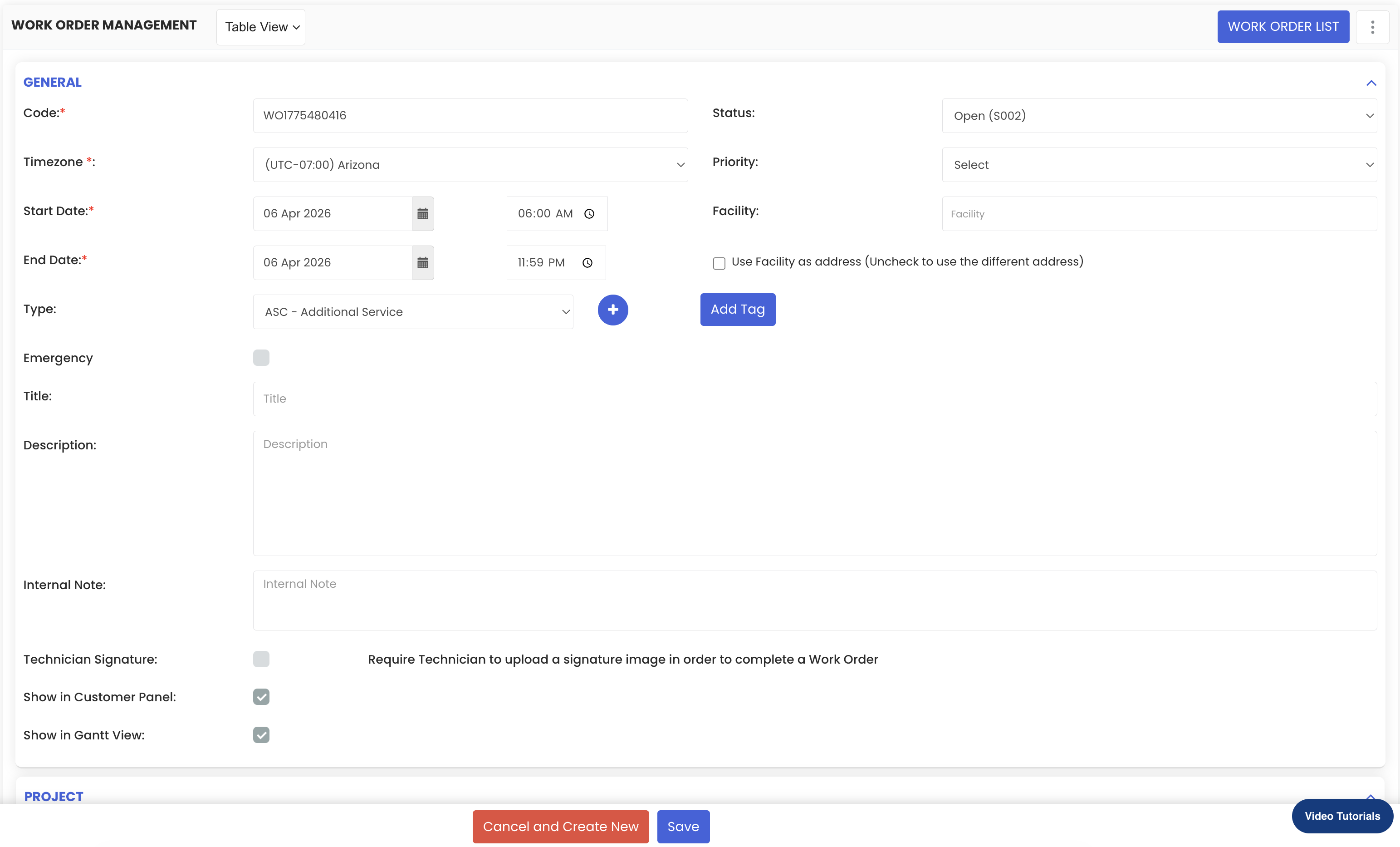
Step 8 – View the Detailed Work Order
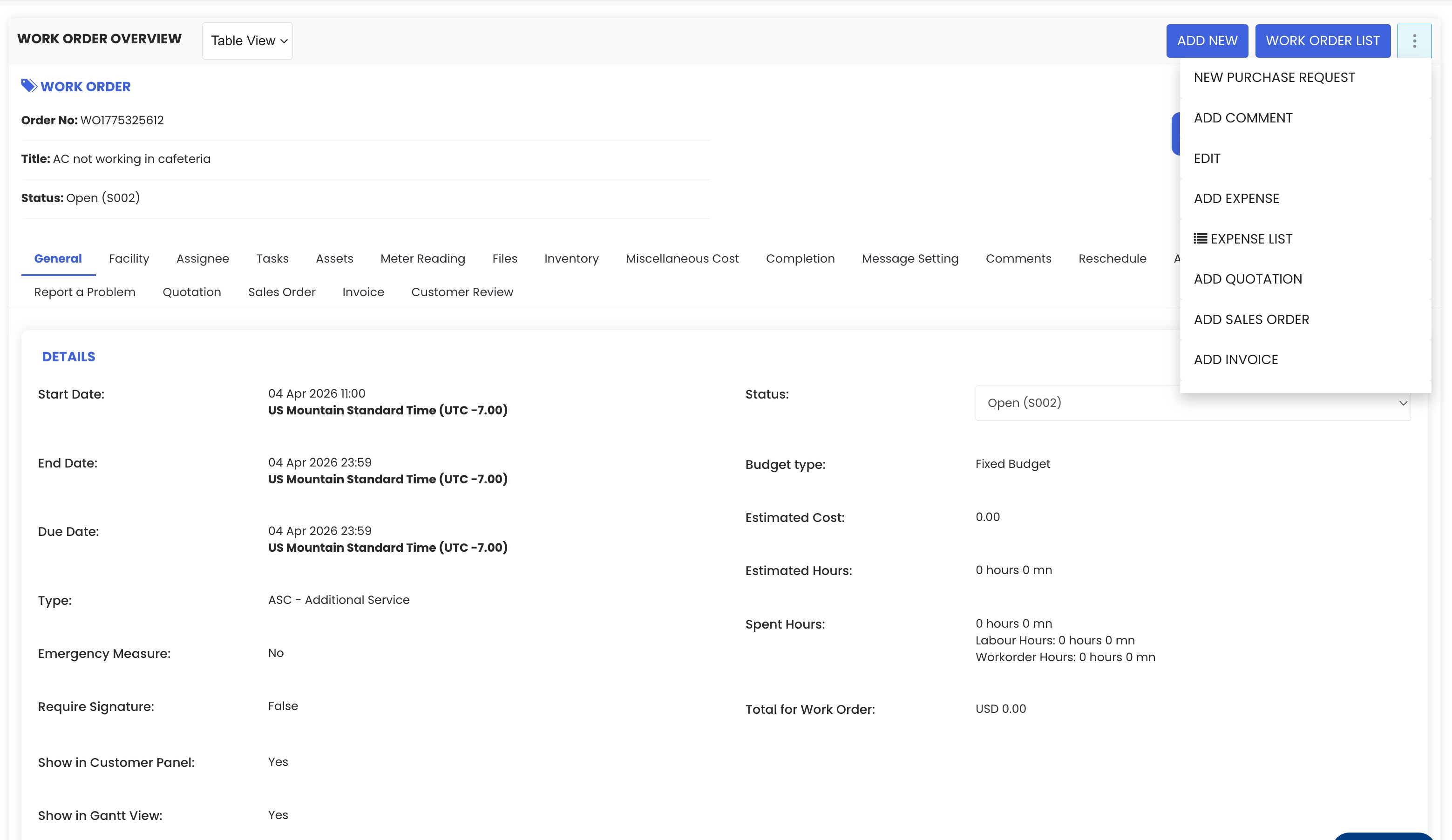
Click on the work order preview to open its detailed view. Here, multiple tabs provide complete information including:
- Assets – associated equipment
- Tasks – checklist and task items
- Assignees – assigned technicians or teams
- Location – job site details
- Miscellaneous costs, files, inventory used, asset logs, and other related details
Step 9 – Perform Additional Actions
From the three-dot menu within the work order, you can access additional actions including:
- Create a purchase request
- Edit the work order
- Add or view expenses
- Generate a quotation
- Create a sales order or invoice
- Print the work order
Tips for Managing Work Orders
- Use clear and descriptive titles when creating work orders so technicians and managers can quickly understand the nature of the task without opening the full record.
- Enable technician signature capture for work orders that require proof of completion, especially for customer-facing jobs.
- Always link the appropriate assets and checklists to each work order to give technicians clear instructions and ensure all steps are completed correctly.
- Use the customer panel visibility setting to keep customers informed about the status of their work orders through the customer portal.
- Use the three-dot menu to generate quotations, sales orders, and invoices directly from the work order, keeping all billing activity linked and traceable to the job.
Frequently Asked Questions
How do I create a new work order in DreamzCMMS?
Go to Maintenance from the left-hand menu and click on "Work Orders." Then click "Create Work Order," fill in the required details including title, description, requester, and assignee, then click "Save."
Can I link a work order to a project?
Yes. The work order creation form includes an option to tag the work order to a project, allowing you to group related jobs under a specific project for better tracking and reporting.
What information is available in the detailed work order view?
The detailed view includes multiple tabs covering associated assets, tasks and checklists, assignees, location, miscellaneous costs, attached files, inventory used, asset logs, and other related details.
Can I generate an invoice from a work order?
Yes. From within the work order, click the three-dot menu to access the option to generate a quotation, create a sales order, or produce an invoice — all directly linked to that work order.
Can customers see their work orders in a portal?
Yes. When creating or editing a work order, you can enable the customer panel visibility option, which makes the work order visible to the customer through the DreamzCMMS customer portal.
Related Articles
- Schedule – Create a Quick Job or Work Order
- Adding a Customer
- Rental Quotation
- Rental Invoice
- Rental Expenses