Adding a Customer
The Customers section in DreamzCMMS allows you to create and manage all your customer records in one place. From adding contact details and addresses to configuring account settings and granting customer portal access, the customer setup process is straightforward and comprehensive. Key highlights include:
- View, edit, and manage all customers from the Customer Listing page
- Add customers with company name, contact details, and address information
- Auto-fill shipping address from the primary address with a single click
- Configure account settings such as payment terms, credit limit, and currency
- Grant customers access to the customer portal and send login credentials via email
Overview
The Customers module in DreamzCMMS is accessible from the Business and Customers menu and provides a centralised listing of all customer records. Users can add new customers by filling in mandatory fields such as company name, first name, email, and phone number, along with optional details like addresses, account settings, and custom information. The system auto-generates a customer code and supports auto-fill for shipping addresses. Once a customer is created, their portal access can be enabled and login credentials sent directly via email — making it easy to onboard customers and give them visibility into their jobs and invoices.
Here is a reference video:
Step by Step Description to Add a Customer
Step 1 – Navigate to Customers
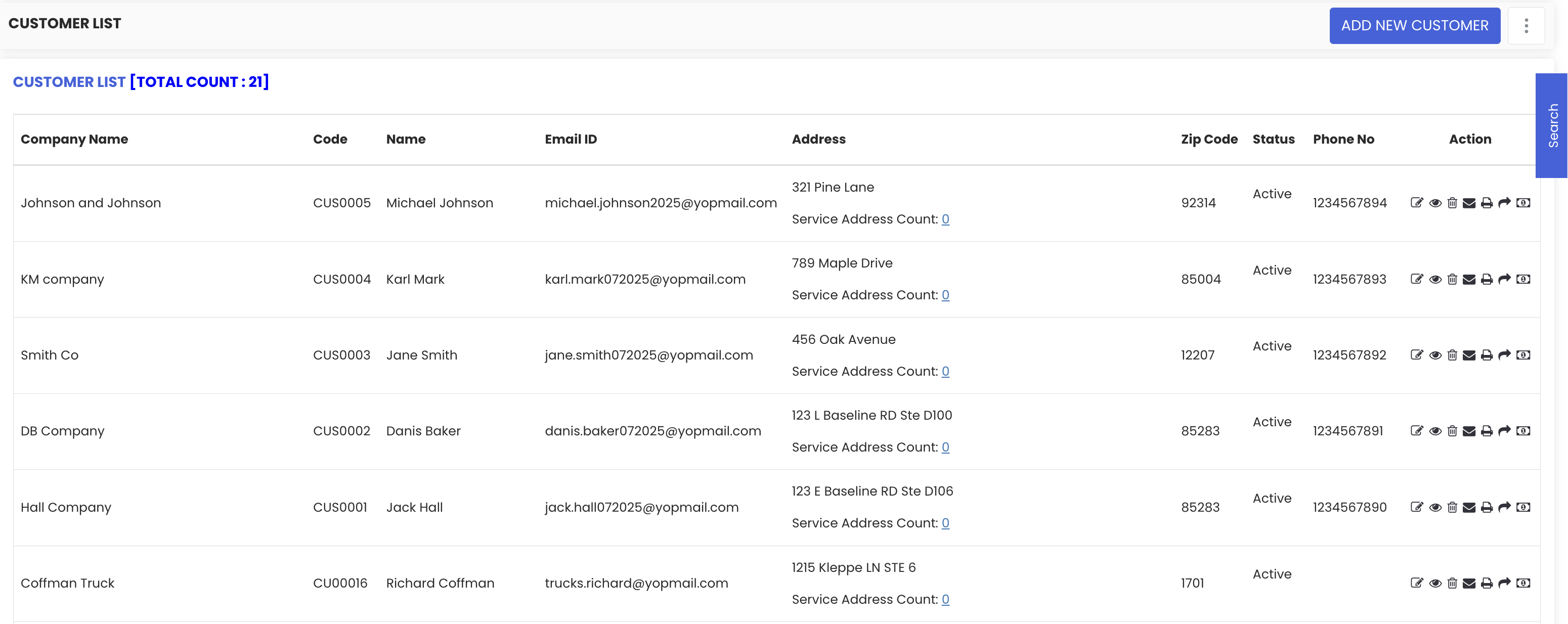
Click on Business and Customers from the left-hand menu, then select Customers. You will be redirected to the Customer Listing page, where all existing customers are displayed. From this page, you can also edit, view, delete, or send portal access to existing customers.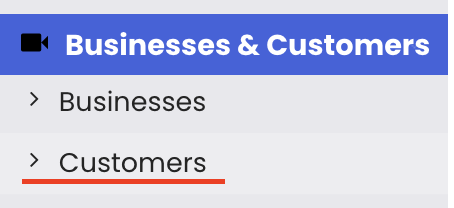
Step 2 – Click "Add New Customer"
Click the "Add New Customer" button to open the customer creation form.
Step 3 – Select Customer Type and Enter Mandatory Details
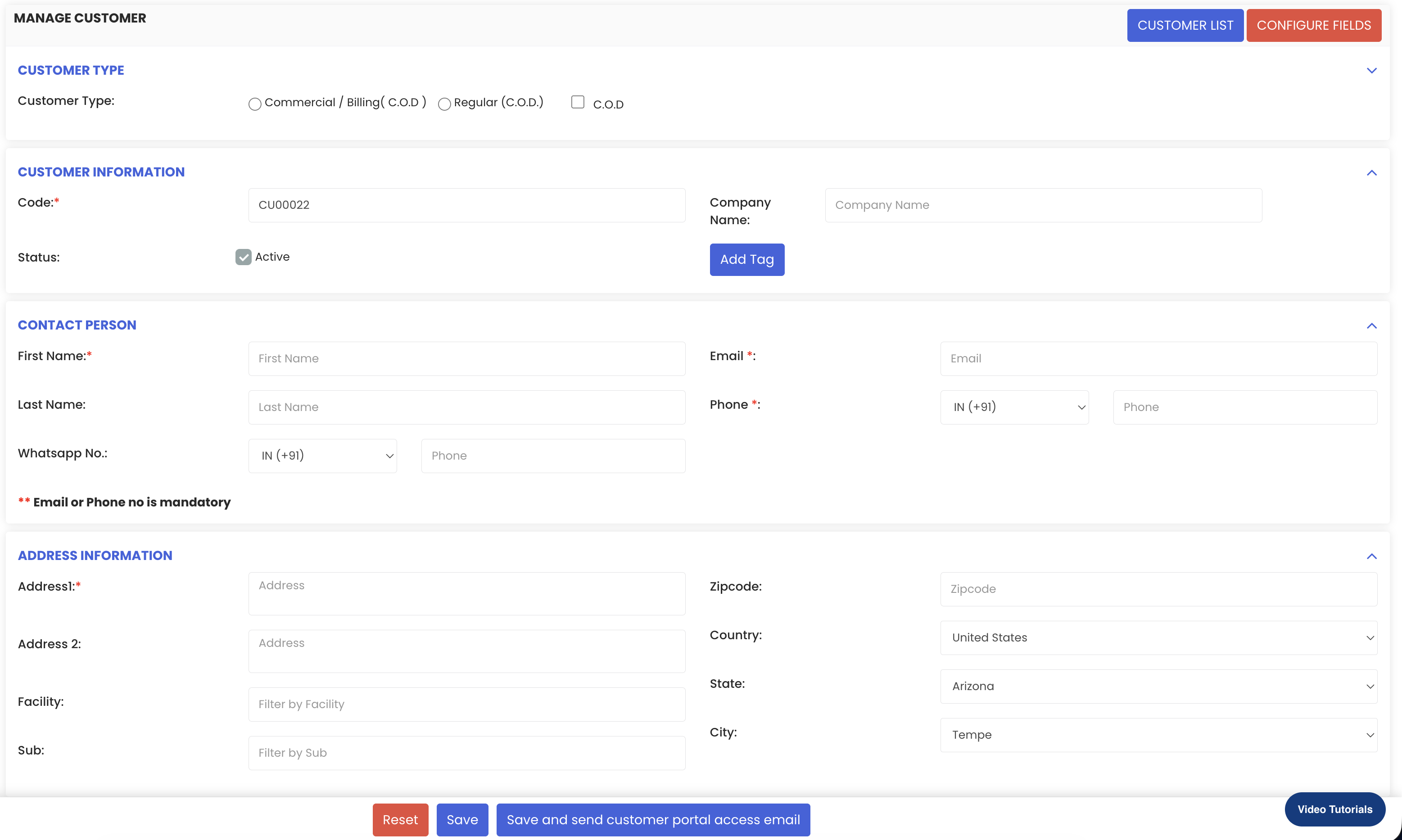
Begin by selecting the customer type. The customer code will be auto-generated by the system. Then enter the following mandatory fields:
- Company name
- First name
- Email address
- Phone number
Step 4 – Add Address Details
Enter the customer's primary address. If the shipping address is the same, select the "Same as above" option and the shipping address will be auto-filled. You can also add a service address if required.
Step 5 – Configure Account Settings
Set up the customer's account settings, including payment terms, credit limit, and preferred currency.
Step 6 – Enable Customer Portal Access (Optional)
In the login credentials section, enable the option if you want the customer to have access to the customer portal.
Step 7 – Save or Save and Send Portal Access
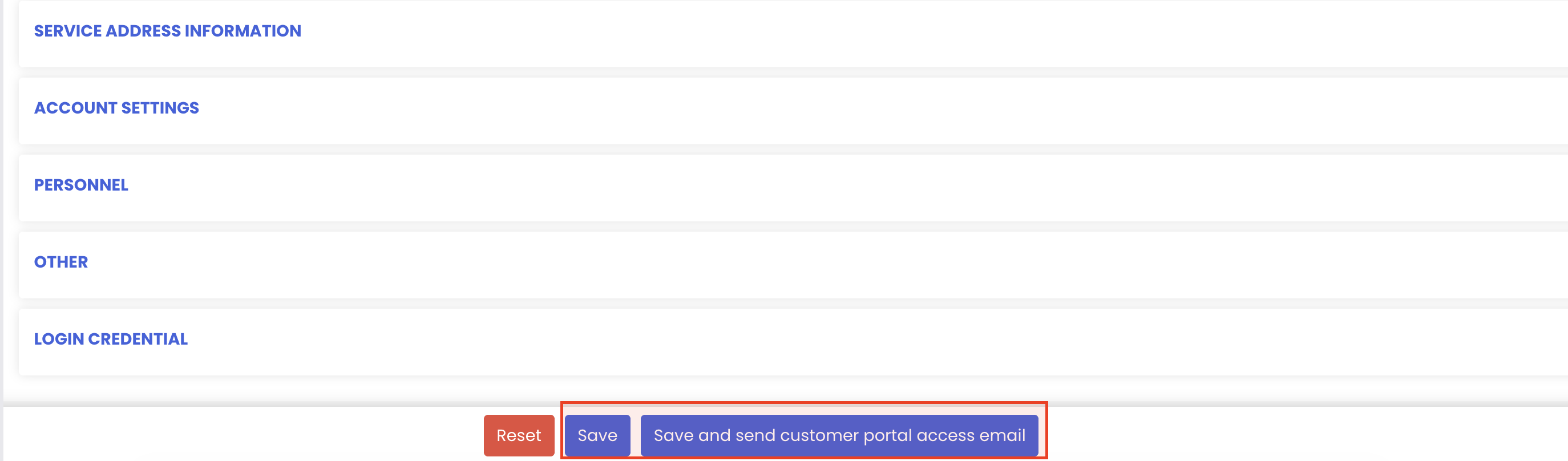
Once all details are filled in, you have two options:
- Click "Save" to store the customer record
- Click "Save and Send Customer Portal Access Email" to save the record and automatically send the customer their login credentials via email
Tips for Managing Customers
- Use the "Same as above" option for the shipping address whenever the primary and shipping addresses match, to save time and avoid data entry errors.
- Set accurate payment terms and credit limits during customer setup to ensure these are correctly applied when generating invoices and sales orders.
- Use "Save and Send Customer Portal Access Email" when onboarding new customers who need immediate access to track their jobs and invoices online.
- Keep customer records up to date by regularly reviewing and editing contact details, addresses, and account settings from the Customer Listing page.
- Use the customer listing page to send portal access to existing customers at any time, without needing to re-open and re-save the full customer record.
Frequently Asked Questions
How do I add a new customer in DreamzCMMS?
Go to Business and Customers from the left-hand menu and click "Customers." On the listing page, click "Add New Customer," fill in the required details, and click "Save" to create the record.
What are the mandatory fields when creating a customer?
The mandatory fields are company name, first name, email address, and phone number. The customer code is auto-generated by the system.
Can I auto-fill the shipping address from the primary address?
Yes. If the shipping address is the same as the primary address, select the "Same as above" option and the shipping address fields will be automatically populated.
How do I give a customer access to the customer portal?
In the login credentials section of the customer form, enable the customer portal access option. You can then either save the record normally or use "Save and Send Customer Portal Access Email" to automatically send the customer their login credentials.
Can I send portal access to an existing customer without editing the full record?
Yes. From the Customer Listing page, you can send portal access directly to an existing customer without needing to open and re-save the entire customer record.
Related Articles
- Creating and Managing Work Orders
- Rental Quotation
- Rental Invoice
- Schedule – Create a Quick Job or Work Order
- FSM Dashboard Overview