Stock Adjustment
The Stock Adjustment feature in DreamzCMMS allows you to record and manage changes to your inventory levels across different transaction types, including restocking, consumption, stock takes, and sales. It ensures your stock records remain accurate and up to date at all times. Key highlights include:
- Create stock adjustments for multiple transaction types: Stock Take, Restock, Consume Stock, and Sell Stock
- Stock adjustment code and date are pre-populated automatically
- Add multiple inventory items with received quantities, in-rates, and out-rates
- Attach supporting files to each stock adjustment record
- View, edit, download, or delete adjustments from the stock adjustment listing page
Overview
The Stock Adjustment module in DreamzCMMS is accessible from the Inventory menu and provides a structured process for recording any changes to stock levels. Users can select a location, choose a transaction type, and add multiple inventory items with their quantities and rates. The system pre-populates the adjustment code and date to streamline the process. Each adjustment can also have files attached for reference or audit purposes. Once saved, all adjustments are visible in the listing page where they can be managed, viewed in PDF format, downloaded, or deleted as needed.
Here is a reference video:
Step by Step Description to Create a Stock Adjustment
Step 1 – Navigate to Stock Adjustment
Click on Inventory from the left-hand menu and select Stock Adjustment. This will open the stock adjustment listing page, where all previously created adjustments are displayed. From here, you can edit, view in PDF format, download, check attached files, or delete any existing adjustment.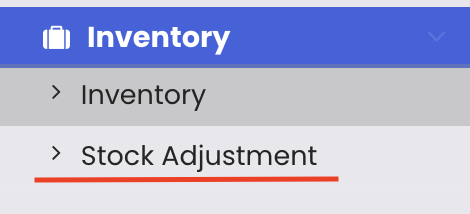
Step 2 – Create a New Stock Adjustment
Click on "New Stock Adjustment" to open the creation form. The stock adjustment code and date will be pre-populated automatically.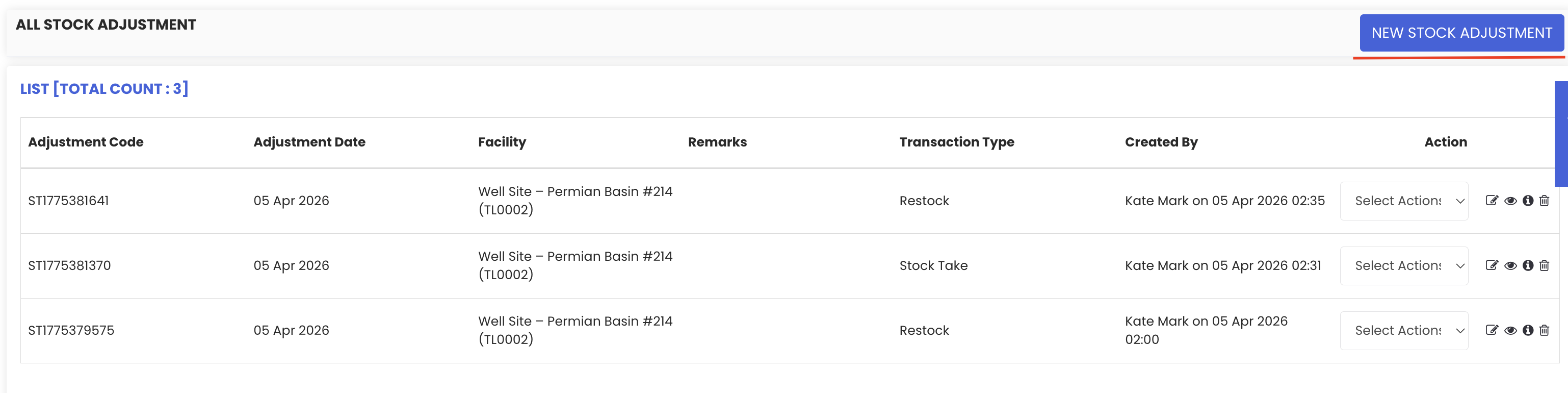
Step 3 – Select Location and Transaction Type
Select a location for the stock adjustment. Then choose the transaction type from the available options:
- Stock Take – for recording a physical count of stock
- Restock – for recording new stock received
- Consume Stock – for recording stock used or consumed
- Sell Stock – for recording stock sold
Step 4 – Add Inventory Items
In the item details section, click on the category field, type to search, and select the relevant category. Press the Tab key to load the stock details for that category.
Step 5 – Enter Quantities and Rates
For each inventory item, enter the following details as applicable:
- Received quantity – the number of units being added (for restock)
- In-rate – the cost per unit received
- Issued quantity – leave empty if no stock is being issued
- Out-rate – the selling or issue rate per unit
You can add multiple inventory items to the same adjustment by repeating this step for each item.
Step 6 – Attach a File (Optional)
If required, attach a supporting file (such as a delivery note or purchase order) by selecting it from your system.
Step 7 – Save the Stock Adjustment
Click "Save" to complete the stock adjustment. The new record will appear in the stock adjustment listing, where you can edit, view, download, manage files, or delete it as needed.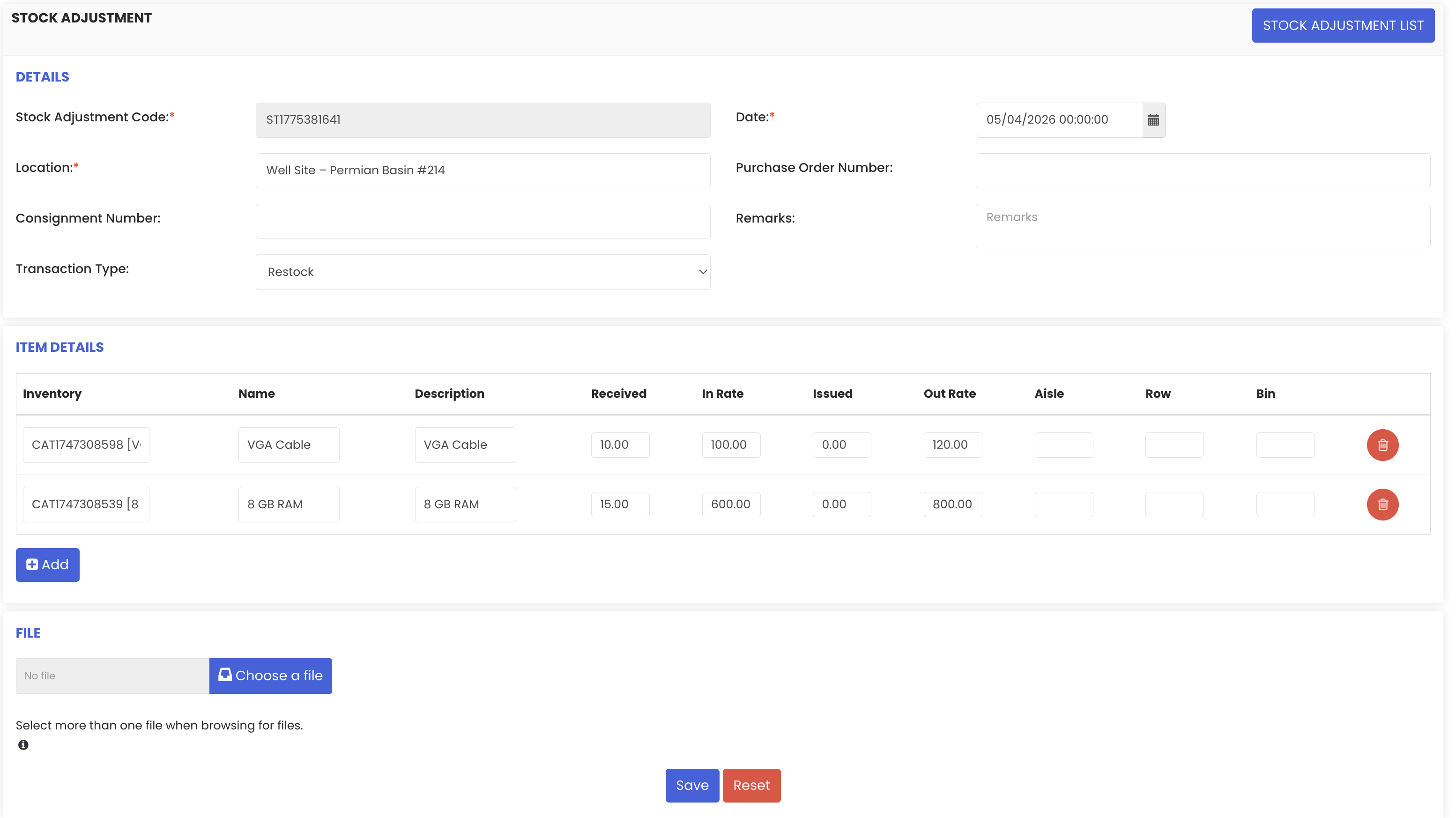
Tips for Managing Stock Adjustments
- Select the correct transaction type before adding items, as it determines how the stock movement is recorded in your inventory (e.g. restock increases levels, consume stock reduces them).
- Use the Tab key after selecting a category to quickly load the stock details and reduce manual data entry.
- Attach relevant documents such as delivery receipts or supplier invoices to each stock adjustment to maintain a complete audit trail.
- Add multiple inventory items within a single stock adjustment to batch-process related stock movements rather than creating separate records for each item.
- Review the stock adjustment listing regularly to ensure all movements are recorded accurately and to identify any discrepancies in stock levels.
Frequently Asked Questions
What transaction types are available for stock adjustments?
The available transaction types are Stock Take (physical count), Restock (adding new stock), Consume Stock (recording stock used), and Sell Stock (recording stock sold). Select the type that best describes the stock movement being recorded.
Do I need to manually enter the stock adjustment code and date?
No. The stock adjustment code and date are automatically pre-populated by the system when you open the creation form, so you can proceed directly to selecting the location and transaction type.
Can I add more than one inventory item to a single stock adjustment?
Yes. You can add multiple inventory items within the same stock adjustment record by selecting each item, entering its quantities and rates, and repeating the process for each additional item.
Can I attach supporting documents to a stock adjustment?
Yes. The stock adjustment form includes an option to attach files such as delivery notes, purchase orders, or any other relevant documents to support the adjustment record.
Where can I view and manage previously created stock adjustments?
All stock adjustments are listed on the Stock Adjustment listing page, accessible from Inventory > Stock Adjustment. From here, you can edit, view in PDF, download, manage attached files, or delete any existing record.
Related Articles
- Inventory Management
- Rental Dashboard Overview
- Rental Expenses
- Equipment Dashboard
- How to Manage Assets in DreamzCMMS