Inventory Management
The Inventory module in DreamzCMMS enables you to add, track, and manage all your inventory items in one centralised location. From creating detailed item records to printing QR or barcode tags and submitting purchase requests, the Inventory module covers the full lifecycle of inventory management. Key highlights include:
- View all inventory items and their available quantities from the listing page
- Add new inventory with detailed information including location, account group, categories, model, and financial details
- Assign serial numbers, barcodes, RFID numbers, and custom codes to inventory items
- Print QR code or barcode tags directly from the inventory list
- View detailed item information across tabs covering stock, cycle count, parts, warranties, files, and activity logs
Overview
The Inventory module in DreamzCMMS is accessible from the Inventory menu and provides a comprehensive platform for managing all stock items. Users can create new inventory records with detailed information including location specifics (aisle, bin, row), account groups, categories, model details, financial data, identity information (serial number, barcode, RFID), and custom fields. The module also supports bulk actions such as Excel export, list printing, tag printing, and purchase request submissions — all directly from the inventory listing page. Detailed item views provide a complete breakdown of stock levels, cycle counts, associated parts, warranties, business details, files, and activity logs.
Here is a reference video:
Step by Step Description to Manage Inventory
Step 1 – Navigate to Inventory
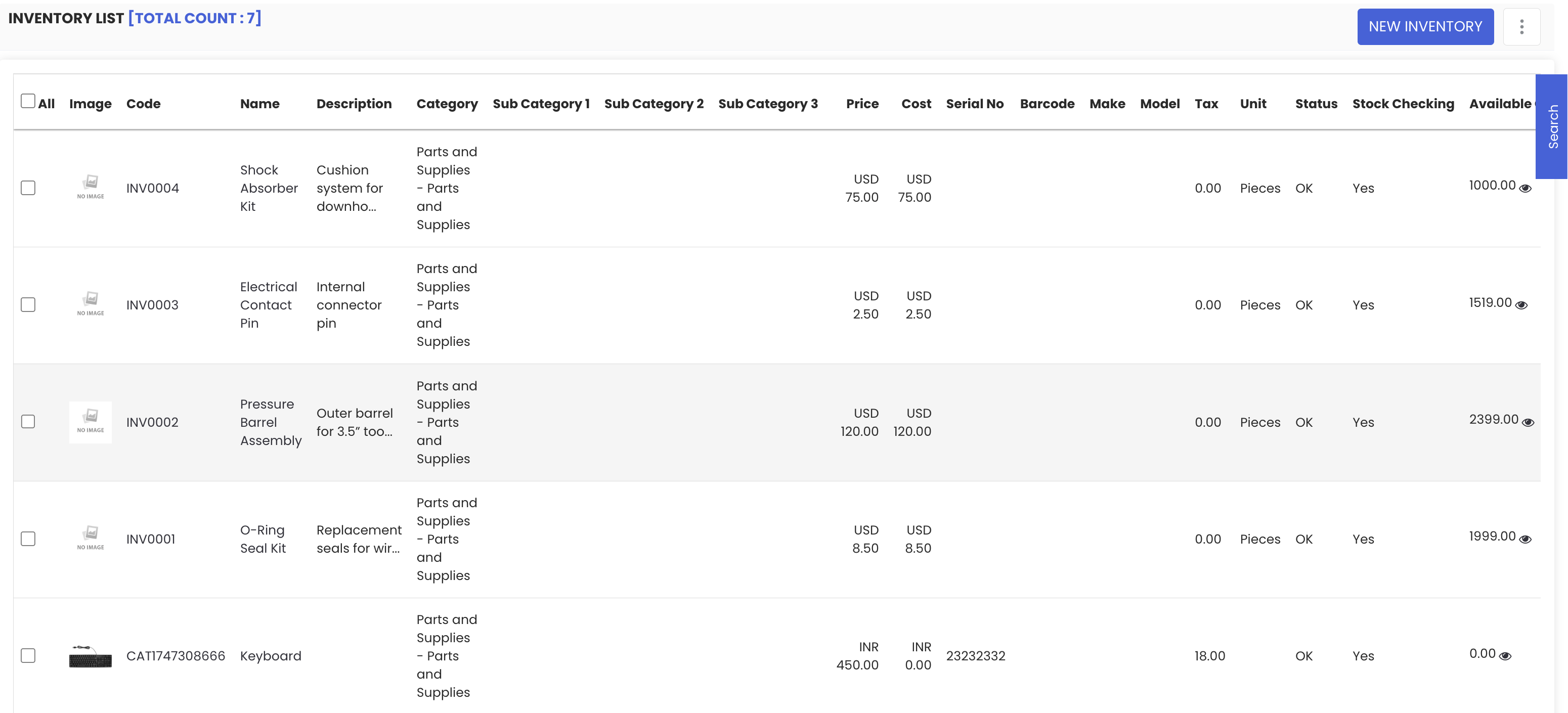
Click on Inventory from the left-hand menu and select Inventory. You will be redirected to the inventory listing page, which displays all inventory items currently in the system along with their available quantities. From here, you can edit, view, or delete any item.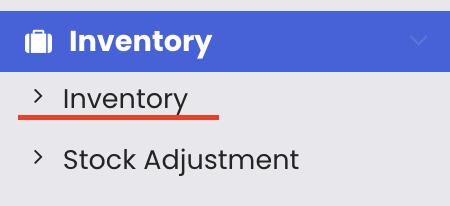
Step 2 – Create a New Inventory Item
Click "New Inventory" to open the inventory creation form.
Step 3 – Enter Item Details
Fill in the required fields, including the inventory name and location details such as aisle, bin, and row. You can also select the account group, categories, model, and device details.
Step 4 – Add Financial Details and Upload an Image
Enter financial details in the respective section and optionally upload an image to help identify the inventory item visually.
Step 5 – Enter Identity and Facility Information
Under the Identity section, enter the item's serial number, barcode, or RFID number, and assign a code. Select the facility the inventory belongs to and add any custom information if required.
Step 6 – Save the Inventory Item
Click "Save" once all details are filled in. You will be redirected back to the inventory listing page, where the new item will be visible.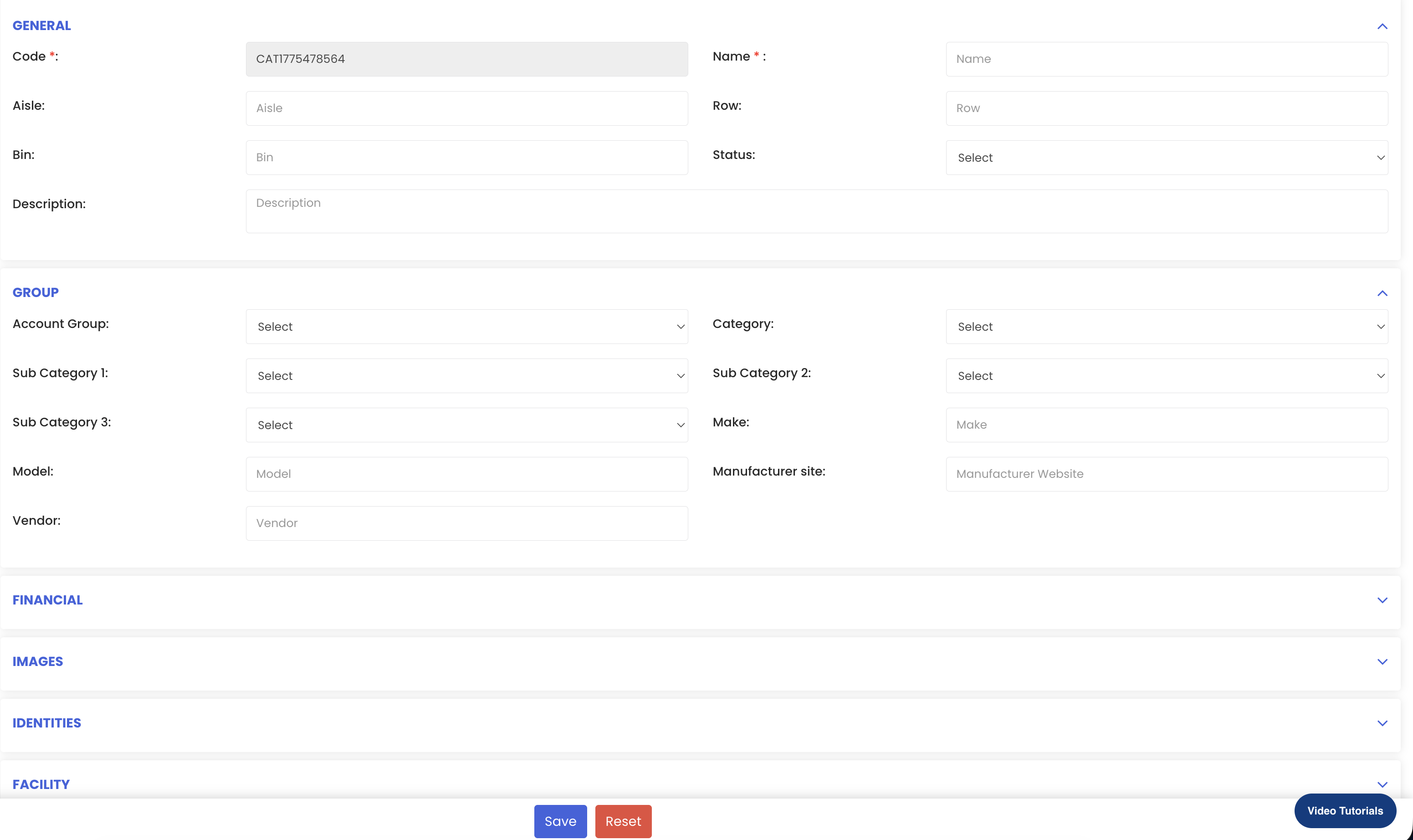
Step 7 – Use the Three-Dot Menu for Bulk Actions
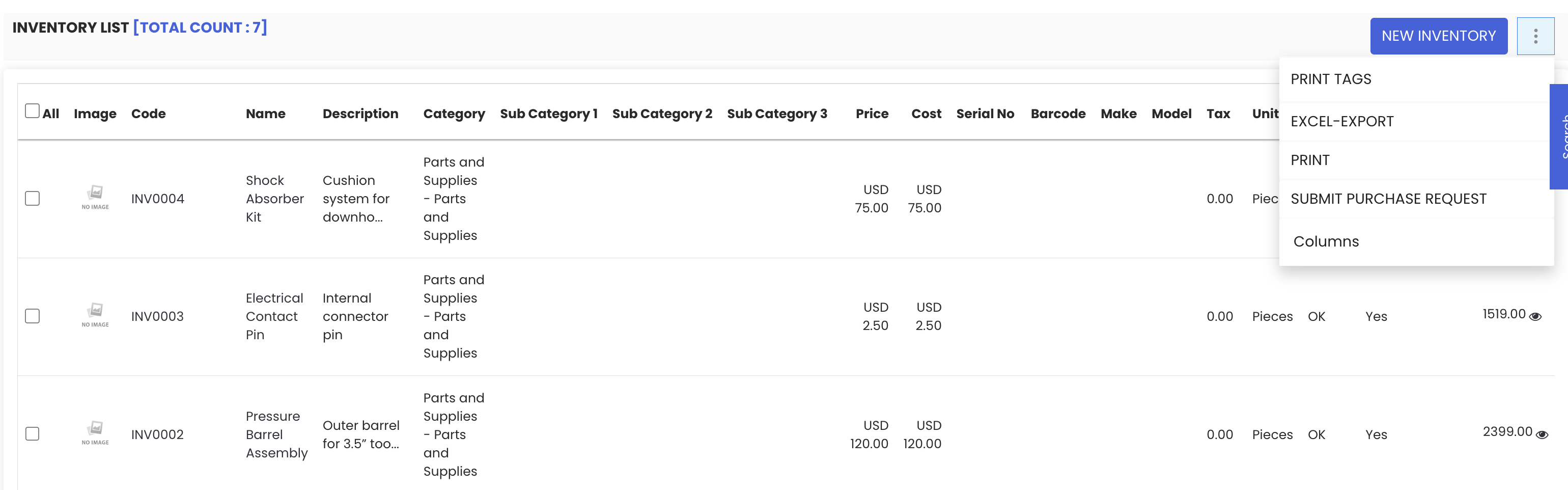
From the inventory listing, select one or more items and click the three-dot menu to access the following actions:
- Print Tags – choose between QR code or barcode, select quantity, preview, and print
- Export to Excel – export all listed inventory records to an Excel file
- Print List – print all inventory items currently shown in the list
- Submit Purchase Request – raise a purchase request directly for a specific inventory item
Step 8 – View Detailed Item Information
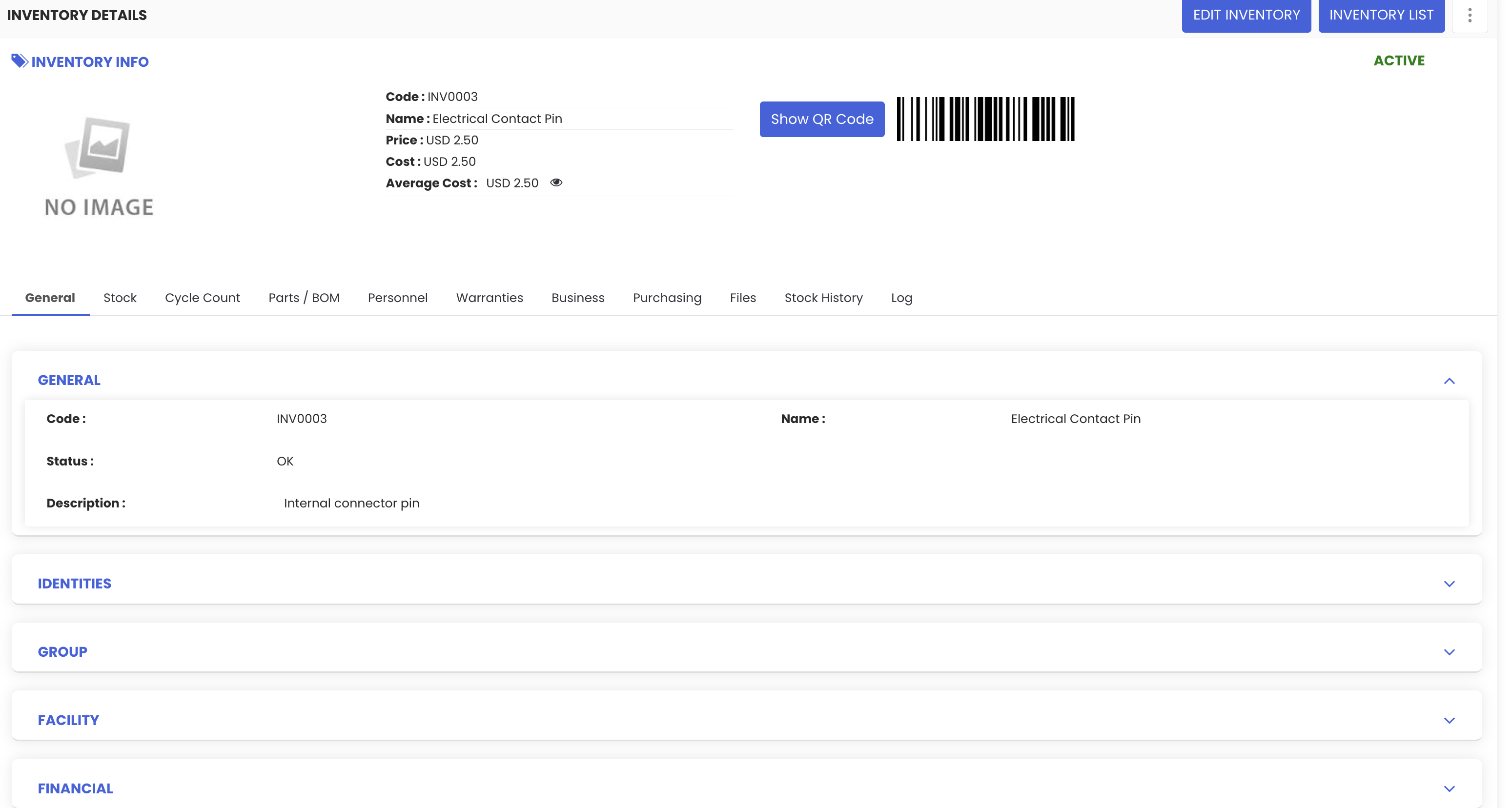
Click the eye icon next to any inventory item to open its detailed view. This view includes the following tabs:
- General information
- Stock details
- Cycle count
- Associated parts
- Warranties
- Business details
- Related files
- Activity logs
Tips for Managing Inventory
- Fill in location details (aisle, bin, row) accurately when creating inventory items to make physical stock retrieval faster and more efficient.
- Assign barcodes or RFID numbers to all inventory items and use the tag printing feature to label them, enabling quick identification and scanning in the field.
- Use the Export to Excel option to generate periodic inventory reports for auditing, review, or sharing with stakeholders.
- Submit purchase requests directly from the inventory listing when stock levels are low, keeping procurement and inventory management linked in one workflow.
- Use the detailed item view regularly to monitor stock levels, review warranty status, and check activity logs to ensure inventory records remain accurate and up to date.
Frequently Asked Questions
How do I add a new inventory item in DreamzCMMS?
Go to Inventory from the left-hand menu and click "Inventory." On the listing page, click "New Inventory," fill in the required details including name, location, categories, and identity information, then click "Save."
Can I print barcode or QR code tags for inventory items?
Yes. From the inventory listing, select an item, click the three-dot menu, and choose "Print Tags." You can then select between QR code and barcode formats, choose the quantity, preview the tags, and proceed to print.
How do I export my inventory records to Excel?
From the inventory listing page, click the three-dot menu and select "Export to Excel." All inventory items currently shown in the list will be exported into an Excel file for download.
What information is available in the detailed inventory item view?
The detailed view includes tabs for general information, stock details, cycle count, associated parts, warranties, business details, related files, and activity logs — giving a complete picture of the item's status and history.
Can I raise a purchase request from the inventory module?
Yes. Select the relevant inventory item from the listing, click the three-dot menu, and choose "Submit Purchase Request" to raise a purchase request directly linked to that item.
Related Articles
- Stock Adjustment
- Equipment Dashboard
- Rental Availability List
- Creating and Managing Work Orders
- How to Manage Assets in DreamzCMMS