Schedule – Create a Quick Job or Work Order
The Schedule view in DreamzCMMS allows you to create and assign quick jobs or work orders directly to users from the calendar. This makes it fast and easy to raise unplanned tasks against a specific technician without leaving the scheduling interface. Key highlights include:
- Create a quick job or work order directly from the Schedule calendar view
- The assigned user is pre-selected based on who the job is raised against
- Add a title, description, and customer to the work order in seconds
- View, edit, and update the work order after creation
- Generate quotations, invoices, and expenses directly from the work order
Overview
The Schedule section in DreamzCMMS provides a calendar-based view of all assigned work. From this view, users can quickly raise a new job or work order against any technician using the Add Order option. The process is streamlined — the user is automatically assigned, and only a title, description, and customer are needed to create the order. Once saved, the work order can be reopened for further actions including editing, status updates, quotation creation, invoice generation, and expense tracking — making it a powerful tool for managing ad hoc and unplanned jobs efficiently.
Here is a reference video:
Step by Step Description to Create a Quick Job from the Schedule View
Step 1 – Open the Schedule View
Click on Schedule from the left-hand menu. You will be redirected to the calendar view, which displays all scheduled jobs and assigned users.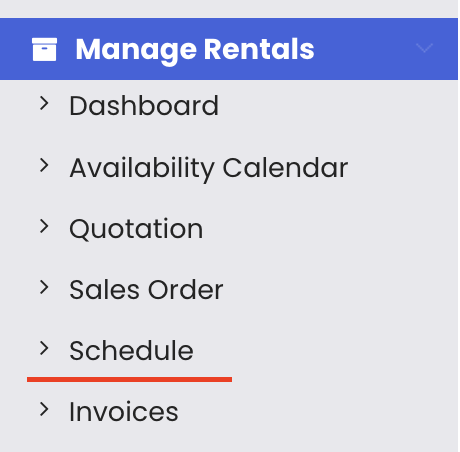
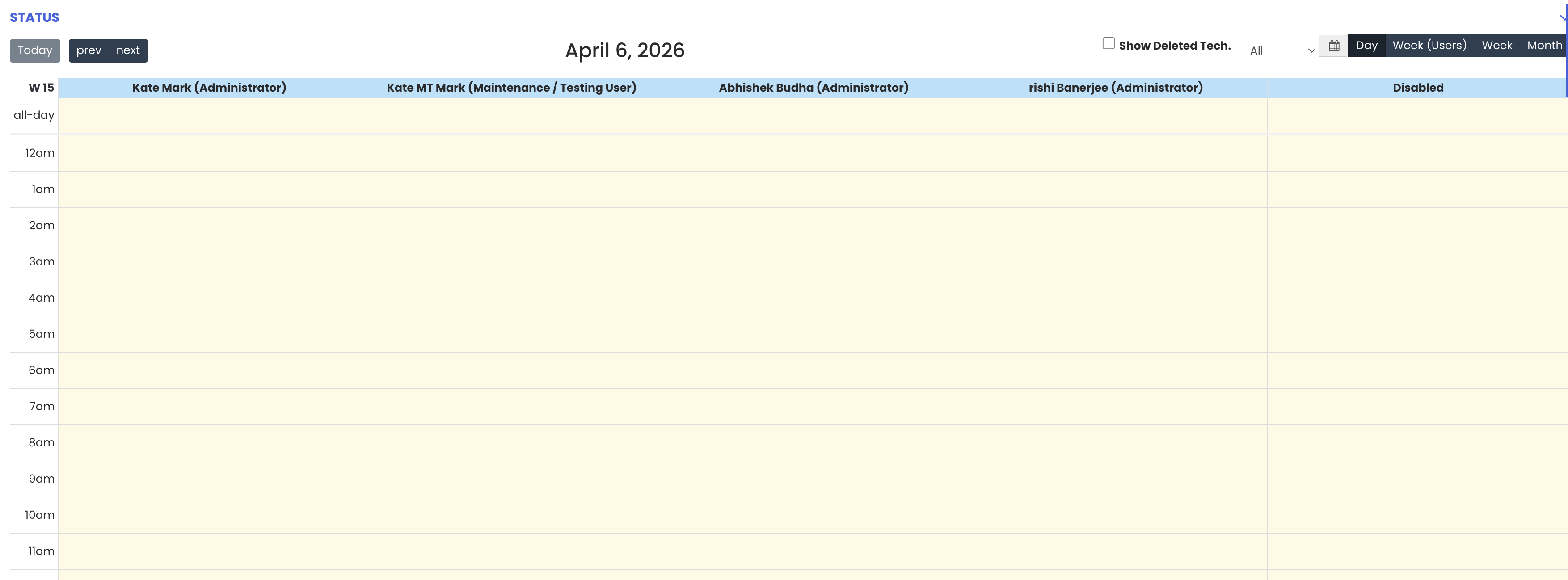
Step 2 – Click "Add Order" Against a User
Locate the user you want to assign the job to and click on "Add Order" next to their name. A pop-up window will open, allowing you to create a quick job or work order directly against that user.
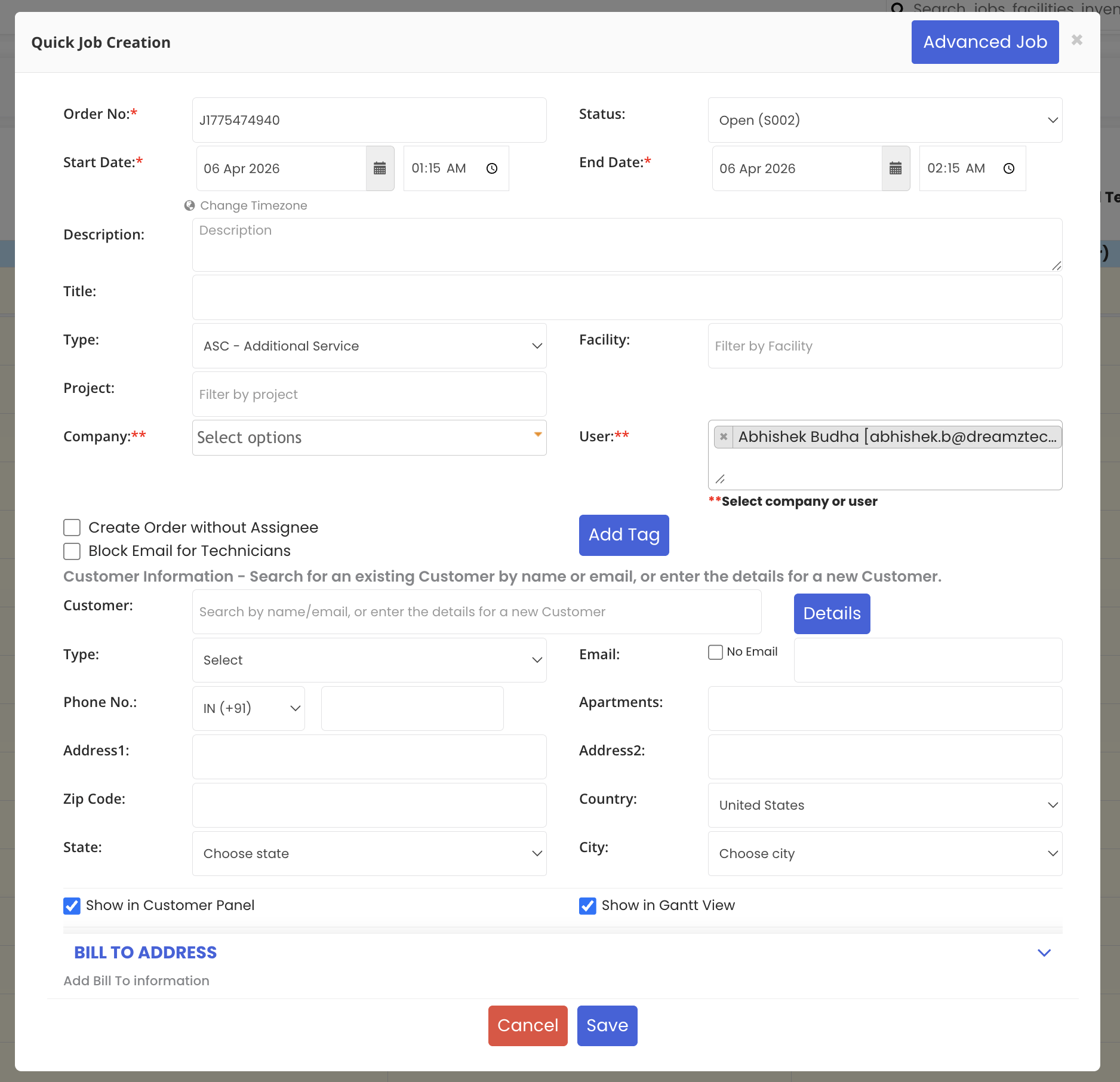
Step 3 – Enter Job Title and Description
In the pop-up form, enter a title for the work order (e.g. "Coffee Maker Not Working") and add a description. The assigned user will already be pre-selected since the job is being created directly against them.
Step 4 – Select a Customer and Save
Select the relevant customer from your system and click "Save". The quick work order will be created and will appear in the schedule.
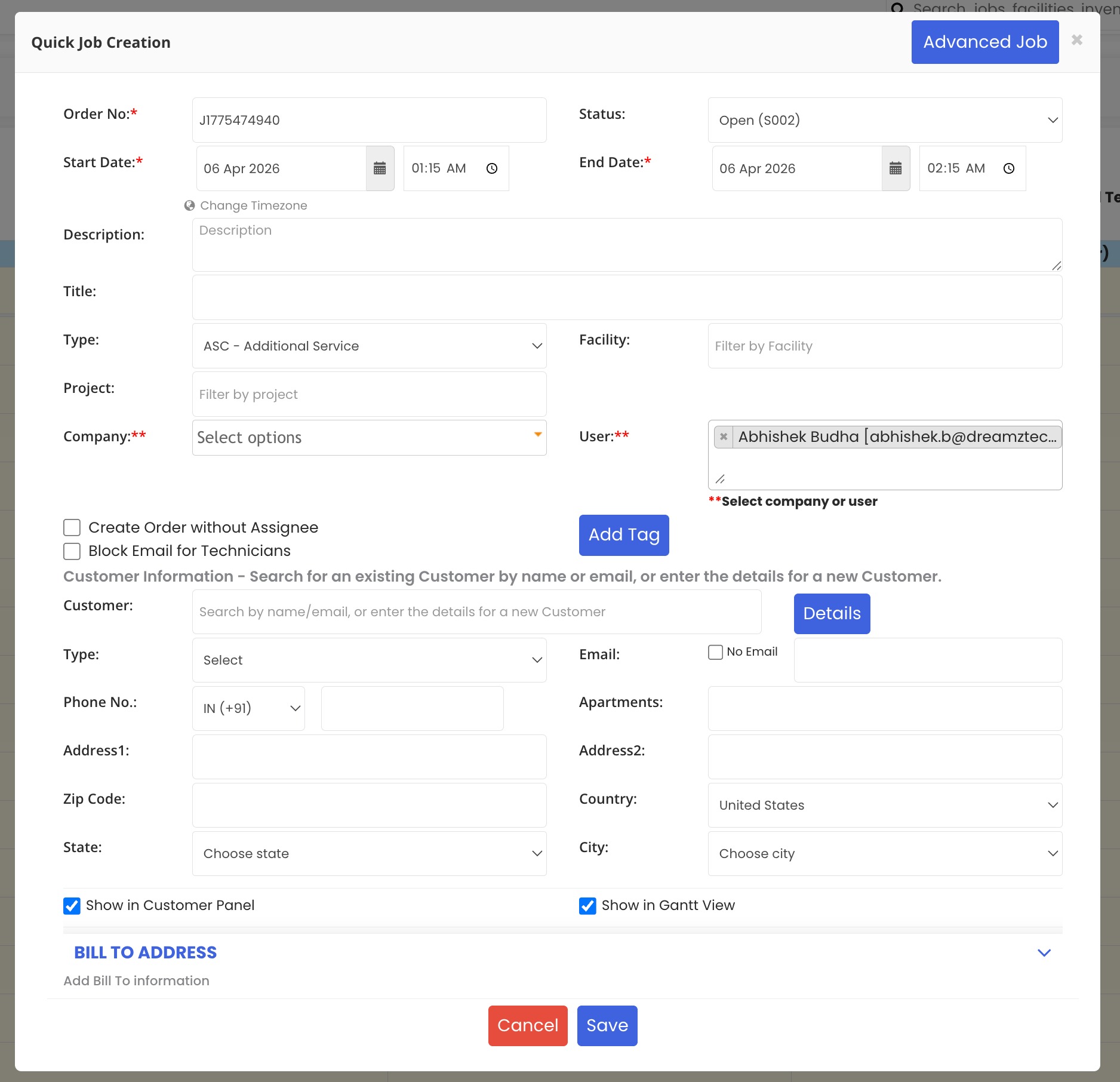
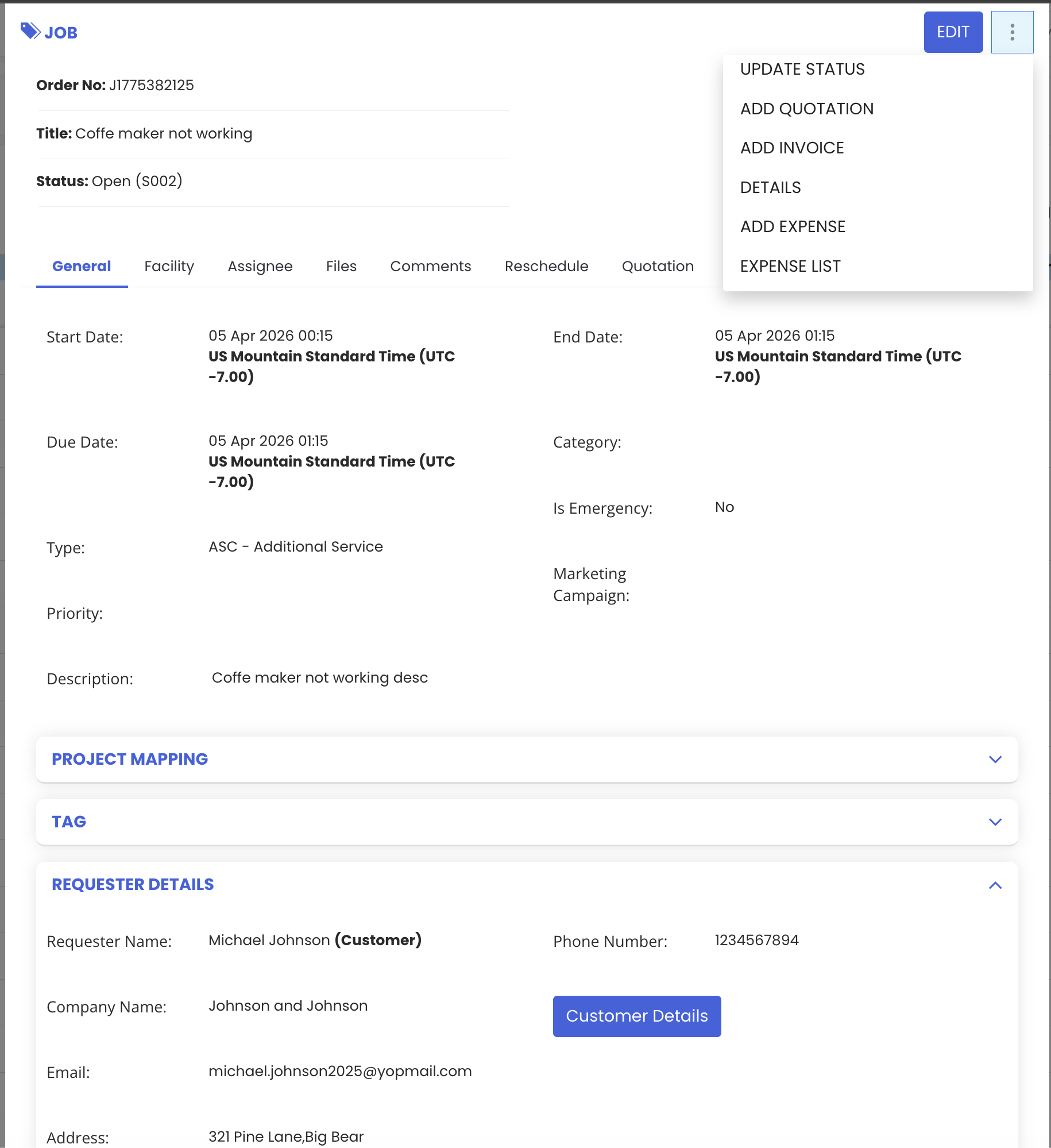
Step 5 – View and Manage the Work Order
Once saved, you can reopen the work order to perform further actions, including:
- View full work order details
- Edit or update the work order
- Change the status of the work order
- Create a quotation from the work order
- Generate an invoice
- Add expenses or view the expense list associated with the work order
Tips for Creating Quick Jobs from the Schedule View
- Use the Schedule view for raising quick, unplanned jobs when you need to assign work to a technician immediately without going through the full work order creation process.
- Since the user is auto-assigned when creating from the Schedule view, always ensure you are clicking "Add Order" against the correct technician before proceeding.
- After saving the quick job, reopen it promptly to add any additional details such as assets, checklists, or location information that may be needed for the technician.
- Use the quotation and invoice options within the work order to keep all billing and financial activity linked directly to the job for accurate record-keeping.
- Update the work order status regularly as the job progresses to keep the Schedule view and work order list accurate and up to date.
Frequently Asked Questions
How do I create a quick job from the Schedule view?
Click on "Schedule" from the left-hand menu to open the calendar view. Click "Add Order" against the relevant user, fill in the title, description, and customer in the pop-up form, then click "Save" to create the work order.
Does the system automatically assign the technician when creating from the Schedule view?
Yes. When you click "Add Order" against a specific user in the Schedule view, that user is automatically pre-selected as the assignee for the work order.
Can I add more details to the work order after saving it from the Schedule view?
Yes. Once the quick work order is saved, you can reopen it and add further details such as assets, checklists, location, or change the status. You can also create quotations, invoices, and expenses from within the work order.
Can I generate an invoice from a quick work order created in the Schedule view?
Yes. After saving the work order, reopen it and use the available options to create a quotation, generate an invoice, or add expenses — all linked directly to that work order.
What is the difference between creating a quick job from the Schedule view and creating a full work order from the Maintenance menu?
Creating from the Schedule view is designed for speed — it requires only a title, description, and customer, with the user pre-assigned. Creating a work order from the Maintenance menu offers more options upfront, such as project tagging, technician signature settings, checklist configuration, and more detailed requester information.
Related Articles
- Creating and Managing Work Orders
- Rental Quotation
- Rental Invoice
- Rental Expenses
- Schedule Jobs and Kanban View