Rental Return
The Rental Return feature in DreamzCMMS Asset Rentals allows you to formally process the return of a rented asset. It supports the application of delivery delay charges and damage charges, with rates automatically fetched from your asset rental settings — ensuring a consistent and accurate return process every time. Key highlights include:
- Process asset returns directly from the Invoices section
- The rented asset is pre-selected on the return form automatically
- Apply delivery delay charges with rates auto-fetched from equipment settings
- Apply damage charges with rates auto-fetched from asset rental settings
- Download a return PDF upon completion of the return process
Overview
The Rental Return process in DreamzCMMS is initiated from the Invoices section within Manage Rentals. When processing a return, users are directed to a dedicated return form where the rented asset is already pre-selected. The form provides options to apply additional charges such as delivery delay fees or damage costs, with the relevant rates automatically pulled from the equipment and asset rental settings configured in the system. Once all details are confirmed and saved, users are redirected to the asset return page where a return PDF can be viewed and downloaded for record-keeping.
Here is a reference video:
Step by Step Description to Process a Rental Return
Step 1 – Navigate to Invoices
Click on Manage Rentals from the left-hand menu and select Invoices. This will take you to the invoices listing page.
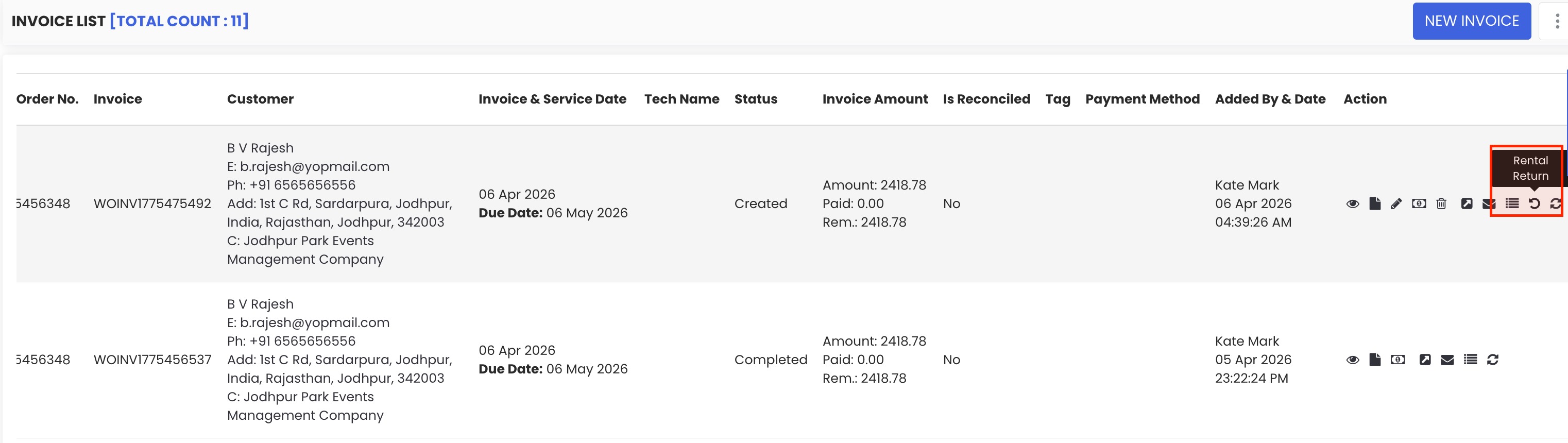
Step 2 – Click "Rental Return"
Within the Invoices section, locate the relevant invoice and go to the Asset section of that invoice. Click on the "Rental Return" button to initiate the return process.
Step 3 – Review the Return Form
You will be redirected to the return form page. The rented asset will already be pre-selected on the form. Review the asset details to confirm they are correct before proceeding.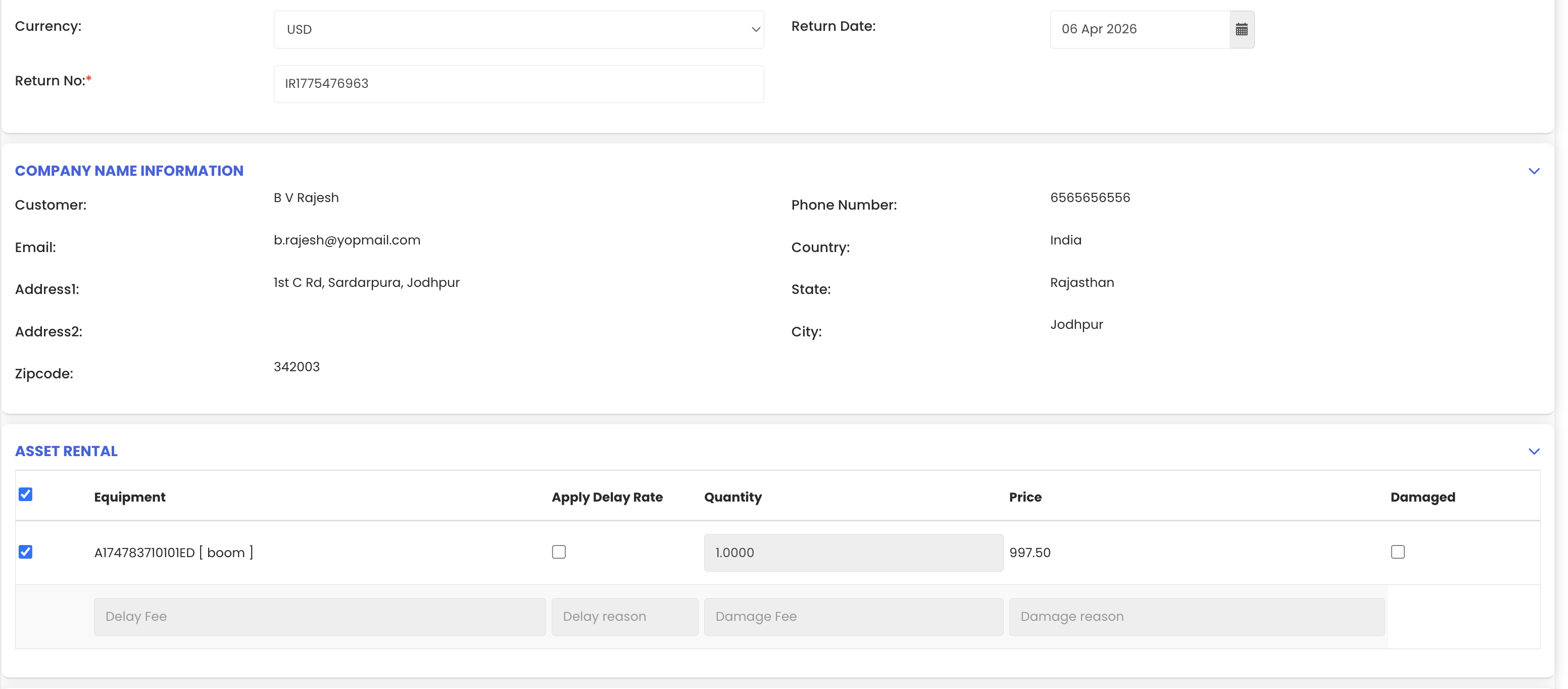
Step 4 – Apply Delivery Delay Charge (If Applicable)
If the asset was returned late, select the delay option on the return form. The delay rate section will appear, with the rate automatically fetched from the equipment settings configured in the rental section. Review and confirm the delay charge details.
Step 5 – Apply Damage Charge (If Applicable)
If the asset was returned with damage, select the damage option. The damage section will open and the damage rate will be automatically fetched from the asset rental settings. Review and confirm the damage charge details.
Step 6 – Save the Return
Once all required details — including any applicable charges — have been entered, click "Save" to complete the return process.
Step 7 – View and Download the Return PDF
After saving, you will be redirected to the asset return page. From here, you can view and download the return PDF for your records or to share with the customer as confirmation of the completed return.
Tips for Processing Rental Returns
- Ensure that delay and damage rates are correctly configured in the equipment and asset rental settings before processing returns, so that charges are automatically applied without manual intervention.
- Always inspect the asset upon return before completing the return form, so any damage or delay charges can be accurately applied at the time of processing.
- Download and retain the return PDF as part of your rental record-keeping process, as it serves as formal documentation of the completed return.
- Process returns promptly after an asset is received back to ensure the rental dashboard and availability records are updated in a timely manner.
- Share the return PDF with the customer as a confirmation receipt, which helps avoid any future disputes regarding return dates or applied charges.
Frequently Asked Questions
How do I process a rental return in DreamzCMMS?
Go to Manage Rentals and click on "Invoices." Open the relevant invoice, navigate to the Asset section, and click the "Rental Return" button. Complete the return form, apply any applicable charges, and click "Save" to finalise the return.
Does the system automatically select the asset on the return form?
Yes. When you initiate a return from an invoice, the rented asset is automatically pre-selected on the return form, so you do not need to search for or re-enter the asset details.
How are delay and damage charges calculated?
The rates for delivery delay charges and damage charges are automatically fetched from the equipment settings and asset rental settings configured in the system. You do not need to manually enter rates — they are pre-populated based on your configuration.
Can I process a return without applying any additional charges?
Yes. The delay and damage charge options are optional. If the asset is returned on time and in good condition, you can simply save the return form without selecting either option.
Can I download proof of the completed return?
Yes. After saving the return, you are redirected to the asset return page where you can view and download a return PDF. This document serves as a formal record of the completed rental return.
Related Articles
- Rental Dashboard Overview
- Rental Invoice
- Rental Expenses
- Availability Calendar – Asset Rentals
- How to Manage Assets in DreamzCMMS