Rental Expenses
The Expenses feature in DreamzCMMS Asset Rentals allows you to record and track all costs associated with your rental operations. You can log new expenses, record payments against them, and monitor outstanding balances — all from a single listing page. Key highlights include:
- Add and manage rental expenses with purchase date and amount
- Record payments against expenses with date, amount, and payment method
- Link payments to specific bills for accurate financial tracking
- View paid amounts and remaining balances at a glance in the listing
- Maintain a clear record of all rental-related financial transactions
Overview
The Rental Expenses section in DreamzCMMS is accessible from the Manage Rentals module and provides a structured way to log and manage all costs incurred during rental operations. Users can create new expense records by entering the purchase date and amount, and then record one or more payments against each expense. Each payment can be assigned a date, amount, payment method, and linked bill, giving finance teams full visibility into what has been paid and what remains outstanding. The expenses listing automatically updates to reflect paid amounts and remaining balances after each payment is recorded.
Here is a reference video:
Step by Step Description to Manage Rental Expenses
Step 1 – Navigate to Expenses
Click on Manage Rentals from the left-hand menu, then select Expenses. This will open the Expenses listing page where all recorded expenses are displayed.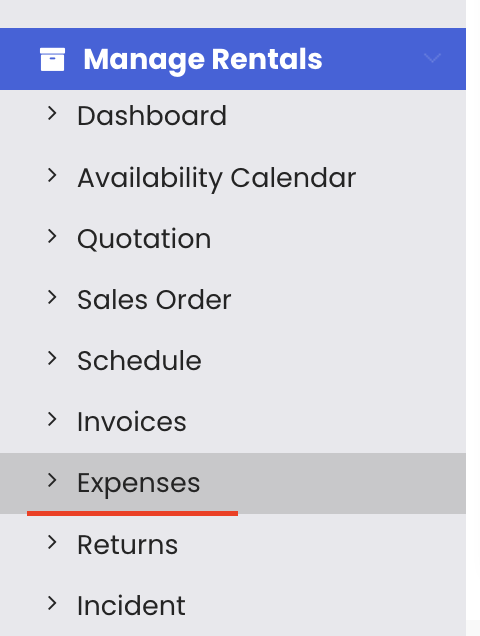
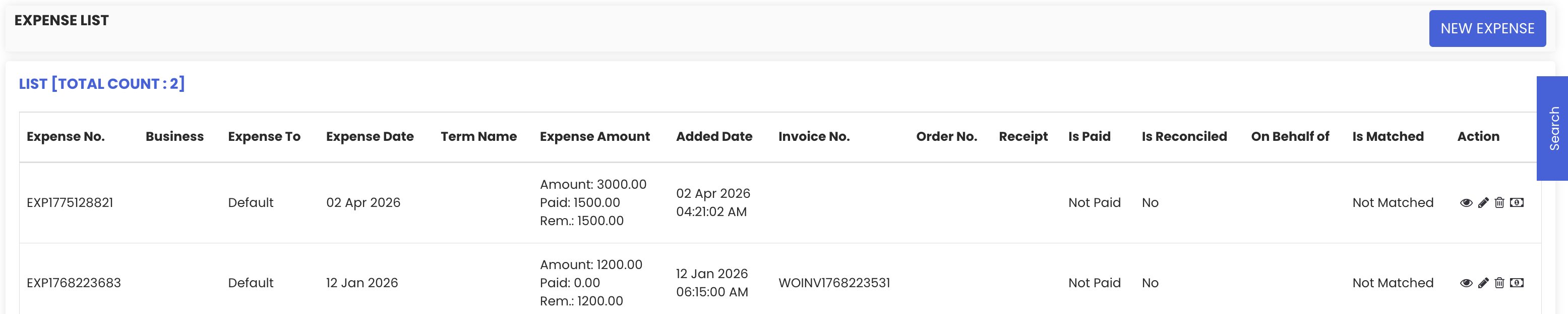
Step 2 – Create a New Expense
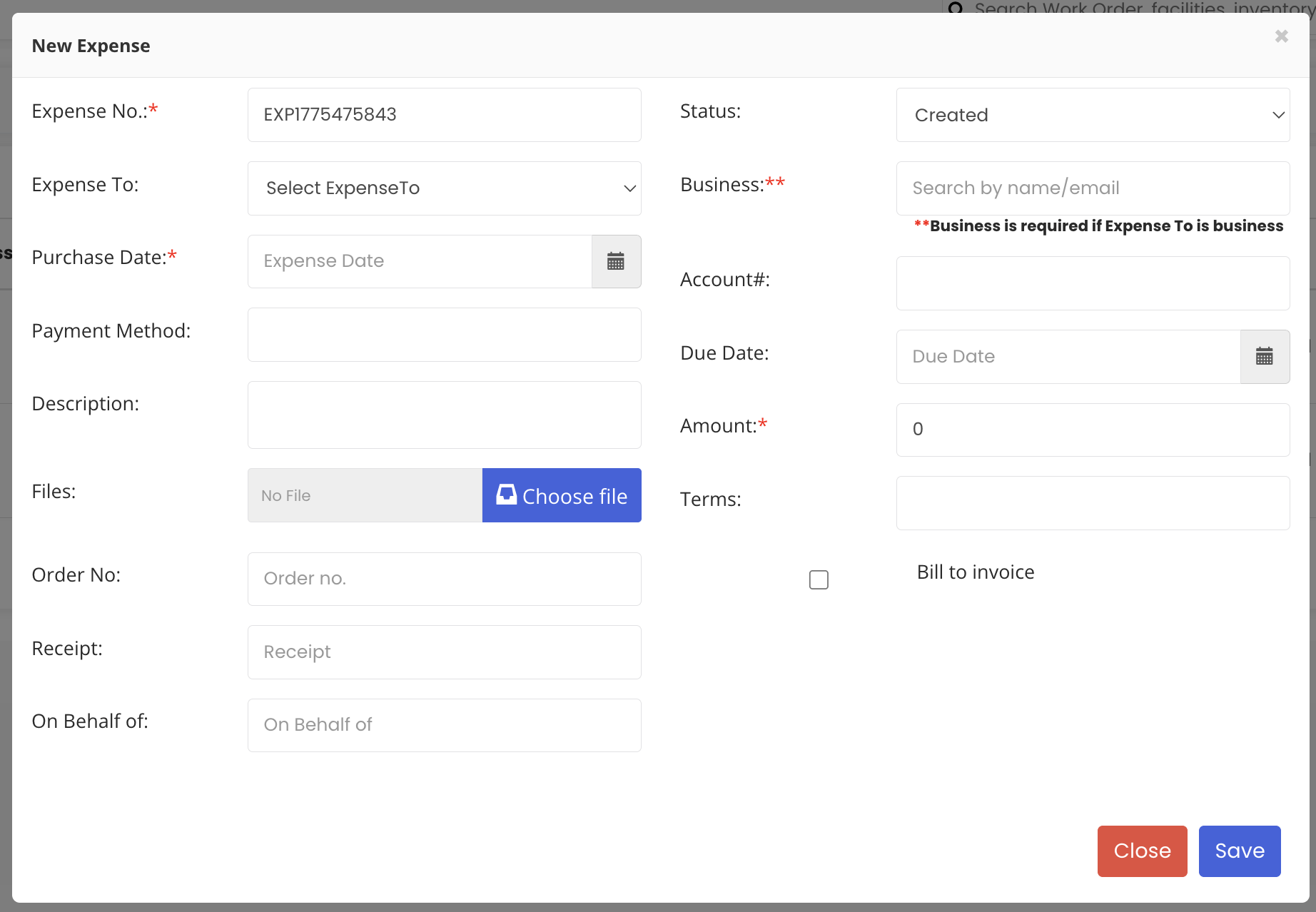
Click on the "New Expense" button to open the expense entry form. Enter the purchase date and the expense amount. Once all required details have been entered, click "Save." The expense will be saved and will appear in the listing.
Step 3 – Record a Payment Against the Expense
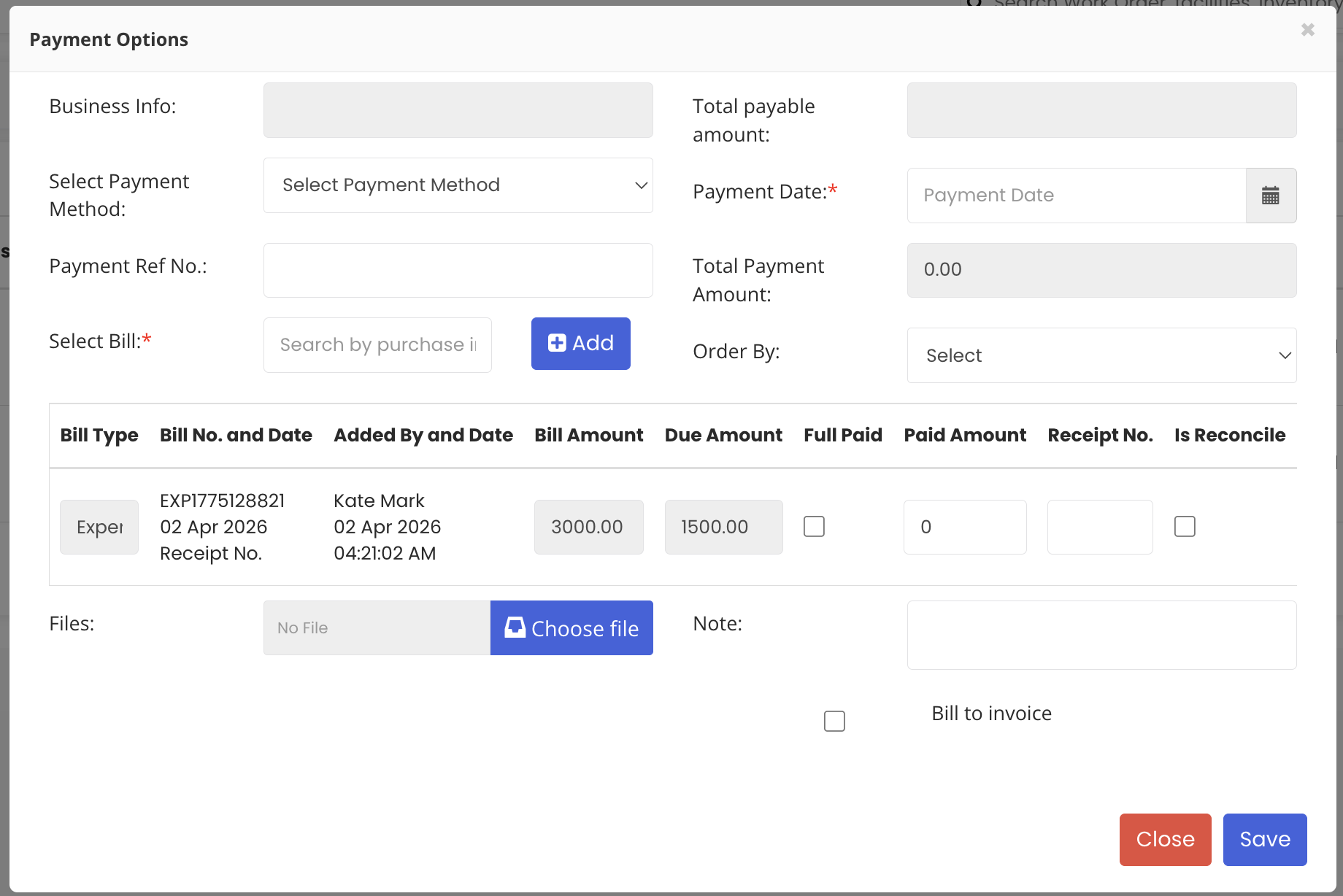
To record a payment against a saved expense, click on the "Payment" option for that expense in the listing. The payment window will open, where you can enter the following details:
- Payment date – the date the payment was made
- Payment amount – the amount being paid (e.g. a partial or full payment)
- Payment method – such as cash, bank transfer, or cheque
Step 4 – Link the Payment to a Bill
Select the bill associated with the payment from the available options (e.g. bill number 8821). This links the payment to the correct financial record for accurate tracking.
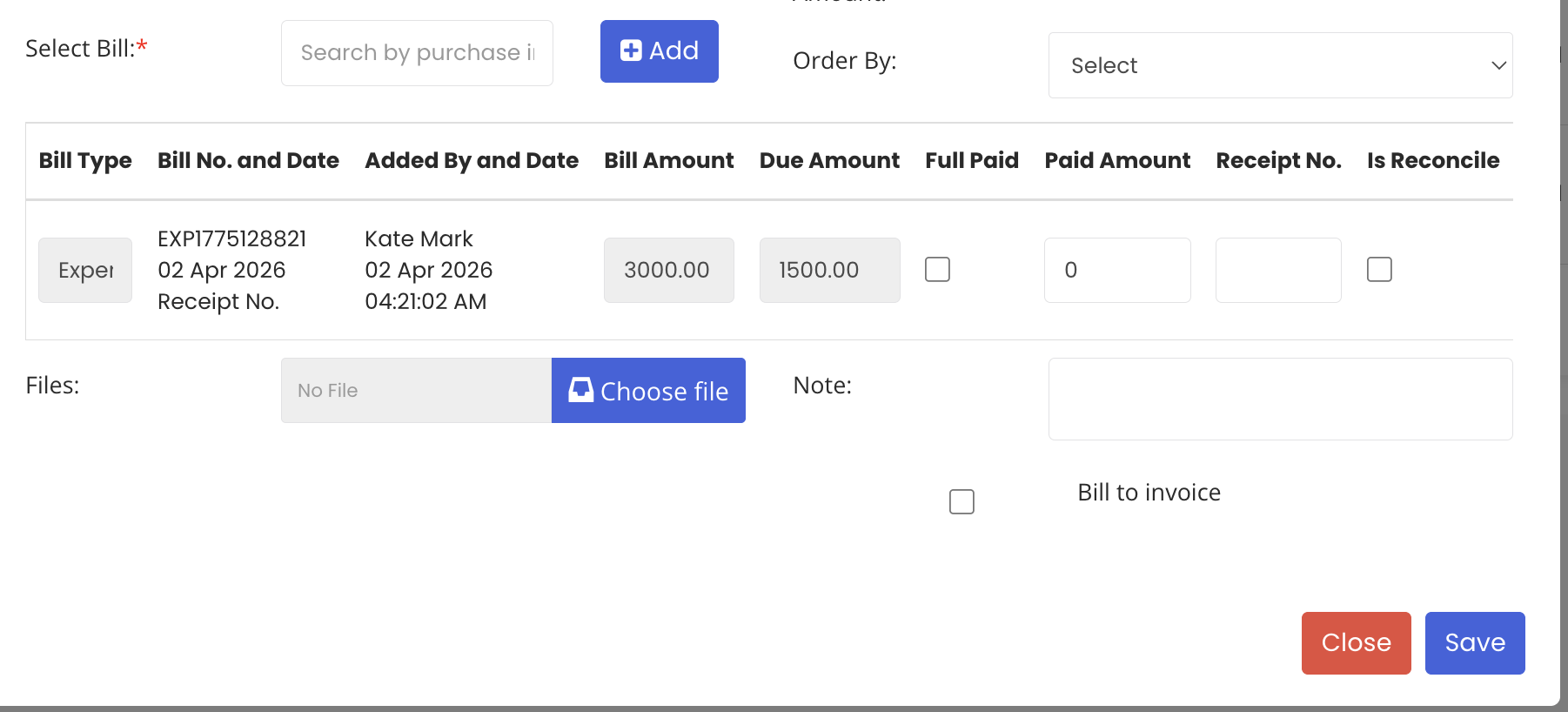
Step 5 – Save the Payment
Click "Save" to record the payment. Once saved, the expenses listing will automatically update to show the paid amount and the remaining outstanding balance for that expense.
Tips for Managing Rental Expenses
- Log expenses as soon as they are incurred to keep your rental financial records up to date and avoid missing any costs at month end.
- Always link payments to the correct bill to ensure accurate reconciliation and avoid discrepancies in your accounts.
- Use the remaining balance column in the expenses listing to quickly identify which expenses still have outstanding amounts that need to be settled.
- Record partial payments as they are made rather than waiting for the full amount, so your balance figures always reflect the current financial position.
- Review the expenses listing regularly to monitor total rental costs and ensure they remain within budget for each rental period.
Frequently Asked Questions
How do I add a new expense in Asset Rentals?
Go to Manage Rentals from the left-hand menu and click on "Expenses." On the listing page, click "New Expense," enter the purchase date and amount, then click "Save." The expense will be recorded and appear in the listing.
Can I record partial payments against an expense?
Yes. When recording a payment, you can enter any amount — partial or full. The system will update the paid amount and display the remaining balance in the expenses listing accordingly.
What payment methods can I select when recording a payment?
The payment window allows you to choose from available payment methods such as cash, bank transfer, or other configured options when recording a payment against an expense.
How do I link a payment to a specific bill?
In the payment window, after entering the payment date, amount, and method, you will find a field to select the associated bill. Choose the relevant bill number from the list to link the payment accurately.
Where can I see how much has been paid and how much is still outstanding?
The expenses listing page automatically updates after each payment is recorded. It displays the paid amount and the remaining balance for each expense, giving you a clear view of your financial position at all times.