Rental Invoice
The Rental Invoice feature in DreamzCMMS Asset Rentals enables you to generate a formal invoice from a confirmed Sales Order, completing the rental billing cycle. Once an invoice is created, the asset status is automatically updated to reflect the active rental — ensuring your dashboard and records stay accurate in real time. Key highlights include:
- Generate invoices directly from a confirmed Sales Order
- All rental details are automatically pre-populated in the invoice
- Asset status is updated to "Rented Out" upon invoice creation
- Rental dates are reflected in the asset dashboard and equipment records
- View transaction history and rented-out dates in the asset's Rental Availability tab
Overview
The Rental Invoice in DreamzCMMS is the final step in the rental transaction workflow, generated from a saved Sales Order. All details — including items, parts, pricing, and miscellaneous costs — are automatically carried over from the Sales Order, making invoice generation fast and accurate. Once the invoice is saved, the system updates the asset's status to "Rented Out" in the rental dashboard for the specified rental period. The rented dates and all associated transaction details are also reflected in the asset's Rental Availability tab under the Equipment section, providing a complete audit trail for every rental.
Here is a reference video:
Step by Step Description to Create a Rental Invoice
Step 1 – Open the Saved Sales Order
Navigate to Manage Rentals and open the Sales Order that has been saved and confirmed. This is the order from which you will generate the invoice.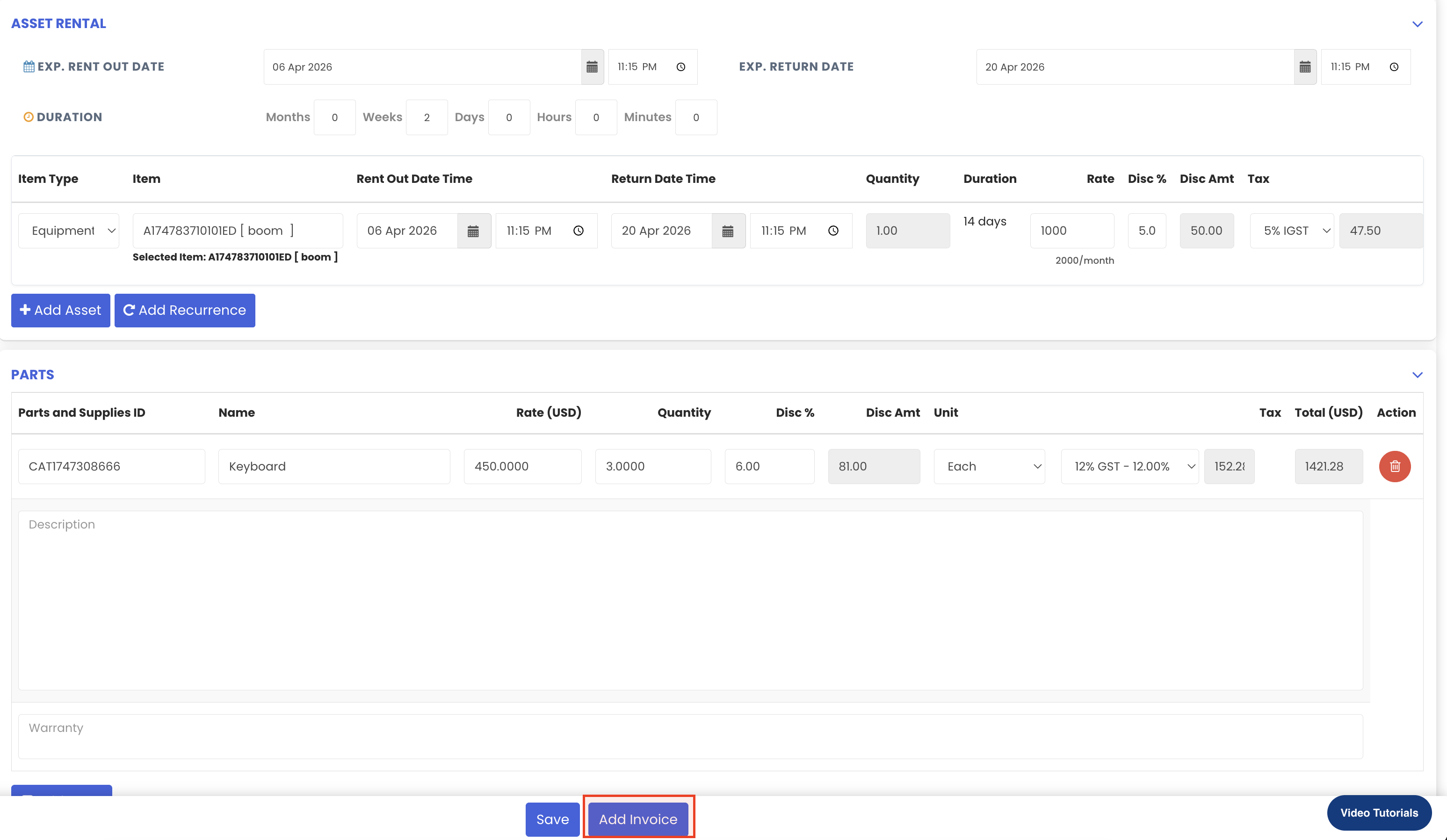
Step 2 – Click "Add Invoice"
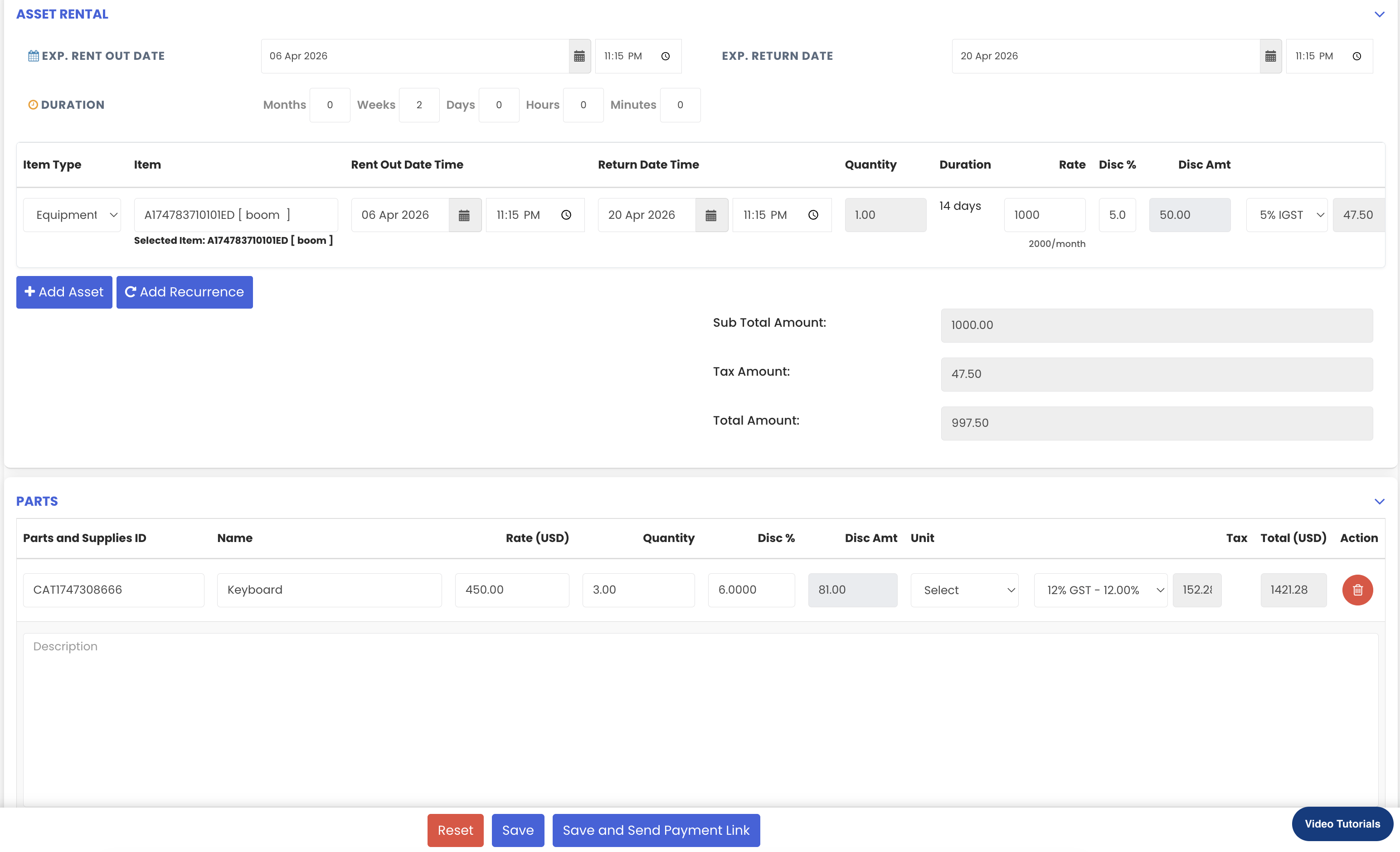
Within the saved Sales Order, click on the "Add Invoice" button. The system will open a new invoice form with all details from the Sales Order automatically pre-populated, including items, parts, discounts, taxes, and miscellaneous costs.
Step 3 – Review the Pre-filled Invoice Details
Review all the pre-filled invoice details to ensure they are accurate. The invoice will include:
- Customer details
- Rental item(s) with rent-out and return dates
- Parts (if applicable)
- Discounts, taxes, and total amounts
- Miscellaneous costs (if applicable)
Step 4 – Save the Invoice
Once all details have been reviewed, click "Save" to generate the invoice. The invoice is now created and linked to the rental transaction.
Step 5 – Verify Asset Status Update in the Rental Dashboard
After the invoice is saved, navigate to the Rental Dashboard to confirm that the asset's status has been updated to "Rented Out" for the rental period. For example, the asset will appear as rented out for the selected date range (e.g. from the 2nd to the 17th).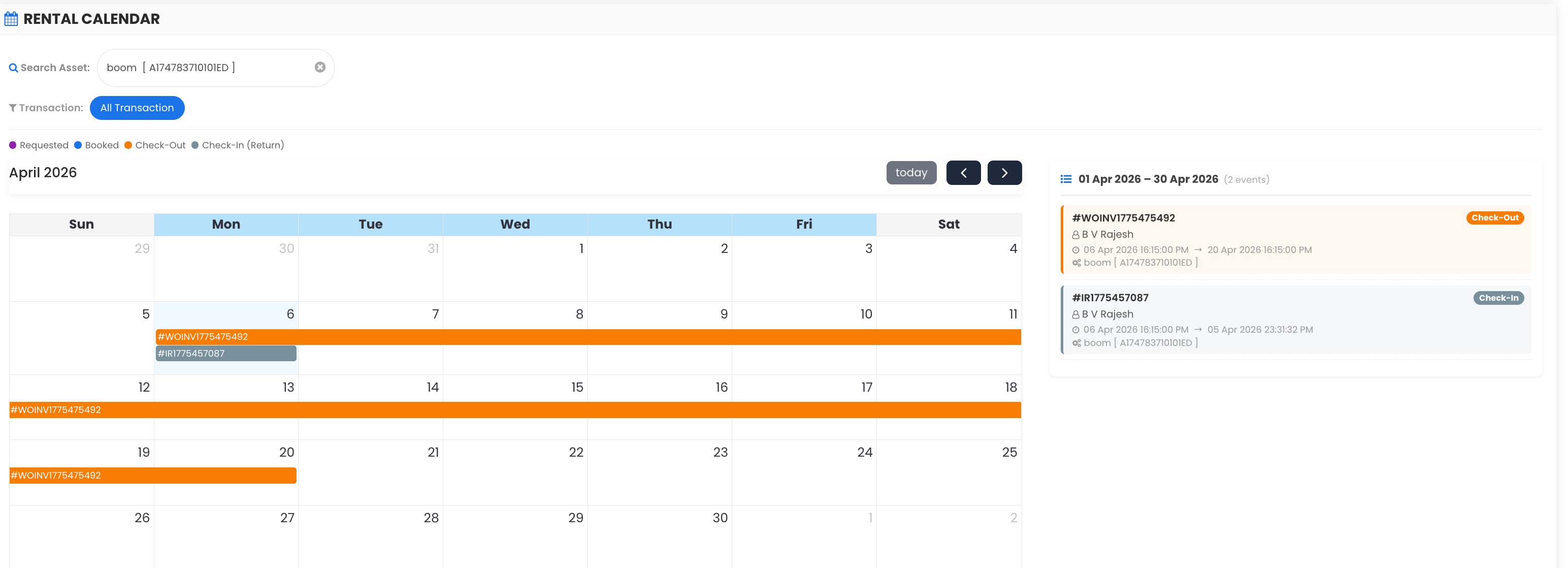
Step 6 – View Rental Availability in the Equipment Section
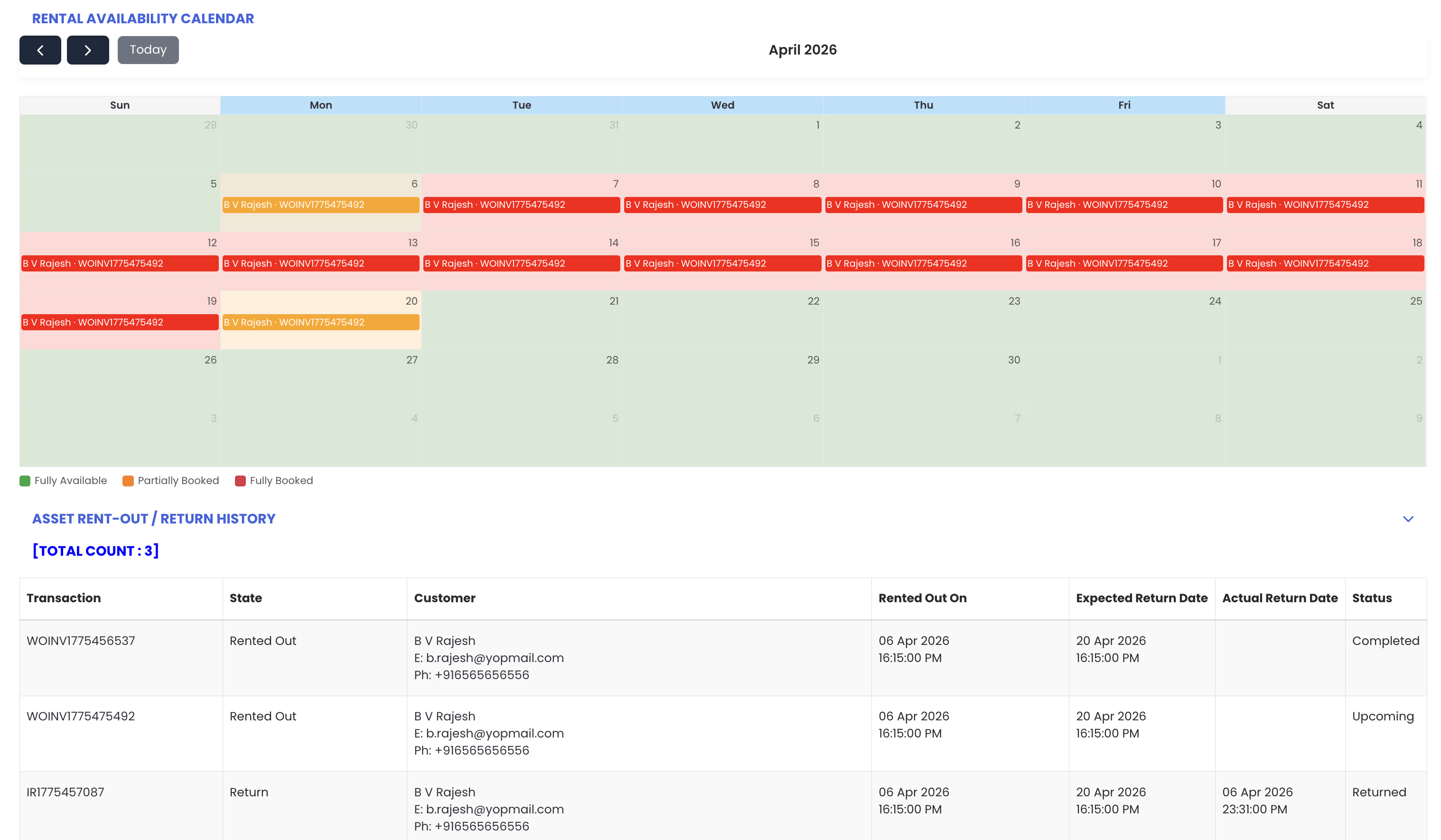
To view the complete rental history for the asset, go to the Equipment section and search for the rented asset. Open the asset record and navigate to the "Rental Availability" tab. The calendar will display the rented-out dates and any partially rented dates, along with all transaction details associated with that asset.
Tips for Using Rental Invoices
- Generate the invoice promptly after saving the Sales Order to ensure the asset status is updated to "Rented Out" without delay and reflects accurately on the dashboard.
- Review all pre-filled details carefully before saving the invoice to confirm that pricing, dates, and customer information are correct.
- Use the Rental Availability tab in the Equipment section to keep a full transaction history for each asset, which is useful for audits and rental performance reviews.
- After generating invoices, regularly check the Invoice Performance section on the Rental Dashboard to monitor outstanding payments and follow up on unpaid amounts.
- Verify the rented-out dates shown on the asset's availability calendar after invoicing to ensure the rental period is recorded correctly before the asset is dispatched to the customer.
Frequently Asked Questions
How do I create a Rental Invoice?
Open the saved Sales Order in Manage Rentals and click "Add Invoice." All details from the Sales Order will be pre-filled automatically. Review the details and click "Save" to generate the invoice.
Does the asset status change automatically when an invoice is created?
Yes. Once the invoice is saved, the asset's status is automatically updated to "Rented Out" in the Rental Dashboard for the rental period specified in the invoice.
Where can I view the rental dates and transaction history for an asset?
Go to the Equipment section and search for the asset. Open its record and navigate to the "Rental Availability" tab. The calendar will display rented-out dates, partially rented dates, and all associated transaction details.
Can I create an invoice without a Sales Order?
The recommended workflow in DreamzCMMS is to follow the sequence: Quotation → Sales Order → Invoice. This ensures all rental details are accurately linked and traceable across the entire transaction.
What does the Rental Availability tab show after invoicing?
The Rental Availability tab in the Equipment section displays a calendar showing the dates the asset is rented out and any partially rented dates. It also shows all transaction details linked to that asset, providing a full rental history.
Related Articles
- Rental Dashboard Overview
- Availability Calendar – Asset Rentals
- Rental Quotation
- Rental Sales Order
- How to Manage Assets in DreamzCMMS