Rental Sales Order
The Rental Sales Order feature in DreamzCMMS Asset Rentals allows you to formalise a confirmed rental by converting an accepted quotation into a sales order. All quotation details are automatically pre-filled, ensuring a seamless and error-free transition from estimation to order. Key highlights include:
- Convert an accepted quotation directly into a Sales Order
- All item, parts, and cost details are automatically pre-filled from the quotation
- Confirm the rental order with a single Save action
- Seamlessly progress from Sales Order to Invoice generation
- Maintain a connected rental workflow from quotation through to invoicing
Overview
The Rental Sales Order in DreamzCMMS is the next step in the rental workflow after a quotation has been accepted. It is generated directly from an accepted quotation, with all relevant details — including selected items, parts, pricing, discounts, taxes, and miscellaneous costs — automatically carried over. This eliminates duplicate data entry and ensures consistency across the rental process. Once saved, the Sales Order serves as the confirmed rental agreement and can be used to generate an invoice, completing the end-to-end rental cycle.
Here is a reference video:
Step by Step Description to Create a Rental Sales Order
Step 1 – Open the Accepted Quotation
Navigate to Manage Rentals > Quotation and open the quotation that has been marked as Accepted. This is the quotation from which you will generate the Sales Order.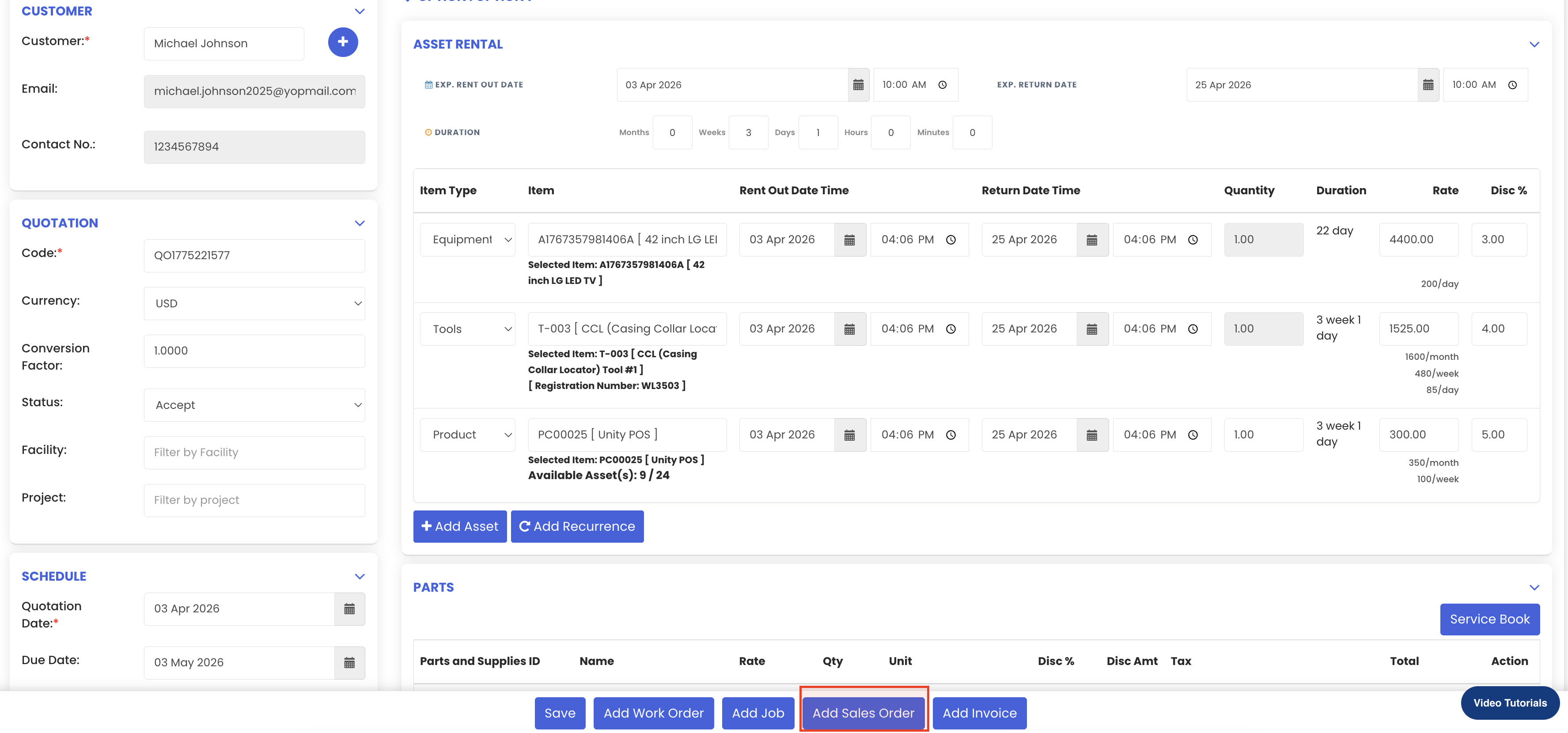
Step 2 – Add a Sales Order
From within the accepted quotation, click on the "Add Sales Order" option. The system will automatically create a new Sales Order and pre-fill all details from the quotation, including the selected items, parts, pricing, discounts, taxes, and miscellaneous costs.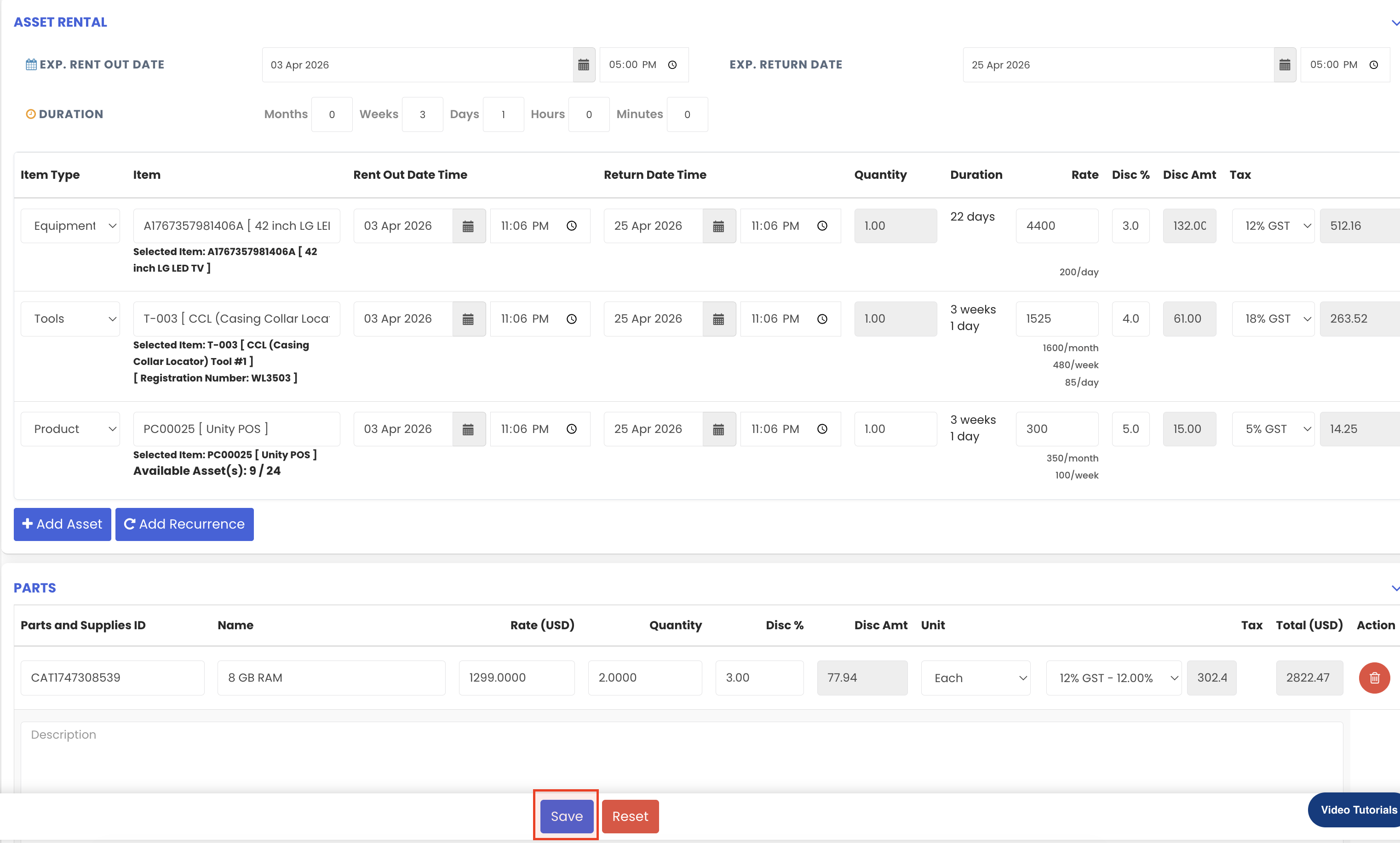
Step 3 – Review the Pre-filled Details
Review the pre-populated Sales Order to ensure all details are accurate. The following information will be carried over from the quotation:
- Customer details
- Rental item(s) with rent-out and return dates
- Parts (if any)
- Discounts, taxes, and totals
- Miscellaneous costs (if any)
Step 4 – Save the Sales Order
Once you have reviewed the details, click "Save" to confirm and create the Sales Order. The order is now saved and ready for the next step in the workflow — invoice generation.
Tips for Using Rental Sales Orders
- Always ensure the quotation status is set to "Accepted" before creating a Sales Order to maintain a clean and traceable rental workflow.
- Review the pre-filled details carefully before saving the Sales Order to catch any discrepancies that may have changed since the quotation was issued.
- Create the Sales Order promptly after quotation acceptance to lock in the asset availability and prevent it from being allocated to another booking.
- Use the Sales Order as the confirmed rental agreement reference when communicating with customers about their bookings.
- Once the Sales Order is saved, proceed immediately to generate the invoice to keep the rental workflow moving without delays.
Frequently Asked Questions
How do I create a Rental Sales Order?
A Rental Sales Order is created directly from an accepted quotation. Open the relevant quotation in Manage Rentals > Quotation and click "Add Sales Order." All details from the quotation will be pre-filled automatically. Click "Save" to confirm the order.
Do I need to re-enter all the quotation details in the Sales Order?
No. When a Sales Order is created from an accepted quotation, all details — including items, parts, discounts, taxes, and miscellaneous costs — are automatically pre-populated. You simply need to review and save.
Can I create a Sales Order without a quotation?
The standard rental workflow in DreamzCMMS is designed to flow from Quotation to Sales Order to Invoice. It is recommended to follow this process to ensure all rental details are correctly tracked and linked throughout the workflow.
What happens after the Sales Order is saved?
Once the Sales Order is saved, you can proceed to generate an invoice from it. The invoice will also be pre-filled with all the details from the Sales Order, continuing the seamless rental workflow.
Does saving a Sales Order update the asset status?
The asset status is updated to "Rented Out" in the rental dashboard once an invoice is created from the Sales Order, confirming the rental is active for the selected period.
Related Articles
- Rental Dashboard Overview
- Availability Calendar – Asset Rentals
- Rental Quotation
- Rental Invoice
- How to Manage Assets in DreamzCMMS