Rental Quotation
The Rental Quotation feature in DreamzCMMS Asset Rentals allows you to create and manage quotes for customers before confirming a rental. It streamlines the estimation process by automatically calculating duration, discounts, taxes, and totals — helping your team respond to rental enquiries quickly and accurately. Key highlights include:
- Create new rental quotations with customer and item details
- Set rent-out and return dates with automatic duration calculation
- Check real-time item availability during the selected rental period
- Apply discounts and taxes with auto-calculated totals
- Add parts and miscellaneous costs to the quotation
- Update quotation status to Accepted and progress to a Sales Order
Overview
The Rental Quotation module in DreamzCMMS is accessible from the Manage Rentals menu and provides a structured workflow for generating rental quotes for customers. Users can select a customer, specify rental dates, choose available items, and apply pricing rules including discounts, taxes, parts, and miscellaneous charges. The system automatically calculates the rental duration and all financial totals in real time. Once a quotation is accepted, it can be seamlessly converted into a Sales Order, keeping the entire rental workflow connected and efficient.
Here is a reference video:
Step by Step Description to Create a Rental Quotation
Step 1 – Navigate to Quotation
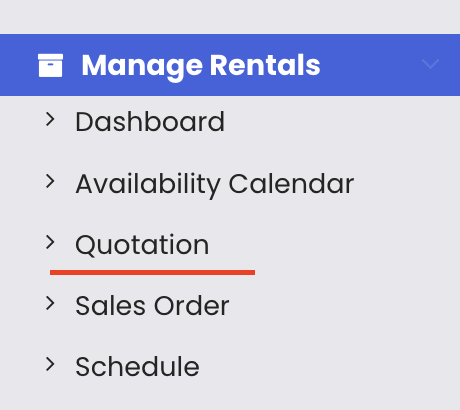
Click on Manage Rentals from the left-hand menu, then select Quotation. This opens the quotation listing page where all existing quotations are displayed.
Step 2 – Create a New Quotation
Click the "New Quotation" button to open the quotation creation form.
Step 3 – Enter Customer and Rental Date Details
In the new quotation form, begin by selecting a customer. Then choose the expected rent-out date and time, followed by the expected return date and return time. Once these are entered, the system will automatically calculate and display the rental duration.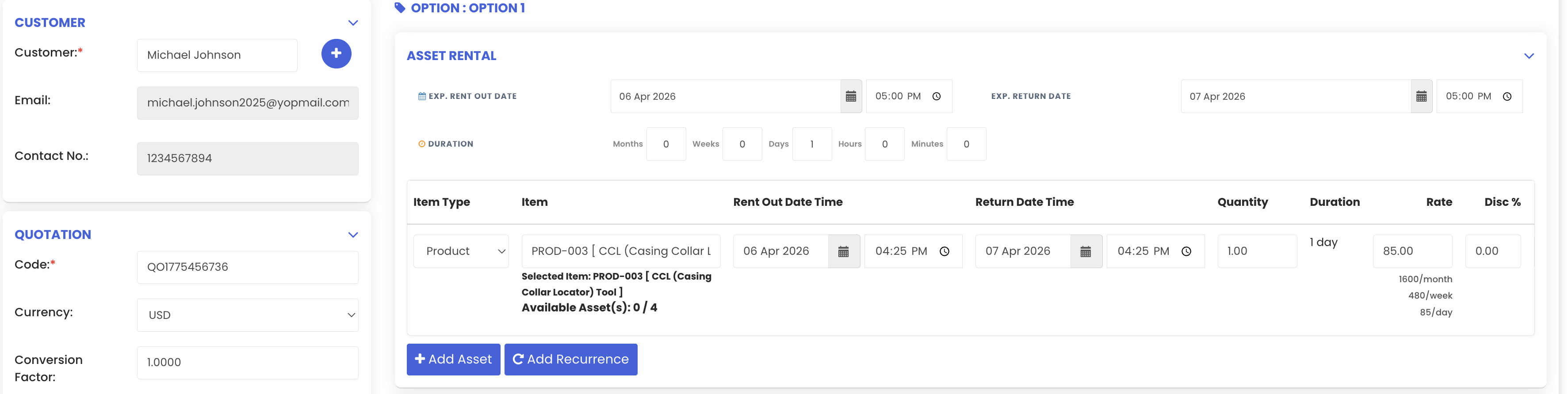
Step 4 – Select an Available Item
Choose the item you wish to include in the quotation. The system will check availability for the selected dates in real time. If an item is already booked during the chosen period, the system will indicate this and you will need to select another available item for those dates.
Step 5 – Apply Discount and Tax
Once an item is selected, you can apply a discount percentage (e.g. 5%) and a tax percentage (e.g. 12%). The system will automatically calculate the discount amount and tax amount based on the item's rate, and the total amount will be updated accordingly.
Step 6 – Add Parts (Optional)
If required, you can add parts to the quotation. Select the part, apply a discount (e.g. 2%) and tax (e.g. 12%), and the total for the parts will be automatically calculated based on the rate, discount, and tax percentage.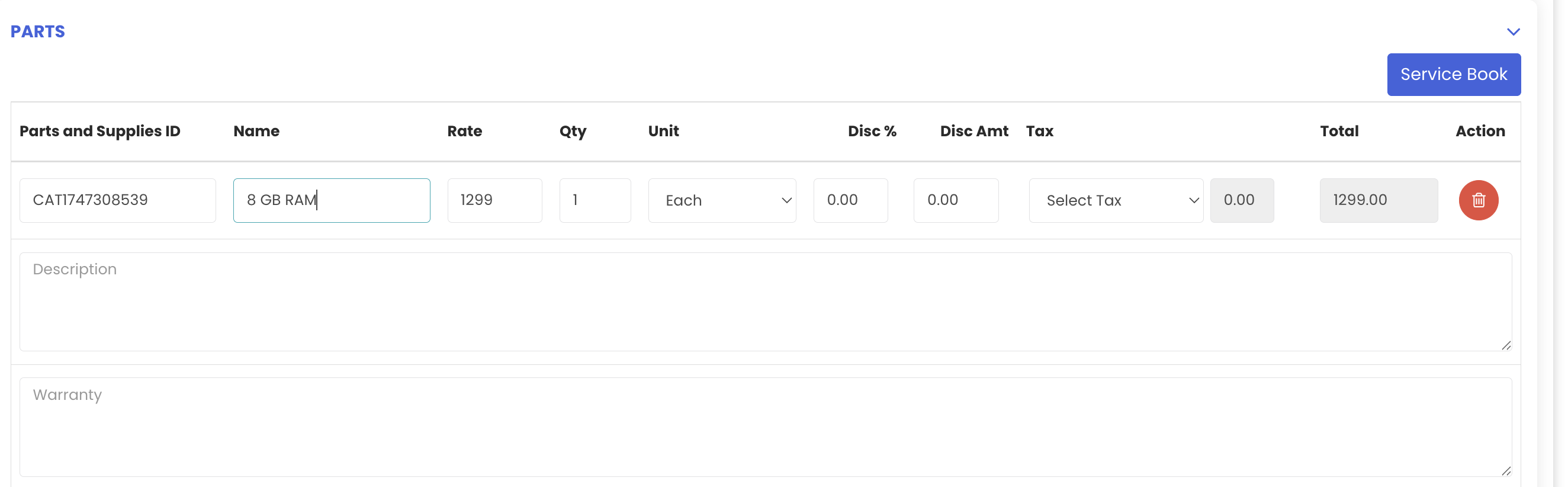
Step 7 – Add Miscellaneous Costs (Optional)
You can also include any miscellaneous costs associated with the rental (e.g. delivery charges or setup fees) by entering the relevant amount in the miscellaneous cost field.

Step 8 – Save the Quotation
Once all details are filled in, click "Save" to create the quotation. The quotation will be saved and appear in the quotation listing page.
Step 9 – Update Quotation Status to Accepted
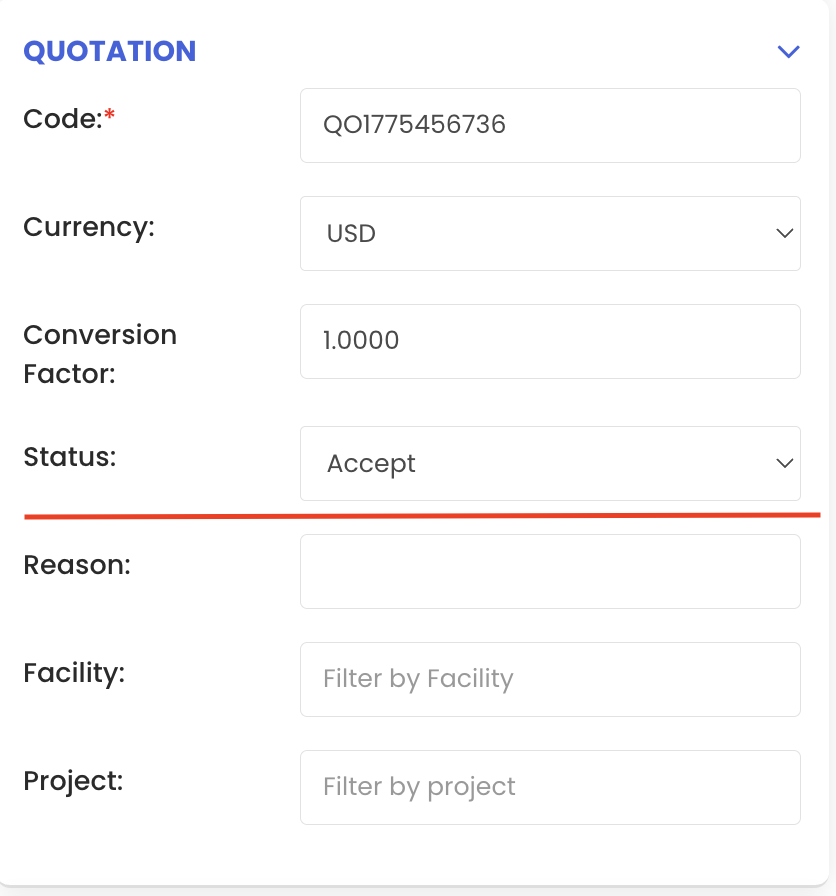
After the customer approves the quote, update the quotation status to "Accepted" and click "Save" again. The quotation will be successfully updated and will be ready to be converted into a Sales Order.
Tips for Using Rental Quotations
- Always verify item availability for the selected rental dates before finalising a quotation to avoid scheduling conflicts.
- Use the automatic duration calculation feature to ensure accurate rental periods are reflected in every quotation without manual calculations.
- Apply discounts and taxes using the percentage fields to let the system calculate totals automatically, reducing the risk of manual errors.
- Include all parts and miscellaneous costs in the quotation upfront to give customers a complete and transparent pricing picture.
- Update the quotation status to "Accepted" promptly once customer approval is received, so it can be progressed to a Sales Order without delay.
Frequently Asked Questions
How do I create a new rental quotation?
Navigate to Manage Rentals from the left-hand menu and click on "Quotation." On the listing page, click the "New Quotation" button and fill in the customer details, rental dates, items, pricing, and any additional costs before saving.
What happens if an item is already booked for the selected dates?
The system will indicate that the item is unavailable for the chosen rental period. You will need to select a different item that is available for those dates before proceeding with the quotation.
Does the system automatically calculate discounts and taxes?
Yes. Once you enter a discount percentage and a tax percentage, the system automatically calculates the respective amounts based on the item's rental rate and updates the total accordingly.
Can I add parts and extra charges to a quotation?
Yes. The quotation form allows you to add parts (with their own discount and tax percentages) as well as miscellaneous costs such as delivery or setup fees, all of which are included in the final total.
What happens after a quotation is accepted?
Once the quotation status is updated to "Accepted" and saved, it can be converted into a Sales Order. All details from the quotation — items, parts, and miscellaneous costs — will be automatically pre-filled in the Sales Order.
Related Articles
- Rental Dashboard Overview
- Availability Calendar – Asset Rentals
- Rental Sales Order
- Rental Invoice
- How to Manage Assets in DreamzCMMS