Rental Dashboard Overview
The Rental Dashboard in DreamzCMMS gives you a real-time snapshot of your asset rental operations. It brings together all critical metrics and asset statuses into a single, easy-to-navigate view, helping you manage bookings, availability, and rental activity efficiently. Key highlights of the dashboard include:
- View all booked and rented-out assets at a glance
- Track total assets, assets under maintenance, available units, and total asset value
- See booked and rented-out asset counts in real time
- Search for specific assets and instantly check their availability status
- Review a detailed asset list categorised by status – Available, Booked, or Rented Out
Overview
The Rental Dashboard in DreamzCMMS serves as the central hub for monitoring your asset rental operations. Upon navigating to Manage Rentals, users are presented with a real-time view of key metrics including total assets, assets under maintenance, available units, booked assets, and assets currently rented out. The dashboard also features a detailed asset list categorised by rental status, along with the ability to search for specific assets and review their booking timelines — all designed to help users monitor asset availability and rental performance at a glance.
Here is a reference video:
Step by Step Description to View the Rental Dashboard
Step 1 – Navigate to Manage Rentals
After logging into DreamzCMMS, click on Manage Rentals from the left-hand menu. This will open the Rental Dashboard as the default landing page for the module.
Step 2 – View Booked and Rented-Out Assets
Once on the dashboard, you can view all assets that are currently booked or rented out. You also have the option to search for a specific asset directly from here and check its current status.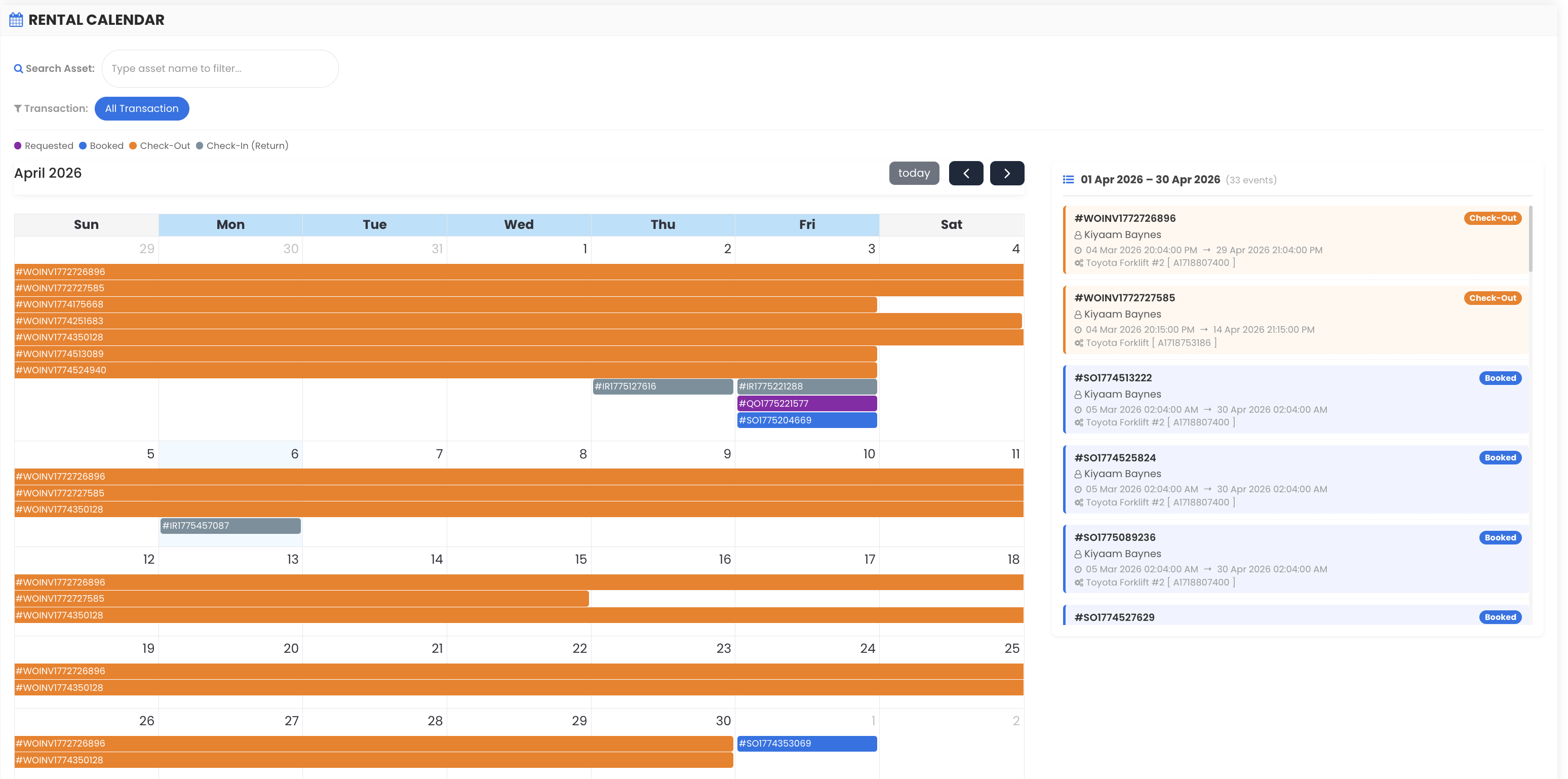
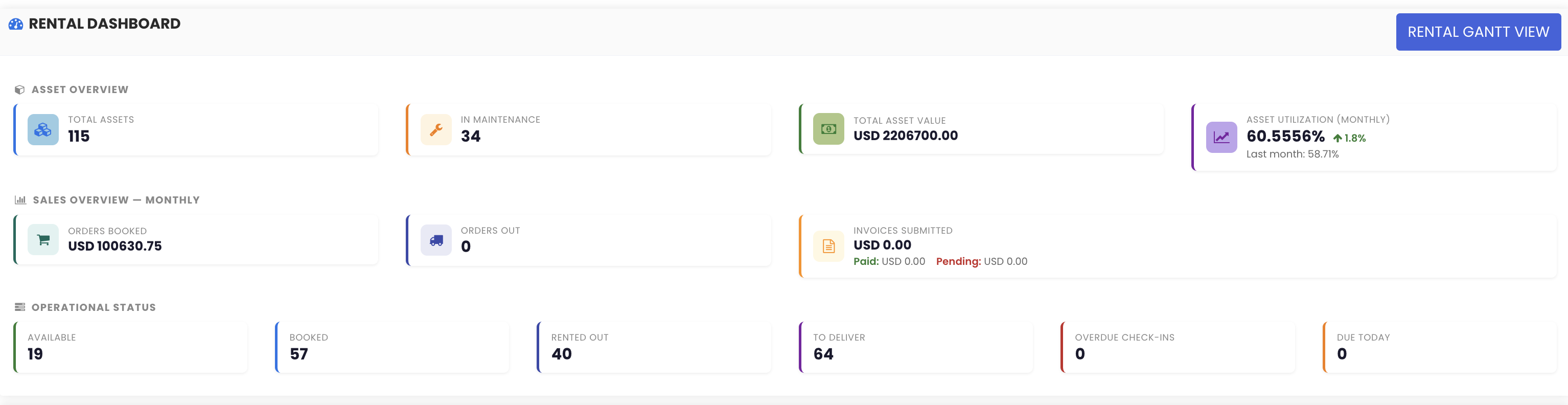
Step 3 – Review Key Metrics Summary
The top section of the dashboard provides an overview of key business metrics, including:
- Total number of assets in the system
- Assets under maintenance
- Total asset value
- Available units
- Booked assets
- Assets currently rented out
Step 4 – Browse the Detailed Asset List
As you scroll down, you will see a detailed list of assets categorised by their status — such as Available, Rented Out, or Booked. You can also search for a particular asset within this list to quickly locate it and review its details.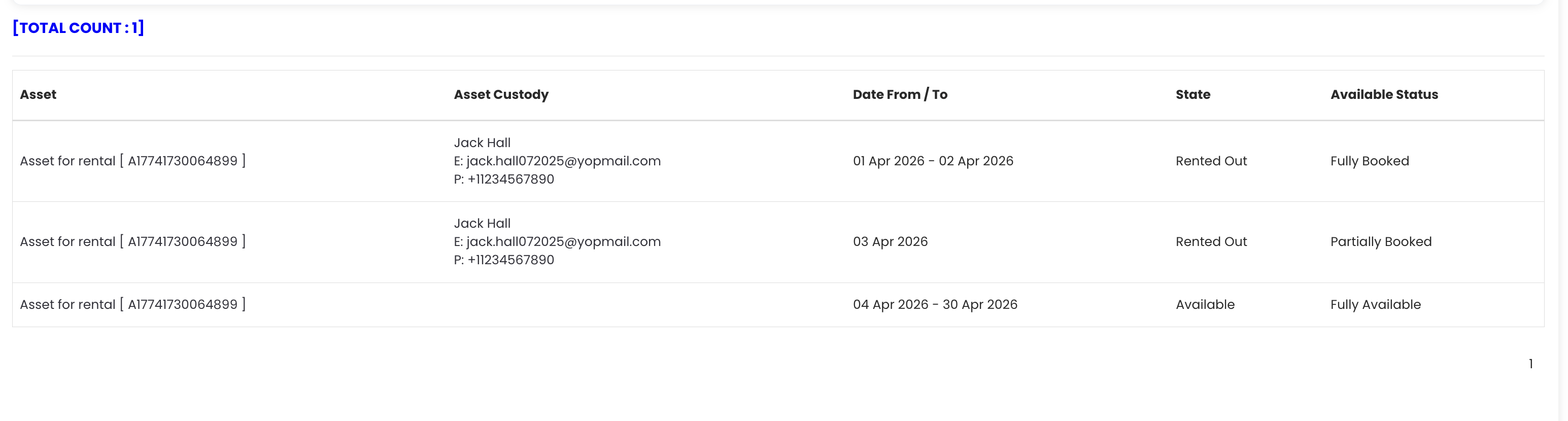
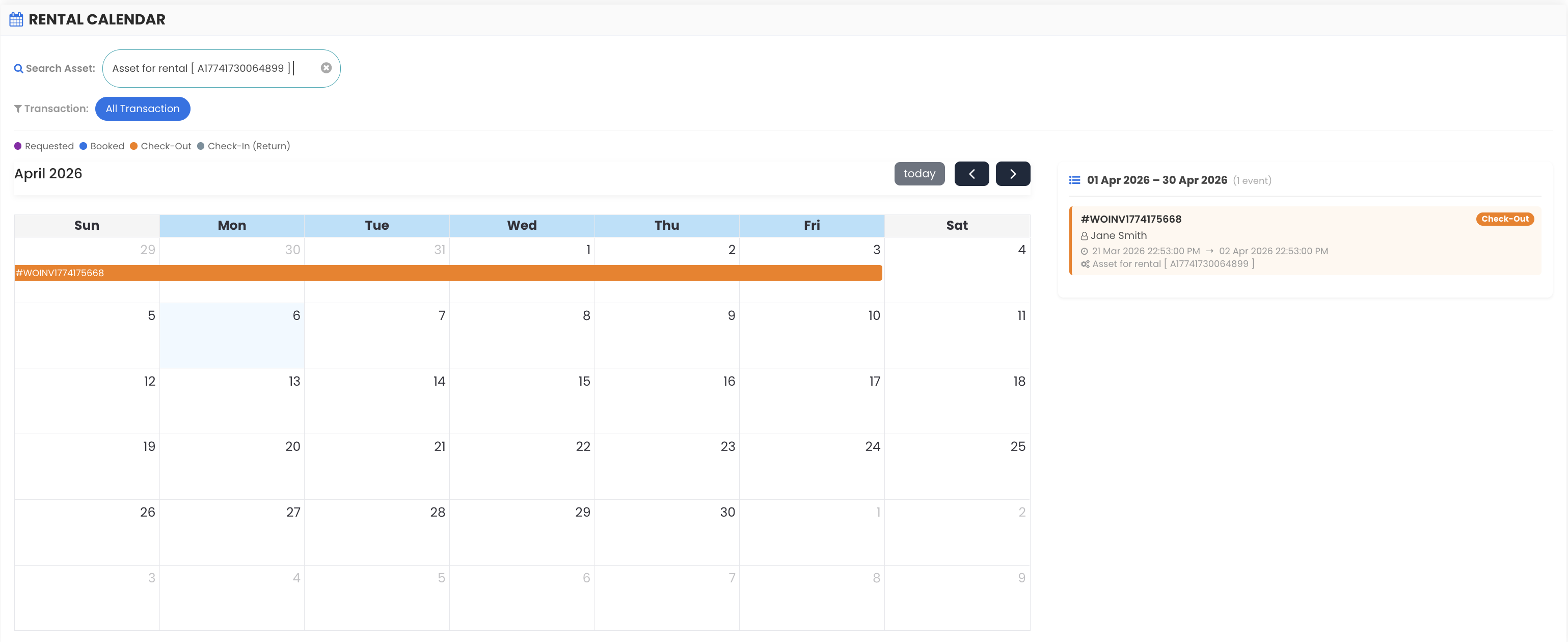
Step 5 – Check Asset Booking Timeline
For each asset, the dashboard displays its booking and availability timeline. For example, an asset may be shown as fully booked and rented out from the 1st to the 14th of April, partially booked on the 15th, and fully available from the 16th onwards. This gives users a clear, date-by-date picture of asset availability and rental status.
Tips for Using the Rental Dashboard
- Check the key metrics summary at the top of the dashboard each morning to get an instant picture of asset availability, bookings, and assets currently on rent.
- Use the search functionality to quickly locate a specific asset and check its status without scrolling through the full list.
- Review the asset status categories (Available, Booked, Rented Out) regularly to ensure no assets are overlooked or left unassigned.
- Use the booking timeline view for each asset to identify gaps in rental schedules and maximise asset utilisation.
- Monitor assets under maintenance closely to plan availability windows and avoid scheduling conflicts with upcoming bookings.
Frequently Asked Questions
What is the Rental Dashboard and where do I find it?
The Rental Dashboard is the main landing page of the Manage Rentals module in DreamzCMMS. You can access it by clicking on "Manage Rentals" from the left-hand menu after logging in. It provides a comprehensive overview of all your asset rental operations in one place.
What metrics are shown on the Rental Dashboard?
The dashboard displays key metrics including the total number of assets, assets under maintenance, total asset value, available units, booked assets, and assets that are currently rented out.
Can I search for a specific asset from the dashboard?
Yes. The dashboard includes a search feature that allows you to find a specific asset directly and check its current rental or booking status without having to scroll through the full list.
How does the dashboard show asset availability over time?
Each asset in the detailed list includes a booking timeline that shows its availability on specific dates — for example, fully rented out from the 1st to the 14th, partially booked on the 15th, and fully available from the 16th onwards.
What are the different asset status categories shown on the dashboard?
Assets are categorised into three statuses: Available (ready to be rented), Booked (reserved for a future rental), and Rented Out (currently with a customer). These categories help users quickly understand the current state of each asset.
Related Articles
- Availability Calendar – Asset Rentals
- Rental Quotation
- Rental Sales Order
- Rental Invoice
- How to Manage Assets in DreamzCMMS