DreamzFSM Customer Panel
The DreamzFSM Customer Panel is a dedicated portal that gives customers direct visibility into their jobs, quotations, invoices, and service requests — without needing access to the main system. From the customer portal, customers can raise new requests, track existing ones, view associated facilities and assets, and monitor job timelines through a Gantt chart view. All customer-specific information is accessible from a single, easy-to-navigate interface.
- View jobs, quotations, and invoices from a centralised dashboard
- Raise new service requests and track their progress
- Access associated facilities, assets, and service items
- Monitor job timelines using the Gantt chart view
- View and manage account and contact details from the Settings section
Overview
The Customer Panel is a self-service portal designed for customers to stay informed and engaged with the services being delivered to them. Once logged in, customers are presented with a dashboard containing shortcut menus and a left-hand navigation panel covering all key sections — quotations, jobs, invoices, requests, facilities, assets, service items, Gantt chart, and account settings.
Video Tutorial
Navigating the Customer Panel
Step 1 – Dashboard
After logging in, you will be taken to the Dashboard. This page displays shortcut menus for quick access to the most commonly used sections, including jobs, quotations, invoices, raising a request, and the request list.
Step 2 – Quotations
Open the Quotations section from the left-hand menu. Here you can view all quotations that have been created for your account, along with their current statuses (such as open or closed). Click on any quotation to view its full details.
Step 3 – Jobs
Open the Jobs section to view all jobs that have been created and assigned to your account. Click on any job to view its full details, including assignment information and current status.
Step 4 – Invoices
Under the Invoices section, you can view all invoices that have been generated for your quotations and jobs. Click on any invoice to review its details.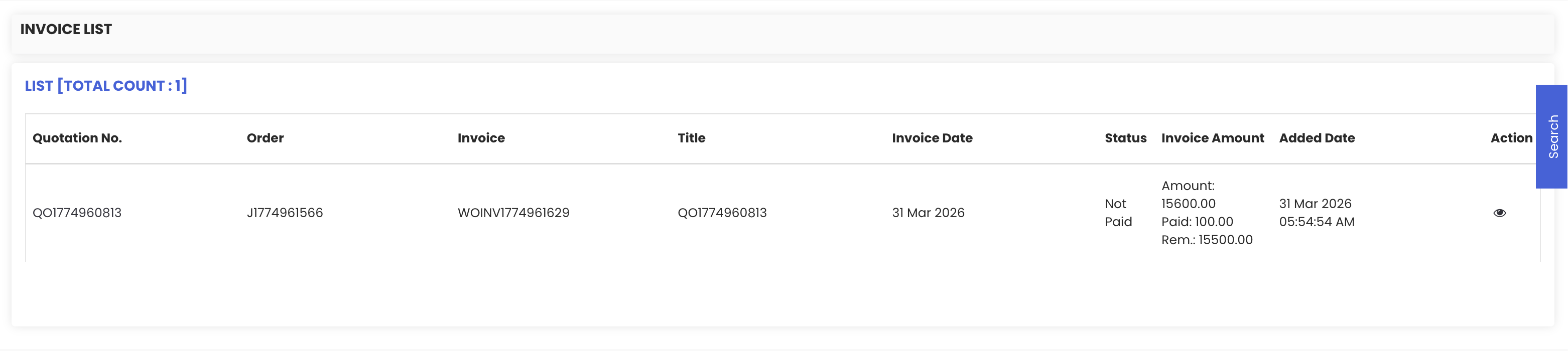
Step 5 – Raising a Request
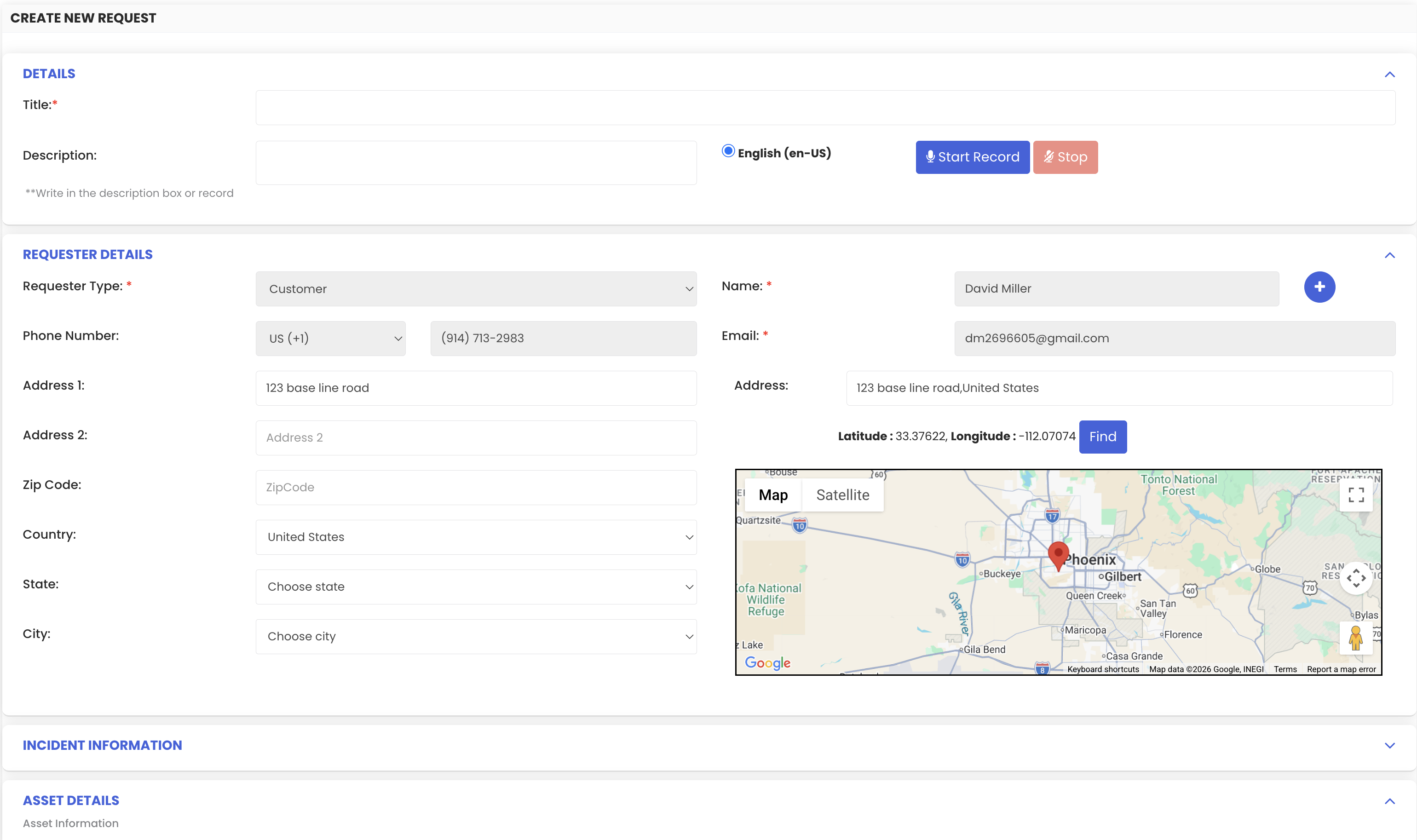
To create a new service request, navigate to the Add Request section. Fill in the following details:
- Title – A short summary of the request
- Description – A detailed explanation of what is needed
- Requester – This field is automatically populated and cannot be edited
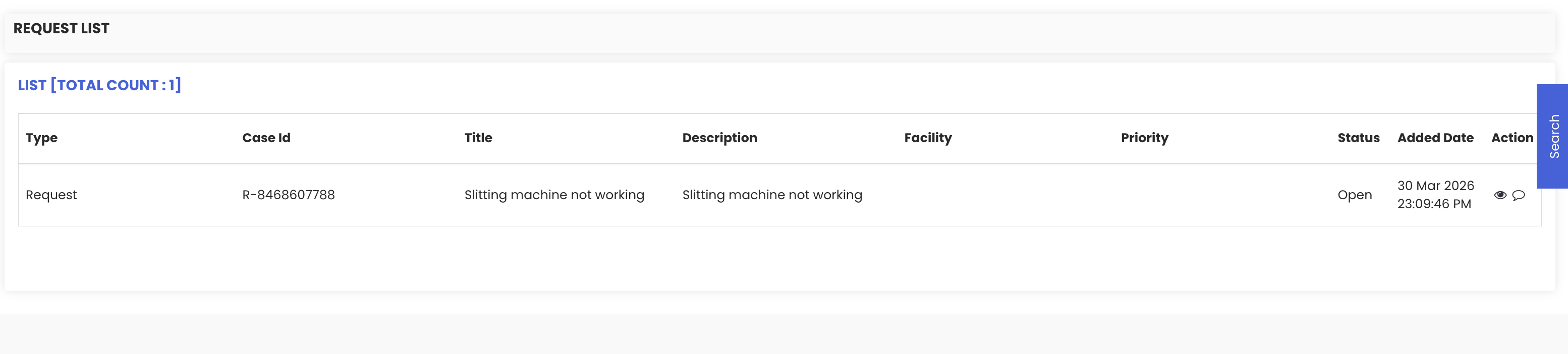
Once all details are filled in, click Save. You will be automatically redirected to the Request Listing page where the new request will appear.
Step 6 – Viewing Request Details
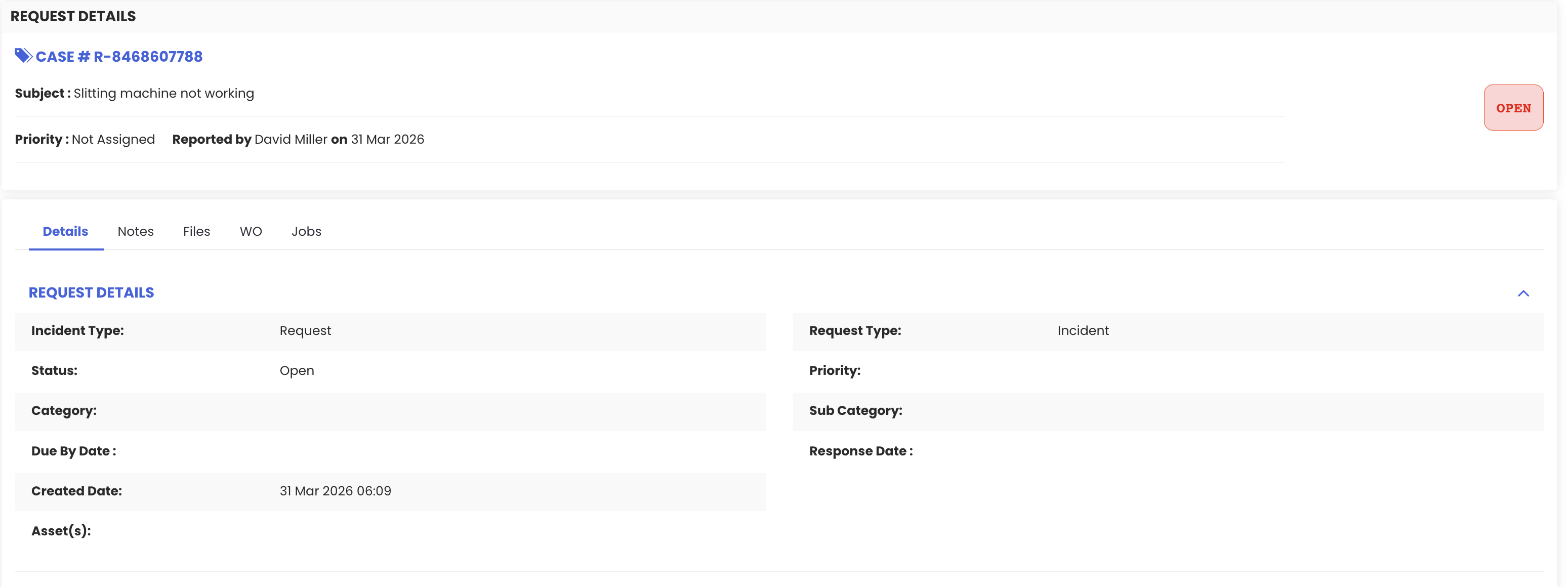
From the request listing page, click on a request to open its details view. From here you can check:
- Whether any notes have been added to the request
- Whether any files have been uploaded
- Whether any jobs or work orders have been created against that request
Step 7 – Associated Facilities
The Associated Facilities section lists all facilities that are linked to your customer account. This gives you a clear view of which sites are associated with your services.
Step 8 – Associated Assets and Service Items
Under Associated Assets and Service Items, you can view all assets and services that are connected to your account, giving you a complete picture of what is being maintained or serviced on your behalf.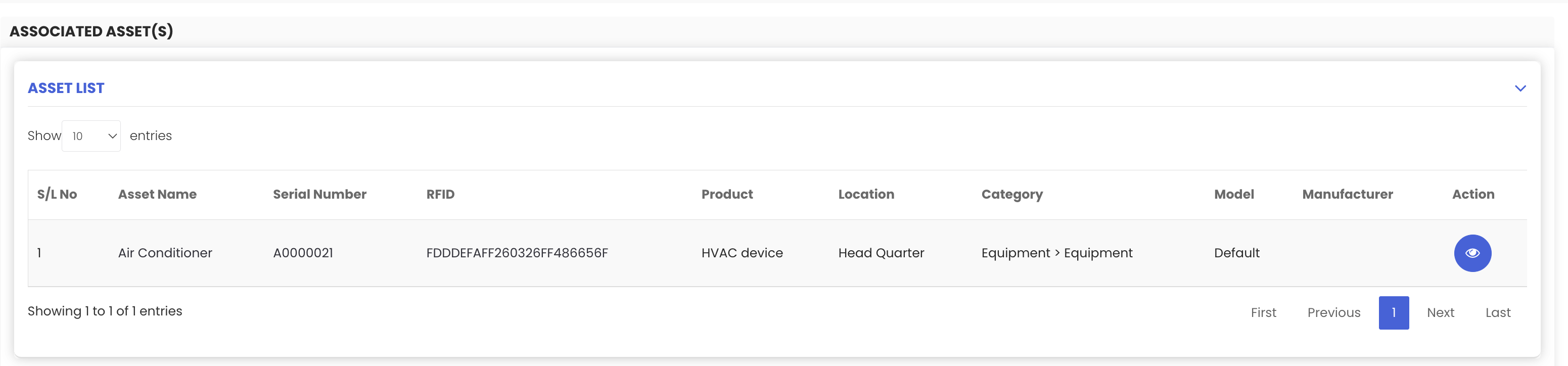
Step 9 – Gantt Chart
The Gantt Chart view provides a timeline representation of all jobs created for your account. Each job is displayed on the chart at its scheduled date, giving you a visual overview of planned work. Click on any job in the chart to open its full details.
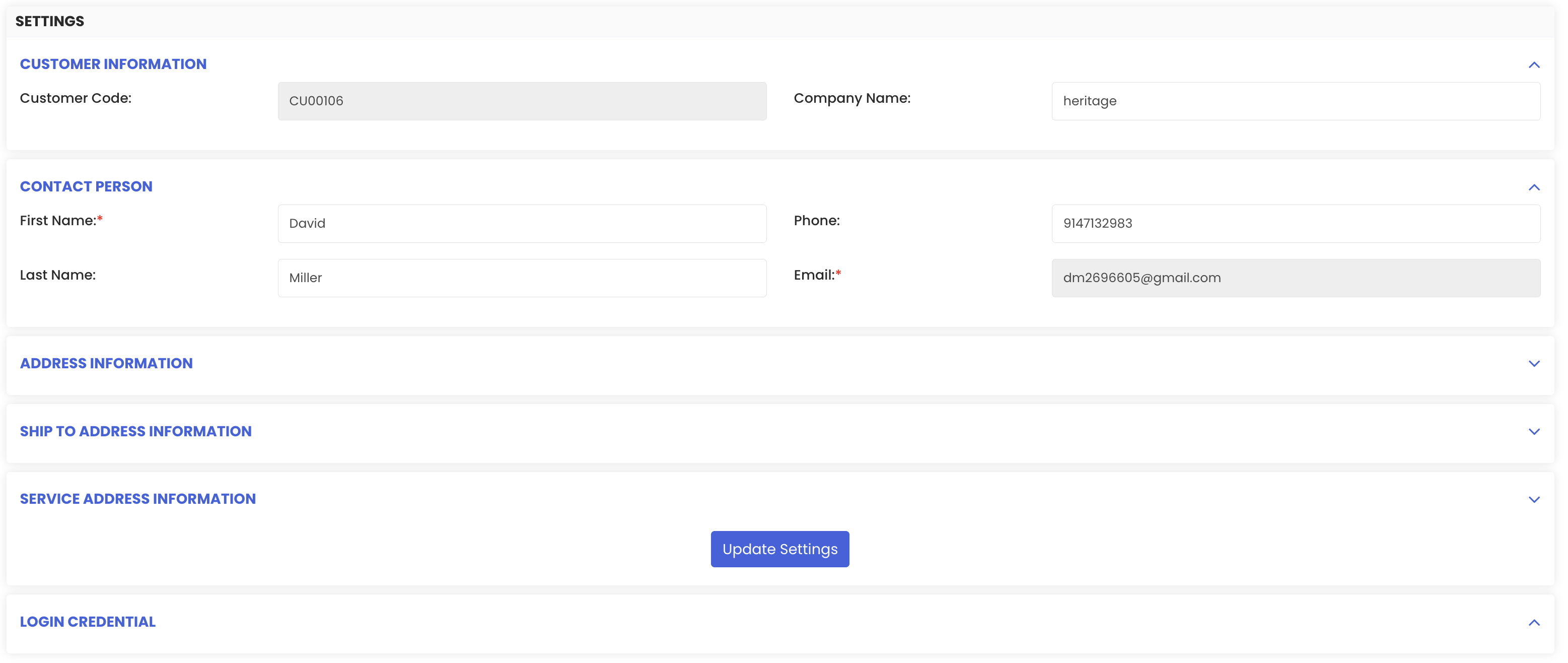
Step 10 – Settings
The Settings section allows you to view your customer account details, including:
- Customer Code, Company Name
- First Name, Last Name, Mobile Number, Email Address
- Address Details and Shipping Address
- Login Credentials
Tips for Using the Customer Panel
- Use the dashboard shortcuts for the fastest access to the sections you use most frequently, such as raising a new request or checking invoice status.
- When raising a request, include as much detail as possible in the Description field — this helps the service team understand and action your request more quickly.
- Use the Request Details view to stay updated on the progress of your submitted requests — check for notes, uploaded files, and linked work orders regularly.
- Use the Gantt Chart to get a clear visual overview of all scheduled jobs and their timelines, especially useful when tracking multiple concurrent jobs.
- Review your details in the Settings section to ensure your contact and address information is always accurate and up to date.
Frequently Asked Questions
Can I edit my requester details when raising a request?
No. The Requester field is automatically populated based on your logged-in account and cannot be edited when submitting a request.
Where can I see if a job has been created for my request?
Open the request from the Request Listing page and view its details. The details view shows whether any jobs or work orders have been created against that specific request.
Can I view the assets associated with my account?
Yes. The Associated Assets and Service Items section lists all assets and services linked to your customer account.
What does the Gantt Chart show?
The Gantt Chart provides a timeline view of all jobs created for your account, displayed by their scheduled dates. You can click on any job in the chart to view its full details.
Where can I view my account and contact details?
Your account details, including customer code, company name, contact information, address, and login credentials, are all available in the Settings section of the Customer Panel.
Related Articles
- Create and Manage Jobs
- Manage Work Requests
- Create and Manage Quotations
- Create and Manage Invoices
- Create Asset Locations