Manage Asset Depreciation
DreamzFSM allows you to set and manage depreciation information for your equipment assets. By entering details such as purchase cost, depreciation method, salvage value, and lifespan, the system automatically calculates and tracks the depreciation of each asset over time. This information is accessible from both the asset's General tab and the Financials tab, giving you a clear view of asset value throughout its lifecycle.
- Enter purchase cost, depreciation method, and lifespan details for each asset
- Configure salvage values, revised costs, and CWD information
- View a full depreciation breakdown from the Financials tab
- Track asset value changes across its entire lifecycle
Overview
Depreciation information is configured from the asset's Edit page under the General tab. Once saved, the depreciation data is automatically calculated and displayed in the Financials tab, where you can expand the depreciation board to see a year-by-year or period-by-period breakdown. This makes it easy to track the financial value of assets and plan for replacements or revaluations.
Video Tutorial
How to Set Up Asset Depreciation
Step 1 – Navigate to Equipment
From the main menu, click Assets, then select Equipment. The Equipment Listing page will open.
Step 2 – Open the Asset for Editing
Find the equipment for which you want to set depreciation details. Click Edit to open the asset editing form.
Step 3 – Expand Depreciation Information
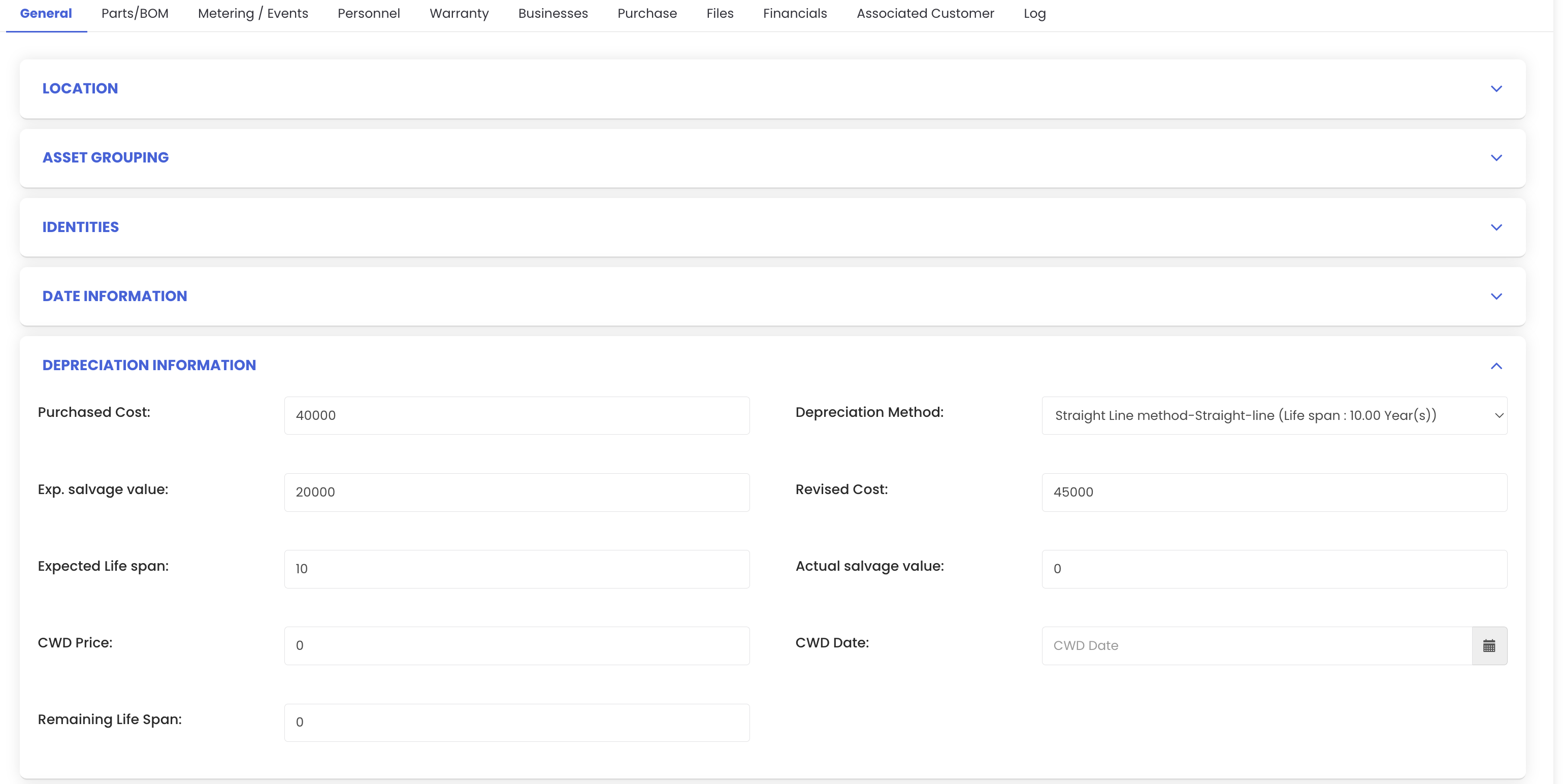
Under the General tab, locate and expand the Depreciation Information section. Enter the following details as required:
- Purchase Cost – The original cost of the asset at the time of purchase
- Depreciation Method – The method used to calculate depreciation (e.g., straight-line, reducing balance)
- Expected Salvage Value – The estimated residual value of the asset at the end of its useful life
- Revised Cost – Any updated cost value following revaluation
- Expected Lifespan – The anticipated useful life of the asset
- Actual Salvage Value – The actual residual value recorded at the end of the asset's life
- CWD Price and CWD Date – Capital Work in Development price and date, if applicable
- Remaining Lifespan – The remaining useful life of the asset
Step 4 – Save the Details
Once all required depreciation information has been entered, click Save. The system will store the details and calculate the depreciation accordingly.
Step 5 – Review Depreciation in the Financials Tab
After saving, navigate to the Financials tab of the Equipment Details page and expand the section. Here you will see the purchase cost, revised cost, and all depreciation-related information. Expand the depreciation details further to view a detailed period-by-period breakdown of the asset's depreciation based on the values you provided.
Tips for Managing Asset Depreciation
- Enter depreciation details at the time of creating or onboarding the asset to ensure accurate tracking from day one.
- Choose the correct depreciation method in line with your organisation's accounting policies — this directly affects how values are calculated over time.
- Use the Revised Cost field to update asset values following revaluations or significant upgrades without losing the original purchase cost record.
- Regularly review the Financials tab during asset lifecycle reviews or audits to ensure depreciation figures remain accurate and up to date.
- Use the Remaining Lifespan field to proactively plan asset replacements before equipment reaches the end of its useful life.
Frequently Asked Questions
Where do I enter depreciation information for an asset?
Depreciation information is entered from the asset's Edit page, under the Depreciation Information section within the General tab.
Where can I view the depreciation breakdown after saving?
Navigate to the Financials tab of the Equipment Details page. Expand the depreciation details to see a full breakdown of the asset's depreciation over time based on the values you entered.
Can I update depreciation details after the asset has been saved?
Yes. You can edit the asset at any time and update the depreciation information. The system will recalculate the depreciation based on the updated values.
What depreciation methods are supported?
The system supports configurable depreciation methods. Contact your system administrator or refer to your organisation's accounting settings to confirm which methods are available in your environment.
Related Articles
- Create and Manage Assets
- How to Manage Various Asset Information
- Import Assets from Excel
- Product Management
- Asset Movement