Asset Movement
DreamzFSM allows you to move assets from one location to another directly from the Equipment listing page. Whether you are relocating an asset to a site location, a using location, a business location, or a work order location, the asset movement feature ensures the move is properly recorded with full details — including who moved it, when, and any relevant notes.
- Move assets to site, using, business, or work order locations
- Record movement details including responsible person, date, and time
- Add notes for additional context on each movement
- Asset location is updated immediately after saving
Overview
Asset movement is managed from the Equipment listing page under the Assets module. Using the Move To option, you can select a destination type, enter the required location and movement details, and save the record. The system updates the asset's current location and maintains a full movement history, which can be reviewed from the asset's Log section.
Video Tutorial
How to Move an Asset
Step 1 – Navigate to Equipment
From the main menu, click Assets, then select Equipment. The Equipment Listing page will open.
Step 2 – Select the Asset to Move
Find and select the asset you want to move. Click the three dots next to the asset and select Move To. The asset movement screen will open.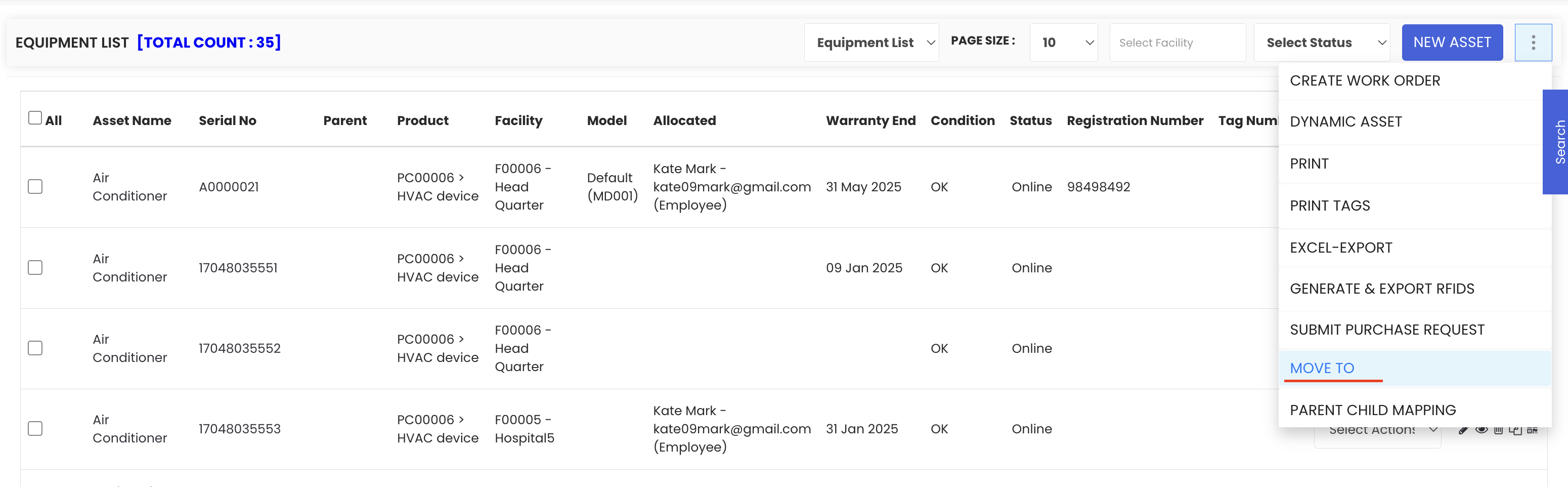
Step 3 – Select the Destination Type
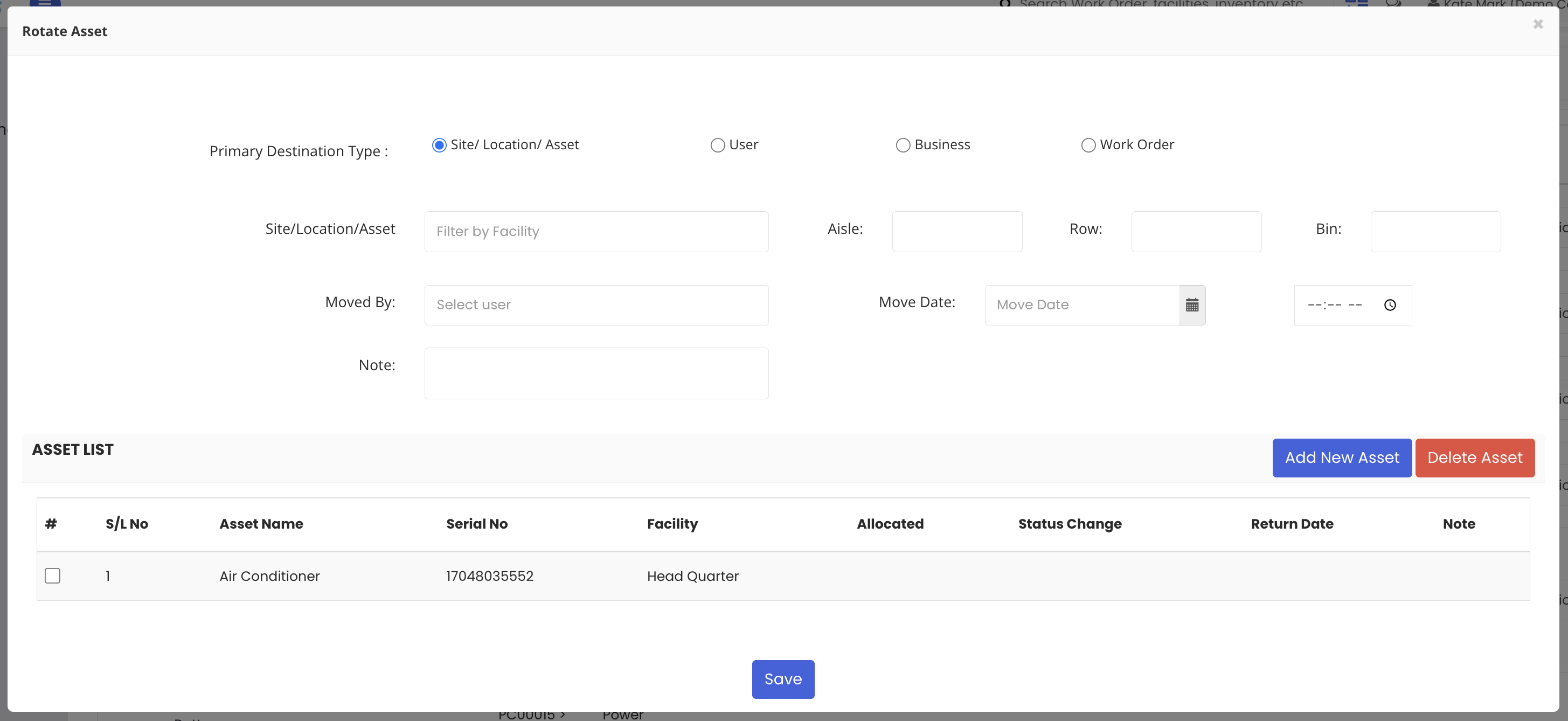
Choose the type of destination for the asset movement. The available options are:
- Site Location – A physical site or facility within the system
- Using Location – The location where the asset will be actively used
- Business Location – A location associated with a business or supplier
- Work Order Location – A location linked to a specific work order
Step 4 – Enter Location and Movement Details
If you selected a Site Location, enter the location code for the destination. Then provide the following details:
- Moved By – The person responsible for the asset movement
- Moving Date and Time – When the movement is taking place
- Notes – Any additional context or remarks about the move
Step 5 – Save the Movement
Once all required details have been entered, click Save. The asset will be moved to the new location and the record will be updated in the system.
Tips for Managing Asset Movement
- Always fill in the Moved By field to maintain a clear record of accountability for each asset movement.
- Use the Notes field to record the reason for the move — this makes the movement history more useful during audits or reviews.
- After moving an asset, check the Log section of the Equipment Details page to confirm the movement has been recorded correctly.
- Ensure the correct destination type is selected before entering location details — selecting the wrong type may result in the asset being linked to an incorrect location category.
Frequently Asked Questions
Can I move an asset to any type of location?
Yes. The Move To feature supports four destination types: site location, using location, business location, and work order location. Select the appropriate type based on where the asset is being relocated.
Is the movement history saved in the system?
Yes. Each asset movement is recorded and can be reviewed from the Log section of the Equipment Details page, which provides a full timeline of all movements.
Is the Moved By field mandatory?
It is strongly recommended to fill in the Moved By field to maintain a proper record of who is responsible for each movement, even if the system allows saving without it.
Can I add notes when moving an asset?
Yes. The Notes field is available on the asset movement screen and allows you to add any relevant context or remarks about the movement.
Related Articles
- Create and Manage Assets
- How to Manage Various Asset Information
- Create Asset Locations
- Asset Parent Child Mapping
- Create and Manage Jobs