Generate RFIDs for Equipment
DreamzFSM allows you to generate, manage, and import RFID codes for your equipment assets. RFIDs provide an additional identification layer alongside QR codes and barcodes, enabling faster asset tracking in environments that support RFID scanning. You can auto-generate new RFID codes for any number of assets, or import existing RFID data from an Excel file if your organisation already uses pre-assigned codes.
- Auto-generate RFID codes for individual or multiple assets
- Export RFID data to an Excel file for external use
- Import existing RFID codes using a structured Excel file
- Download a sample import file to prepare your data correctly
Overview
RFID management is accessible from the Equipment listing page under the Assets module. You can generate new RFIDs in bulk or for selected assets, export the generated codes, or import pre-existing RFID data. This makes it easy to integrate DreamzFSM with your existing RFID infrastructure or roll out RFID tagging across your asset base from scratch.
Video Tutorial
How to Generate and Manage RFIDs
Step 1 – Navigate to Equipment
From the main menu, click Assets, then select Equipment. The Equipment Listing page will open.
Step 2 – Open the RFID Management Page
Click the three dots menu on the Equipment Listing page and select Generate and Export RFIDs. A list of all assets in the system will open.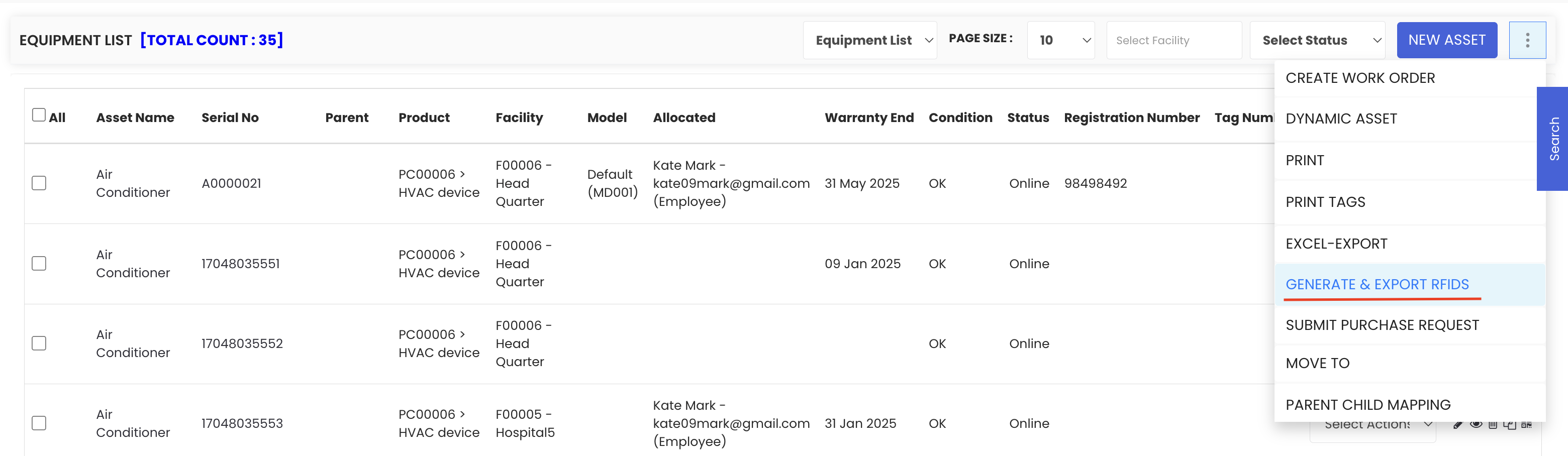
Step 3 – Select Assets
Select the assets for which you want to generate RFID codes. You can choose specific assets or select all assets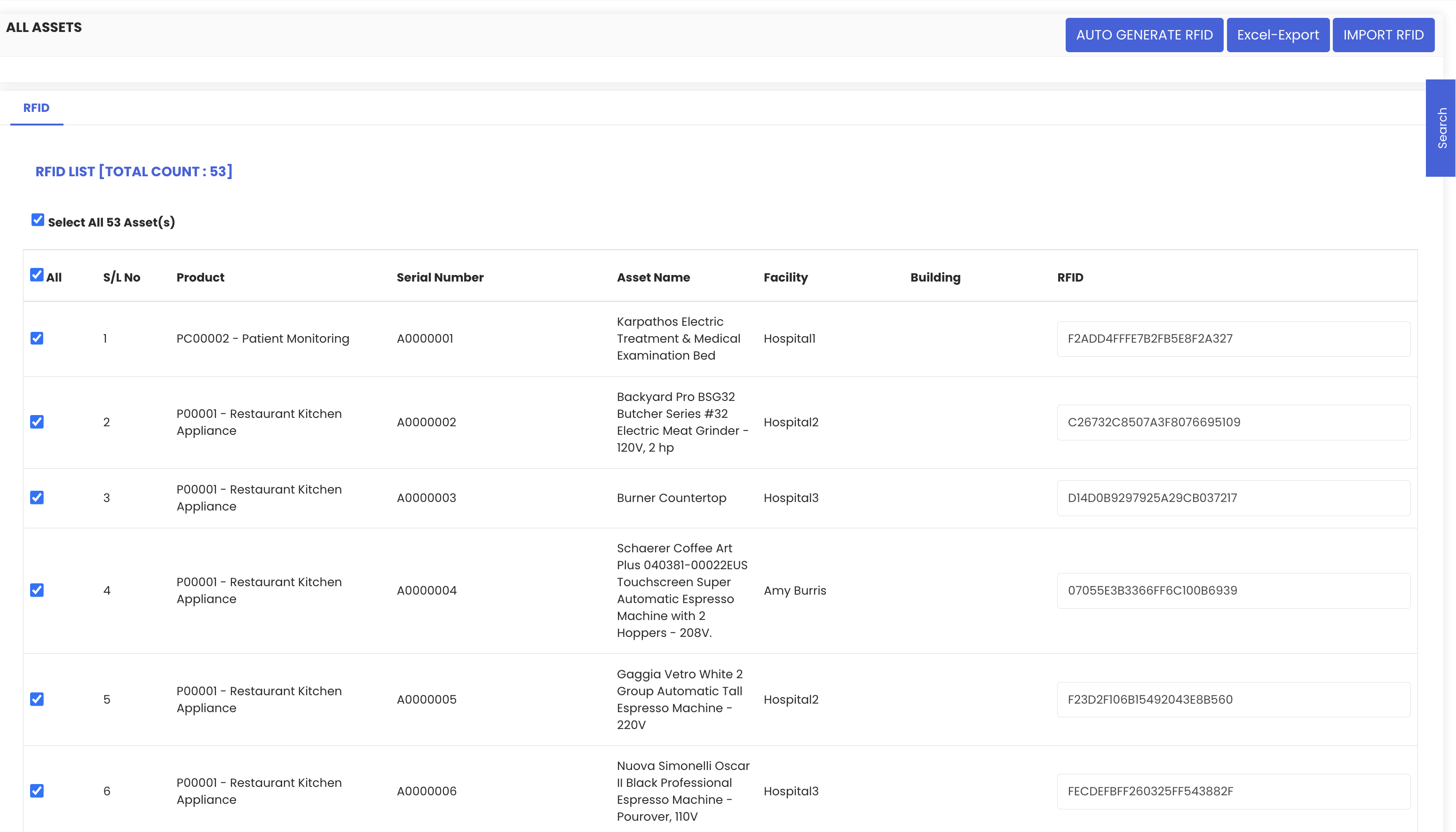 nce.
nce.
Step 4 – Auto-Generate RFIDs
Click Auto-Generate RFID. The system will automatically create and assign RFID codes to the selected assets. The generated RFID code will be displayed next to each asset once the process is complete.
Step 5 – Export RFID Data (Optional)
You can export all RFID information into an Excel file using the export option. This is useful for record-keeping or for programming physical RFID tags.
Step 6 – Import Existing RFIDs (Optional)
If your organisation already has pre-assigned RFID codes, use the Import RFID option to upload them into the system. A sample RFID import file is provided — download it to understand the required format, prepare your Excel file accordingly, and then upload it into the system.
Tips for Managing RFIDs
- Use Auto-Generate RFID for new assets that do not yet have assigned codes — it is the fastest way to get all assets tagged.
- If you already have physical RFID tags with pre-programmed codes, use the Import RFID option to ensure the system codes match your physical tags exactly.
- Export RFIDs after generation and store the file securely — this gives you a backup record of all assigned codes.
- Download the sample import file before preparing your import spreadsheet to ensure the column format matches what the system expects.
- You can also generate an RFID for a single asset directly from its Equipment Details page using the Auto-Generate RFID button in the General tab.
Frequently Asked Questions
Can I generate RFIDs for all assets at once?
Yes. On the RFID management page, you can select all assets and click Auto-Generate RFID to assign codes to your entire asset base in one operation.
Can I import RFID codes that were assigned outside of DreamzFSM?
Yes. Use the Import RFID option and follow the format provided in the sample file to upload your existing RFID codes into the system.
Where can I find the sample RFID import file?
The sample file is available directly on the Import RFID page. Download it to use as a template for preparing your import data.
Can I also generate an RFID for a single asset without using the bulk page?
Yes. You can generate an RFID for an individual asset from its Equipment Details page by clicking the Auto-Generate RFID button in the General tab.
Can I export RFID data after generating codes?
Yes. The RFID management page includes an export option that allows you to download all RFID data into an Excel file.
Related Articles
- Create and Manage Assets
- Print QR Code or Barcode of Equipment
- How to Manage Various Asset Information
- Import Assets from Excel
- Create Asset Locations