Print QR Code or Barcode of Equipment
DreamzFSM allows you to print QR codes and barcodes for your equipment assets, enabling fast and accurate identification in the field. You can print tags for individual assets or in bulk, configure the label layout and content, and choose the QR code type — including request generation codes that allow field staff to raise work requests by scanning directly.
- Print QR codes and barcodes for individual or multiple assets at once
- Choose between item QR codes and request generation QR codes
- Configure label layout, content, and additional details before printing
- Preview the print layout as a PDF before sending to the printer
Overview
The Print Tags feature is accessible from the Equipment listing page under the Assets module. You can select specific assets or all assets, configure your label settings, preview the output, and print — all within a few steps. Tags can be used to identify equipment on-site, scan for asset details, or trigger work and incident requests directly from the field.
Video Tutorial
How to Print QR Codes and Barcodes
Step 1 – Navigate to Equipment
From the main menu, click Assets, then select Equipment. The Equipment Listing page will open.
Step 2 – Open Print Tags
Click the three dots menu on the Equipment Listing page and select Print Tags.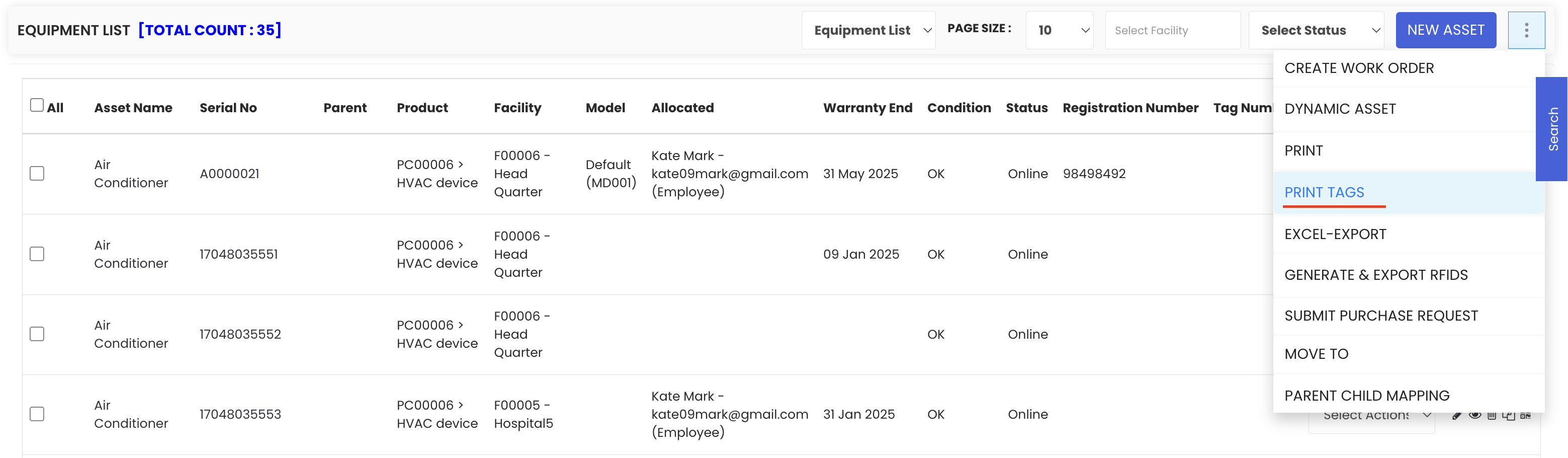
Step 3 – Select Assets
Choose the assets for which you want to print tags. You can select all assets or choose specific ones based on your requirement.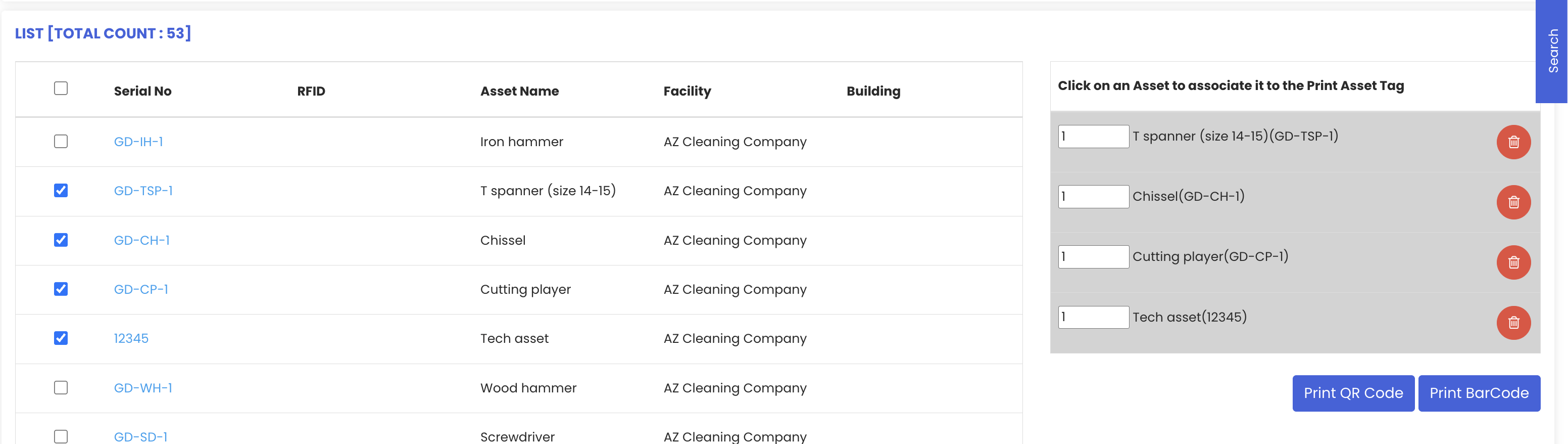
Step 4 – Choose Tag Type
Click the option to print a Barcode, a QR Code, or both. You can print one after the other if you need both tag types for the same assets.
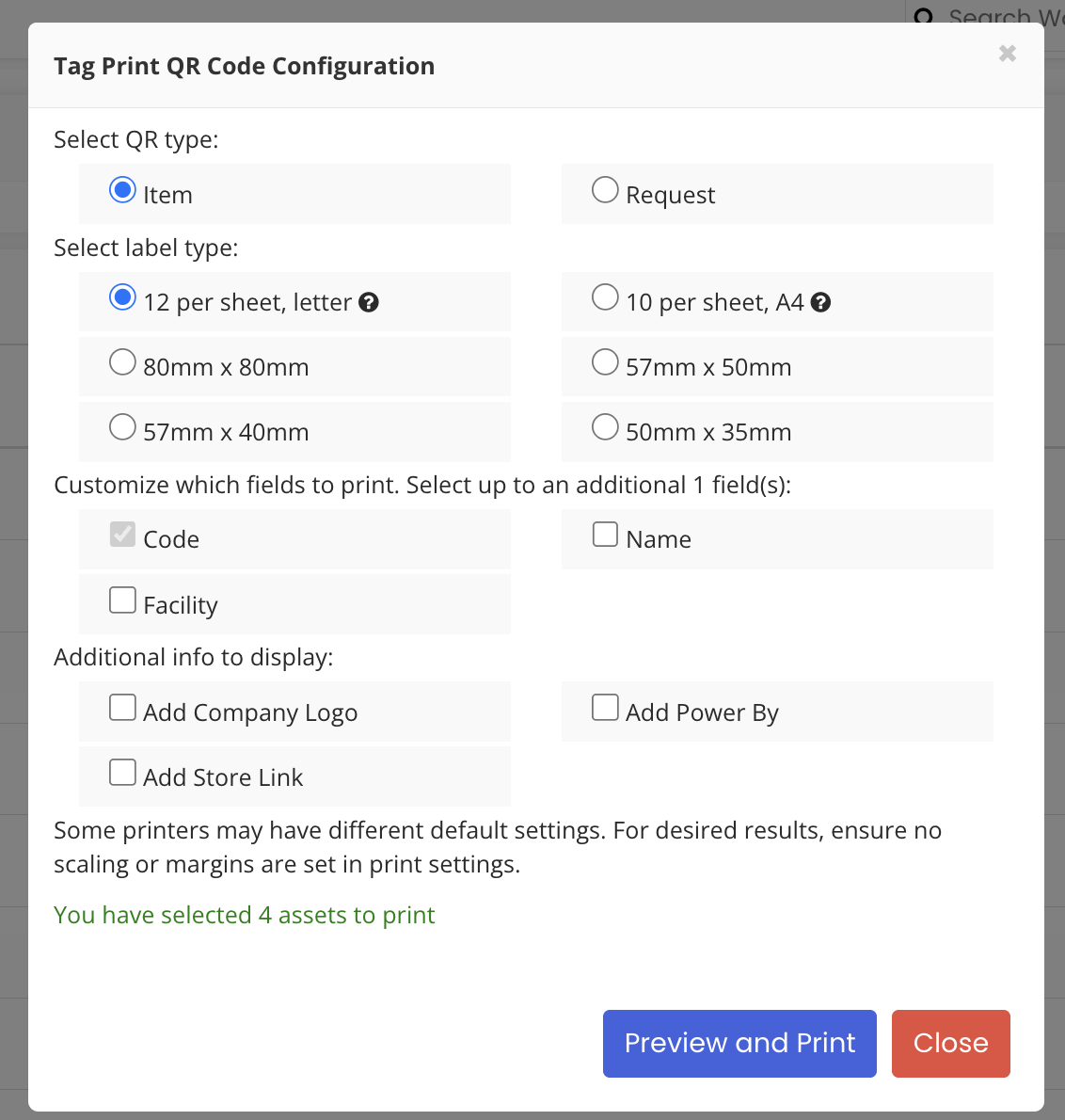
Step 5 – Configure Page and Label Settings
On the settings page, configure the following options before printing:
- QR Code Type – Choose between an Item QR Code (links to the asset's details) or a Request Generation QR Code (allows scanning to raise a work or incident request)
- Label Type – Select the format for the printed label
- Display Details – Choose what information to show on the label, such as asset code, facility name, or asset name
- Additional Information – Optionally include company details or other relevant data on the label
Step 6 – Preview and Print
Once all settings are configured, click Preview and Print. A PDF will be generated displaying the label layout. Review the preview and proceed with printing when ready.
Tips for Printing Asset Tags
- Use Request Generation QR Codes for assets in high-traffic areas — staff can scan to raise a work request on the spot without needing system access.
- Include the asset code and facility name on the label to make it easy to identify assets at a glance without scanning.
- Always use the Preview and Print option to review the layout before printing a large batch of labels.
- If you need both barcodes and QR codes, print one type first, adjust settings, then print the other — the same asset selection can be reused.
- Consider laminating or using weatherproof label stock for assets in outdoor or high-moisture environments to ensure tags remain scannable over time.
Frequently Asked Questions
Can I print tags for all assets at once?
Yes. On the asset selection screen, you can choose to select all assets and print tags for all of them in one batch.
What is the difference between an Item QR Code and a Request Generation QR Code?
An Item QR Code links directly to the asset's details page. A Request Generation QR Code allows anyone who scans it to raise a work request or incident request for that specific asset, without needing to log in and navigate through the system.
Can I print both QR codes and barcodes for the same asset?
Yes. You can print both — select the barcode option first, then repeat the process and select the QR code option for the same assets.
Can I customise what information appears on the label?
Yes. The label configuration options allow you to choose what details are displayed, including asset code, facility, name, and additional information such as company details.
Related Articles
- Create and Manage Assets
- Generate RFIDs
- How to Manage Various Asset Information
- Manage Work Requests
- Create Asset Locations