Import Assets from Excel
DreamzFSM allows you to import multiple assets at once using an Excel file through the Dynamic Asset import feature. Instead of adding equipment one by one, you can prepare a structured spreadsheet and upload it directly into the system. The import process includes a column mapping step and a data preview, giving you full control and confidence before finalising the import.
- Import multiple equipment records in bulk using an Excel file
- Download a sample file to prepare your data in the correct format
- Map Excel columns to system fields before importing
- Preview imported data and confirm before committing changes
Overview
The asset import feature is accessed via the Equipment listing page under the Assets module. A sample file is provided to help you structure your data correctly. Once uploaded, DreamzFSM walks you through a column mapping step and a preview screen before completing the import — ensuring accuracy throughout the process.
Video Tutorial
How to Import Assets from Excel
Step 1 – Navigate to Equipment
From the main menu, click Assets, then select Equipment. The Equipment Listing page will open.
Step 2 – Open the Asset Import Page
Click the three dots menu on the Equipment Listing page and select Dynamic Asset. This will open the Asset Input page where you can manage the import.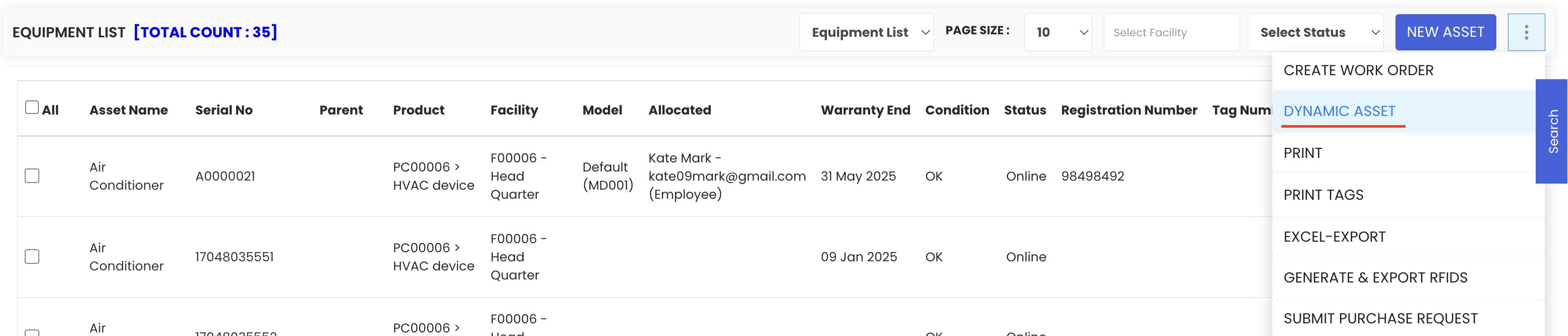
Step 3 – Download the Sample File
A sample file is provided on the Asset Input page. Download it to understand the required column structure and data format. Use this template to prepare your Excel file before uploading.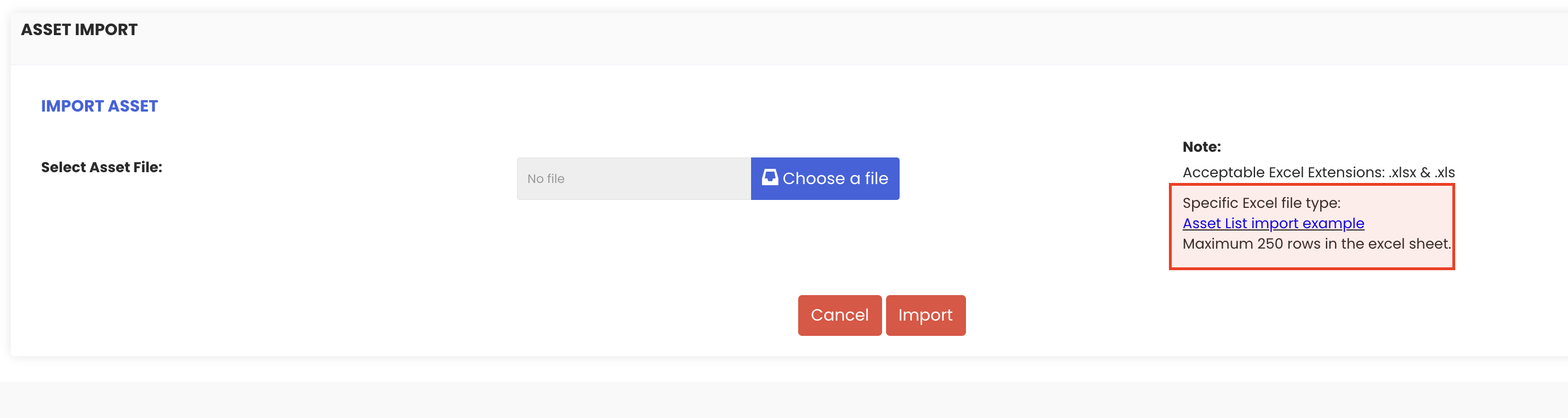
Step 4 – Upload Your File
Once your file is ready, click Choose File, select your prepared Excel file, and then click Import.
Step 5 – Map Columns and Update Data
Click Map Columns and Import. The system will display all columns from your Excel file alongside the corresponding system fields. Carefully review each mapping to ensure columns are correctly matched, then click Update Data.
Step 6 – Preview and Start Import
A preview of the processed data will be displayed. Review all records to confirm the information is correct, then click Start Import. The system will process the data — this may take a few moments depending on the file size.
Step 7 – Verify the Import
Once the import is complete, navigate back to the Equipment Listing page to confirm that all assets have been successfully added to the system.
Tips for Importing Assets
- Always use the sample file as your template — do not modify the column headers, as the system uses them during the mapping step.
- Take your time on the column mapping step to ensure all fields are correctly matched before proceeding — errors here can result in data being imported into the wrong fields.
- Use the data preview screen to spot any missing or incorrect values before committing to the import.
- For large files, be patient during processing — avoid navigating away from the page until the import is complete.
- After import, spot-check a few records on the Equipment Listing page to confirm the data has been imported as expected.
Frequently Asked Questions
Where is the Dynamic Asset option located?
It is accessible from the three dots menu on the Equipment Listing page under Assets.
Do I have to map columns every time I import?
Yes. The column mapping step is part of the import process and allows you to confirm that your Excel columns are correctly matched to the system's fields before importing.
Can I review the data before it is imported?
Yes. After the mapping step, the system displays a preview of the processed data. You can review all records before clicking Start Import to finalise the process.
What happens if some rows have errors?
The preview screen allows you to identify any issues before importing. Review all records carefully and correct any errors in your Excel file before re-uploading if necessary.
Related Articles
- Create and Manage Assets
- Import Asset Locations
- How to Manage Various Asset Information
- Print QR Code or Barcode of Equipment
- Generate RFIDs