How to Manage Various Asset Information
DreamzFSM provides a comprehensive Equipment Details page where you can manage all information related to an asset from a single location. From identity details and parts to warranties, financials, and a full activity log — everything you need to maintain a complete asset record is organised into dedicated sections, making it easy to manage assets throughout their entire lifecycle.
- View and manage general asset details, QR codes, barcodes, and RFID
- Add and manage parts, BOM groups, and meter readings
- Assign personnel, manage warranties, and link suppliers
- Track financials including depreciation, expenses, and purchase details
- View a complete asset history log including work orders, incidents, and checklists
Overview
The Equipment Details page is accessible from the Equipment listing under the Assets module. It is organised into multiple tabs, each covering a different aspect of asset management. You can navigate between tabs to update information, attach files, assign personnel, track costs, and review the full history of any asset — all without leaving the page.
Video Tutorial
Navigating the Equipment Details Page
Step 1 – Open Equipment Details
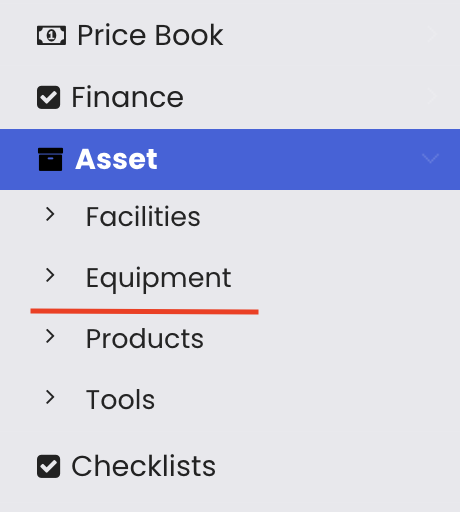
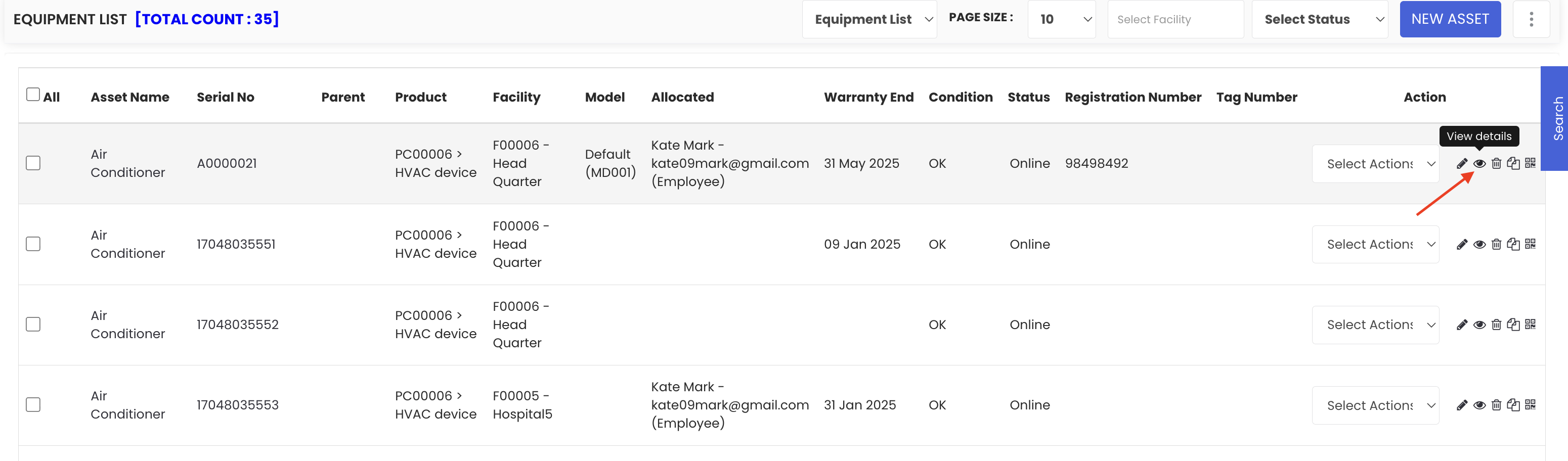
From the main menu, click Assets, then select Equipment. On the Equipment Listing page, click on an equipment item or select View Details to open its Equipment Details page.
Step 2 – General Tab
The General tab displays the basic information about the asset. A QR code and barcode are automatically generated when the equipment is added to the system. You can also generate an RFID by clicking the Auto-Generate RFID button. Identity information and any linked child assets are also visible here.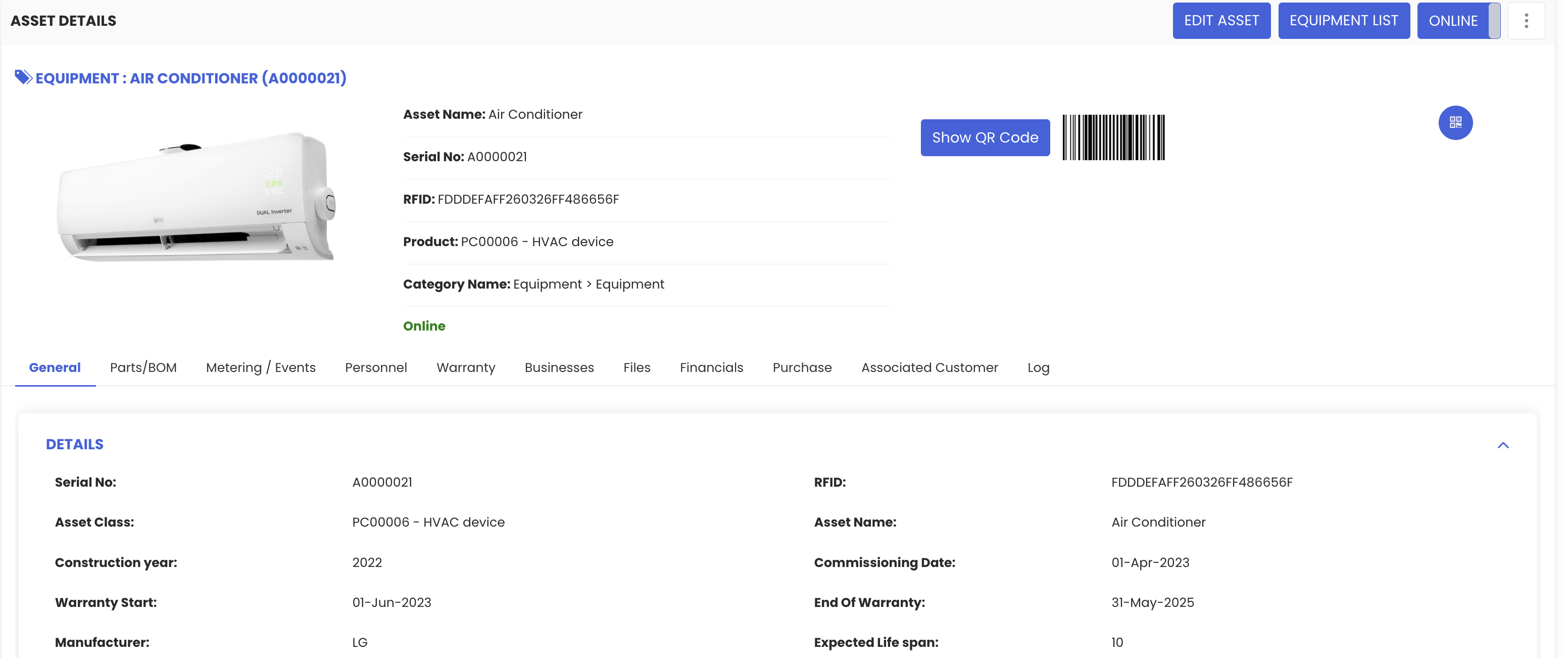
Step 3 – Parts and BOM
The Parts and BOM section allows you to add and manage the components of an asset. Use the Add BOM option to include individual items such as tools or services, or select from a predefined BOM group.
Step 4 – Metering and Events
The Metering and Events section lets you record meter readings and log any relevant events associated with the asset over time.
Step 5 – Personnel
In the Personnel section, you can assign or authorise individuals responsible for managing the asset. Tag the relevant person and save. If the asset is a vehicle, you can also assign a vehicle owner from this section.
Step 6 – Warranty
The Warranty section displays existing warranty details for the asset. You can also add additional warranty information or AMC (Annual Maintenance Contract) details as needed.
Step 7 – Businesses
Under the Businesses section, you can manage suppliers associated with the asset. Search for and add a business, mark it as the primary vendor, choose whether it should be linked to maintenance work orders or jobs, and flag it as a preferred vendor.
Step 8 – Files
The Files section centralises all documents related to the asset. Files attached through work orders, jobs, requests, problems, or change requests are visible here. You can also upload new files, add links, or include notes directly from this section.
Step 9 – Financials
The Financials section provides a full financial picture of the asset, including depreciation details with a detailed breakdown, lifecycle expense tracking, revaluation data, purchase information, and any associated customers. You can add customers from this section if required.
Step 10 – Log
The Log section displays a complete timeline of the asset's history, including transaction details, planned and completed work orders, asset status changes, incident records, movement history, checklist logs, and work order checklist history.
Tips for Managing Asset Information
- Keep the General tab up to date with accurate identity information — this ensures QR codes and barcodes scan correctly in the field.
- Use the BOM section to maintain a full parts list for each asset, making it easier to plan maintenance and order spares in advance.
- Assign a responsible person in the Personnel section so there is always a clear point of accountability for each asset.
- Regularly update the Warranty section to avoid missing warranty expiry dates or AMC renewal windows.
- Use the Log section during audits or reviews — it provides a complete, time-stamped history without requiring manual record-keeping.
- Centralise all asset-related documents in the Files section to avoid information being scattered across different systems.
Frequently Asked Questions
Are QR codes and barcodes created automatically for every asset?
Yes. When an equipment item is added to the system, a QR code and barcode are generated automatically. You can also manually generate an RFID from the General tab.
Can I add multiple suppliers to a single asset?
Yes. The Businesses section allows you to add multiple suppliers, designate a primary vendor, and set preferred vendor status for each one.
Where can I find documents attached through work orders or jobs?
All files attached through work orders, jobs, requests, problems, or change requests are automatically visible in the Files section of the Equipment Details page.
Can I track the full history of an asset?
Yes. The Log section provides a complete timeline of all activity related to the asset, including work orders, status changes, incidents, movements, and checklists.
Can I link customers to an asset?
Yes. The Financials section includes a customer association feature where you can view and add customers linked to the asset.
Related Articles
- Create and Manage Assets
- Import Assets from Excel
- Print QR Code or Barcode of Equipment
- Generate RFIDs
- Create and Manage Jobs