Import Asset Locations
DreamzFSM allows you to import multiple asset locations at once using an Excel file, saving you the time of creating each location manually. This is especially useful when setting up the system for the first time or when onboarding a large number of facilities. A sample file is provided within the system to help you prepare your data in the correct format.
- Import multiple locations in bulk using an Excel file
- Download a sample file to understand the required format
- View a confirmation summary after import is completed
- All imported locations appear immediately in the facility list
Overview
The Location Import feature is accessible from the Facilities page under the Assets module. Rather than creating locations one by one, you can prepare a structured Excel file and upload it directly into DreamzFSM. The system processes the file and adds all valid locations to your facility list in one operation.
Video Tutorial
How to Import Asset Locations
Step 1 – Navigate to Facilities
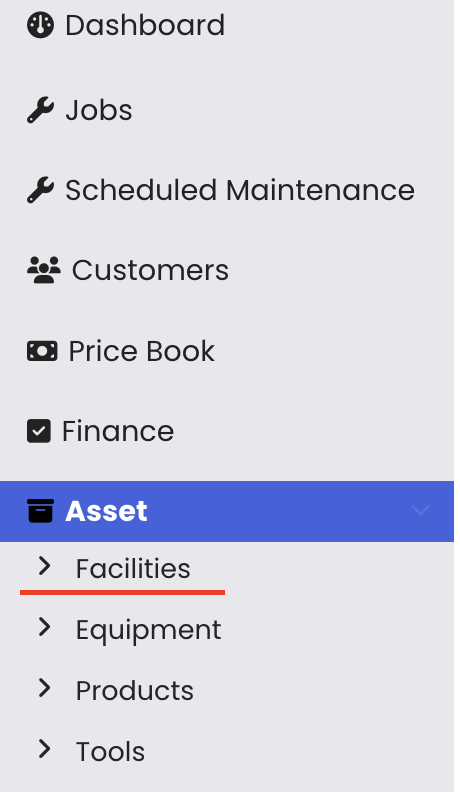
From the main menu, click Assets, then select Facilities. The Facility listing page will open.
Step 2 – Open the Location Import Page
Click the three dots menu on the Facility listing page and select Location Import. The Location Import page will open where you can upload your file.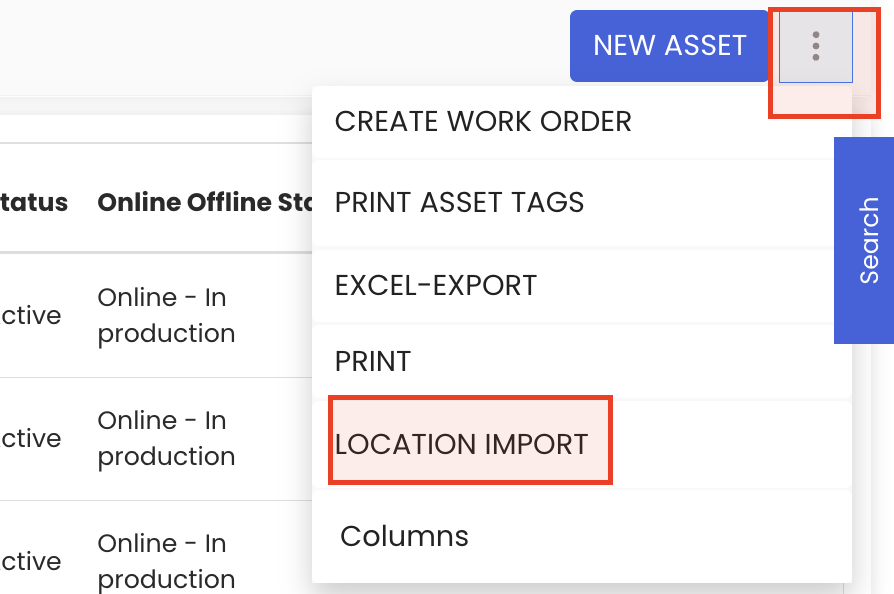
Step 3 – Download and Prepare the Sample File
A sample location file is provided on the import page. Download it to understand the required column structure and format. Use this as a template to prepare your own Excel file with your location data.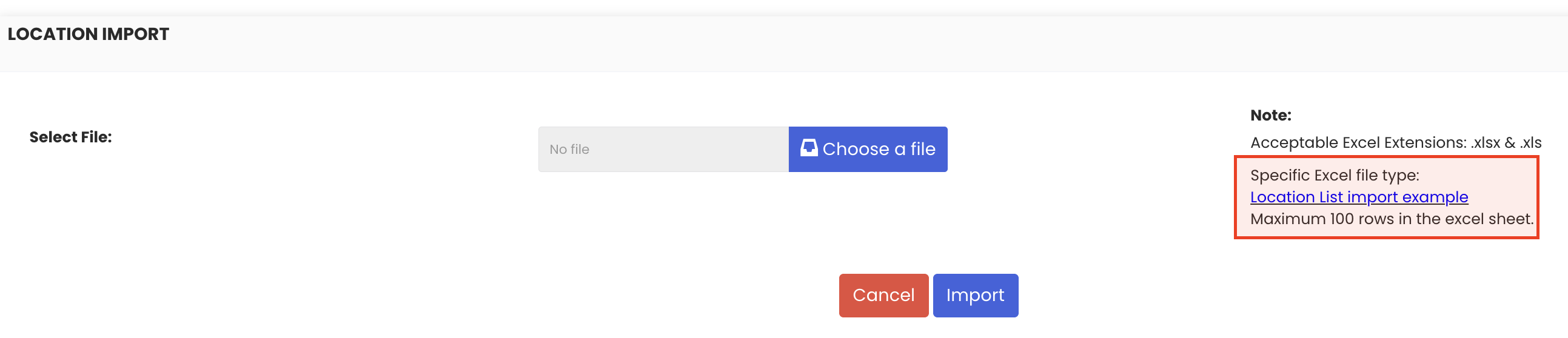
Step 4 – Upload and Import the File
Once your file is ready, click Choose File, select your prepared Excel file, and then click Import. The system will process the file and import all the locations.
Step 5 – Confirm the Import
After processing is complete, a confirmation message will appear showing how many locations have been successfully added. All imported locations will then be visible in the Facility listing page.
Tips for Importing Locations
- Always download and review the sample file before preparing your own — it shows the exact column headers and format the system expects.
- Ensure there are no blank or incorrectly formatted rows in your Excel file before uploading to avoid import errors.
- Use the bulk import approach during initial system setup to save significant time compared to creating locations individually.
- After import, switch to the Tree View on the Facility listing page to verify that parent-child relationships between locations have been correctly established.
Frequently Asked Questions
Where do I find the sample file for the import?
The sample file is available directly on the Location Import page. Click the download link provided on that page to get the template.
What file format is required for the import?
The system accepts Excel files. Use the sample file as a template to ensure your data is structured in the correct format before uploading.
How do I know if the import was successful?
After the import is processed, the system displays a confirmation message indicating how many locations were successfully imported. You can also verify by checking the Facility listing page.
Can I import sub-locations using the Excel file?
Yes. If your Excel file includes parent location references for sub-locations, the system will establish the hierarchy accordingly during the import.