Creating a Purchase Request from a Work Order – Mobile App
In the DreamzCMMS mobile app, you can create a purchase request directly from within a work order — without leaving the field. The request is automatically linked to the work order, and once submitted, it can be edited or converted into a purchase order from the same screen.
Overview
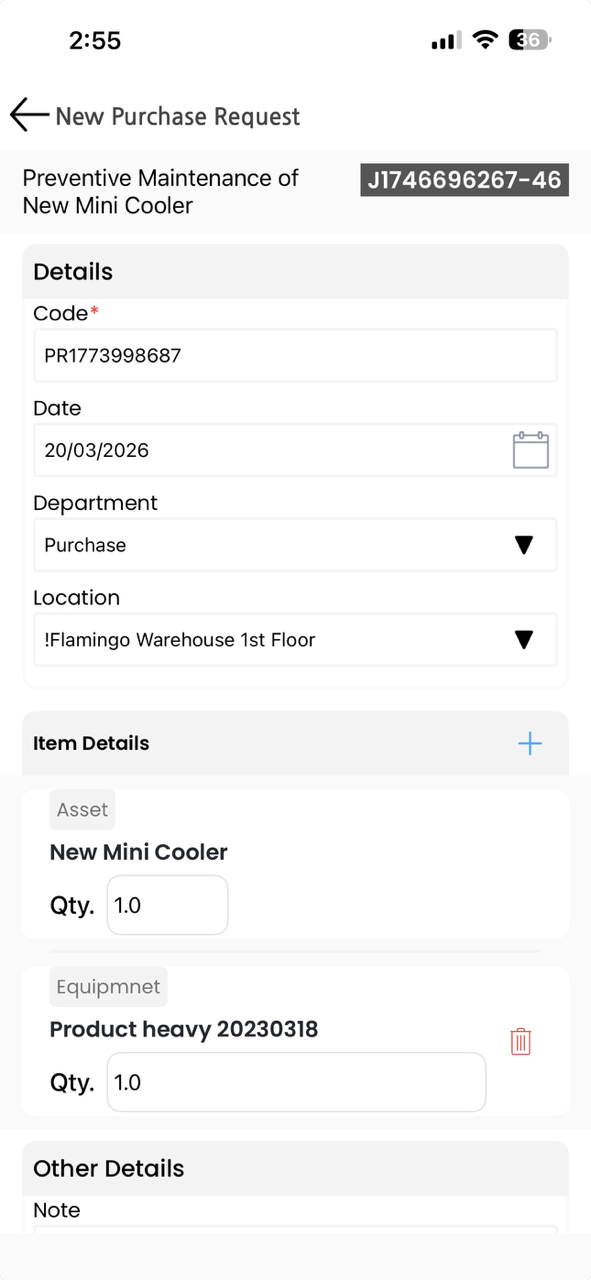
From the mobile app, go to View My Work Orders and open the relevant work order. Scroll down to the Purchase Request section and tap the plus (+) button to add a new request. The request code is automatically pre-filled. Select the department, choose a location, optionally add an asset and notes, and fill in any mandatory custom fields. Tap Save to submit the purchase request. The newly created request will appear in the Purchase Request section of the work order, where it can be edited or converted into a purchase order.
Here is a reference video:
Steps to Create a Purchase Request from a Work Order on the Mobile App
Step 1 – Open the Work Order
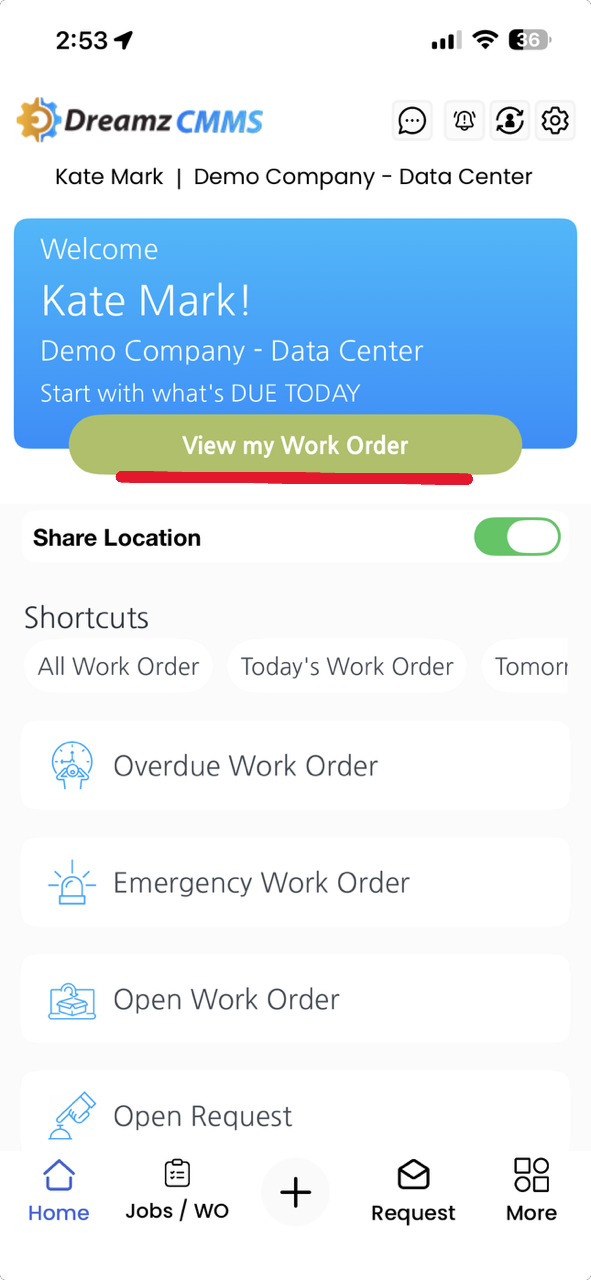
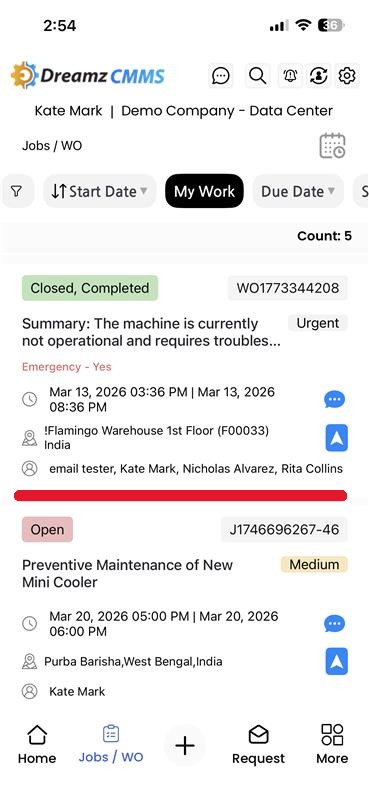
In the DreamzCMMS mobile app, tap View My Work Orders to see your assigned work orders. Tap on the work order for which you want to create a purchase request to open it. Inside the work order, you will find sections such as General, Assets, and Task Services.
Step 2 – Navigate to the Purchase Request Section
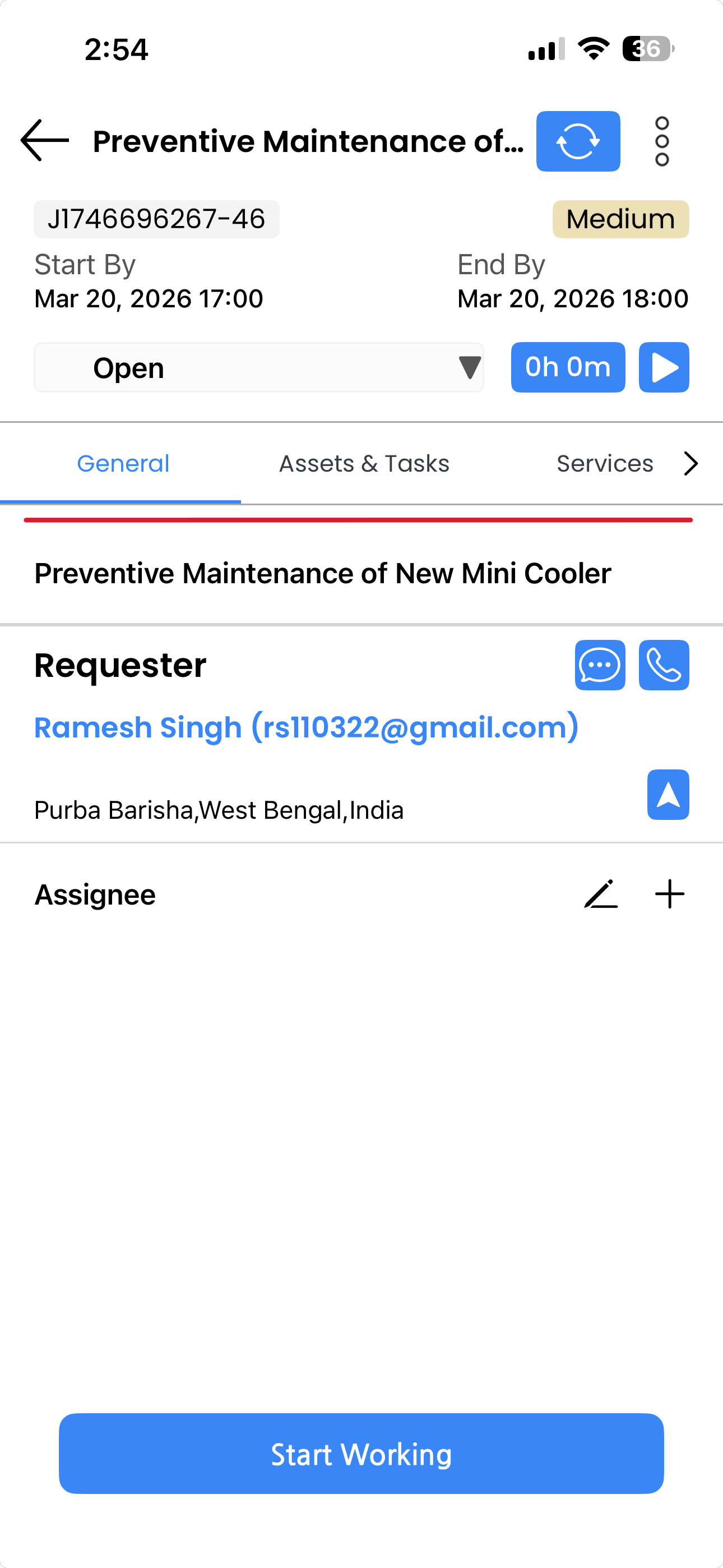
Scroll down within the work order until you find the Purchase Request section. Tap on it to expand the section.
Step 3 – Add a New Purchase Request
Tap the plus (+) button within the Purchase Request section to create a new purchase request. You will notice that the request code is already pre-filled automatically by the system.
Step 4 – Fill In the Purchase Request Details
Complete the following fields on the purchase request form:
- Department – Select the relevant department (e.g., Purchase).
- Location – Choose the location associated with the request.
- Asset – Optionally select a relevant asset to associate with the request.
- Notes – Add any additional notes or context if needed.
- Custom Fields – Fill in all mandatory custom fields as required.
Step 5 – Save the Purchase Request
Once all required details have been filled in, tap Save. The purchase request will be successfully submitted and linked to the work order.
Step 6 – View, Edit, or Convert the Purchase Request
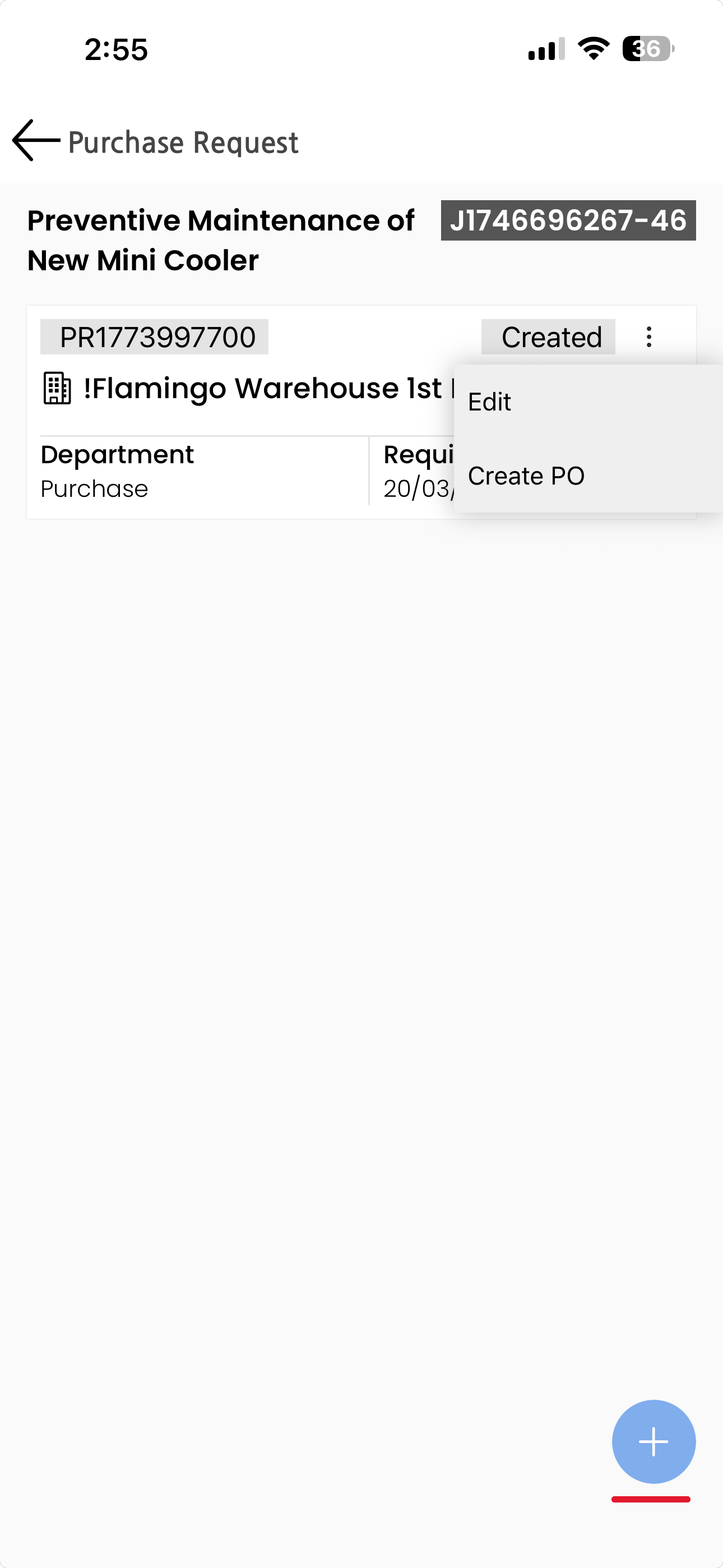
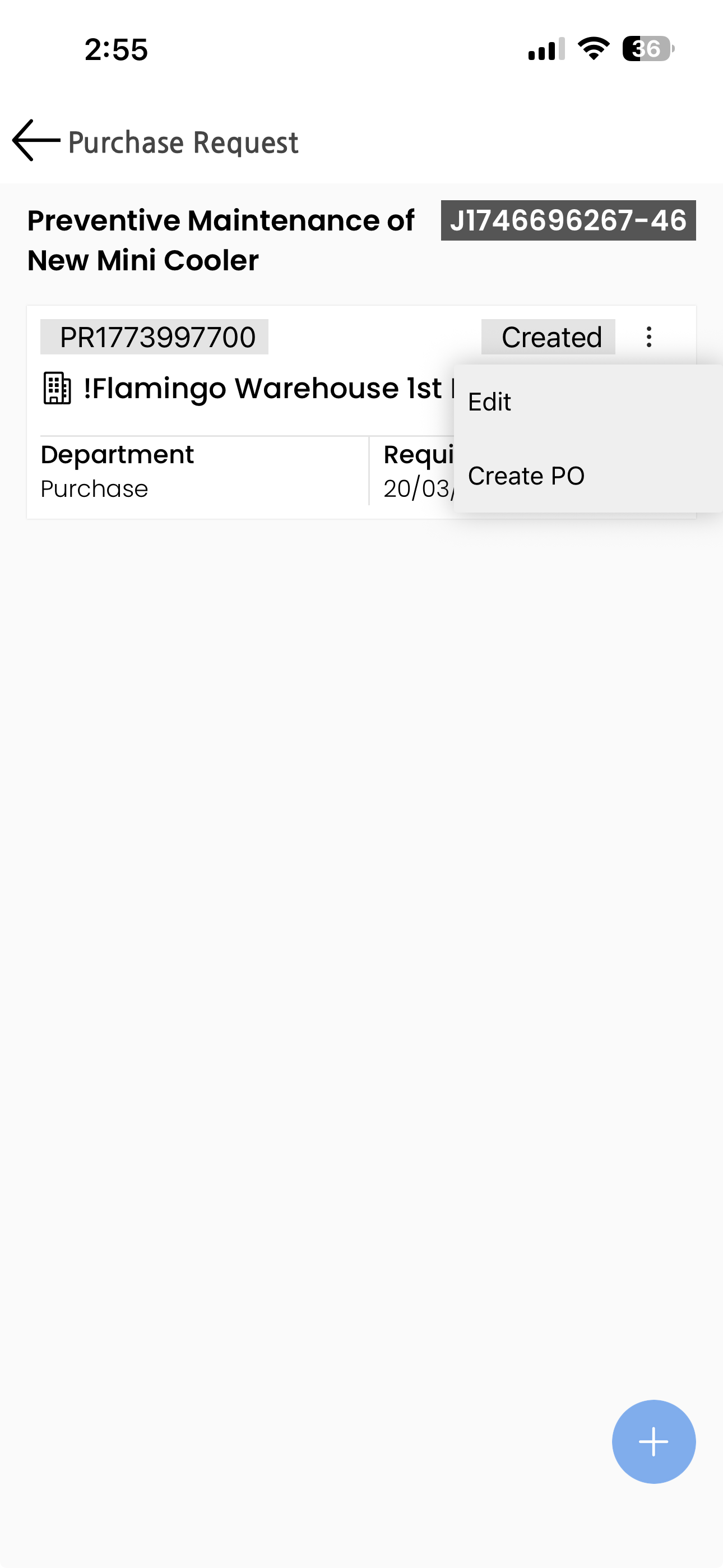
After saving, return to the Purchase Request section of the work order. The newly created request will be listed there. From this screen, you can:
- Edit the purchase request to update any details.
- Create a Purchase Order directly from the purchase request to proceed with procurement.
Tips for Creating Purchase Requests on the Mobile App
- Scroll through the entire work order to locate the Purchase Request section — it appears below the General, Assets, and Task Services sections.
- The request code is pre-filled automatically — you do not need to enter it manually, which reduces the risk of duplicate or incorrect codes.
- Always complete all mandatory custom fields before tapping Save — the form will not submit if any required fields are left blank.
- Use the Notes field to provide context for the purchasing team, such as urgency, preferred supplier, or specific product specifications.
- Once a purchase request is submitted, you can convert it directly into a purchase order from the same Purchase Request section in the work order — keeping the entire procurement process within the app.
Frequently Asked Questions
How do I create a purchase request from a work order on the DreamzCMMS mobile app?
Open the work order from View My Work Orders, scroll down to the Purchase Request section, tap the plus (+) button, fill in the required details, and tap Save.
Does the purchase request automatically link to the work order?
Yes. When you create a purchase request from within a work order on the mobile app, it is automatically associated with that work order — no manual linking is needed.
Do I need to enter the request code manually?
No. The request code is automatically pre-filled by the system when you tap the plus (+) button to add a new purchase request.
Can I convert a purchase request into a purchase order from the mobile app?
Yes. After saving the purchase request, it will appear in the Purchase Request section of the work order. From there, you can tap the option to create a purchase order directly from the request.
What should I do if the Save button is not working?
Ensure all mandatory custom fields have been completed. The form will not save if any required fields are left blank. Scroll through the form to check for any unfilled mandatory fields highlighted in red.
Related Articles
- Creating a Purchase Request from a Work Order (Web)
- Work Order Management – Mobile App
- Purchase Request List
- Creating a Purchase Order
- DreamzCMMS Mobile App Overview