Creating a Purchase Request from a Work Order
In DreamzCMMS, you can create a purchase request directly from a work order — automatically linking the two records together. This ensures that procurement is always tied back to the originating work order, giving your team full traceability from maintenance need through to purchasing.
Overview
From the left-side menu, navigate to Work Order → Work Order List and open the work order for which you want to raise a purchase request. Click the three-dot menu and select New Purchase Request. The work order will be automatically associated with the request. Select the department, add the required items with quantities and any custom details, then click Save as Created to complete the purchase request.
Here is a reference video:
Steps to Create a Purchase Request from a Work Order
Step 1 – Navigate to the Work Order List
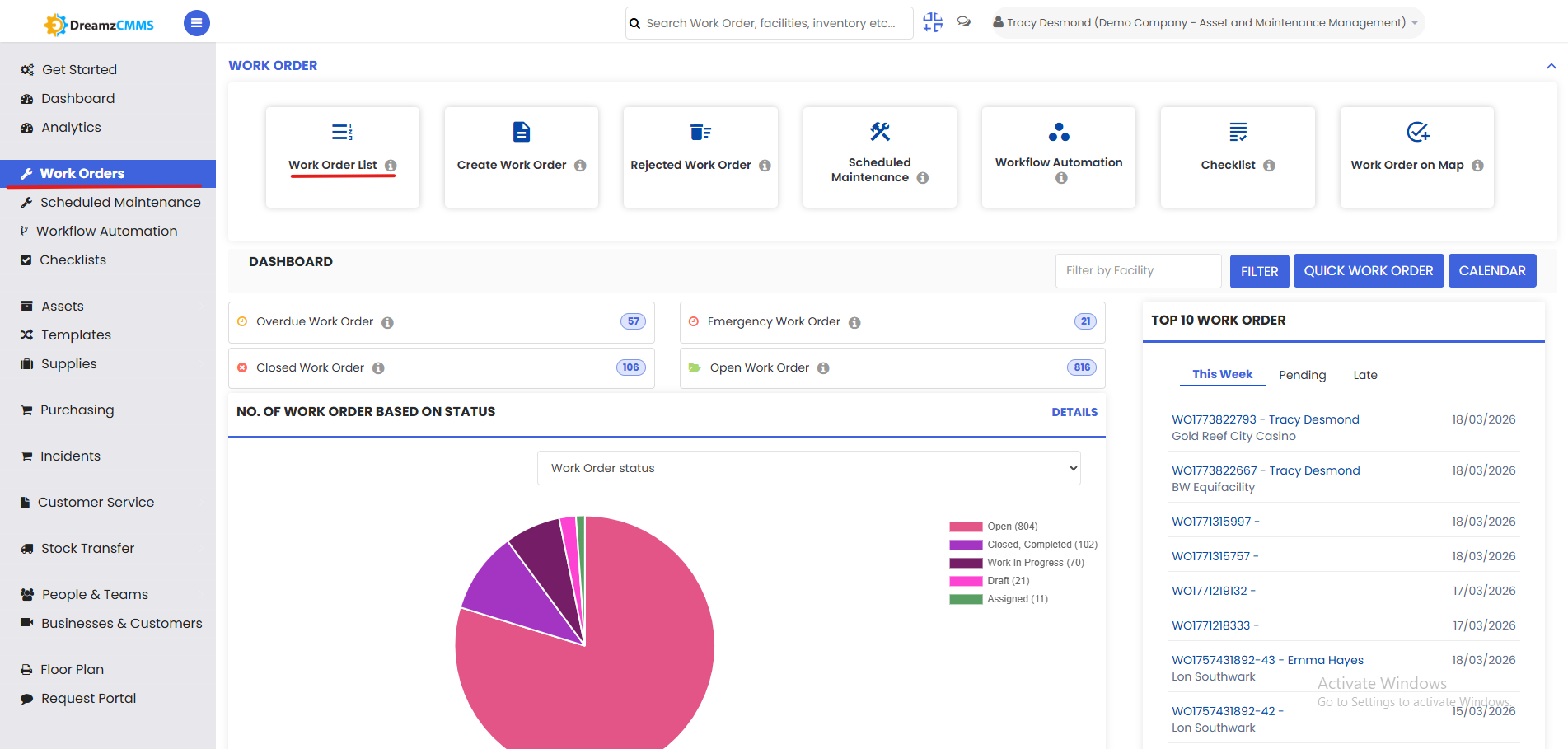
From the left-side menu, click on Work Order and then select Work Order List to view all existing work orders.
Step 2 – Open the Work Order
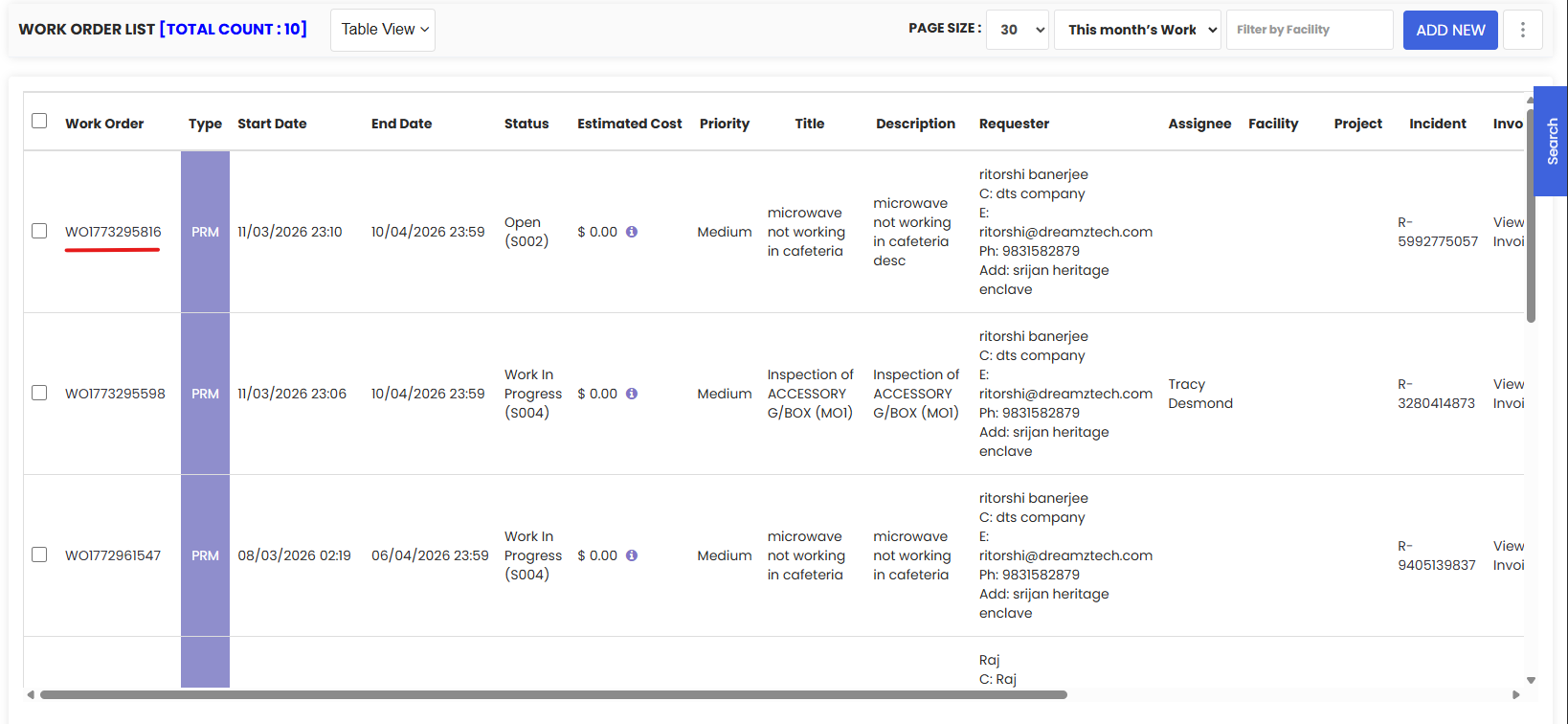
From the Work Order List, locate and click on the work order for which you want to create a purchase request to open its details page.
Step 3 – Select New Purchase Request from the Three-Dot Menu
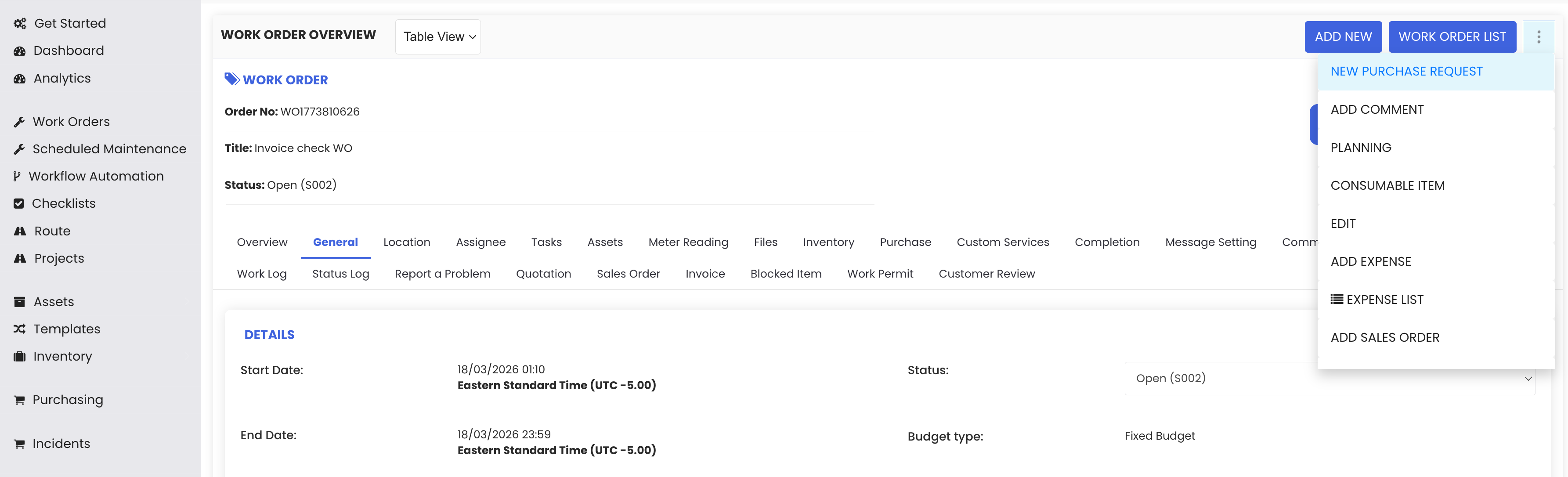
On the work order details page, click the three-dot menu (⋮) and select New Purchase Request from the dropdown options. The purchase request form will open with the work order already automatically associated.
Step 4 – Fill In the Purchase Request Details
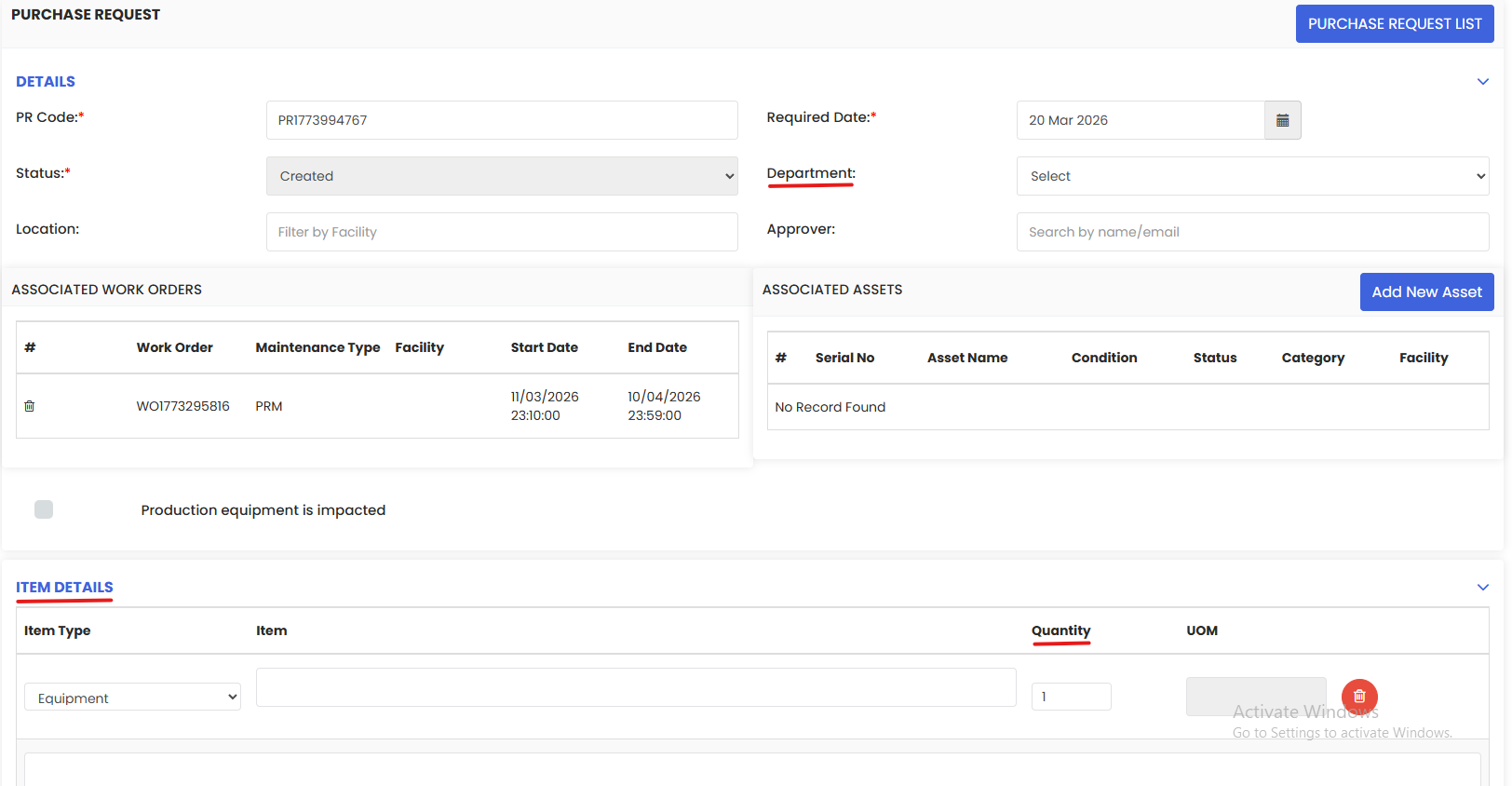
On the purchase request form, fill in the following details:
- Work Order – This is automatically pre-populated from the work order you opened. No manual entry required.
- Department – Select the relevant department (e.g., Purchase).
- Item – Add the item or items required for the work order.
- Quantity – Enter the quantity required for each item.
- Custom Details – Add any additional custom information if applicable.
Step 5 – Save the Purchase Request
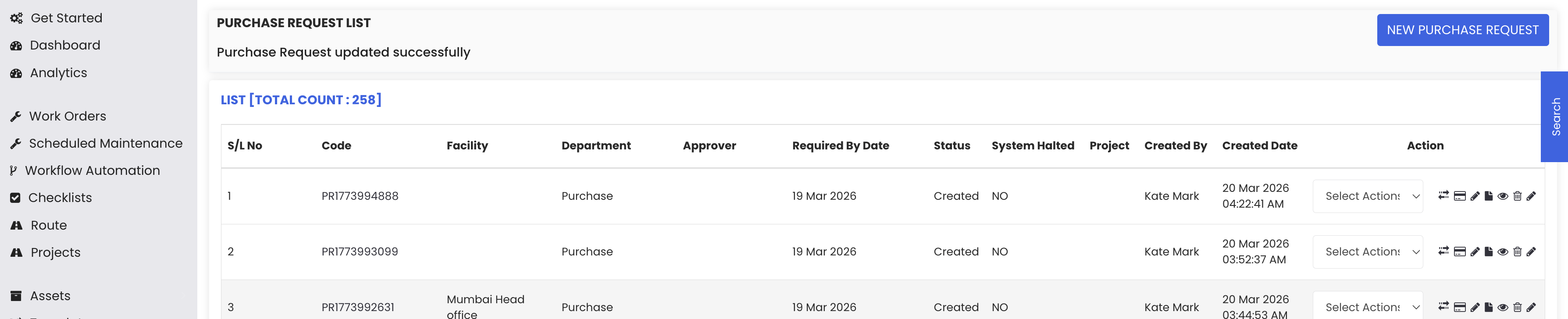
Once all the required details have been entered, click Save as Created. The purchase request will be successfully created and linked to the originating work order.

Tips for Creating a Purchase Request from a Work Order
- Always create purchase requests directly from the work order using the three-dot menu — this ensures the work order is automatically linked to the request, maintaining full traceability between maintenance and procurement.
- Double-check the pre-populated work order reference on the purchase request form before saving to confirm it is associated with the correct work order.
- Use the Custom Details field to add any specific notes or requirements that the purchasing team needs to be aware of when processing the request.
- Ensure the correct Department is selected (e.g., Purchase) so the request is routed to the right team for approval and processing.
- After saving, verify the purchase request appears in the Purchase Request List and is correctly linked to the originating work order for audit and tracking purposes.
Frequently Asked Questions
How do I create a purchase request from a work order in DreamzCMMS?
Open the work order from the Work Order List, click the three-dot menu (⋮) on the work order details page, and select New Purchase Request. Fill in the department, items, quantities, and any custom details, then click Save as Created.
Is the work order automatically linked to the purchase request?
Yes. When you create a purchase request using the New Purchase Request option from a work order's three-dot menu, the work order is automatically associated with the purchase request — no manual linking is required.
Can I add multiple items to a single purchase request?
Yes. You can add multiple items to the purchase request form, each with its own quantity and custom details, allowing you to consolidate all procurement needs for a single work order into one request.
What does Save as Created mean?
Save as Created saves the purchase request with a status of Created, indicating it has been formally submitted and is ready for review and approval by the purchasing department.
Where can I view the purchase request after it has been created?
Once saved, the purchase request will appear in the Purchase Request List, where it can be tracked, reviewed, and processed by the relevant department.
Related Articles
- Work Order List
- Purchase Request List
- Creating a Work Order
- Inventory Management
- Work Order Management Overview