Creating & Managing Vehicle Logs
In DreamzCMMS, the Vehicle Logs feature allows you to create vehicle bookings, manage trip approvals, track trips in progress, and close completed trips — all from a single interface. Meter readings are automatically updated against the vehicle's asset record once a trip is completed, keeping your asset data accurate and up to date.
Overview
From the left-hand menu, click on Vehicle Logs and create a new booking by selecting a vehicle type, driver, pickup date and time, return date and time, and purpose. Once submitted, the booking status is Pending and can be viewed in List View, Calendar View, or Board View. Approve the booking by selecting and assigning a specific vehicle — the status changes to Approved. Start the trip by entering the start odometer reading, fuel level, and units — the status moves to In Progress. End the trip by entering the end odometer reading, fuel level, and any observations — the status changes to Completed. The full booking log can be reviewed via the eye icon, and the vehicle's meter reading is automatically updated in the asset record under Metering and Events.
Here is a reference video:
Steps to Create and Manage Vehicle Logs
Step 1 – Navigate to Vehicle Logs
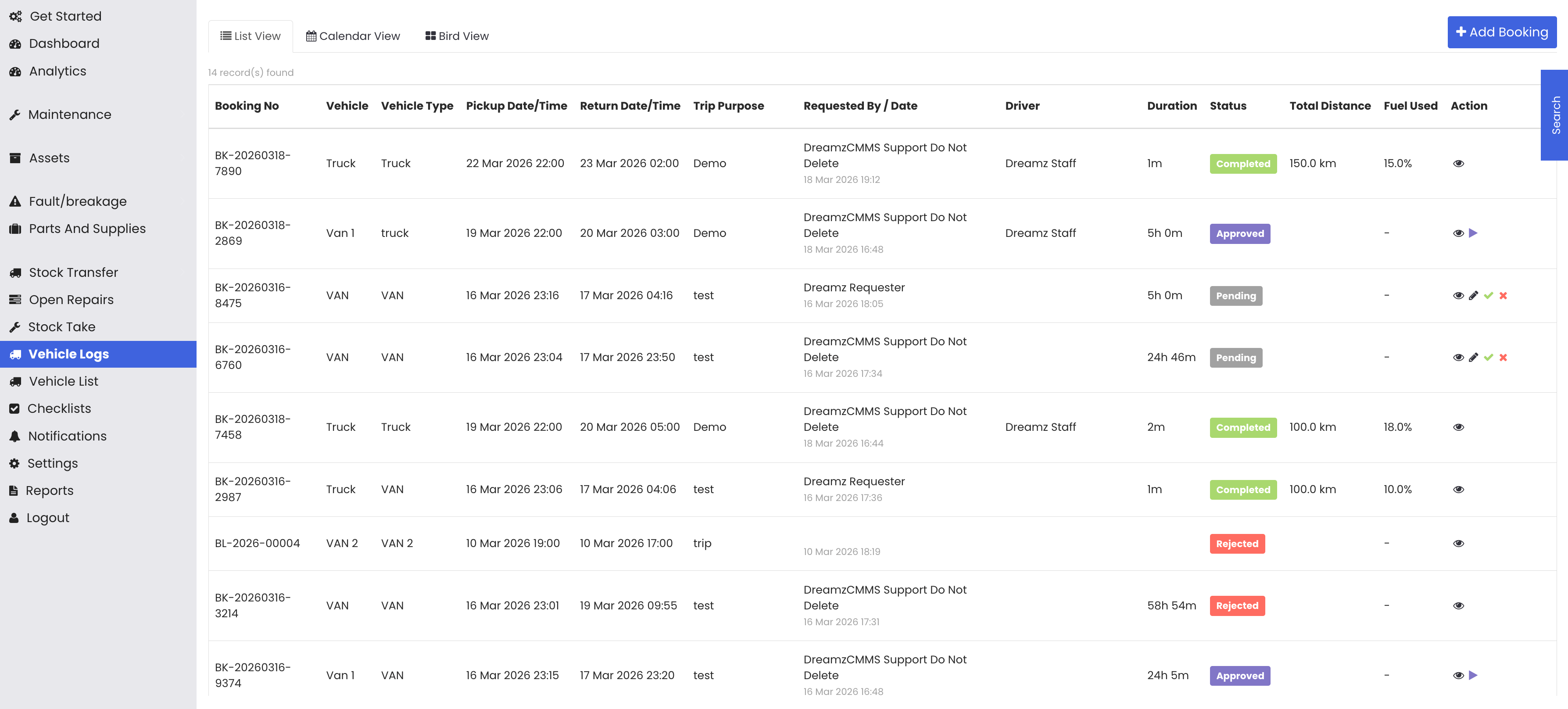
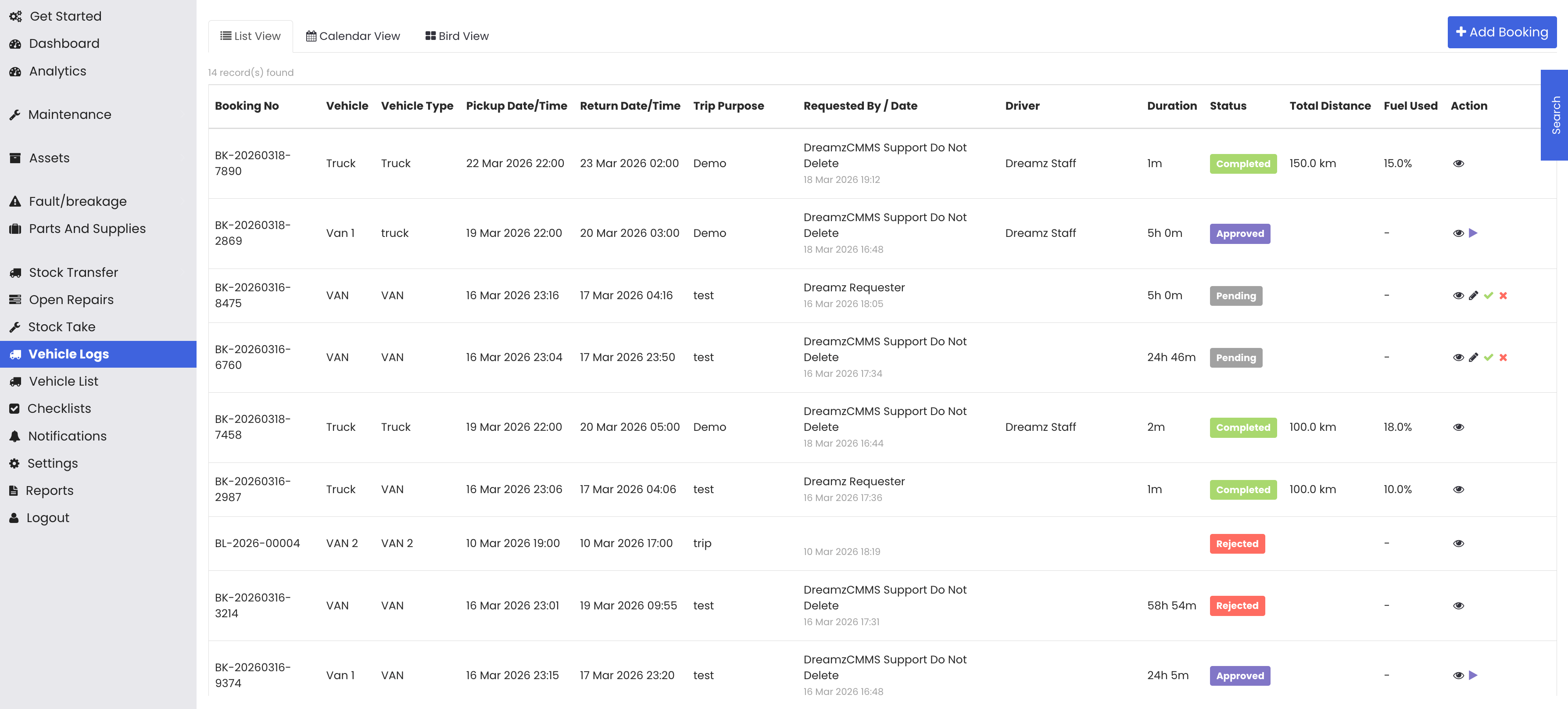
From the left-hand menu, click on Vehicle Logs to open the Vehicle Logs page, where you can see all existing bookings that have been created.
Step 2 – Create a New Booking
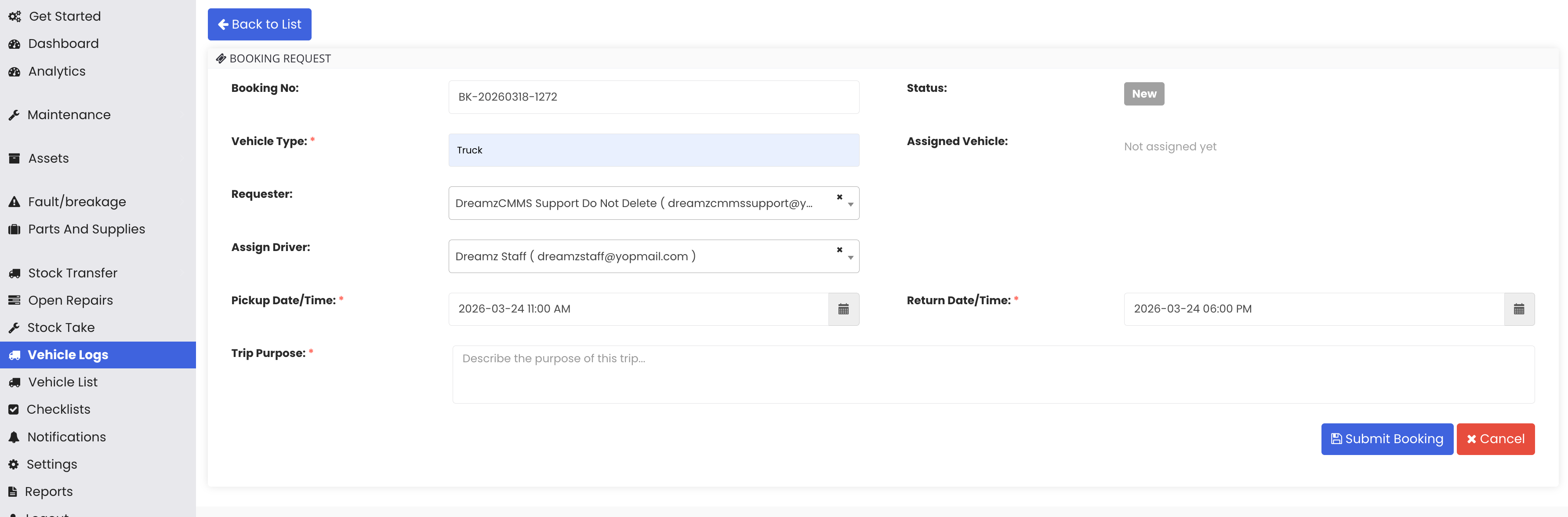
Click Add New Booking and fill in the following details:
- Vehicle Type – Select the type of vehicle required for the trip.
- Driver – Choose the driver assigned to the booking.
- Pickup Date and Time – Enter the date and time the trip will begin (e.g., 11:00 AM).
- Return Date and Time – Enter the expected return date and time (e.g., 22nd at 3:00 PM).
- Purpose – Enter the reason for the trip (e.g., Demo).
Once all details are entered, click Submit. The booking will be created with a status of Pending.
Step 3 – View the Booking in Different Views
Once submitted, the booking is visible across three different views:
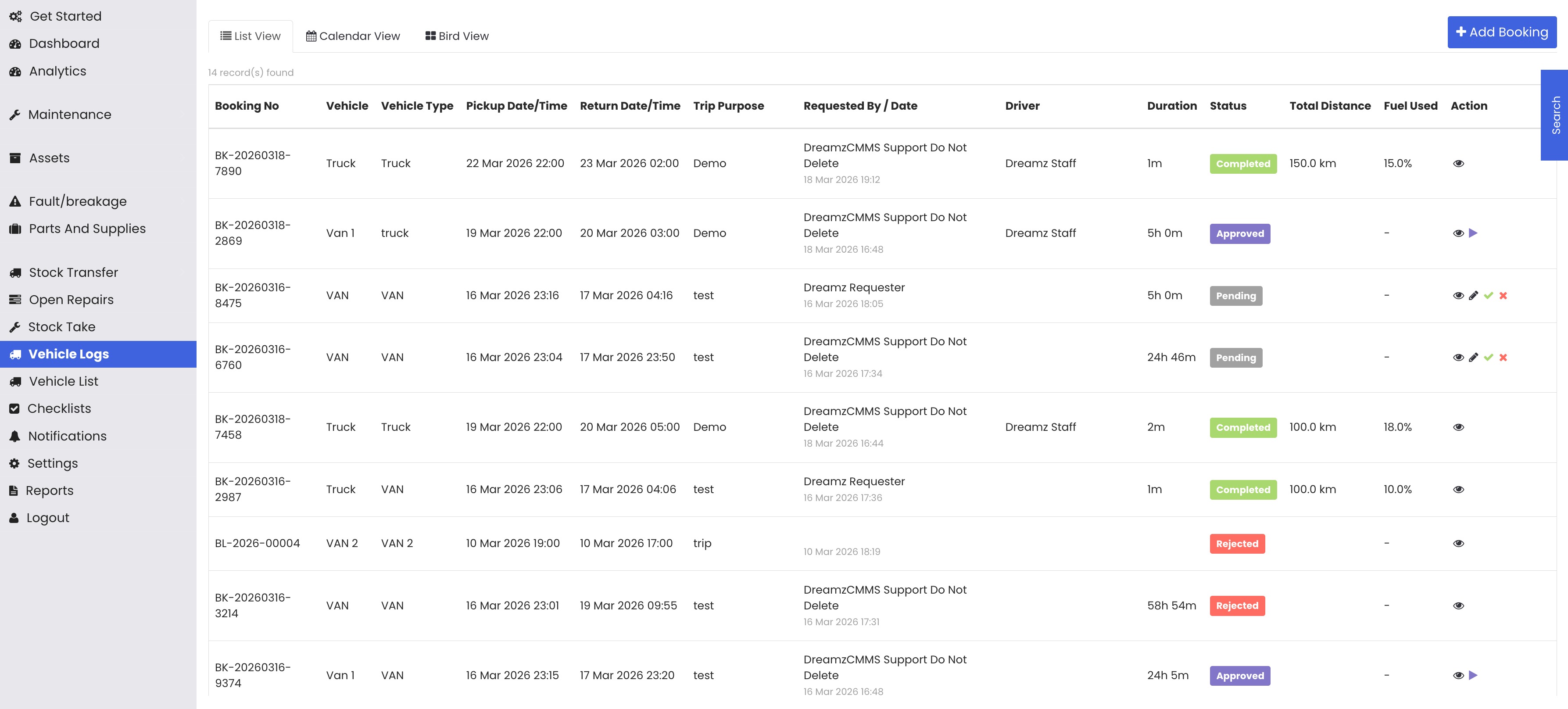
- List View – Displays all bookings in a structured list with their status and action options.
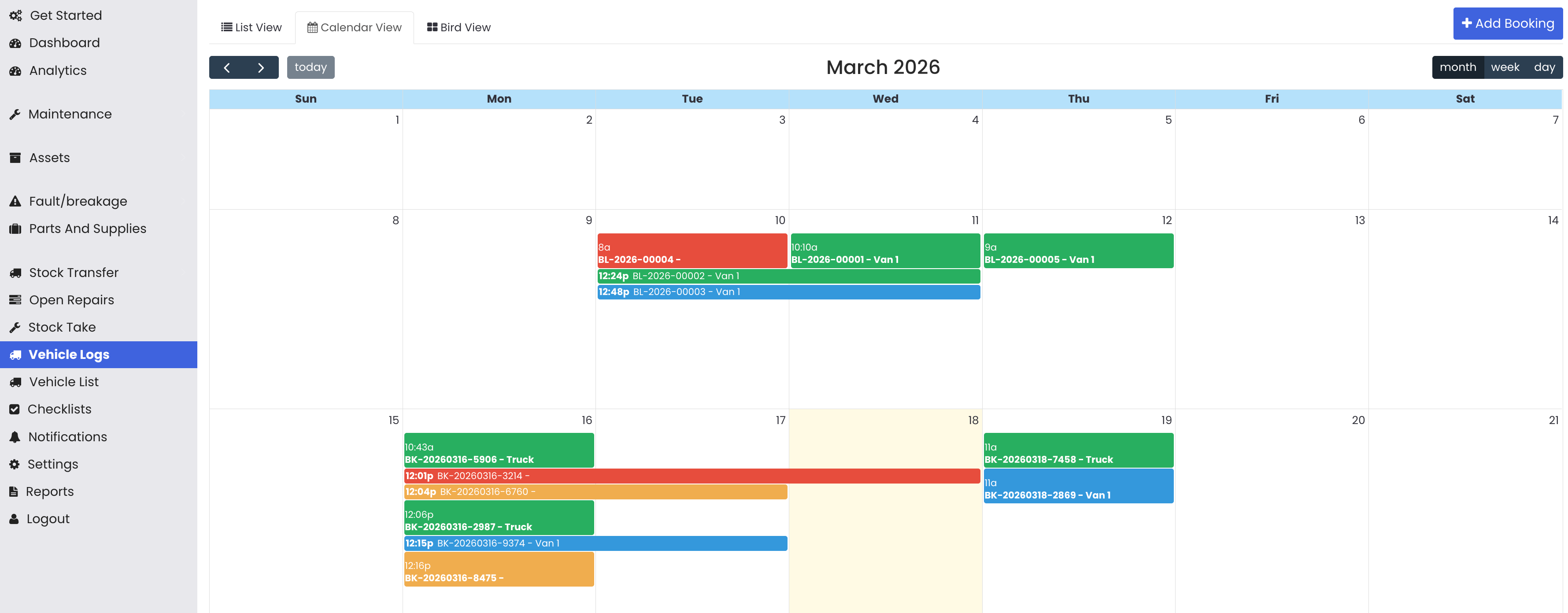
- Calendar View – Shows bookings on a calendar. Clicking on a booking reveals details such as status, pickup time, return time, and booking number, with options to approve or edit directly from this view.
- Board View – Displays each booking as a card showing the booking number, vehicle type, purpose, pickup time, and return time.
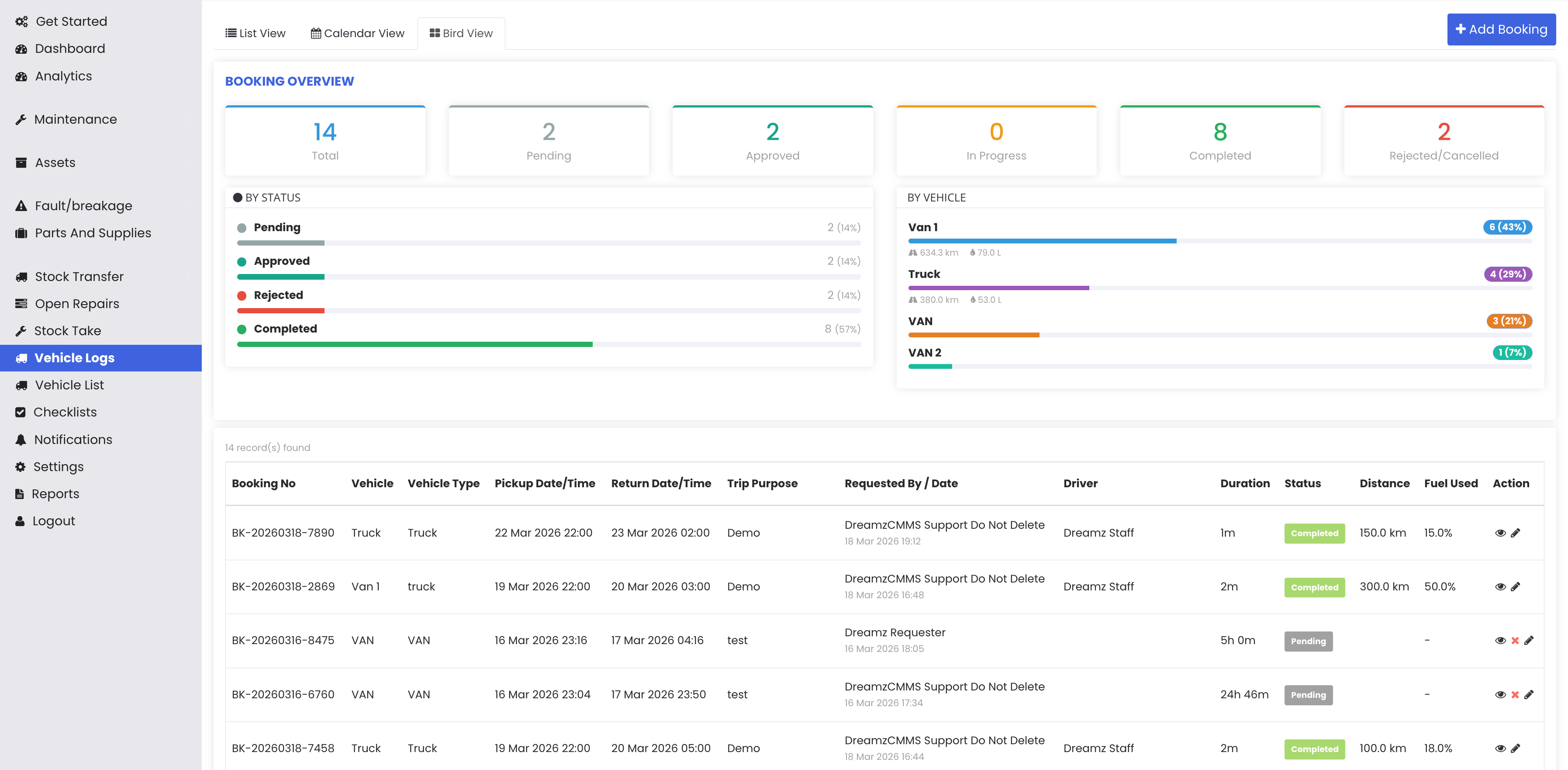
Step 4 – Approve the Booking and Assign a Vehicle
From the List View, proceed to approve the booking. When approving, the system will prompt you to select a specific vehicle to assign to the trip. Use the search option to find the required vehicle (e.g., a truck), select it, and click Approve. The booking status will update to Approved.
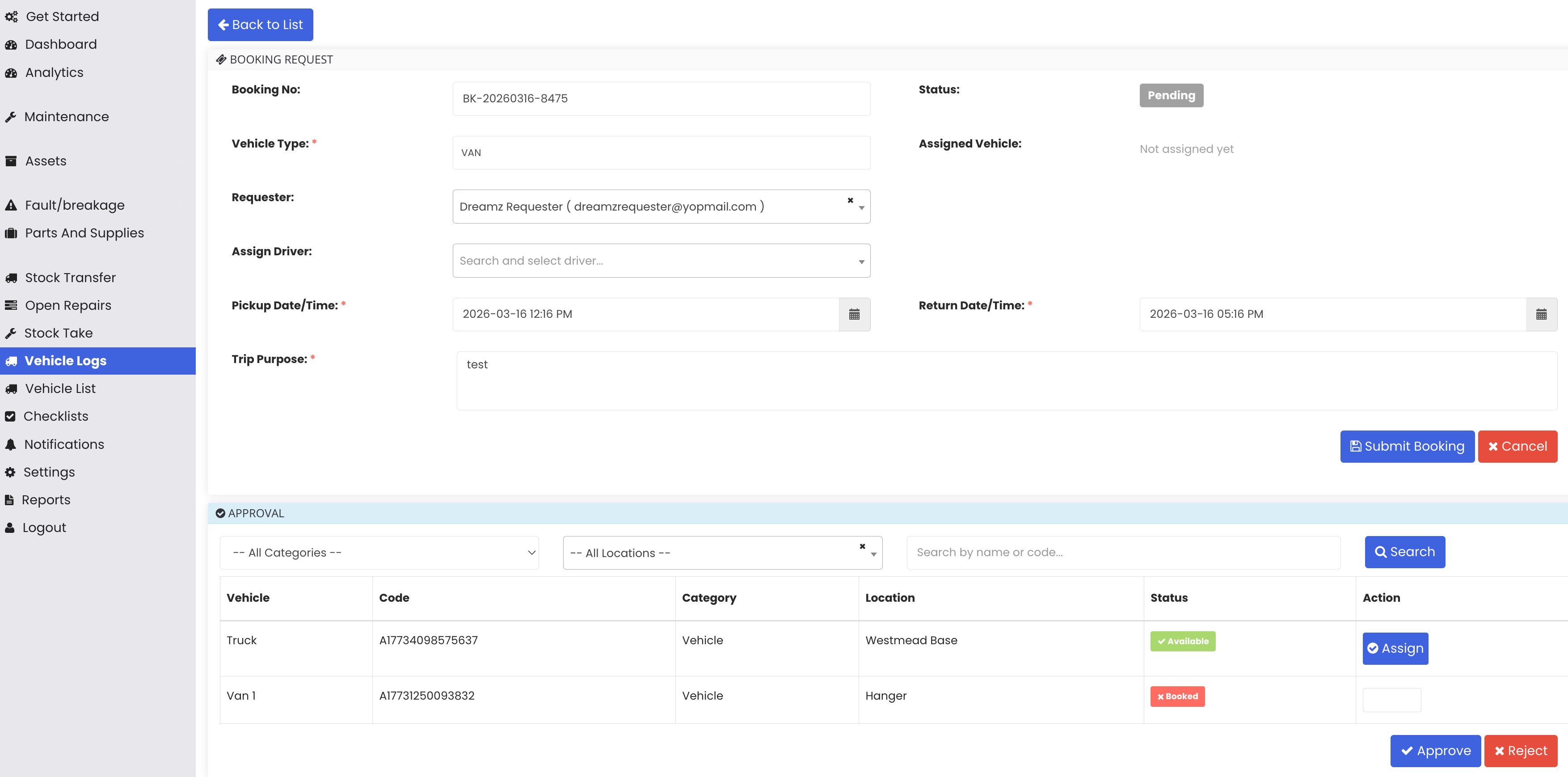
Step 5 – Start the Trip
Once the booking is approved, start the trip by entering the following details:
- Start Odometer Reading – Enter the vehicle's odometer reading at the start of the trip.
- Fuel Level – Enter the current fuel level.
- Odometer Unit – Select the unit of measurement for the odometer (e.g., km or miles).
- Fuel Unit – Select the unit for the fuel level.
Click Start Trip. The booking status will change to In Progress. In the Calendar View, the booking will appear highlighted in yellow to indicate the trip is currently active.
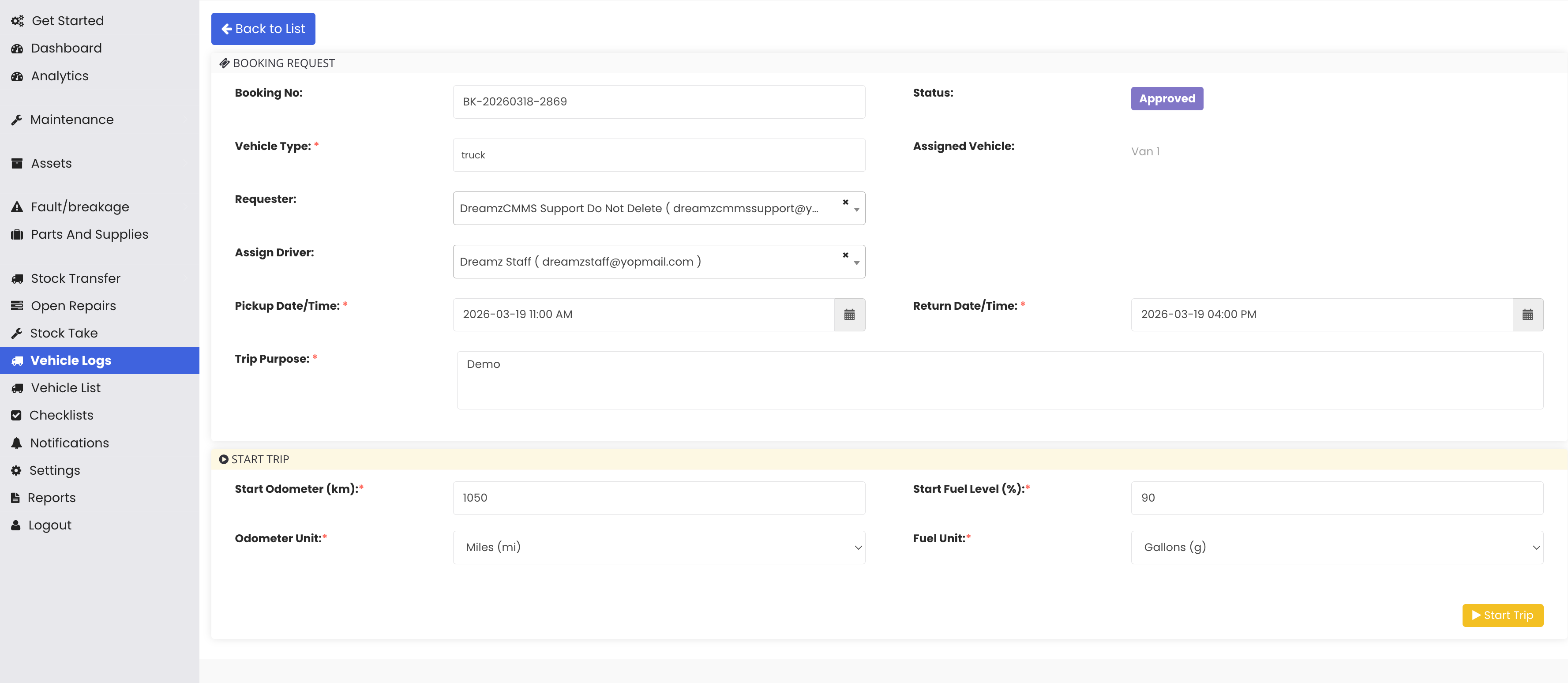
Step 6 – End the Trip
When the trip is complete, return to the List View and end the trip by entering the following details:
- End Odometer Reading – Enter the vehicle's odometer reading at the end of the trip (e.g., 1200).
- Fuel Level – Enter the fuel level at the end of the trip (e.g., 80%).
- Observations/Notes – Optionally add any notes or observations about the trip.
Click End Trip. The booking status will change to Completed.
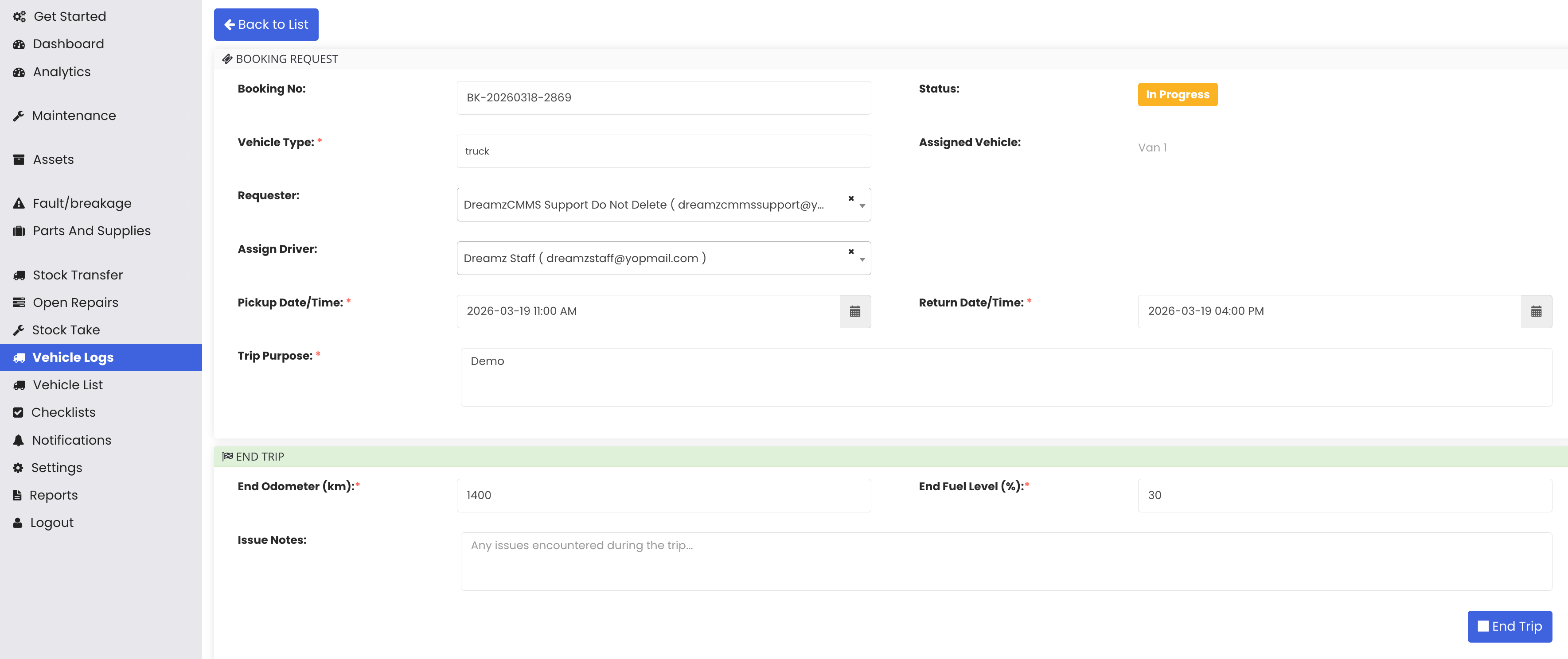
Step 7 – View the Booking Log
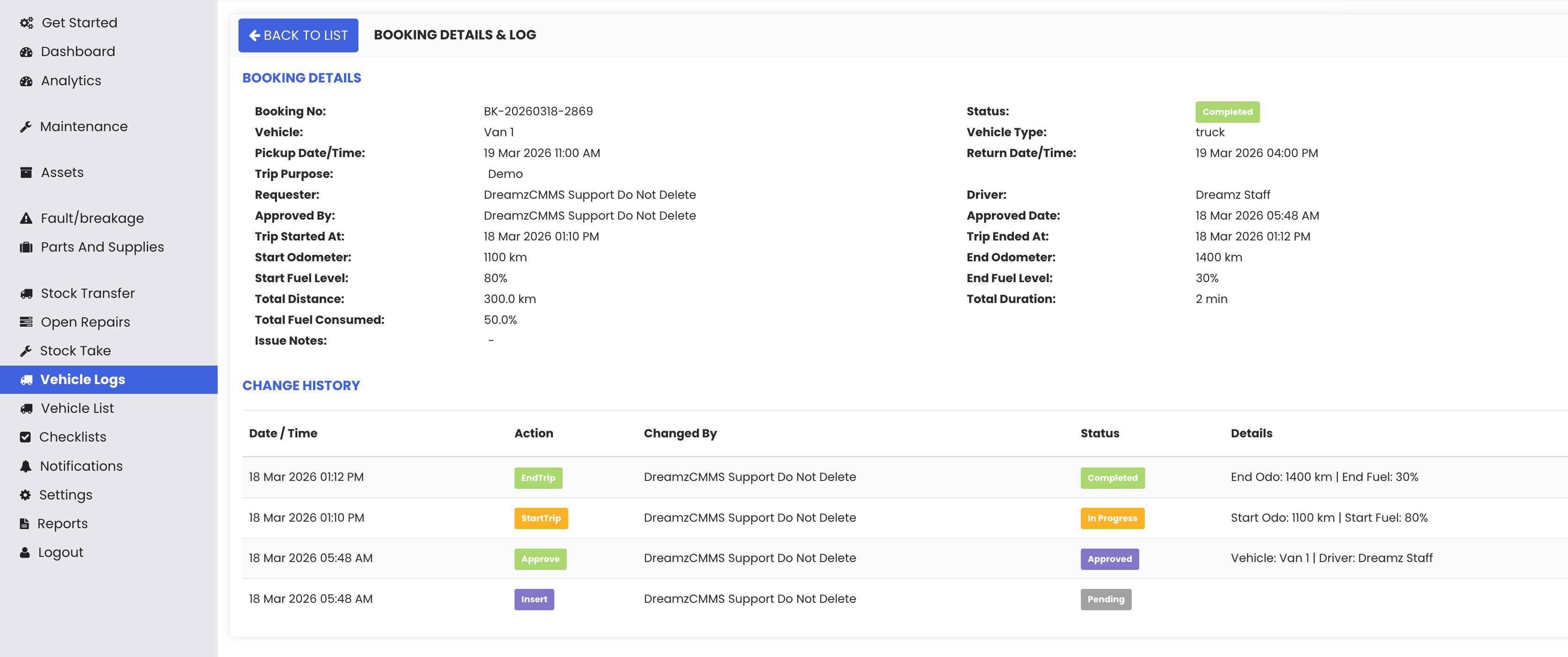
To review the full history of a booking, click the eye icon next to the completed booking in the List View. This opens the detailed booking log, which shows a complete timeline of all status changes — Pending, Approved, In Progress, and Completed — along with additional details such as duration, end fuel level, pickup date and time, and booking number.
Step 8 – Verify the Meter Reading on the Vehicle Asset Record
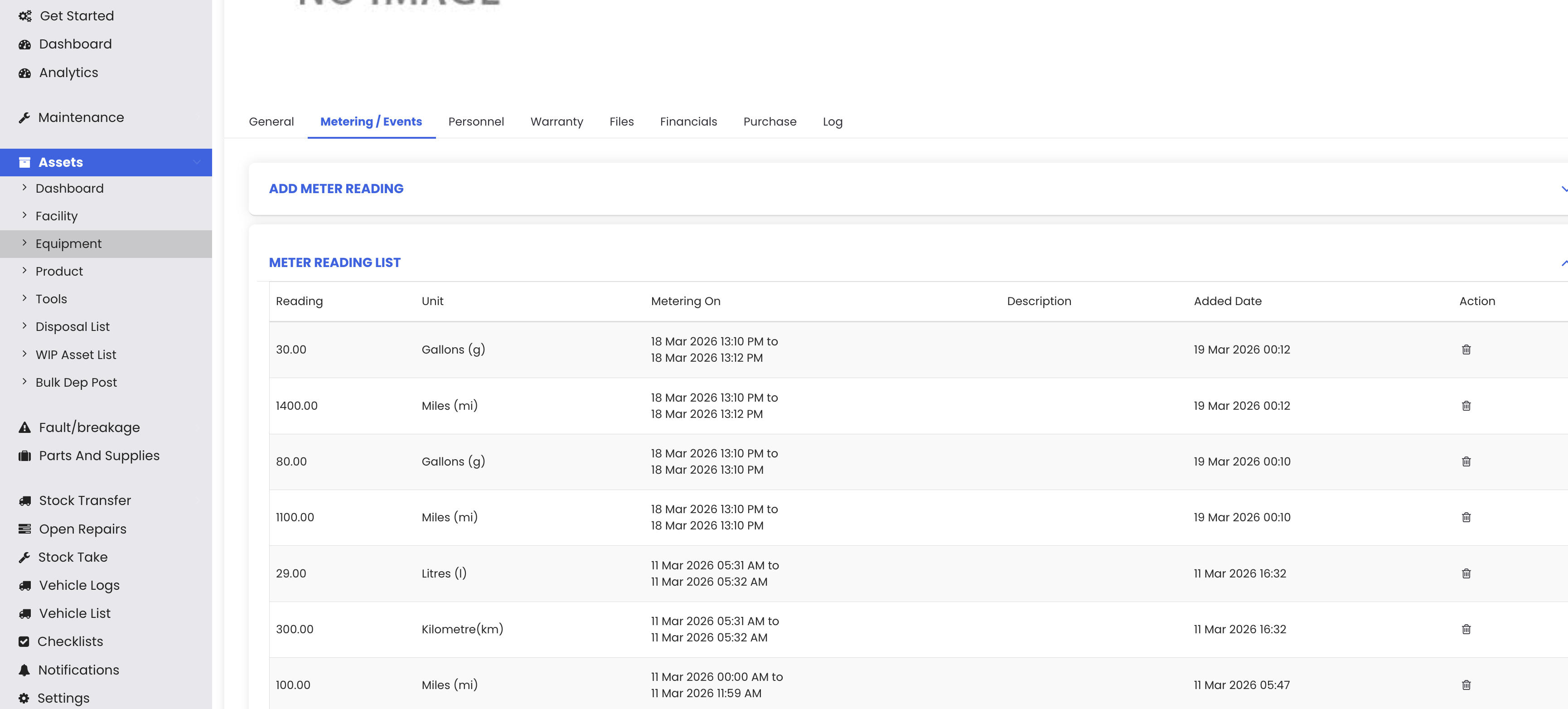
Once the trip is completed, the vehicle's meter reading is automatically updated in its asset record. To verify this, navigate to Assets & Equipment, search for the vehicle, and open its Vehicle Details. Click on the Metering and Events tab, then go to the Meter Reading List. You will see that the meter reading has been updated automatically based on the odometer values entered during the trip.
Tips for Managing Vehicle Logs
- Use the Calendar View to get a quick visual overview of all upcoming and active bookings — yellow entries indicate trips that are currently in progress.
- Always enter accurate start and end odometer readings when starting and ending a trip, as these values are automatically synced to the vehicle's asset meter reading record in DreamzCMMS.
- Use the Observations/Notes field when ending a trip to record any issues, fuel stops, or incidents — this information is captured in the booking log for future reference.
- Use the Board View for a high-level snapshot of active bookings, and switch to List View when you need to take actions such as approving, starting, or ending trips.
- After completing a trip, always verify the Meter Reading List on the vehicle's asset record to confirm the odometer has been updated correctly.
Frequently Asked Questions
How do I create a new vehicle booking in DreamzCMMS?
Go to Vehicle Logs from the left-hand menu and click Add New Booking. Select the vehicle type, driver, pickup date and time, return date and time, and enter the purpose of the trip. Click Submit to create the booking.
What happens when I approve a vehicle booking?
When approving a booking, you are prompted to select and assign a specific vehicle to the trip. Once a vehicle is selected and the booking is approved, the status changes from Pending to Approved.
What information do I need to enter when starting a trip?
To start a trip, you need to enter the start odometer reading, fuel level, odometer unit, and fuel unit. Once entered, click Start Trip and the booking status will change to In Progress.
Is the vehicle meter reading updated automatically after a trip?
Yes. Once a trip is ended and marked as Completed, DreamzCMMS automatically updates the vehicle's meter reading in its asset record under Assets & Equipment → Vehicle Details → Metering and Events → Meter Reading List.
What does the eye icon do on the Vehicle Logs list?
Clicking the eye icon on a booking opens its detailed log, which shows the full status timeline — from Pending through Approved, In Progress, and Completed — along with trip details such as duration, fuel levels, pickup date and time, and booking number.
Related Articles
- Vehicle Log List
- Asset & Equipment Management
- Meter Reading and Events
- Creating & Managing Scheduled Maintenance
- Work Order Management