Creating a Maintenance Plan Instead of a Work Order While Creating a Scheduler
DreamzCMMS allows organizations to automate preventive maintenance activities using Schedulers. Normally, when a scheduler runs, it automatically generates Work Orders based on the defined schedule.
However, in some cases, organizations may prefer to create a Maintenance Plan instead of generating work orders directly. This option allows maintenance teams to review, manage, and convert plans into work orders at the appropriate time.
DreamzCMMS provides the option “Create Plan instead of creating Work Order” while configuring a scheduler. When this option is enabled, the scheduler will generate Maintenance Plans according to the defined schedule instead of immediately creating work orders.
This approach helps organizations maintain better control over maintenance planning and execution.
Overview
The Create Plan instead of creating Work Order option allows users to generate scheduled maintenance plans that can later be reviewed and converted into work orders when required.
Using this feature, organizations can:
Plan preventive maintenance activities in advance
Review scheduled maintenance tasks before execution
Convert plans into work orders manually when needed
Maintain better visibility of upcoming maintenance tasks
All generated plans can be monitored through the Plan List, Calendar View, and Bird View.
Here is a reference video:
How to Access the Scheduler Module
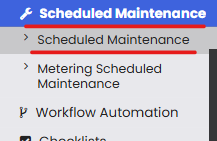
Step 1 – Navigate to Scheduled Maintenance
From the left-side menu, click:
Scheduled Maintenance → Scheduled Maintenance
This will open the Scheduler List page where all existing maintenance schedulers are displayed.
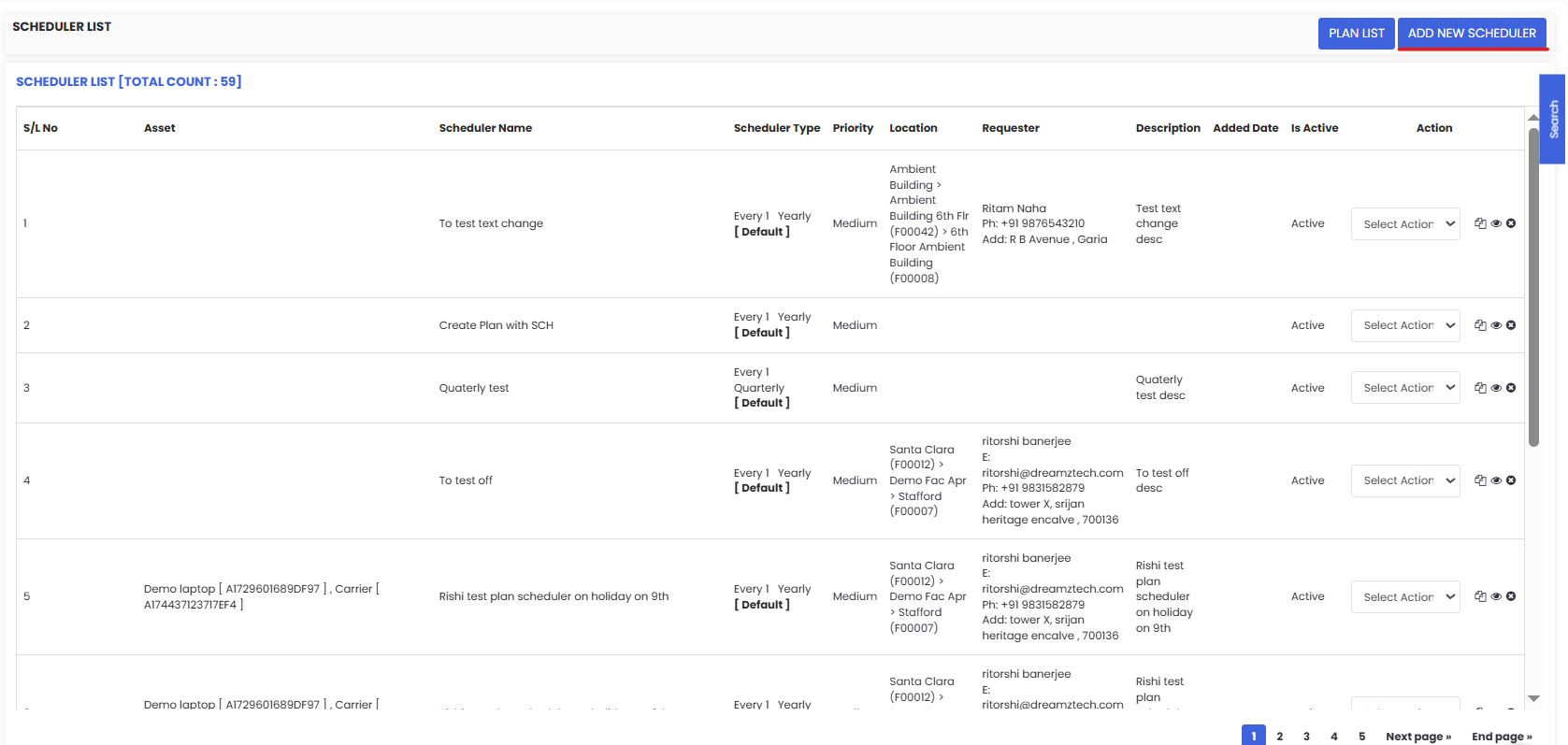
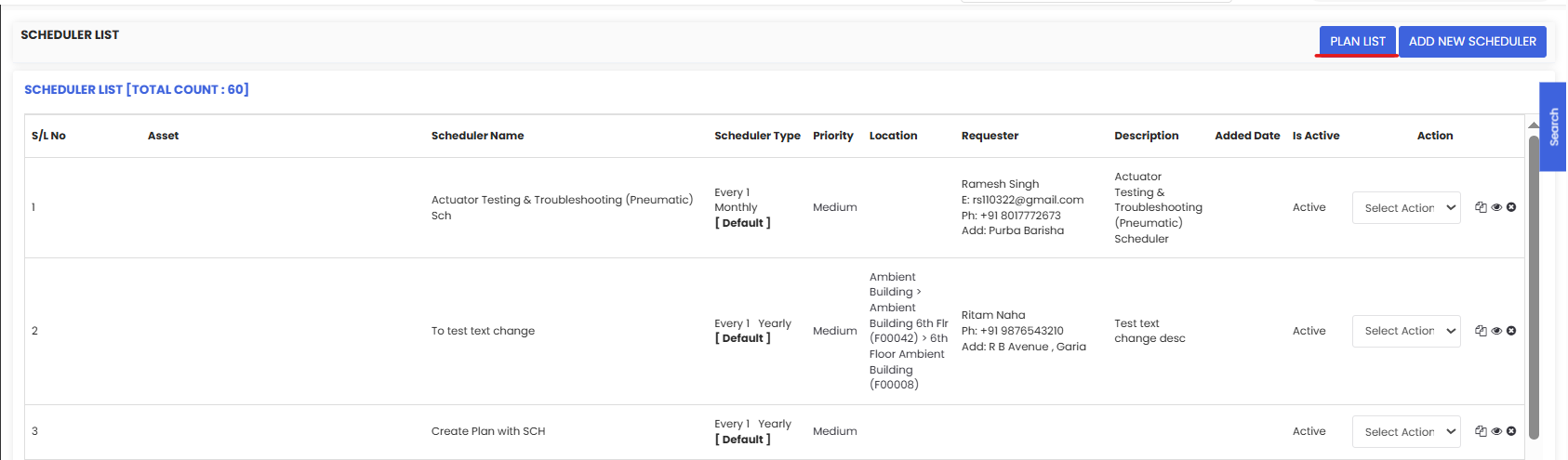
Viewing the Scheduler List
The Scheduler List page displays all configured maintenance schedulers along with details such as:
Asset
Scheduler Name
Scheduler Type
Priority
Location
Requester
Description
Added Date
Status (Active/Inactive)
Users can manage existing schedulers or create new ones from this page.
How to Create a Scheduler That Generates Maintenance Plans
Step 1 – Click Add New Scheduler
On the Scheduler List page, click Add New Scheduler located in the top-right corner.
This will open the Maintenance Scheduling configuration page.
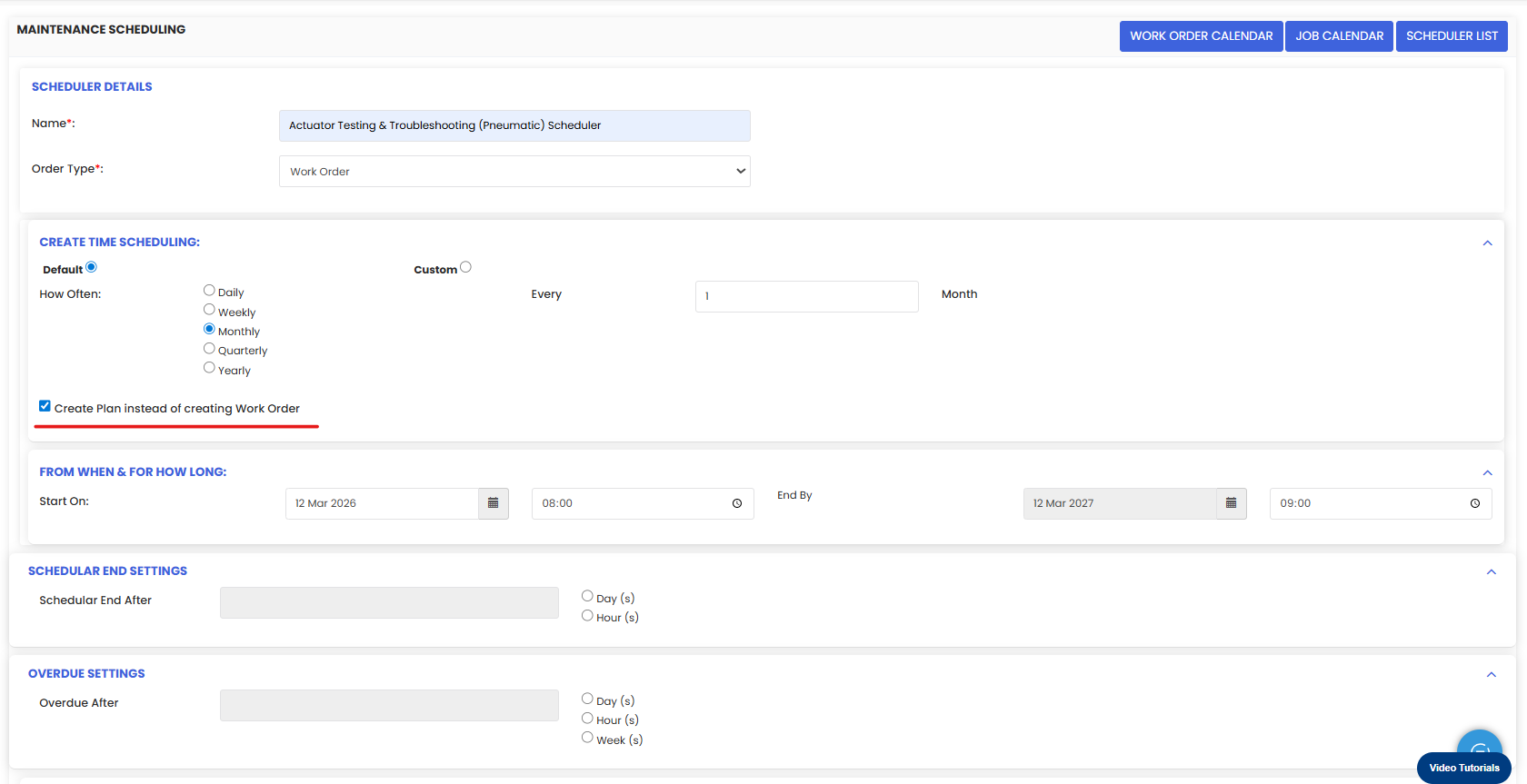
Scheduler Details
Enter the basic scheduler information.
Name
Enter the name of the scheduler.
Example:
Actuator Testing & Troubleshooting (Pneumatic) Scheduler
Order Type
Select the type of order to be created by the scheduler.
Example:
Work Order
Create Time Scheduling
This section defines how frequently the maintenance activity should occur.
Users can choose the Default scheduling frequency such as:
Daily
Weekly
Monthly
Quarterly
Yearly
Alternatively, users can select Custom scheduling to define a specific interval.
Example:
Every 1 Month
Enable Maintenance Plan Creation
To create a maintenance plan instead of generating work orders automatically, enable the option:
✔ Create Plan instead of creating Work Order
When this option is selected:
The scheduler will generate Maintenance Plans
Work orders will not be created automatically
Plans can later be converted into work orders manually
This helps organizations review planned maintenance tasks before execution.
Configure Schedule Duration
In the From When & For How Long section, define the schedule timeline.
Start On
Select the date and time when the scheduler should start.
Example:
12 Mar 2026 – 08:00 AM
End By
Select the date and time when the scheduler should stop generating plans.
Example:
12 Mar 2027 – 09:00 AM
Scheduler End Settings
This section defines when the scheduler should stop running.
Users can specify:
Number of days
Number of hours
After the specified duration, the scheduler will stop generating plans.
Overdue Settings
Overdue settings allow users to define when a scheduled maintenance activity should be considered overdue.
Users can define overdue time in:
Days
Hours
Weeks
This helps maintenance teams track delayed tasks and prioritize maintenance work.
Additional Scheduler Configuration
The scheduler configuration page also includes additional sections where users can configure maintenance details.
Bill To Address
Enter billing address information related to the maintenance task.
Assignee
Assign maintenance tasks to specific users or teams.
Assets
Select the asset(s) that require scheduled maintenance.
Labor Task
Define tasks that need to be performed during maintenance.
Financials
Add financial details related to maintenance activities.
Files
Upload supporting documents or attachments.
Messaging Settings
Configure notification settings for the maintenance task.
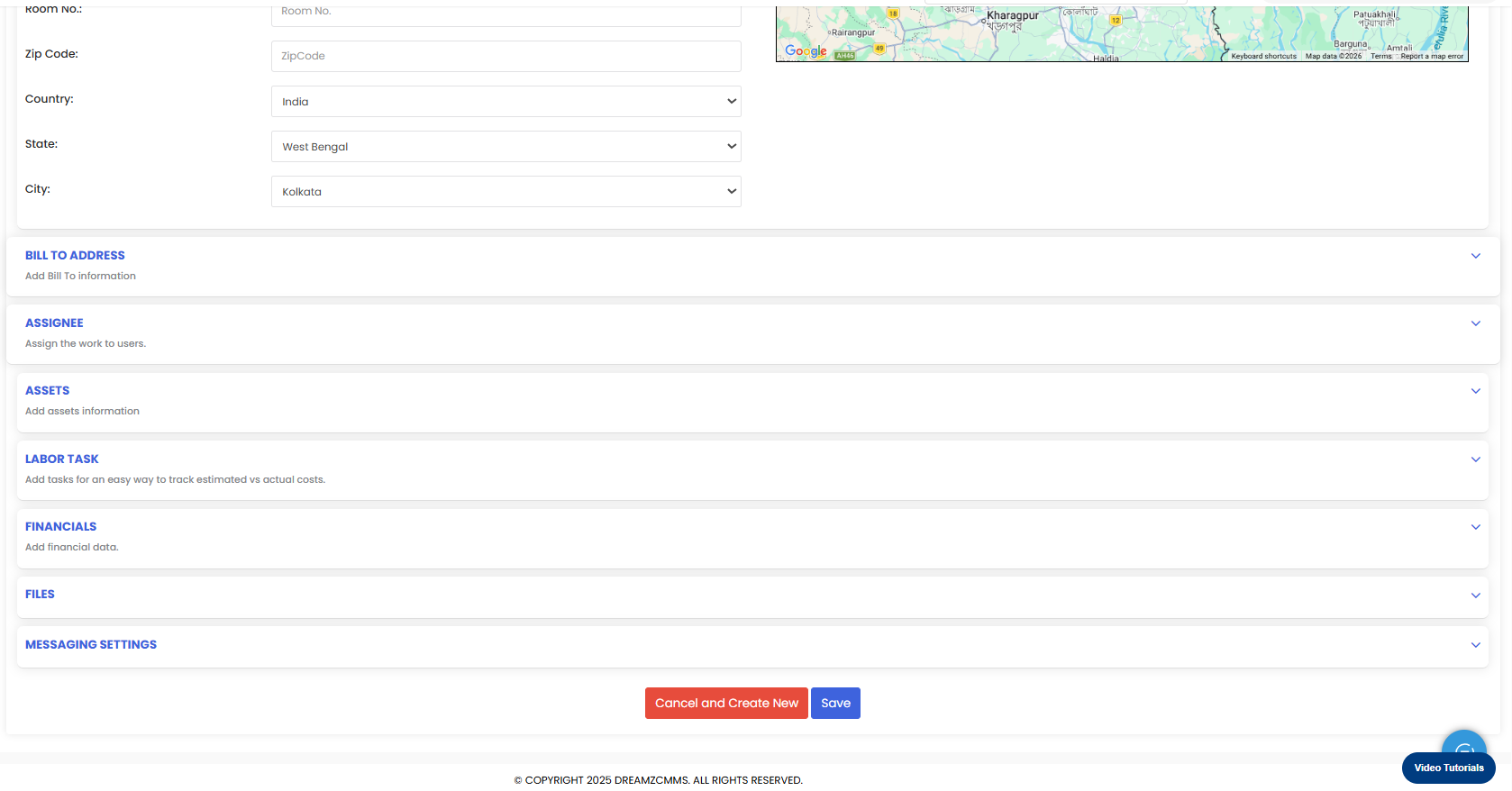
Saving the Scheduler
After completing all configuration steps:
Review the scheduler details.
Click Save.
The scheduler will now start generating Maintenance Plans based on the defined schedule.
Viewing Generated Maintenance Plans
All maintenance plans generated by the scheduler can be viewed through the Plan List.
Click Plan List from the scheduler page.
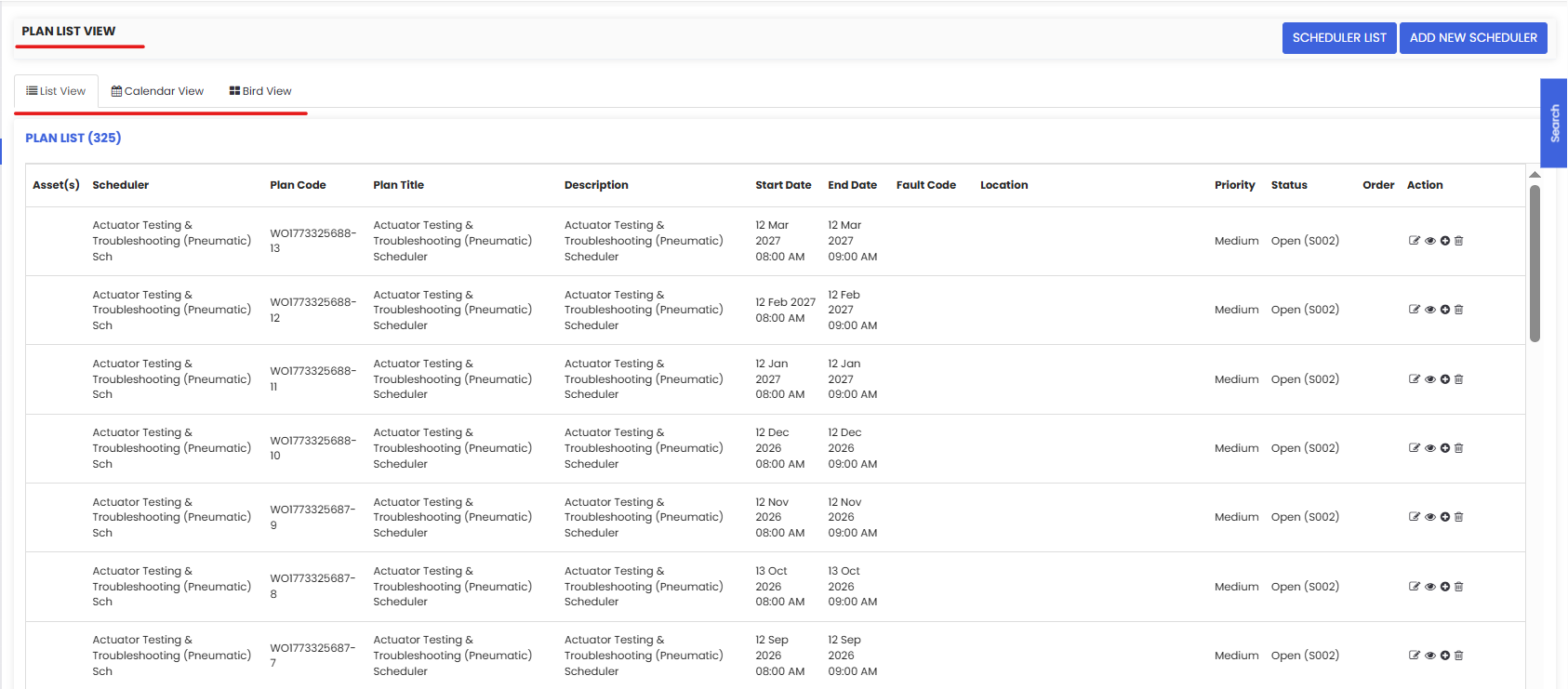
Plan List Views
The Plan List View allows users to view all generated maintenance plans with detailed information including:
Asset
Scheduler
Plan Code
Plan Title
Description
Start Date
End Date
Location
Priority
Status
Users can also perform actions such as:
Edit the plan
View plan details
Generate a work order from the plan
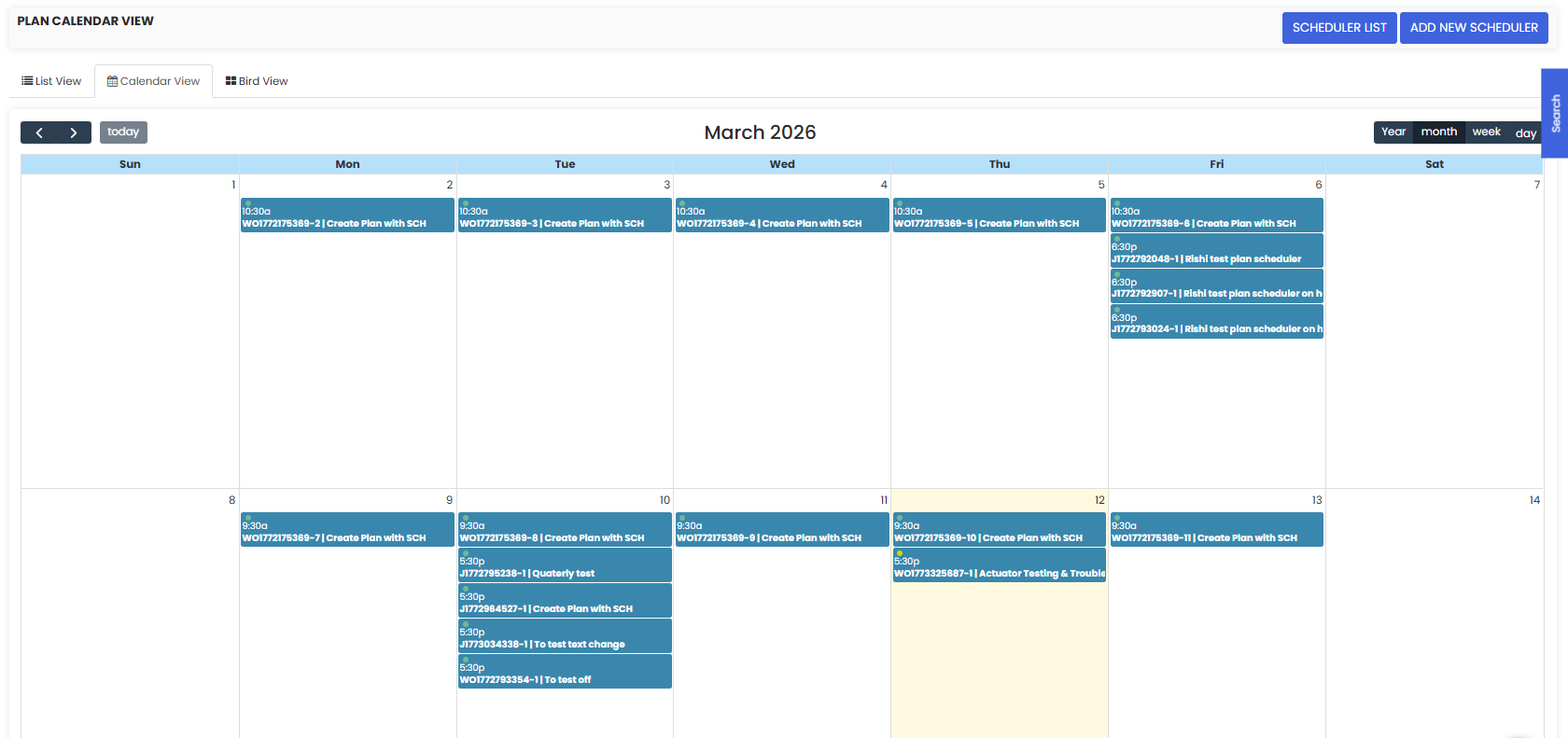
Calendar View
The Calendar View displays maintenance plans in a calendar format, making it easier to visualize upcoming maintenance activities.
This view helps maintenance managers plan workloads and avoid scheduling conflicts.
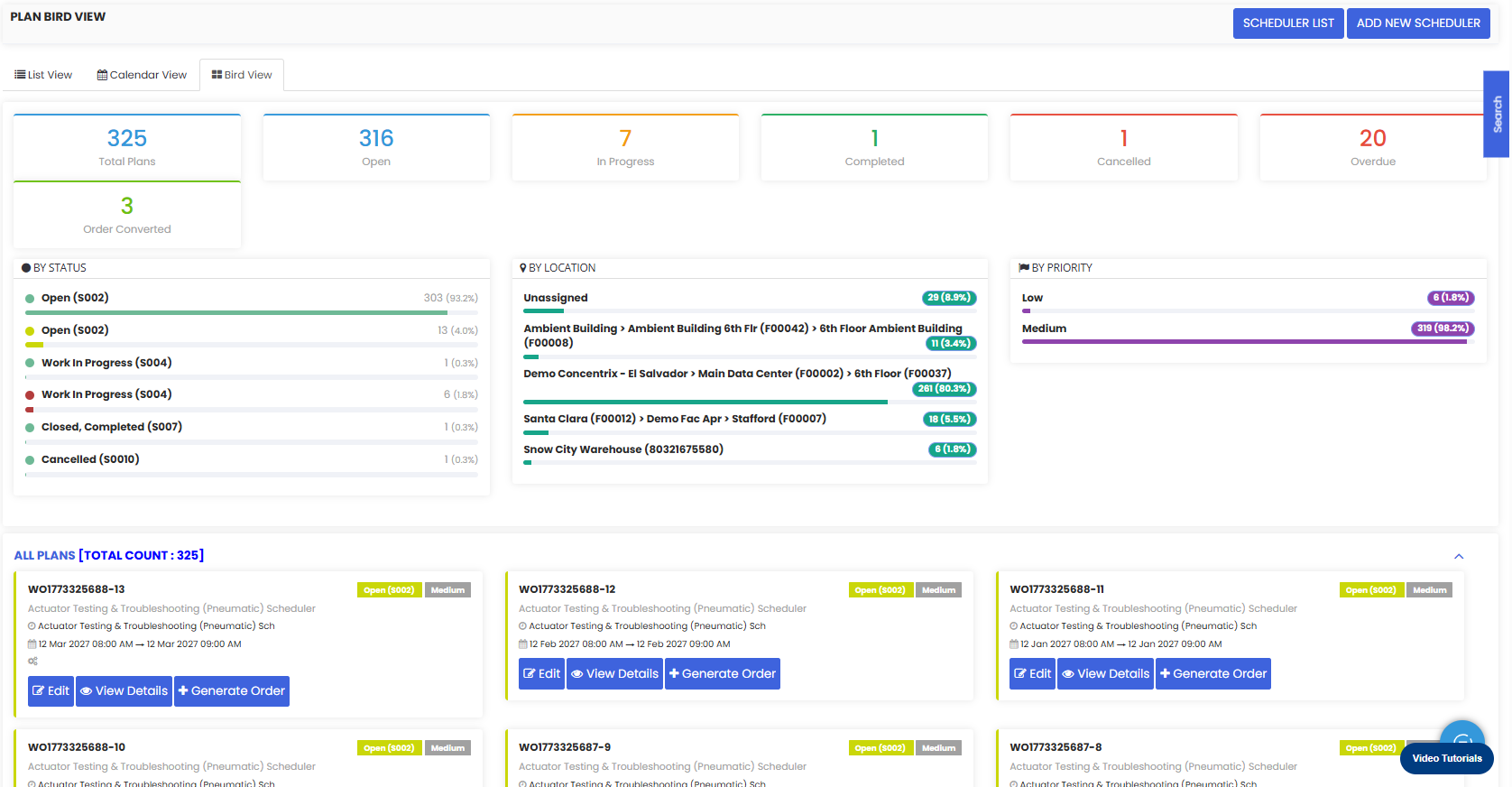
Bird View
The Bird View provides a summarized dashboard of all maintenance plans including:
Total Plans
Open Plans
Plans In Progress
Completed Plans
Cancelled Plans
Overdue Plans
It also provides insights based on:
Plan status
Location
Priority
This view helps managers monitor maintenance performance and plan workloads efficiently.
Benefits of Creating Maintenance Plans Instead of Work Orders
Using maintenance plans provides several operational advantages:
Better control over maintenance execution
Ability to review plans before generating work orders
Improved maintenance scheduling visibility
Easier workload planning for maintenance teams
Reduced risk of unnecessary work order generation
This approach is particularly useful for organizations that require maintenance approval or planning before execution.
Frequently Asked Questions (FAQs)
1. What happens when I enable “Create Plan instead of creating Work Order”?
When this option is enabled, the scheduler generates maintenance plans instead of work orders. These plans can later be converted into work orders manually.
2. Where can I view the maintenance plans generated by the scheduler?
Maintenance plans can be viewed in the Plan List section under Scheduled Maintenance.
3. Can I convert a maintenance plan into a work order?
Yes. Maintenance plans can be manually converted into work orders from the Plan List page using the Generate Order option.
4. What is the benefit of creating maintenance plans instead of work orders?
Maintenance plans allow organizations to review and manage upcoming maintenance tasks before executing them as work orders, improving planning and operational control.