Purchase Module – DreamzCMMS Mobile App
The Purchase Module in the DreamzCMMS Mobile App enables users to manage purchase orders, track approval status, and view purchase documentation directly from their mobile devices. This module provides quick access to procurement information, allowing users to monitor purchase activities, review order details, and track approval workflows while on the move.
Using the mobile app, users can easily view purchase orders, check approval status, access PDF documents, and review approval logs without needing to access the desktop version of DreamzCMMS.
Overview
The Purchase Module in the DreamzCMMS Mobile App provides quick access to purchase-related records and approval workflows. It helps organizations monitor procurement activities, review purchase order details, and track the approval status of orders in real time.
Using the mobile app, users can:
View the list of purchase orders
Track purchase order approval status
View purchase order documents in PDF format
Check approval logs for transparency
Record purchase receipts for delivered items
This mobile capability ensures faster decision-making and better visibility into procurement operations.
Here is a reference video:
How to Access the Purchase Module
Step 1 – Open the DreamzCMMS Mobile App
Launch the DreamzCMMS Mobile App on your mobile device.
Step 2 – Navigate to the More Section
From the bottom navigation menu, tap More.
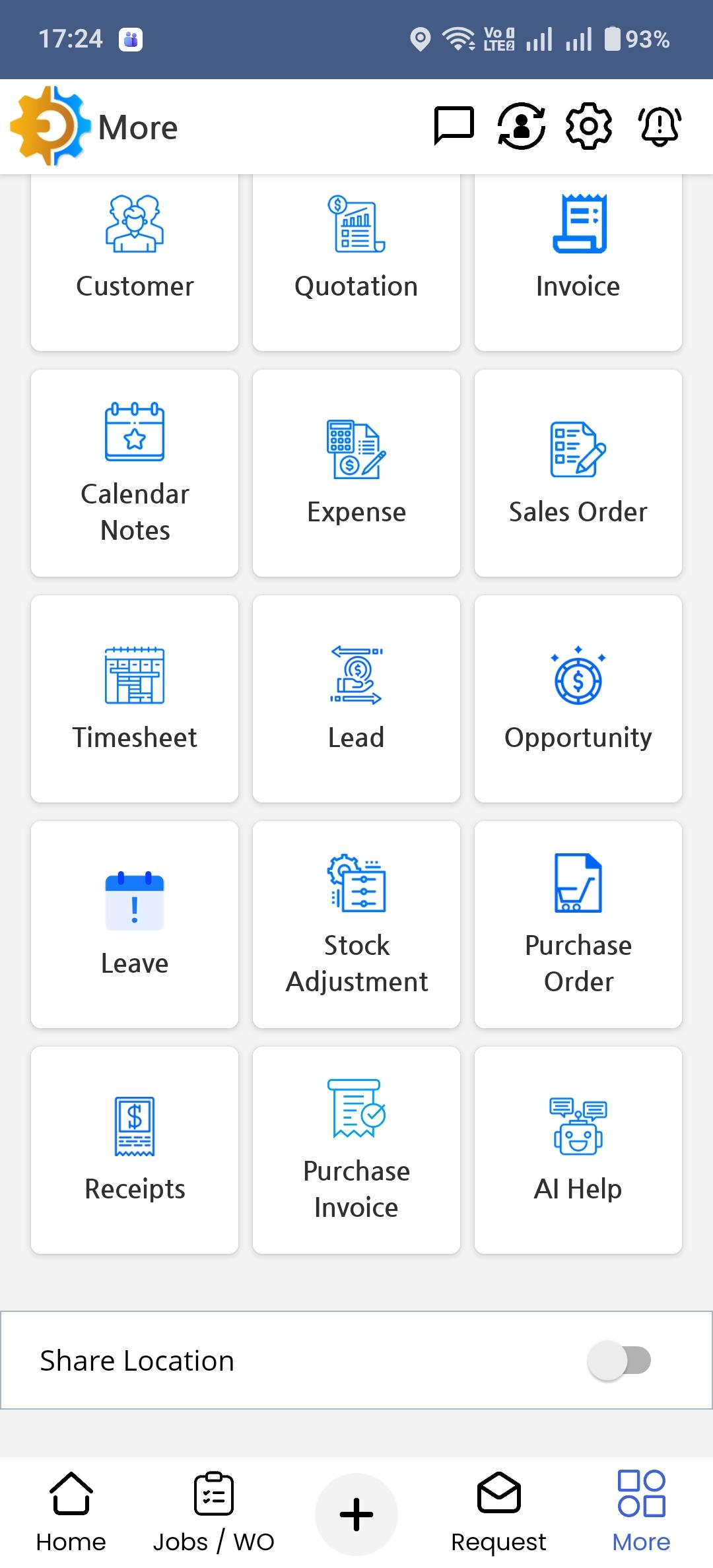
Step 3 – Select Purchase Order
In the More menu, locate and tap Purchase Order.
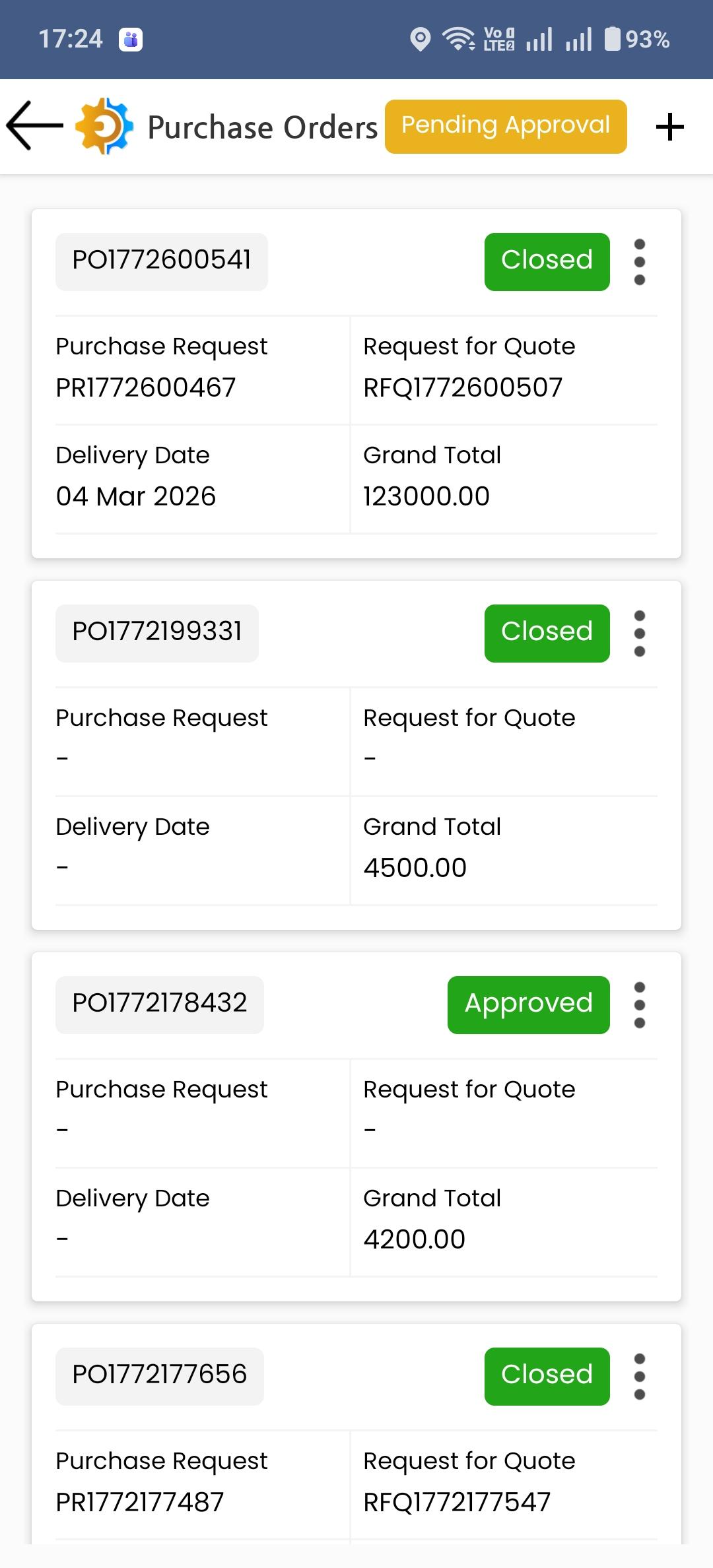
This will open the Purchase Order List screen where all purchase orders are displayed.
Viewing Purchase Orders
Once the Purchase Orders page opens, users will see a list of purchase orders displayed as cards.
Each purchase order card shows key details including:
Purchase Order Number
Purchase Request Reference
Request for Quote (RFQ)
Delivery Date
Grand Total
Order Status
Users can scroll through the list to view multiple purchase orders.
Purchase Order List
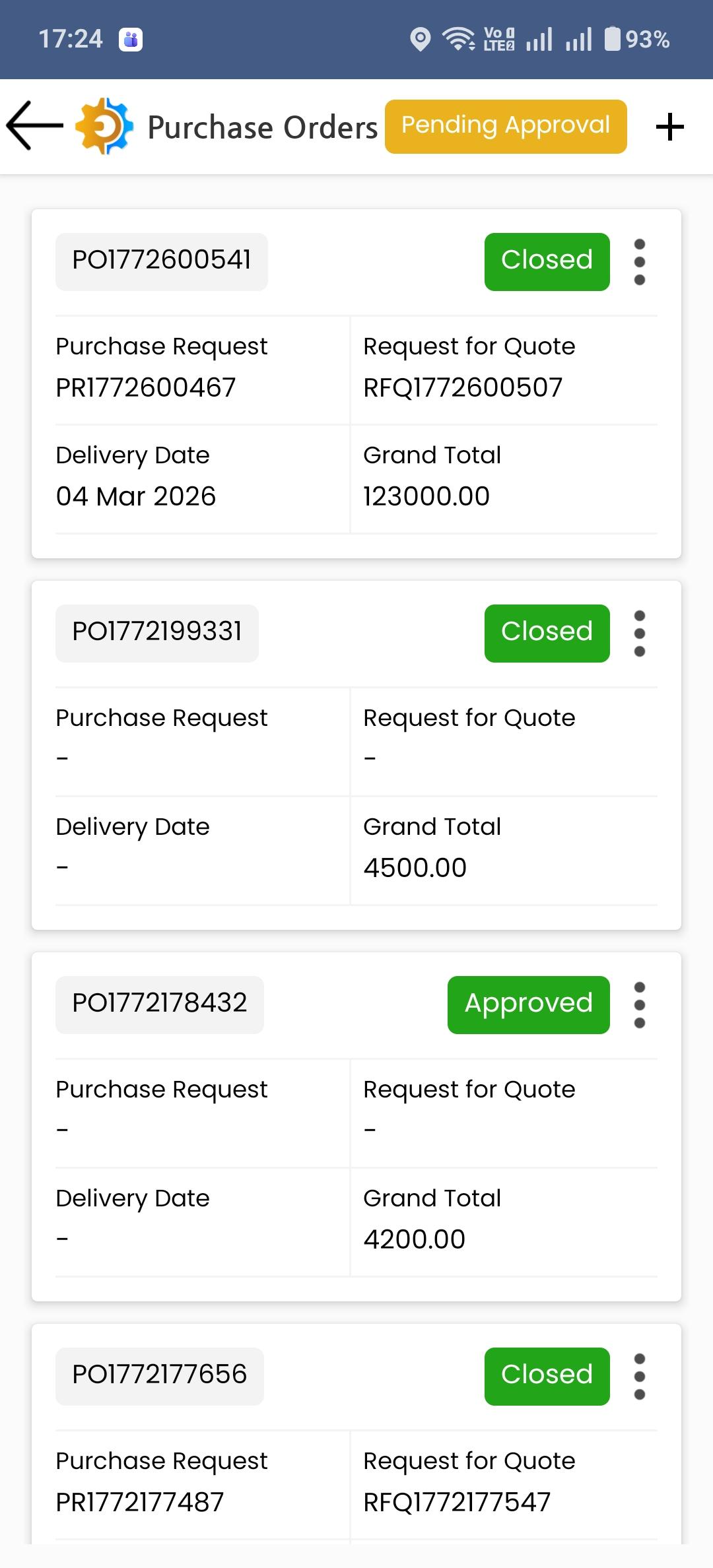
The Purchase Orders screen displays a list of all purchase orders available to the user. Each purchase order card contains important procurement details such as:
Purchase Order Number
Purchase Request Reference
Request for Quote (RFQ)
Delivery Date
Grand Total
Purchase Order Status
The status of each purchase order is visually highlighted to help users quickly identify its current state.
Common purchase order statuses include:
Created
Waiting For Approval
Approved
Closed
Users can scroll through the list to review multiple purchase orders.
Purchase Order Status Indicators
The mobile application displays purchase order statuses using color indicators for quick recognition.
Created
Indicates that the purchase order has been generated but not yet processed.
Waiting For Approval
Shows that the purchase order is currently in the approval workflow and awaiting approval from designated approvers.
Approved
Indicates that the purchase order has been approved by all required approvers.
Closed
Represents purchase orders that have been fully processed and completed.
Purchase Order Actions
Each purchase order includes an action menu (three-dot icon) that allows users to perform additional actions.
Available options include:
View PDF
Approval Log
Edit
Add Receipt
These options help users quickly access purchase documentation and approval history.
Viewing Purchase Order PDF
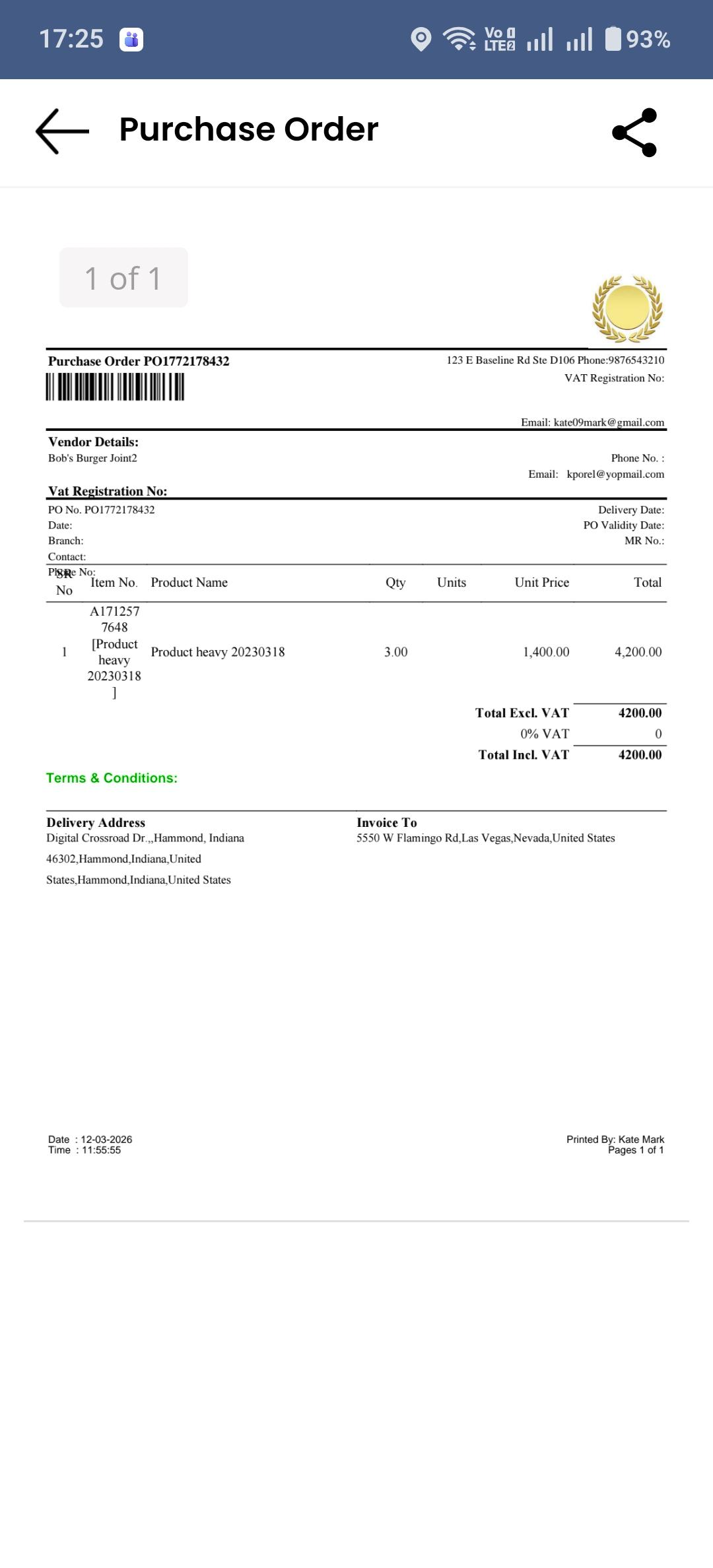
Users can generate and view the purchase order document in PDF format directly from the mobile app.
The purchase order PDF contains detailed procurement information including:
Purchase Order Number
Vendor Details
Vendor Contact Information
VAT Registration Details
Purchase Order Date
Delivery Date
Product Details
Quantity
Unit Price
Total Amount
Tax Information
Delivery Address
Invoice Address
Terms and Conditions
This document can be shared or downloaded as required.
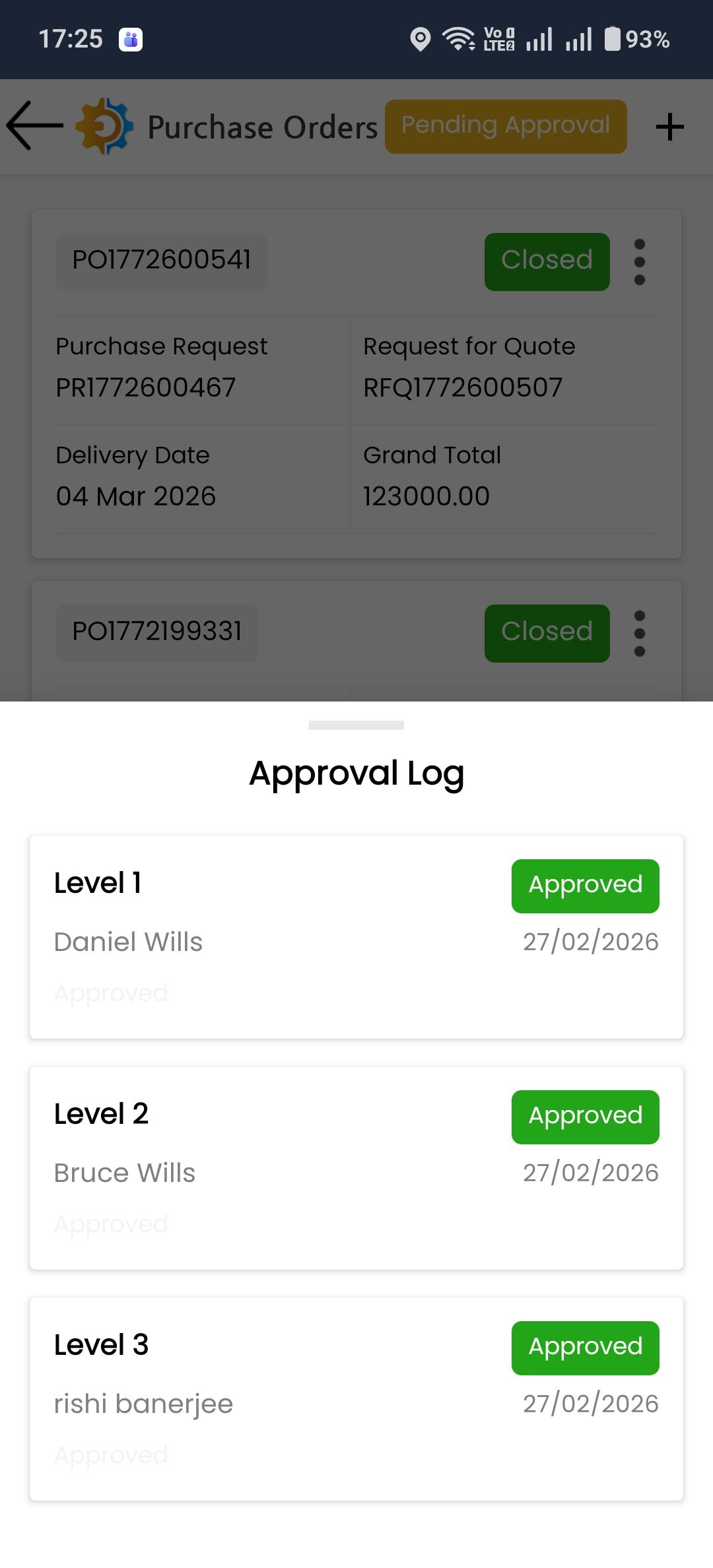
Approval Log
The Approval Log allows users to track the approval history of a purchase order.
It displays the following information:
Approval Level
Approver Name
Approval Status
Approval Date
Example approval workflow:
Level 1 – Approved by Daniel Wills
Level 2 – Approved by Bruce Wills
Level 3 – Approved by Rishi Banerjee
This feature provides complete transparency in the purchase approval process.
Adding Purchase Receipts
The mobile app also allows users to record Purchase Receipts for received items.
To add a purchase receipt:
Open the Purchase Receipt screen.
Enter the required receipt details.
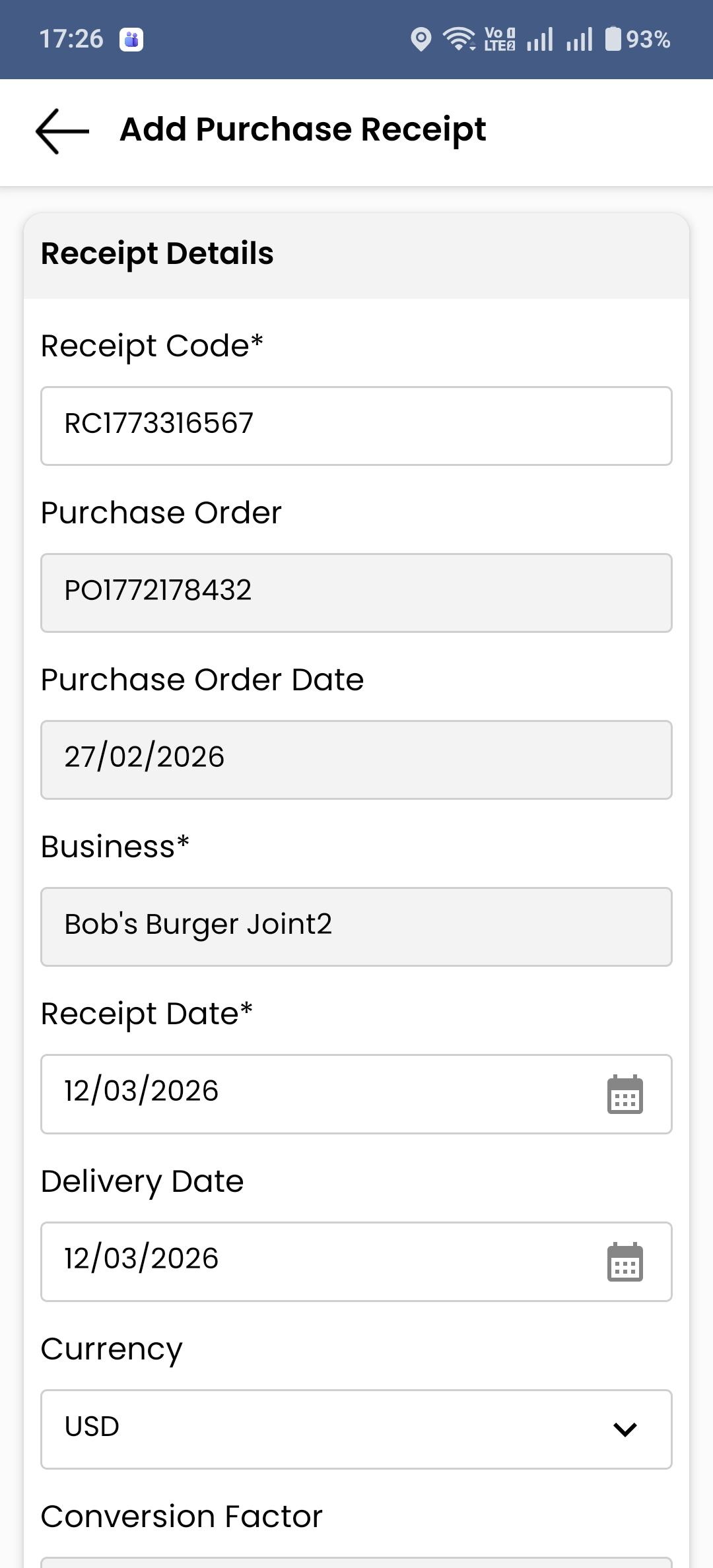
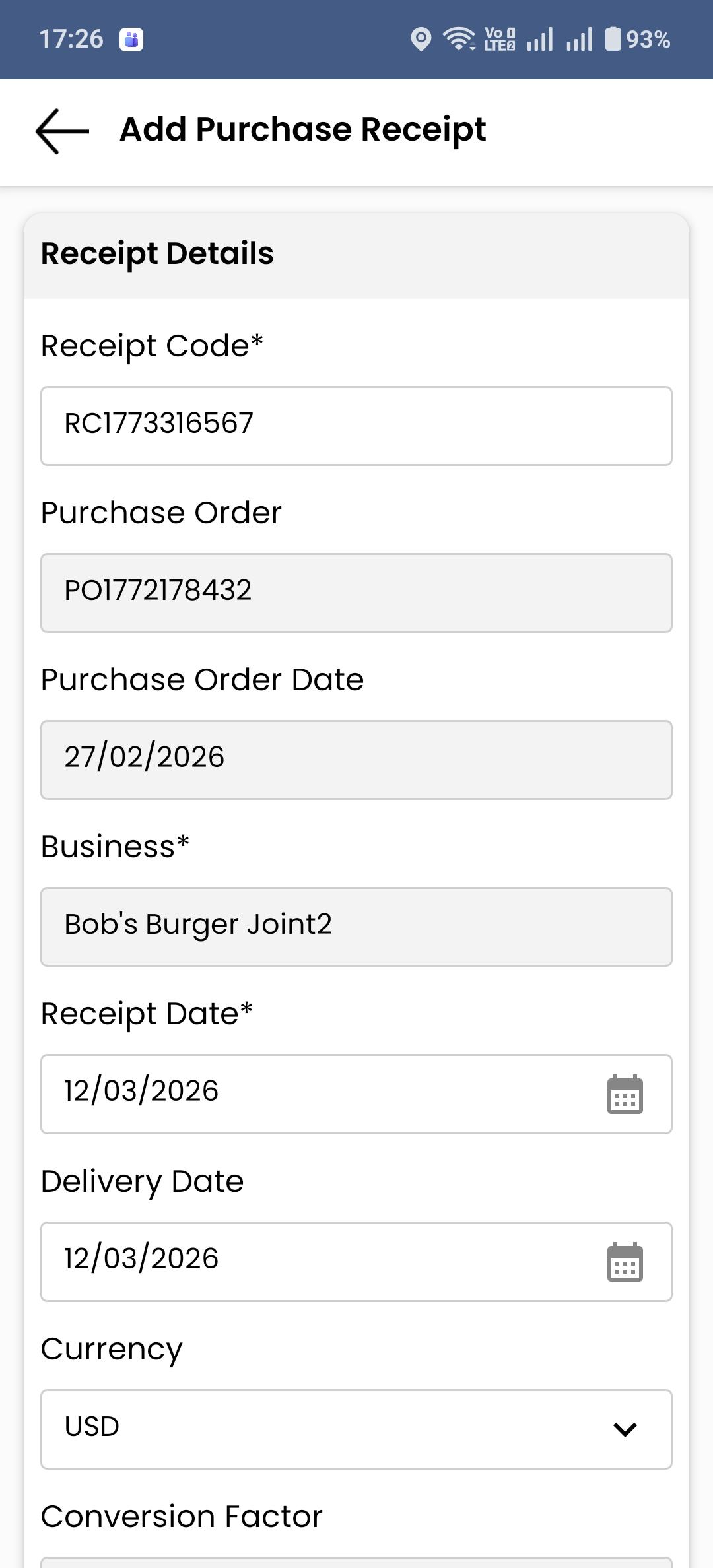
Purchase Receipt Details
The Receipt Details section captures key information related to the purchase delivery.
Fields include:
Receipt Code – Unique receipt identifier
Purchase Order – Reference purchase order
Purchase Order Date
Business Name
Receipt Date
Delivery Date
Currency
Conversion Factor
This information ensures accurate tracking of goods received against purchase orders.
Benefits of Using the Purchase Module on Mobile
The DreamzCMMS Mobile App provides several advantages for procurement management:
Real-time access to purchase orders
Easy tracking of approval workflows
Instant viewing of purchase order documents
Mobile access to approval logs
Faster procurement decision-making
Improved transparency in purchasing activities
Best Practices for Mobile Purchase Management
Regularly review purchase orders awaiting approval.
Verify purchase order details before approving.
Use the approval log to track procurement decisions.
Ensure purchase receipts are recorded immediately after goods are received.
Frequently Asked Questions
1. Can I approve purchase orders using the DreamzCMMS Mobile App?
Yes, the DreamzCMMS Mobile App allows users to review purchase orders and track their approval status. Depending on user permissions and configured workflows, authorized users can approve purchase orders directly from the mobile application.
2. How can I check the approval status of a purchase order?
You can view the approval status directly in the Purchase Order list, where each order displays a status label such as Created, Waiting for Approval, Approved, or Closed. For detailed information, open the Approval Log from the action menu to see the approval levels and approver details.
3. Can I view or download the purchase order document from the mobile app?
Yes. By selecting View PDF from the purchase order action menu, users can open the complete purchase order document, which includes vendor details, item information, pricing, and delivery information.
4. What is the purpose of the Approval Log in the purchase module?
The Approval Log provides a record of the purchase order approval workflow. It shows each approval level, the name of the approver, the approval status, and the date of approval, helping maintain transparency and accountability in the purchasing process.