Asset Tree
In DreamzCMMS, the Asset Tree provides a visual, hierarchical representation of all your asset locations. Using the Tree View on the Location page, you can easily navigate parent locations and their sub-locations in a structured, tree-like format — giving you a clear picture of how your asset location hierarchy is organised.
Overview
From the left-hand menu, navigate to Assets → Location. On the Location page, switch from the default Table View to Tree View using the view toggle beside the total count. In Tree View, all parent locations are displayed in a hierarchical format. Locations with an arrow icon contain one or more sub-locations — click the arrow to expand and reveal the sub-locations nested beneath each parent. This layout makes it easy to understand, navigate, and manage the full structure of your asset location hierarchy.
Here is a reference video:
Steps to View the Asset Tree
Step 1 – Navigate to Location
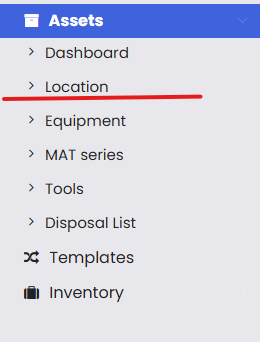
From the left-hand side menu, click on Assets and then select Location to open the Location page.
Step 2 – Switch to Tree View
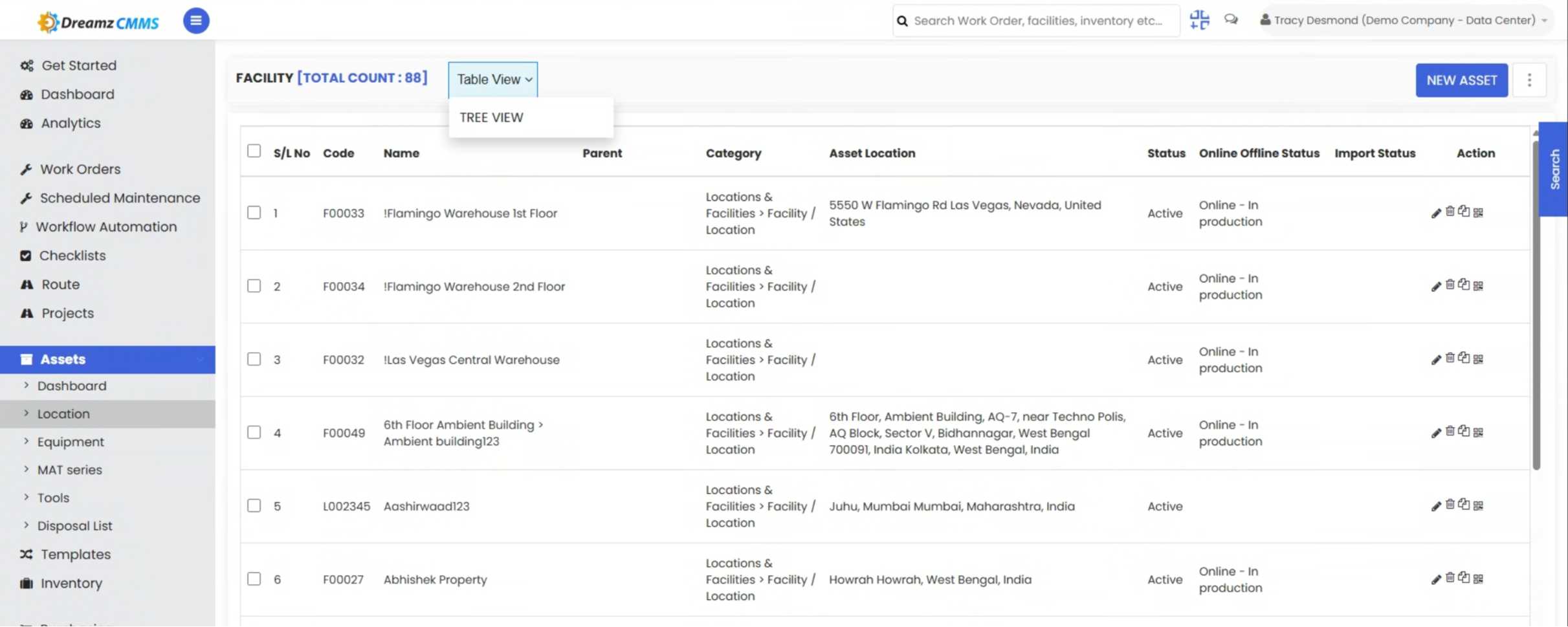
On the Location page, you will notice two viewing options beside the total count — Table View and Tree View. Click on Tree View to switch from the default table layout to the hierarchical tree format.
Step 3 – View Parent Locations in the Tree
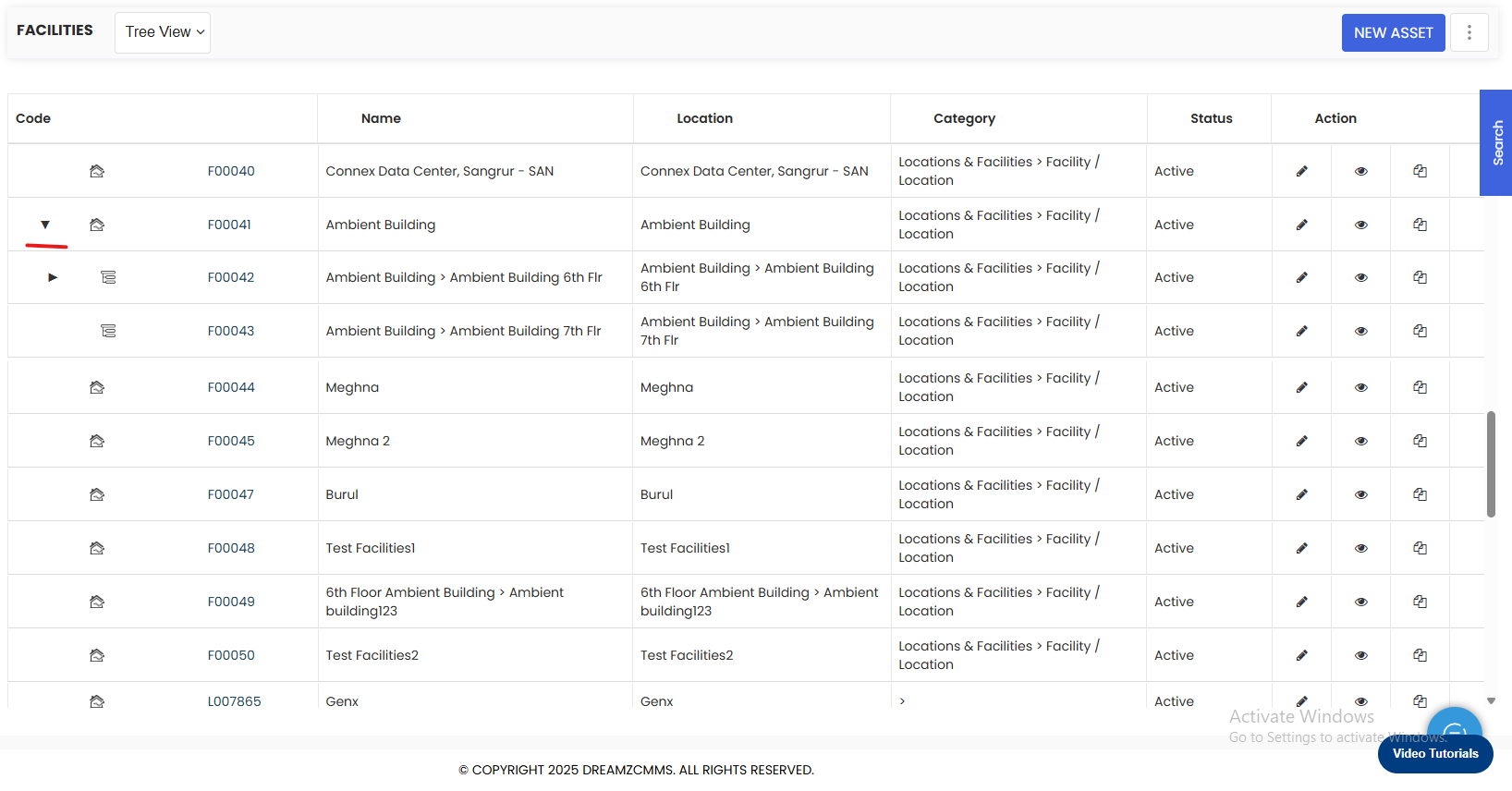
After switching to Tree View, all parent locations are displayed in a hierarchical format. Locations that have an arrow icon next to them indicate that they contain one or more sub-locations beneath them.
Step 4 – Expand Sub-Locations
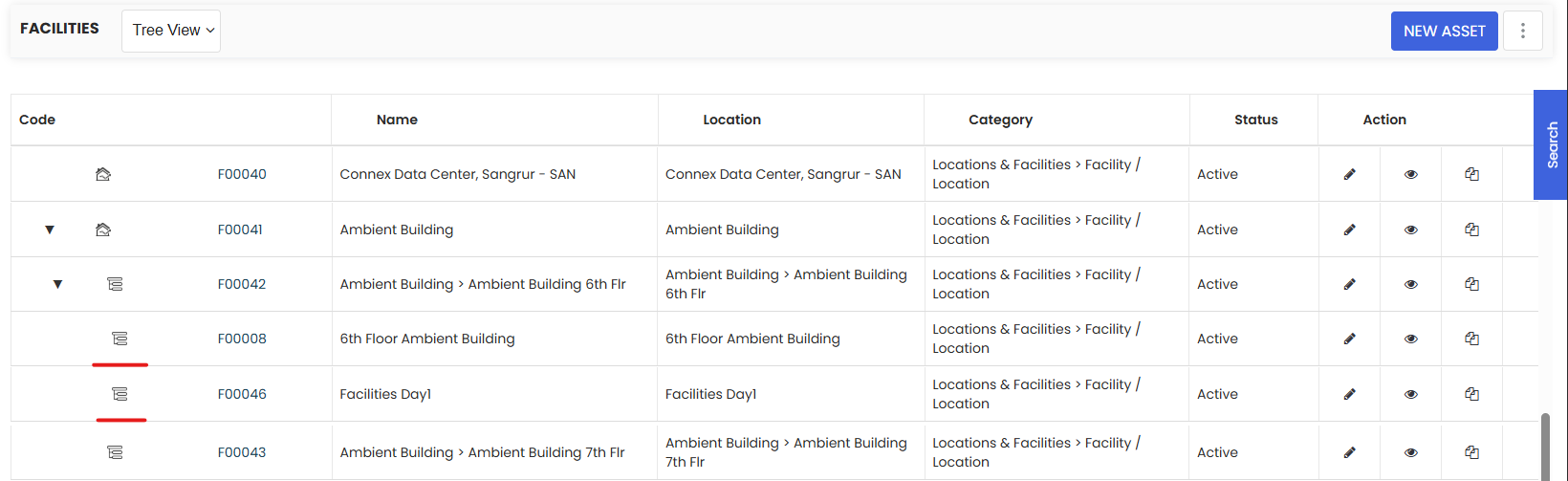
Click on the arrow icon next to any parent location to expand it and reveal its sub-locations. The sub-locations will appear nested underneath the parent, displaying the full hierarchical structure of that location branch. You can expand multiple parent locations to view their sub-locations simultaneously.
Tips for Using the Asset Tree
- Use the Tree View whenever you need to understand the full structure of your asset location hierarchy — it is much easier to navigate than the Table View when you have multiple levels of parent and sub-locations.
- Look for the arrow icon next to a location name to quickly identify which locations have sub-locations — locations without an arrow are leaf-level locations with no children.
- You can expand multiple parent locations at the same time to compare different branches of the location hierarchy side by side.
- Switch back to Table View when you need to search, filter, or perform bulk actions on locations — Tree View is best used for navigation and understanding the hierarchy.
- Keeping your location hierarchy well organised in DreamzCMMS ensures assets are always assigned to the correct location, making maintenance planning and reporting more accurate.
Frequently Asked Questions
How do I access the Asset Tree in DreamzCMMS?
Go to Assets → Location from the left-hand menu. On the Location page, click the Tree View option beside the total count to switch to the hierarchical tree layout.
What does the arrow icon next to a location mean?
The arrow icon indicates that the location is a parent location and contains one or more sub-locations. Clicking the arrow expands the location to reveal the sub-locations nested beneath it.
What is the difference between Table View and Tree View on the Location page?
Table View displays all locations in a flat, searchable list format and is useful for filtering and managing individual location records. Tree View displays locations in a hierarchical format, making it easier to visualise and navigate parent-child location relationships.
Can I expand multiple parent locations at the same time in Tree View?
Yes. You can click the arrow icon on multiple parent locations to expand them simultaneously, allowing you to view several branches of the location hierarchy at the same time.
Can I manage or edit locations directly from the Tree View?
The Tree View is primarily designed for navigating and visualising the location hierarchy. To create, edit, or manage location records, switch to Table View where the full set of management actions is available.
Related Articles
- Location List
- Adding and Managing Locations
- Asset Management Overview
- Asset List
- Sub-Location Management