Creating Change Orders and Converting Them to Jobs or Invoices
In DreamzCMMS, you can create a change order from scratch and then convert it into either a job or an invoice — giving you the flexibility to move seamlessly from scope agreement to execution or billing. You can also email the change order directly to the customer from the Change Order List.
Overview
Navigate to Projects → Change Order and click New Order. Enter a title, description, customer, and services with quantities, then click Save. Return to the Change Order List, open the change order via Edit, change the status from Pending to Accept, and save again. The Change Order List will now display action options including Convert to Job, Convert to Invoice, View, Email, Delete, and History. Select the desired action to email the change order to a recipient, convert it into a job with pre-filled customer details, or generate an invoice directly from the change order.
Here is a reference video:
Steps to Create a Change Order and Convert it to a Job or Invoice
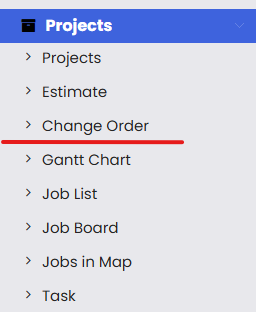
Step 1 – Navigate to Change Order
From the left-hand menu, click on Projects and then select Change Order to open the Change Order List page.
Step 2 – Create a New Change Order
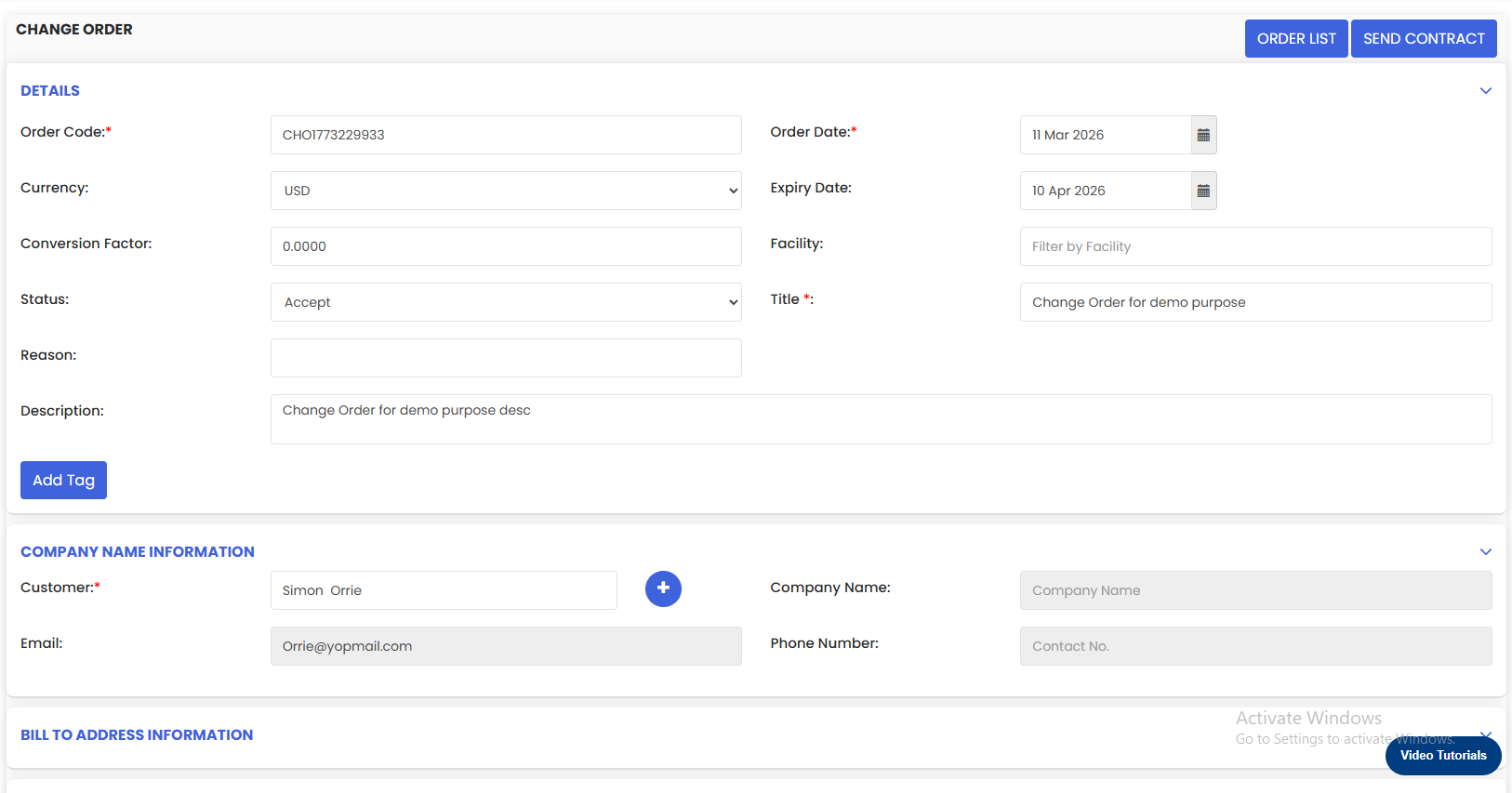
Click New Order to open the change order creation form. Fill in the following details:
- Title – Enter a name for the change order.
- Description – Provide a description of the scope of work.
- Customer – Select the customer associated with this change order.
- Services – Add the services to be included and specify the Quantity for each.
Once all the required details are filled in, click Save.

Step 3 – Update the Change Order Status to Accept
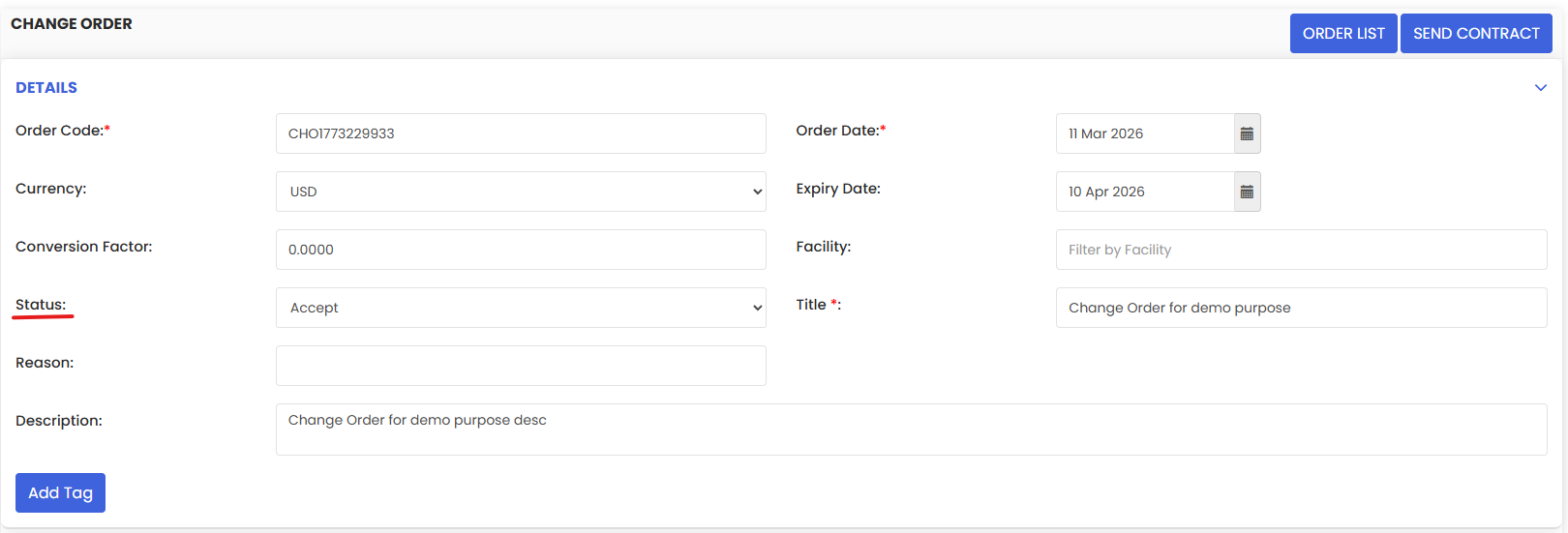
Return to the Change Order List and locate the change order you just created. Click Edit to reopen it. Change the status from Pending to Accept, then click Save again. Return to the Change Order List — you will now see the full set of available actions for this change order.
Step 4 – View Available Actions on the Change Order List
Once the status is set to Accept, the Change Order List will display the following action options for the change order:
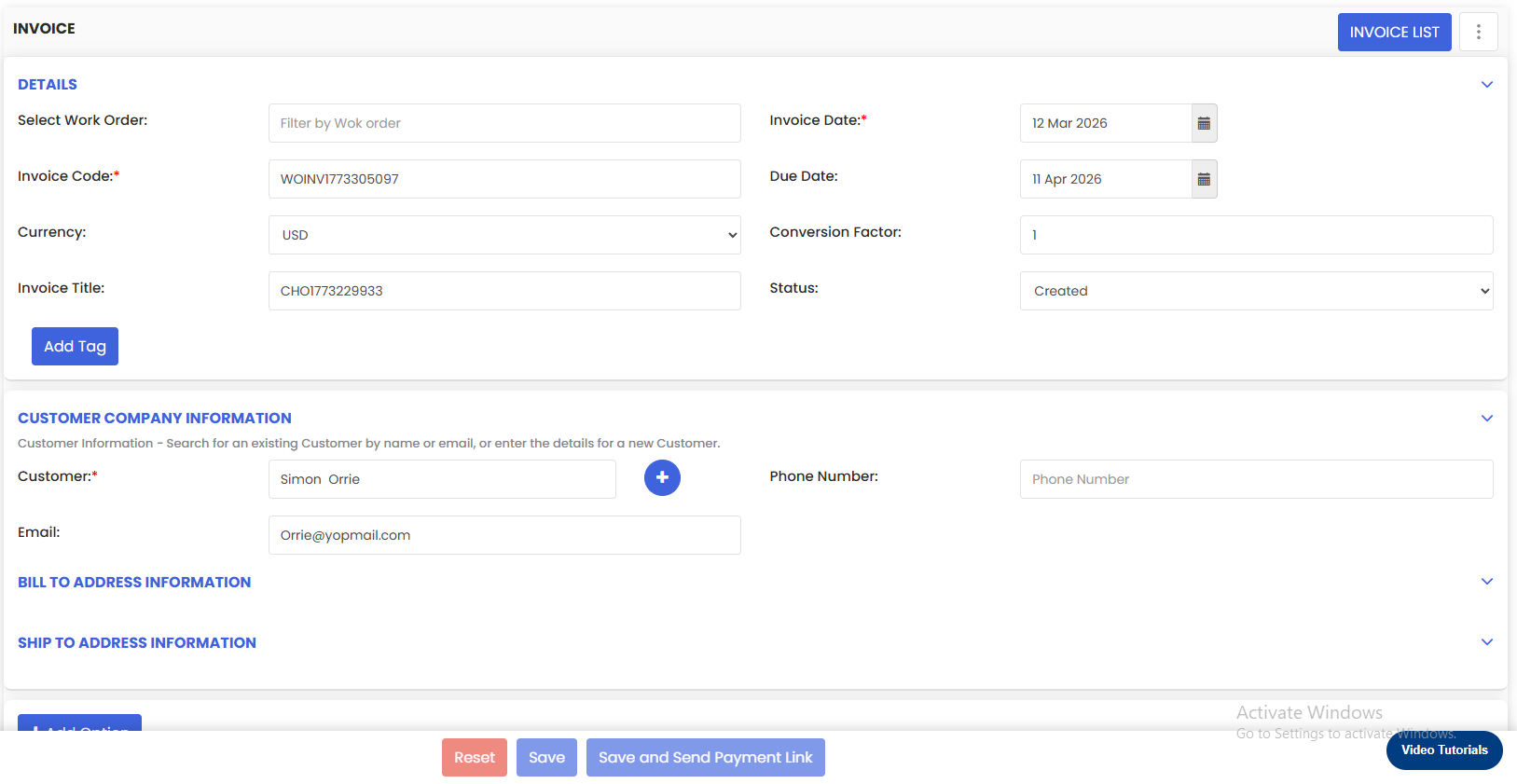
- Convert to Invoice – Generate an invoice directly from the change order.
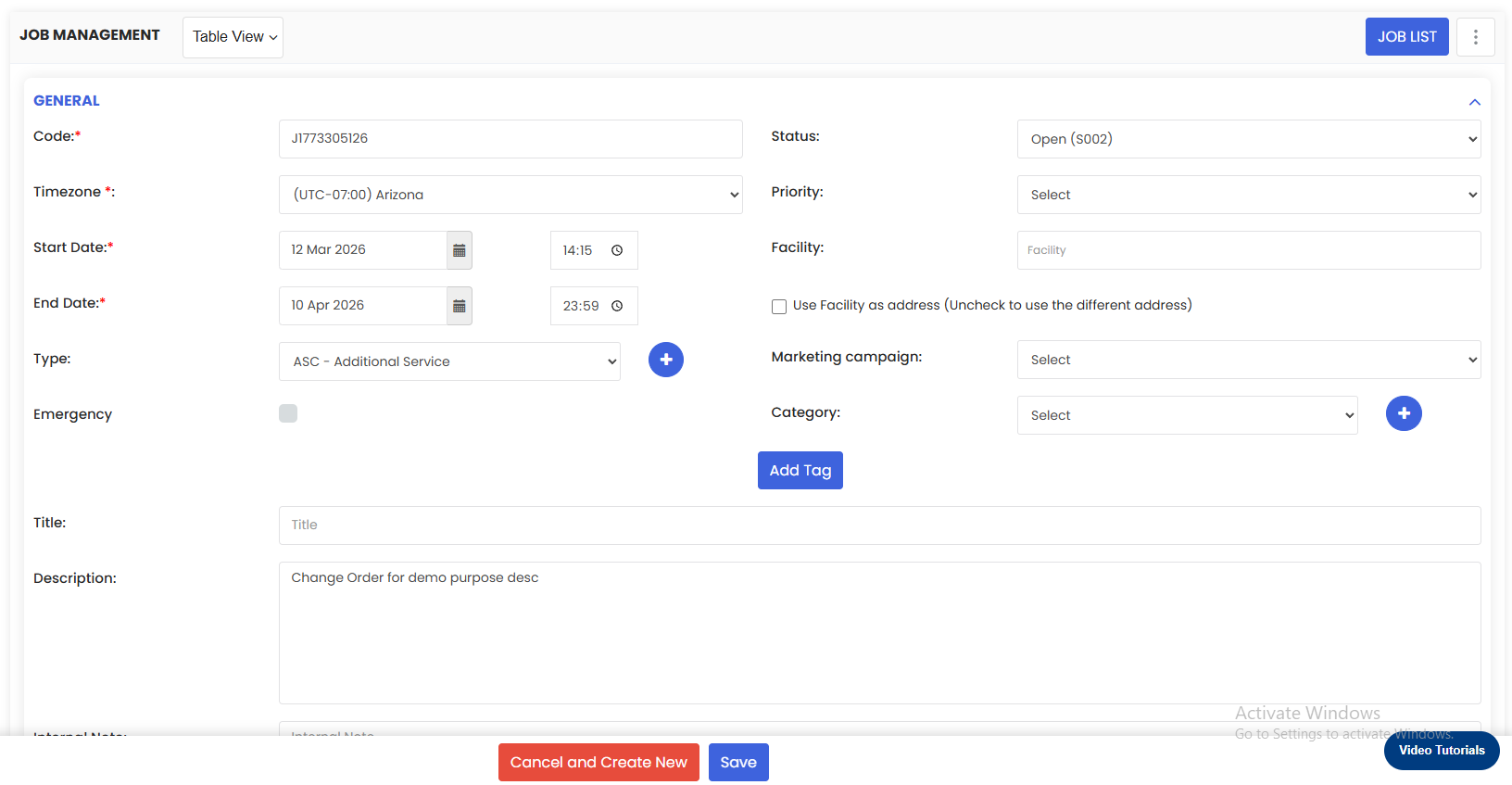
- Convert to Job – Create a job from the change order with customer details pre-filled.
- View – Open and review the change order details.
- Email – Send the change order to a recipient by email.
- Delete – Remove the change order.
- History – View the activity log for the change order.

Step 5 – Email the Change Order (Optional)
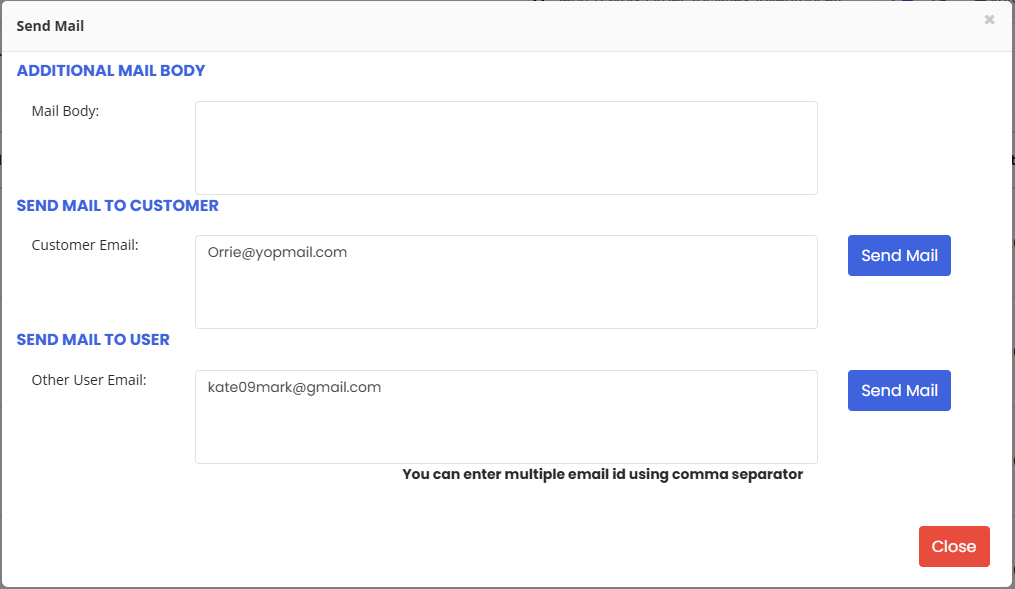
To send the change order to a customer or colleague by email, click the Email option. Enter the recipient's email address, write a custom message in the mail body, and click Send Mail. The email will be delivered to the recipient's inbox.
Step 6 – Convert the Change Order to a Job
From the Change Order List, click Convert to Job. The job creation screen will open with the customer information and address already pre-filled from the change order. Enter a Title for the job, review all pre-filled details, and click Save to create the job.
Step 7 – Convert the Change Order to an Invoice (Optional)
Alternatively, from the Change Order List, click Convert to Invoice to generate an invoice directly from the change order. This allows you to move straight from an accepted change order to billing without additional data entry.
Tips for Creating and Converting Change Orders
- The Convert to Job and Convert to Invoice options only become available after the change order status is set to Accept — always update the status before attempting a conversion.
- Use the Email option to send the change order to the customer for review or confirmation before converting it into a job or invoice.
- When converting to a job, review the pre-filled customer and address details carefully to ensure they are correct before saving.
- Use the History option on the Change Order List to maintain a full audit trail of all actions taken on each change order.
- Choose Convert to Invoice for completed or agreed work that is ready for billing, and Convert to Job for work that still needs to be scheduled and executed in the field.
Frequently Asked Questions
How do I create a new change order in DreamzCMMS?
Go to Projects → Change Order and click New Order. Fill in the title, description, customer, and services with quantities, then click Save.
Why can't I see the Convert to Job or Convert to Invoice options on the Change Order List?
These options are only available once the change order status has been set to Accept. Edit the change order, change the status from Pending to Accept, save it, and return to the list — the conversion options will then be visible.
Can I email a change order directly from DreamzCMMS?
Yes. From the Change Order List, click the Email option next to the change order. Enter the recipient's email address, write a message, and click Send Mail to deliver it directly to their inbox.
What details are pre-filled when converting a change order to a job?
When you select Convert to Job, the job creation screen automatically pre-populates the customer information and address from the change order, reducing manual data entry.
Can I convert the same change order into both a job and an invoice?
Yes. Both Convert to Job and Convert to Invoice are available as separate actions on the Change Order List, allowing you to use whichever conversion best suits your current workflow needs.
Related Articles
- Creating an Estimation and Change Order Process
- Creating a Job and Converting it to a Change Order
- Change Order List
- Invoice Management
- Project Management Overview