Creating a Job and Converting it to a Change Order
In DreamzCMMS, you can create a job and then convert it directly into a change order — with customer information automatically carried over. This allows your team to quickly formalise scope changes that arise during an active job without starting from scratch.
Overview
Navigate to Projects → Job List and click Add New to create a job. Enter a title, description, and customer, then click Save. Open the job by clicking its Job ID, then use the three-dot menu in the top-right corner to select Add Change Order. On the Change Order screen, the customer details are pre-populated — enter a title, select services and quantities, and click Save. The change order will then appear in the Change Order List, linked to the originating job.
Here is a reference video:
Steps to Create a Job and Convert it to a Change Order
Step 1 – Navigate to the Job List
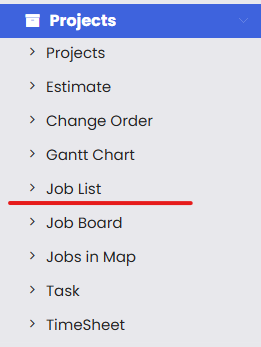
From the left-hand menu, click on Projects and then select Job List to open the list of all existing jobs.
Step 2 – Create a New Job
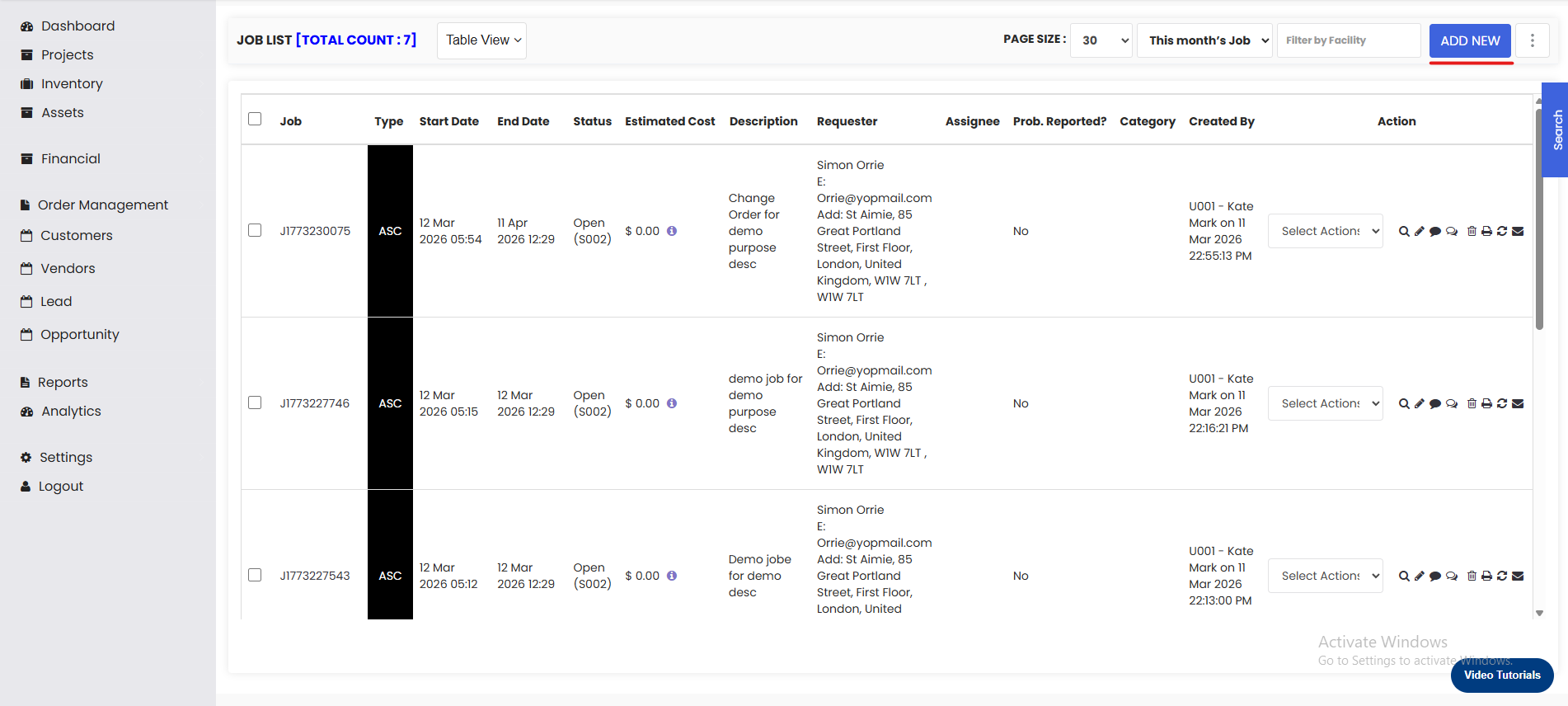
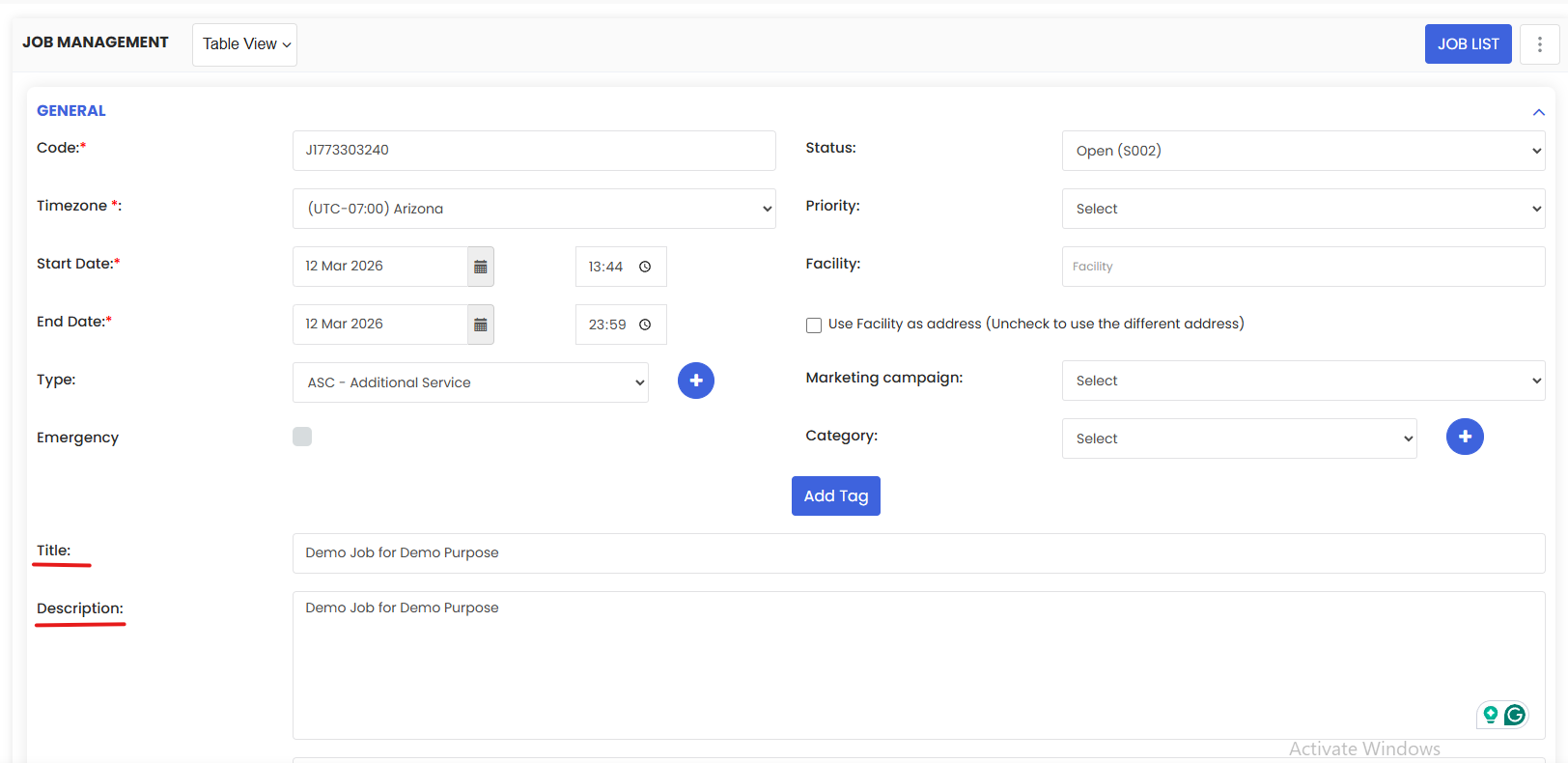
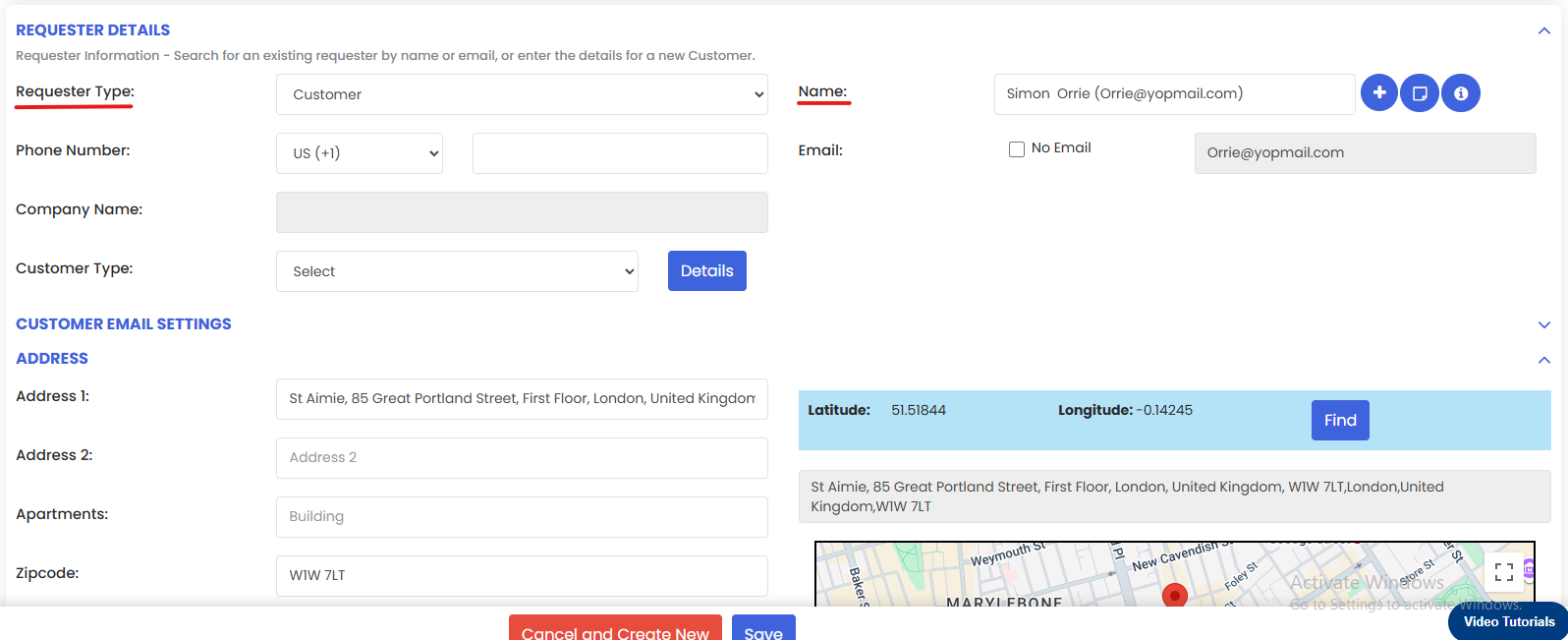
On the Job List page, click Add New to open the job creation form. Enter a Title and Description for the job, then select the Customer associated with the job. Once all required details are filled in, click Save.
Step 3 – Open the Job Preview
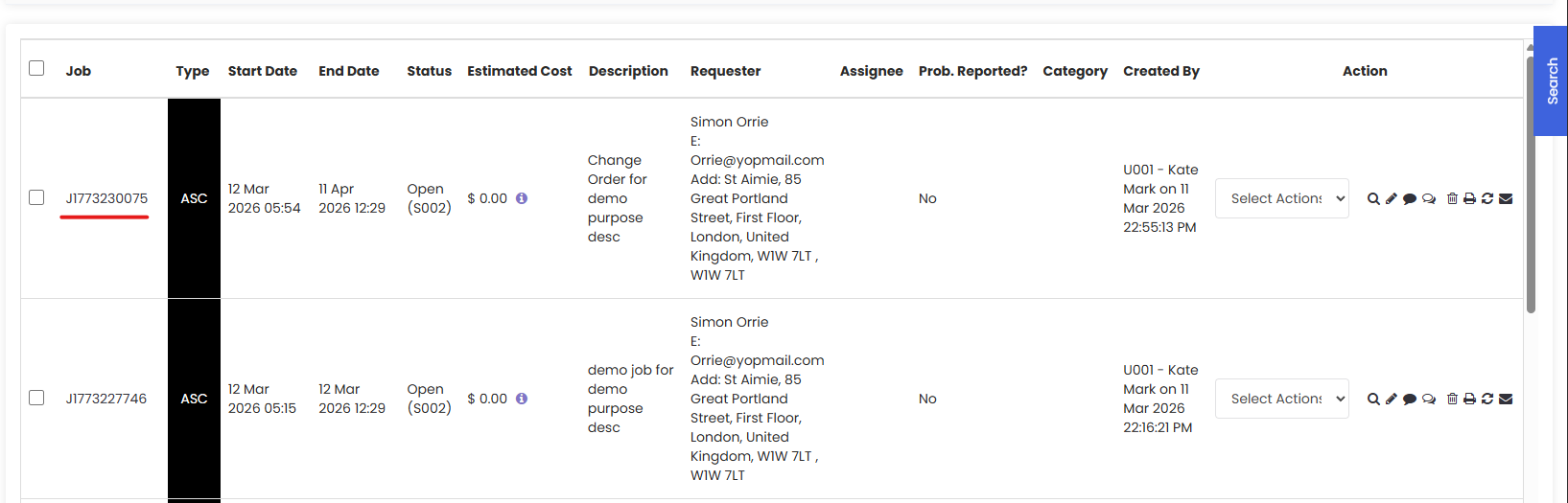
Once the job has been saved, locate it in the Job List and click on the Job ID to open the job's preview page.
Step 4 – Select Add Change Order from the Three-Dot Menu
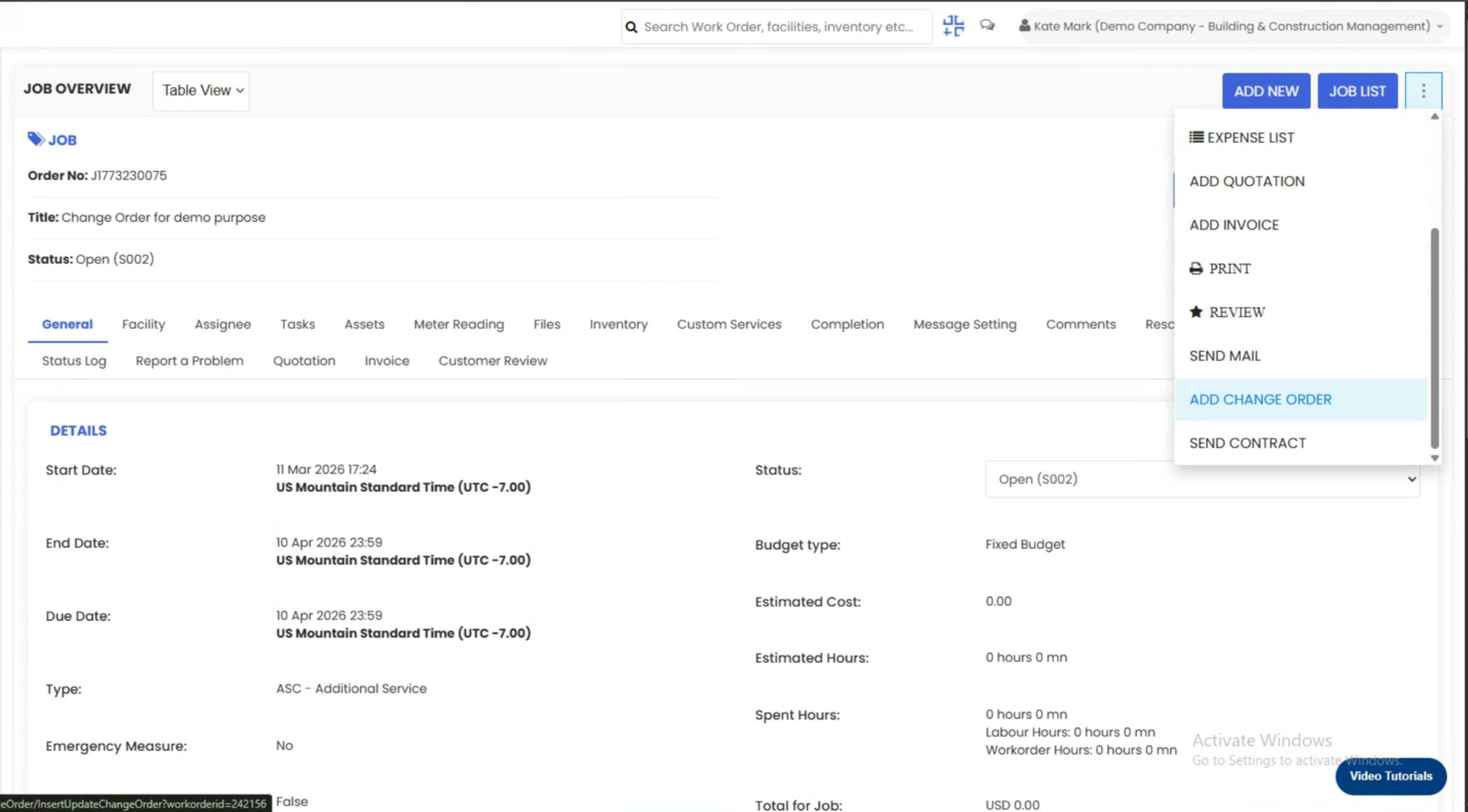
On the job preview page, click the three-dot menu (⋮) in the top-right corner. From the dropdown options, select Add Change Order to open the Change Order creation screen.
Step 5 – Enter the Change Order Details
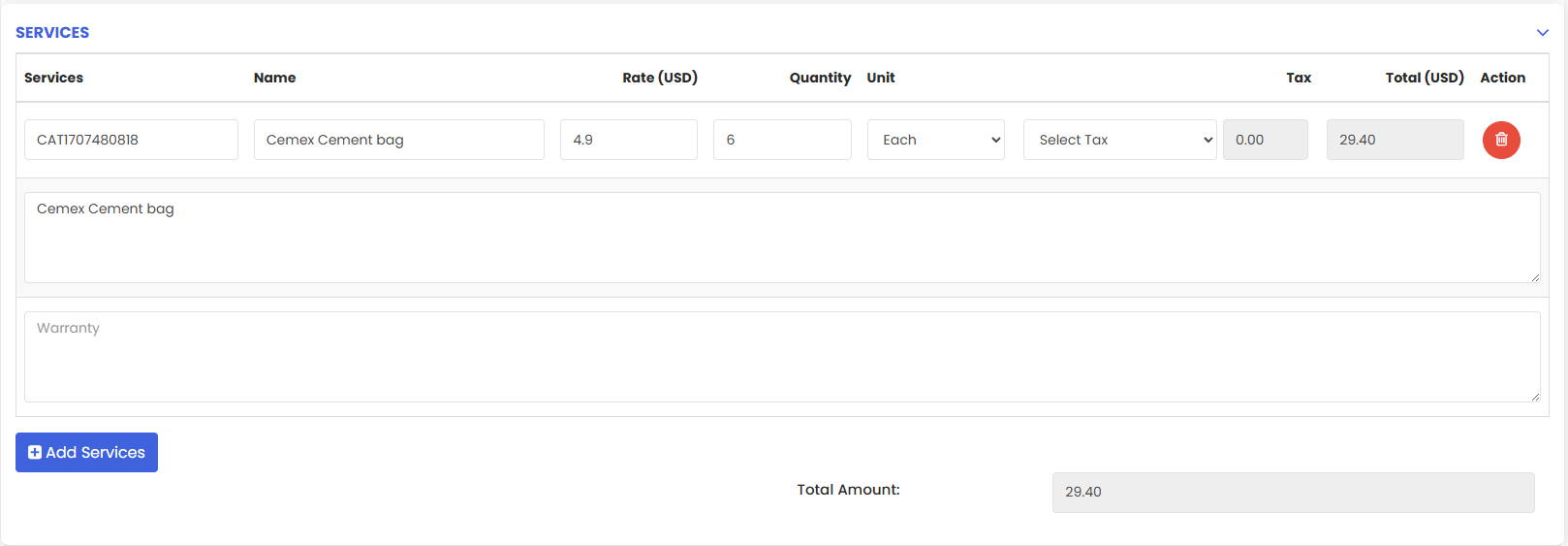
On the Change Order screen, you will notice that the customer information is automatically pre-populated from the job. Enter a Title for the change order, select the Services you want to include, and provide the Quantity for each selected service.
Step 6 – Save the Change Order
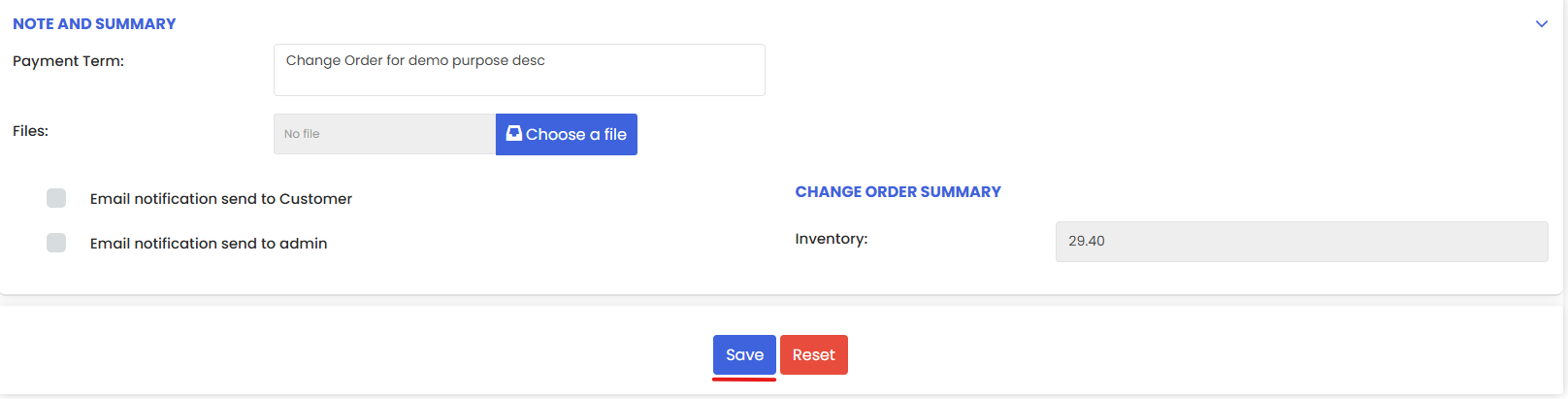
Once all the required details have been entered, click Save. Navigate to the Change Order List to confirm that the change order has been successfully created from the job.
Tips for Creating a Job and Converting it to a Change Order
- Make sure the job is saved and fully created before attempting to generate a change order — the three-dot menu with the Add Change Order option is only available from the job's preview page.
- The customer details are automatically carried over from the job to the change order — verify them before saving to ensure the change order is linked to the correct customer.
- Use descriptive titles for both the job and the change order so they are easy to match and trace in their respective lists.
- When selecting services in the change order, make sure to enter accurate quantities to ensure correct costing and scope documentation.
- After saving, always verify the change order in the Change Order List to confirm it has been created successfully and is linked to the correct job.
Frequently Asked Questions
How do I convert a job into a change order in DreamzCMMS?
Open the job from the Job List by clicking its Job ID, then click the three-dot menu (⋮) in the top-right corner and select Add Change Order. Fill in the change order details and click Save.
Do I need to re-enter the customer details when creating a change order from a job?
No. When you select Add Change Order from the job preview, the customer information is automatically pre-populated from the job record, saving you time and reducing the risk of data entry errors.
Where is the Add Change Order option on the job page?
The Add Change Order option is found in the three-dot menu (⋮) located in the top-right corner of the job preview page. It is only accessible after the job has been saved.
Can I add multiple services to a change order created from a job?
Yes. On the Change Order creation screen, you can select multiple services and specify the quantity for each one, giving you full flexibility in defining the scope of the change order.
Where can I find the change order after it has been created from a job?
Once saved, the change order will appear in the Change Order List under Projects → Change Order, where you can view, edit, or take further actions on it.
Related Articles
- Creating an Estimation and Change Order Process
- Creating Change Orders and Converting Them to Jobs or Invoices
- Job List
- Change Order List
- Project Management Overview