Creating an Estimation and Change Order Process
In DreamzCMMS, you can create a service estimation for a customer and seamlessly convert it into a change order — carrying over all service details automatically. This streamlined process eliminates duplicate data entry and keeps your project estimations and change orders fully connected.
Overview
Navigate to Projects → Estimation and click New Estimate. Select Service as the estimate type, choose the customer, set the status to Accept, and click Submit then Save. Once saved, return to the Estimate List and click the Convert to Change Order icon (two arrows) next to the estimate. On the Change Order screen, enter a title, set the status to Accept, review the pre-populated service details, and click Save. The change order will then appear in the Change Order List, fully linked to the original estimation.
Here is a reference video:
Steps to Create an Estimation and Generate a Change Order
Step 1 – Navigate to Estimation
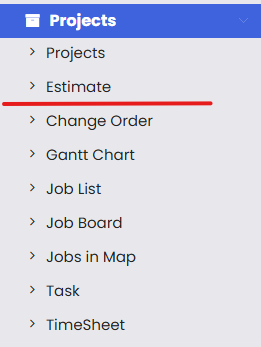
From the left-hand menu, click on Projects and then select Estimation to open the Estimate List page.
Step 2 – Create a New Estimate
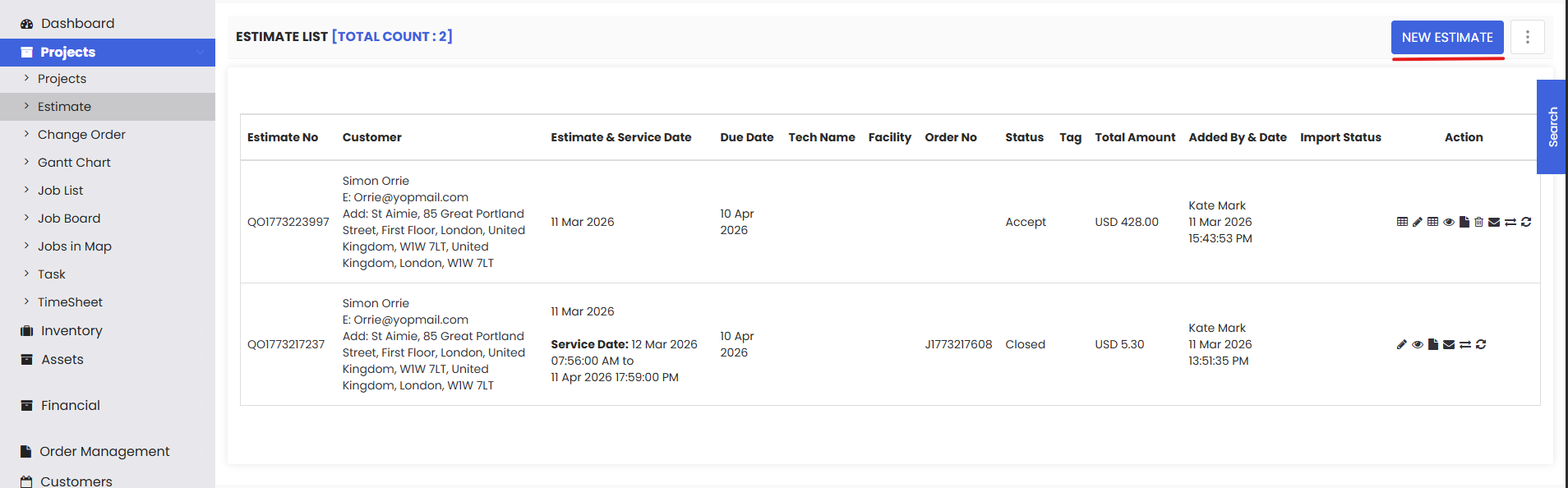
On the Estimate List page, click New Estimate to open the estimate creation form. Select Service as the type of estimate.
Step 3 – Select the Customer and Set the Status
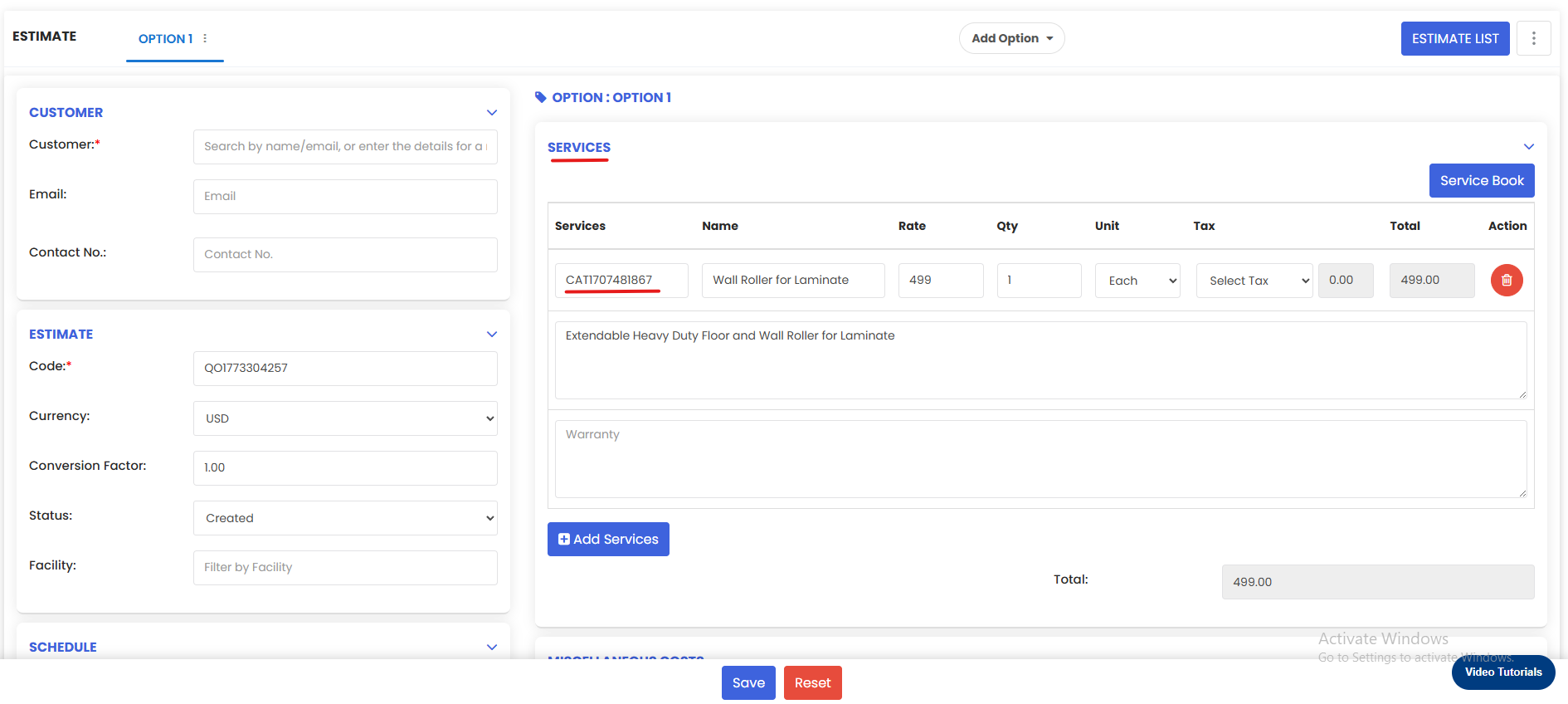
Choose the customer for whom the estimate is being created. Once the customer is selected, change the status of the estimate to Accept.
Step 4 – Save the Estimate
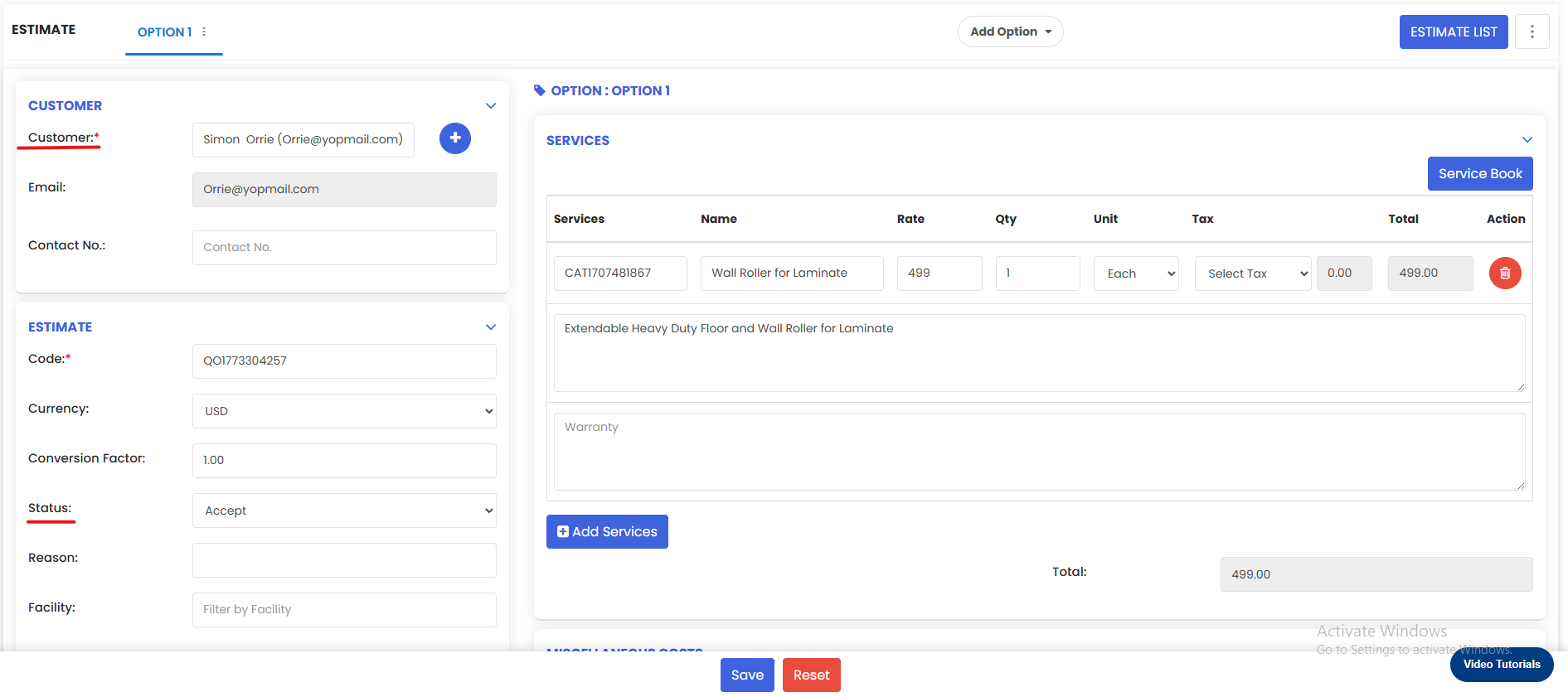
Once all the details have been filled in, click Save. The estimate will be saved and you will be returned to the Estimate List.
Step 5 – Convert the Estimate to a Change Order
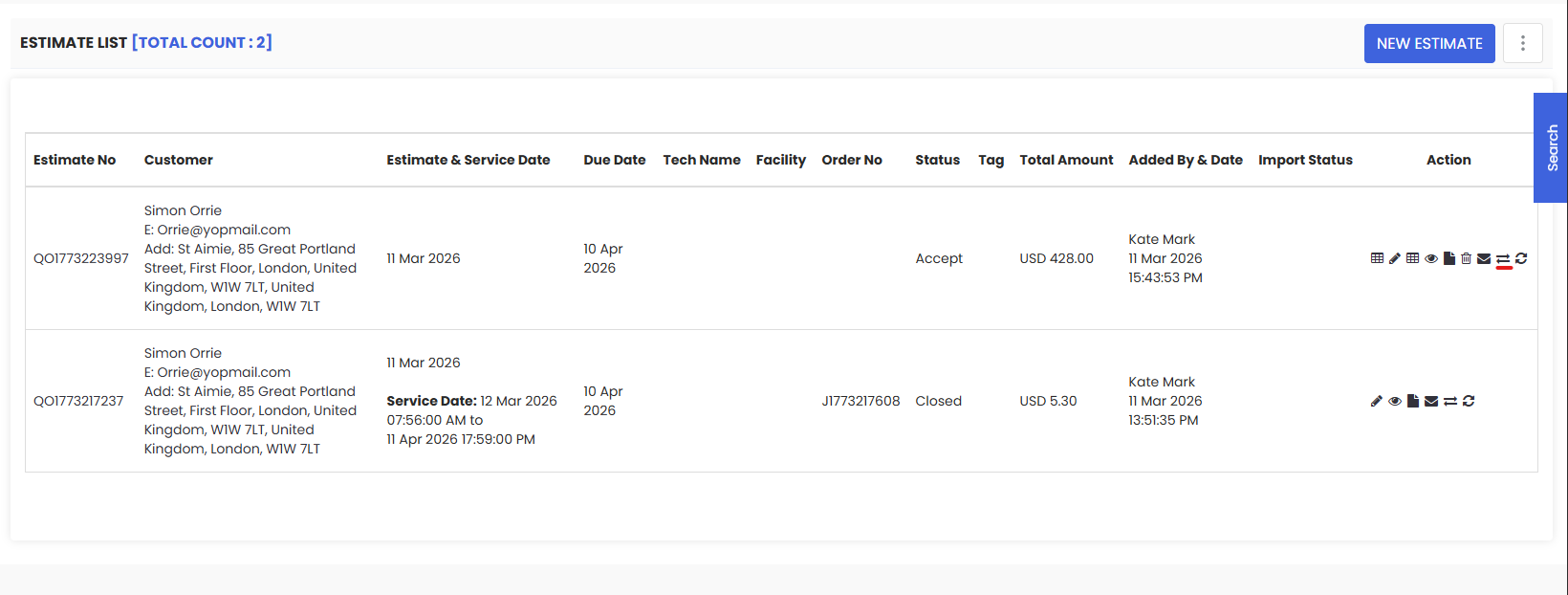
Back on the Estimate List, locate the estimate you just created. Click the Convert to Change Order icon (displayed as two arrows) in the Action column next to the estimate to begin creating a change order from it.
Step 6 – Enter the Change Order Details
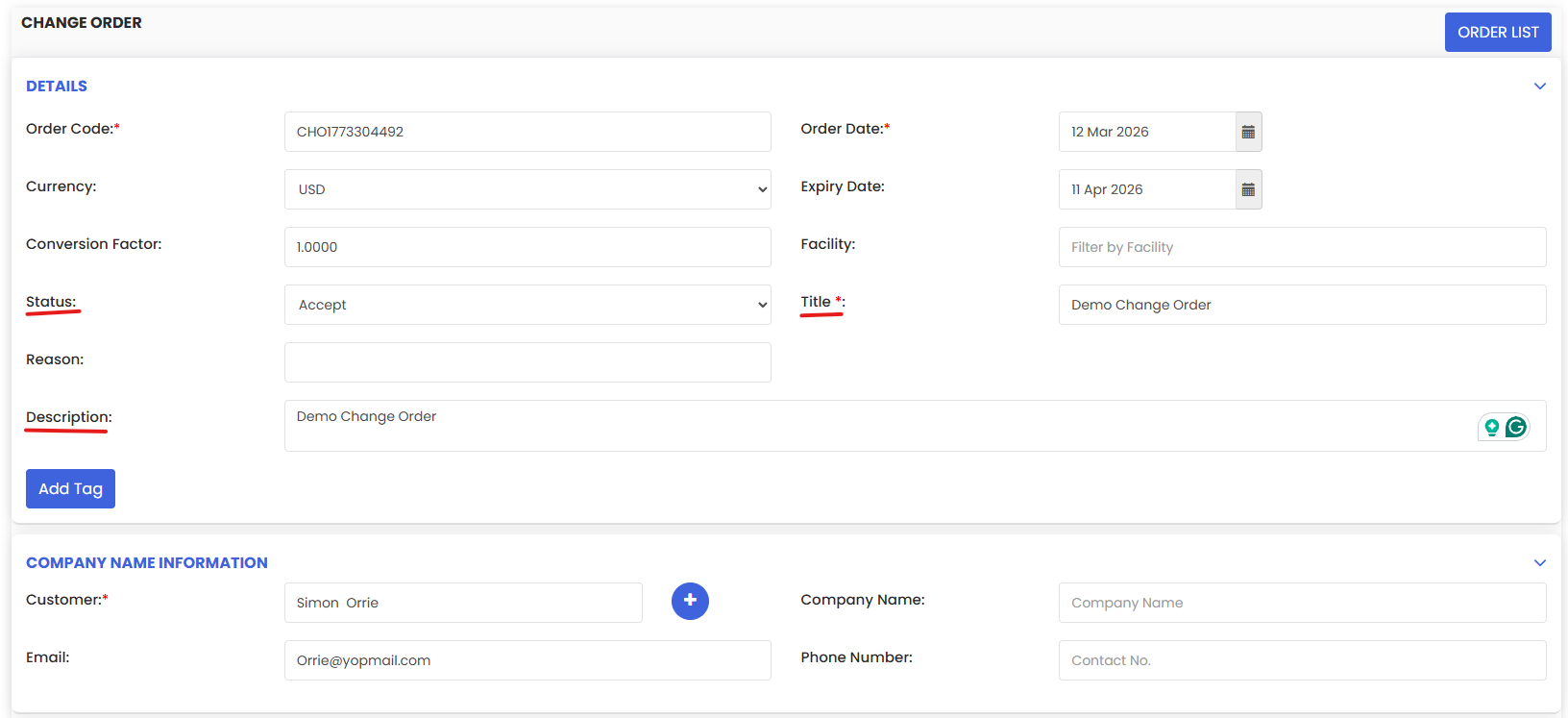
On the Change Order screen, enter a Title for the change order (e.g., Demo Change Order). Change the status to Accept. You will notice that the service details from the original estimation are already pre-populated — review them to confirm they are correct.
Step 7 – Save the Change Order
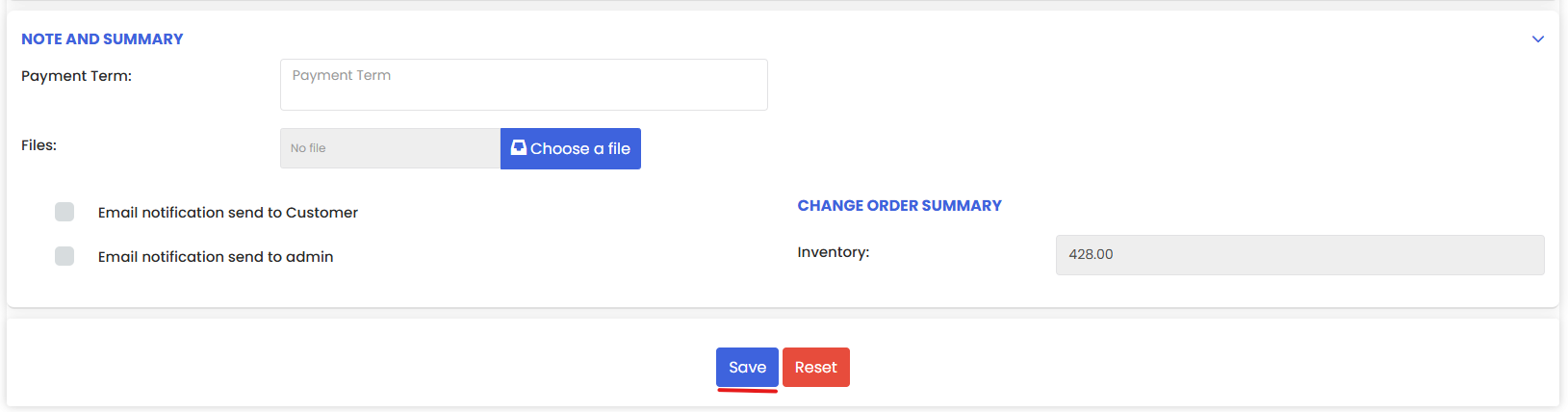
Once everything has been confirmed, click Save. Navigate to the Change Order List to verify that the change order has been successfully created from the estimation.
Tips for Creating an Estimation and Change Order
- Always set the estimate status to Accept before saving — only accepted estimates can be converted into change orders.
- When converting an estimate to a change order, review the pre-populated service details carefully to ensure they accurately reflect the scope of work before saving.
- Give your change order a clear and descriptive title so it is easy to identify in the Change Order List, especially when managing multiple projects simultaneously.
- Use the Estimation workflow as a starting point whenever scope or cost discussions have already taken place with the customer — it saves time by carrying service details directly into the change order.
- After saving, always verify the change order appears correctly in the Change Order List to confirm the conversion was completed successfully.
Frequently Asked Questions
How do I create a change order from an estimation in DreamzCMMS?
Go to Projects → Estimation, create and save an estimate with the status set to Accept, then click the Convert to Change Order icon (two arrows) on the Estimate List. Enter a title, confirm the pre-populated service details, and click Save.
What type of estimate should I select when creating an estimation for a change order?
Select Service as the estimate type. This ensures the service details are correctly structured and can be carried over into the change order when converting.
Do I need to re-enter the service details when creating the change order?
No. When you convert an estimate to a change order, the service details from the estimation are automatically pre-populated in the change order screen, eliminating duplicate data entry.
What does the two-arrow icon on the Estimate List do?
The two-arrow icon in the Action column of the Estimate List is the Convert to Change Order action. Clicking it opens the Change Order creation screen with details pre-filled from the selected estimate.
Where can I find the change order after it has been created from an estimation?
Once saved, the change order will appear in the Change Order List under Projects → Change Order, where you can view, edit, or take further actions on it.
Related Articles
- Creating a Job and Converting it to a Change Order
- Creating Change Orders and Converting Them to Jobs or Invoices
- Estimation List
- Change Order List
- Project Management Overview