Leave Management
In DreamzFSM, Leave Management allows administrators and managers to view, apply, and manage employee leave applications directly from the employee profile. Each leave application is tracked with its type, dates, status, and approver details — giving your team complete visibility into staff availability and leave history.
Overview
Navigate to Settings → Users, select the employee and open their profile, then click the Leave Details tab to view all leave applications for that employee. From here, click Leave Requests to review and approve or reject pending requests, or click Apply Leave to submit a new leave application on behalf of the employee. When applying leave, select the leave type, date range, and session, add any notes, CC users, contact details, and supporting files — while the system automatically displays the employee's allotted, remaining, and applied leave days.
Here is a reference video:
Steps to Manage Employee Leave
Step 1 – Navigate to Settings and Open Users
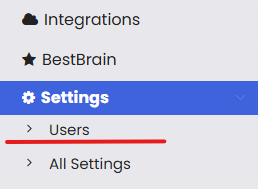
From the left-side menu, click on Settings to expand the section, then click on Users to open the Employee List.
Step 2 – Select the Employee and View Their Profile
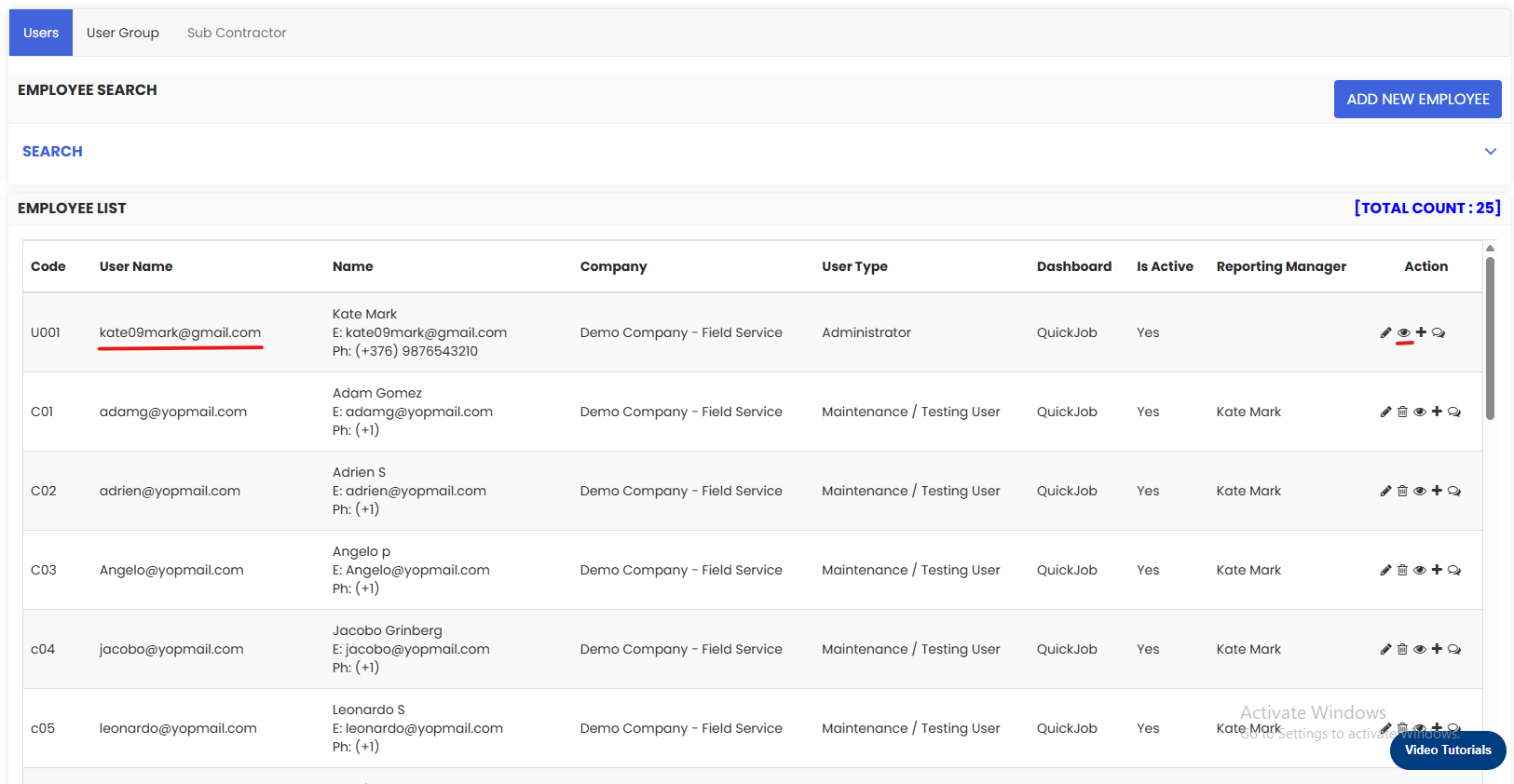
On the Employee List, locate the employee whose leave you want to manage. Click the view icon in the Action column to open their Employee Details profile.
Step 3 – Click on Leave Details
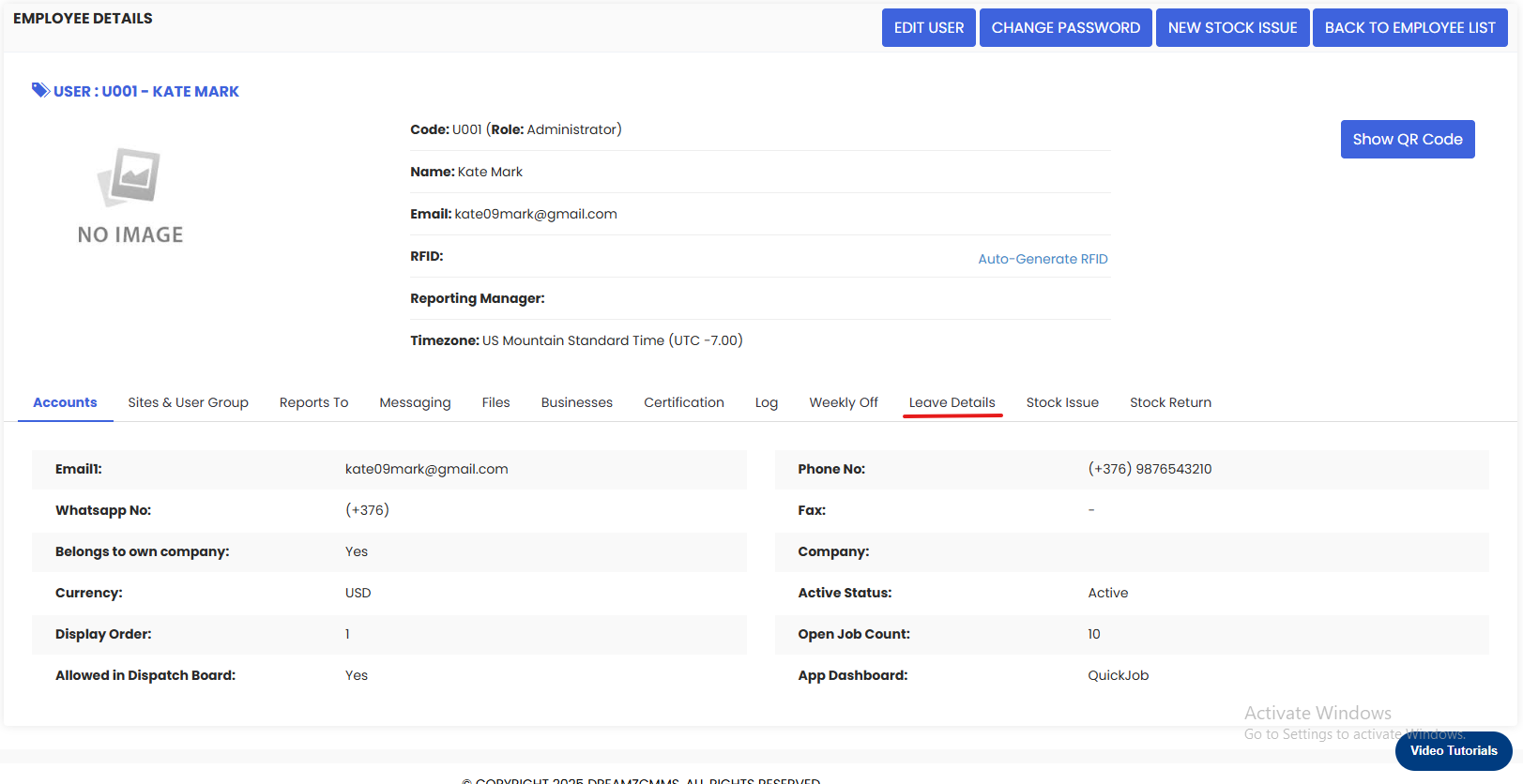
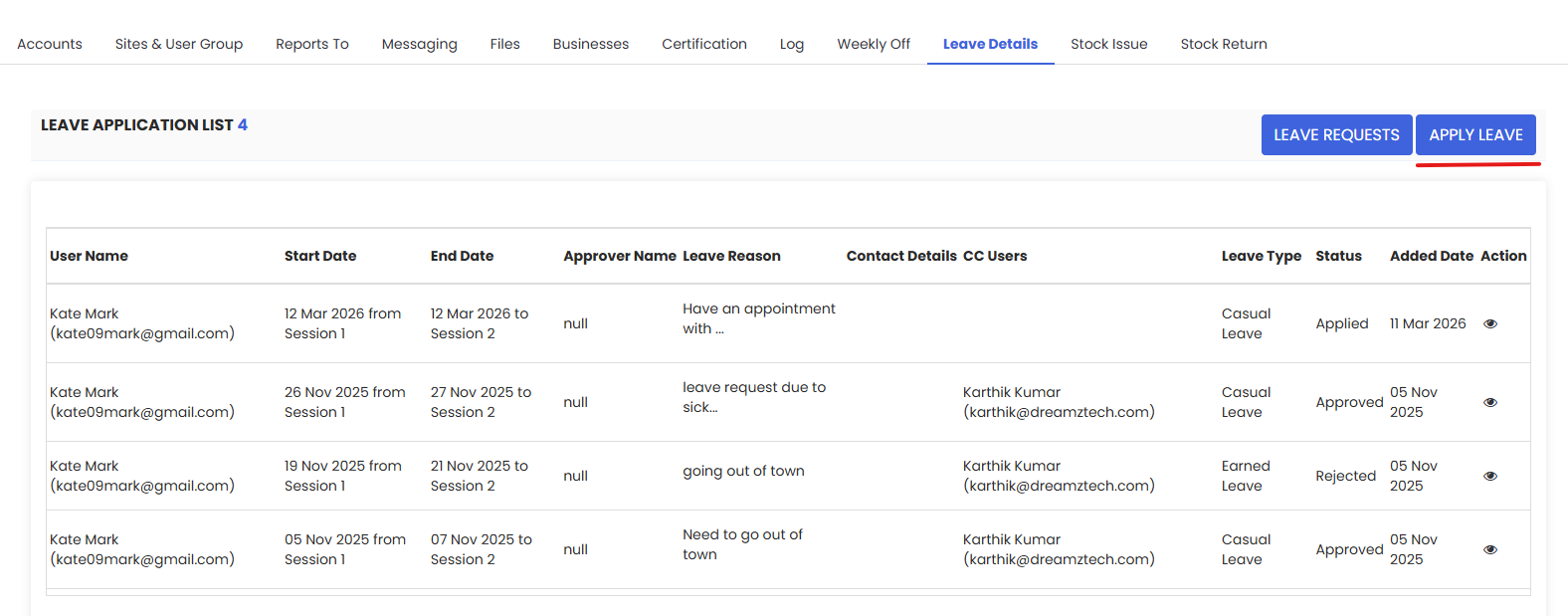
On the Employee Details page, click the Leave Details tab from the navigation tabs at the top. This opens the Leave Application List for that employee, showing all past and current leave applications with their Start Date, End Date, Leave Type, Leave Reason, Status (Applied, Approved, or Rejected), and Added Date.
Step 4 – View and Action Leave Requests
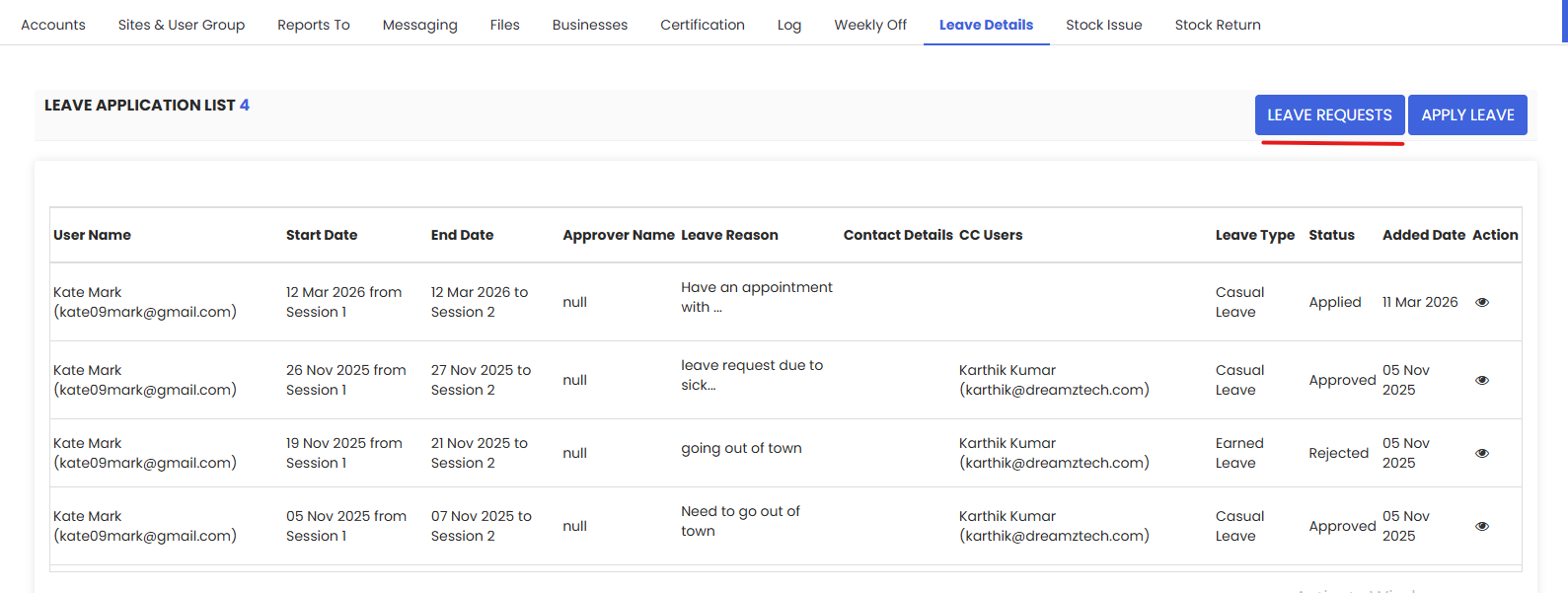
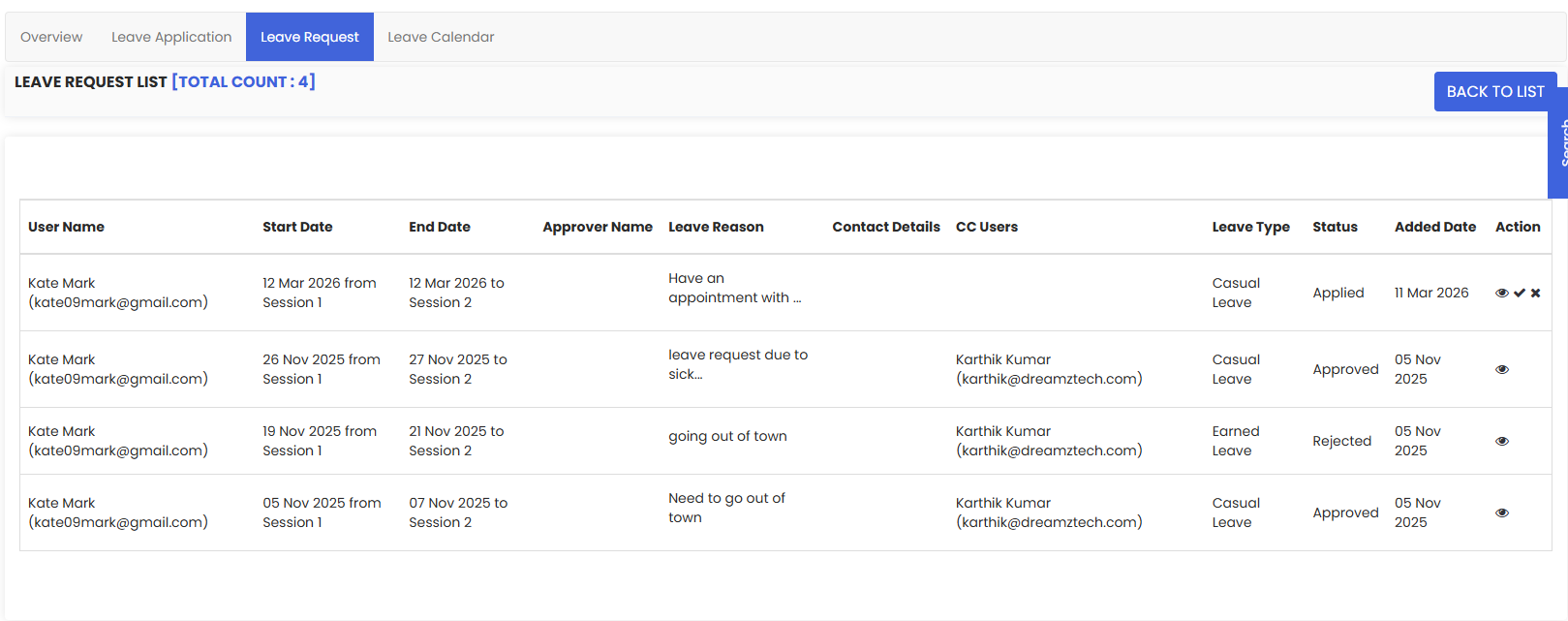
Click the Leave Requests button to open the Leave Request List. This view shows all leave requests submitted by the employee and allows managers to approve or reject pending applications using the action icons (✔ to approve, ✘ to reject) in the Action column.
Step 5 – Click Apply Leave
To submit a new leave application, click the Apply Leave button from the Leave Application List. This opens the Apply Leave form.
Step 6 – Select Leave Type and Date Range
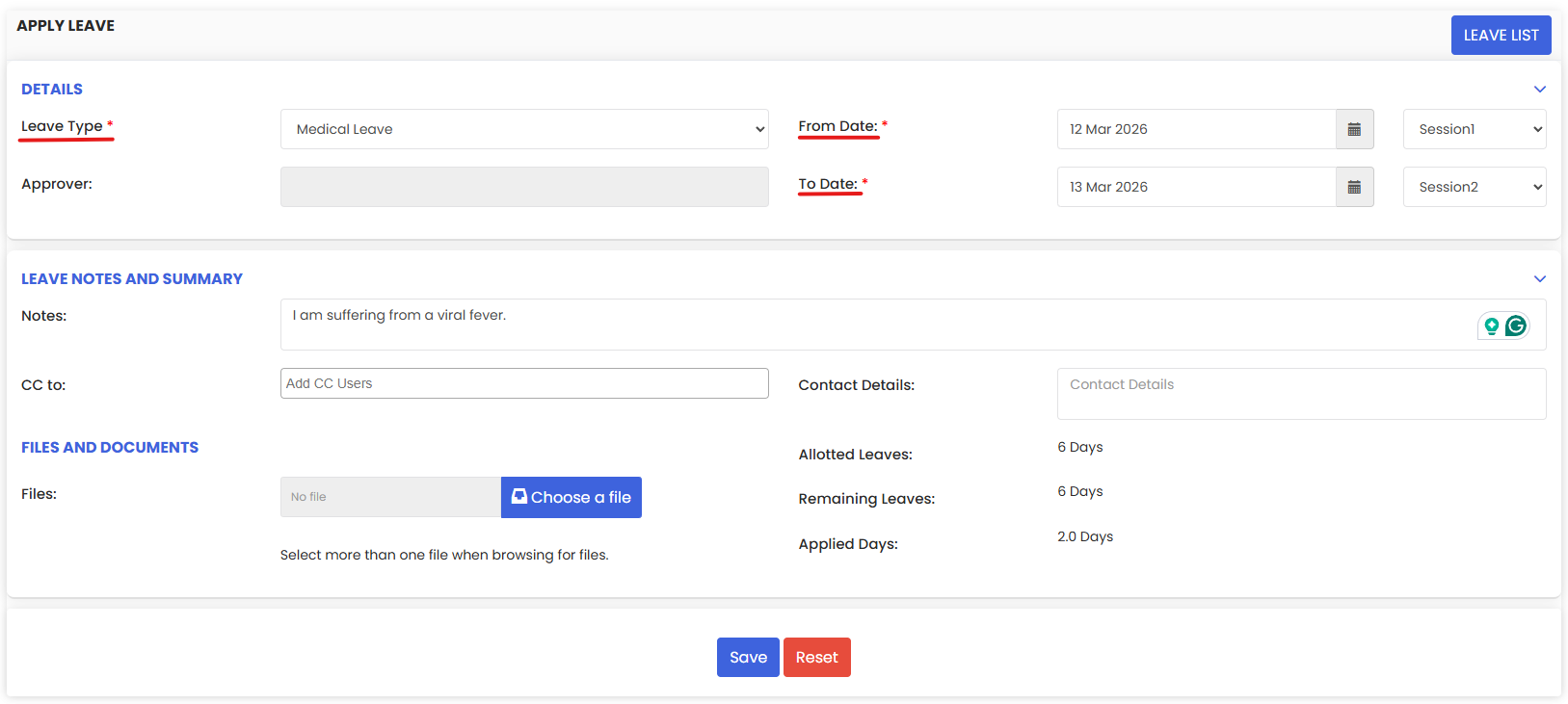
In the Details section of the Apply Leave form, fill in the following required fields:
- Leave Type – Select the type of leave (e.g., Medical Leave, Casual Leave, Earned Leave).
- From Date – Select the leave start date and session (Session 1 or Session 2).
- To Date – Select the leave end date and session.
- Approver – Optionally assign an approver for the leave request.
Step 7 – Add Notes, CC Users, Files and Save
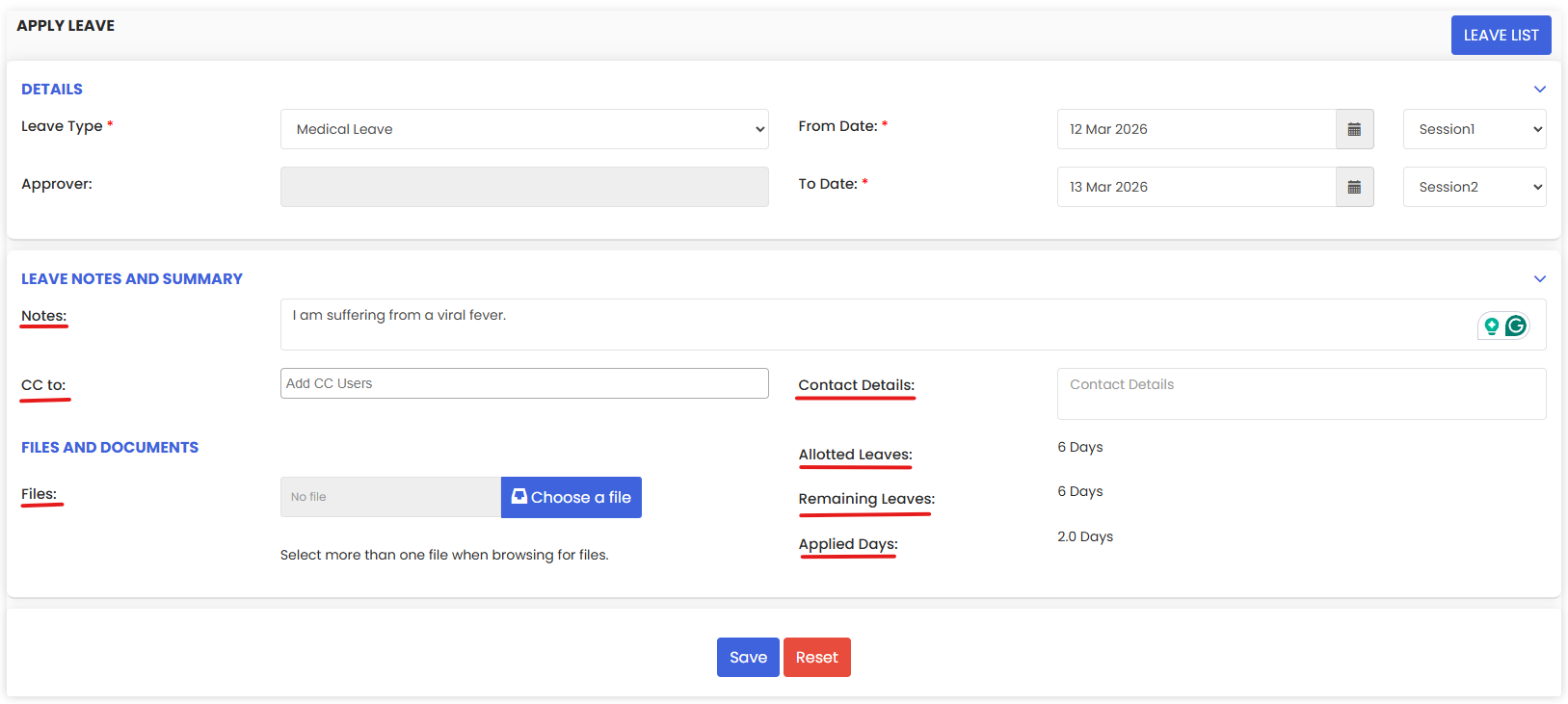
In the Leave Notes and Summary and Files and Documents sections, complete the remaining optional fields and review the leave summary, then click Save:
- Notes – Add a reason or description for the leave (e.g., "I am suffering from a viral fever").
- CC to – Add any users who should be notified of the leave application.
- Contact Details – Provide a contact number where the employee can be reached during leave.
- Files – Upload any supporting documents such as a medical certificate.
- Allotted Leaves – Displays the total number of days allotted for the selected leave type.
- Remaining Leaves – Displays how many days are still available.
- Applied Days – Displays the number of days being applied for in this request.
Tips for Managing Employee Leave
- Always check the Remaining Leaves count on the Apply Leave form before submitting to ensure the employee has sufficient leave balance for the selected type.
- Use the CC to field to notify relevant team members or the employee's reporting manager when submitting a leave application on their behalf.
- Upload supporting documents (e.g., medical certificates) using the Files field to maintain a complete and auditable leave record within DreamzFSM.
- Use the Leave Requests view to action all pending approvals promptly, so employees receive timely confirmation and scheduling can be updated accordingly.
- The Leave Application List on the Leave Details tab provides a full history of all leave — including Approved and Rejected requests — making it easy to track each employee's leave record over time.
Frequently Asked Questions
How do I apply leave for an employee in DreamzFSM?
Go to Settings → Users, click the view icon for the employee, open the Leave Details tab, and click Apply Leave. Select the leave type, date range, add any notes or supporting files, and click Save.
Where can I see all leave applications for an employee?
Open the employee's profile from Settings → Users, then click the Leave Details tab. The Leave Application List shows all past and current leave applications with their status — Applied, Approved, or Rejected.
How do I approve or reject a leave request?
From the Leave Details tab, click Leave Requests to open the Leave Request List. Use the approve (✔) or reject (✘) action icons in the Action column to process each pending request.
What does the Session field mean when applying leave?
The Session field (Session 1 or Session 2) lets you specify whether the leave starts or ends in the first half or second half of a working day, allowing for half-day leave applications.
How can I check how many leave days an employee has remaining?
When applying leave, the Apply Leave form automatically displays the Allotted Leaves, Remaining Leaves, and Applied Days for the selected leave type, giving you an instant summary of the employee's leave balance.
Related Articles
- How to Add a Timesheet
- Timesheet & Leave Attendance Dashboard
- Attendance Status
- User Management
- Leave Report