Stock Transfer Delivery List in DreamzCMMS
DreamzCMMS allows organizations to manage internal inventory movement using the Stock Transfer module. The Stock Transfer Delivery List helps track the delivery of items transferred between facilities or locations within the organization.
Each delivery record confirms that the items issued through a stock transfer order have been dispatched and received at the destination facility. This helps maintain accurate inventory records and ensures transparency in internal stock movements.
By using the Stock Transfer Delivery feature, organizations can monitor delivery progress, maintain delivery documentation, and ensure that inventory transfers are properly recorded.
Overview
The Stock Transfer Delivery List page displays all stock transfer delivery records created in the system. Each record contains details such as delivery code, delivery date, receiving user, source facility, destination facility, and delivery status.
This page allows users to:
View all stock transfer deliveries
Track item movements between facilities
Monitor delivery status
Manage delivery documentation
Inventory managers and administrators can easily verify that transferred items have reached their intended destination.
How to Access the Stock Transfer Delivery List
Step 1 – Navigate to Stock Transfer
From the main menu, locate the Stock Transfer module.
Click Stock Transfer Delivery List.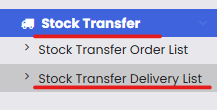
Step 2 – View Stock Transfer Deliveries
The Stock Transfer Delivery page will display all delivery records created for stock transfer orders.
The list includes the following information:
Delivery Code
Delivery Date
Receiving User
From Facility
To Facility
Status
Issue Type
Created By
Created Date
Users can also perform actions such as viewing or editing delivery records using the Select Action menu.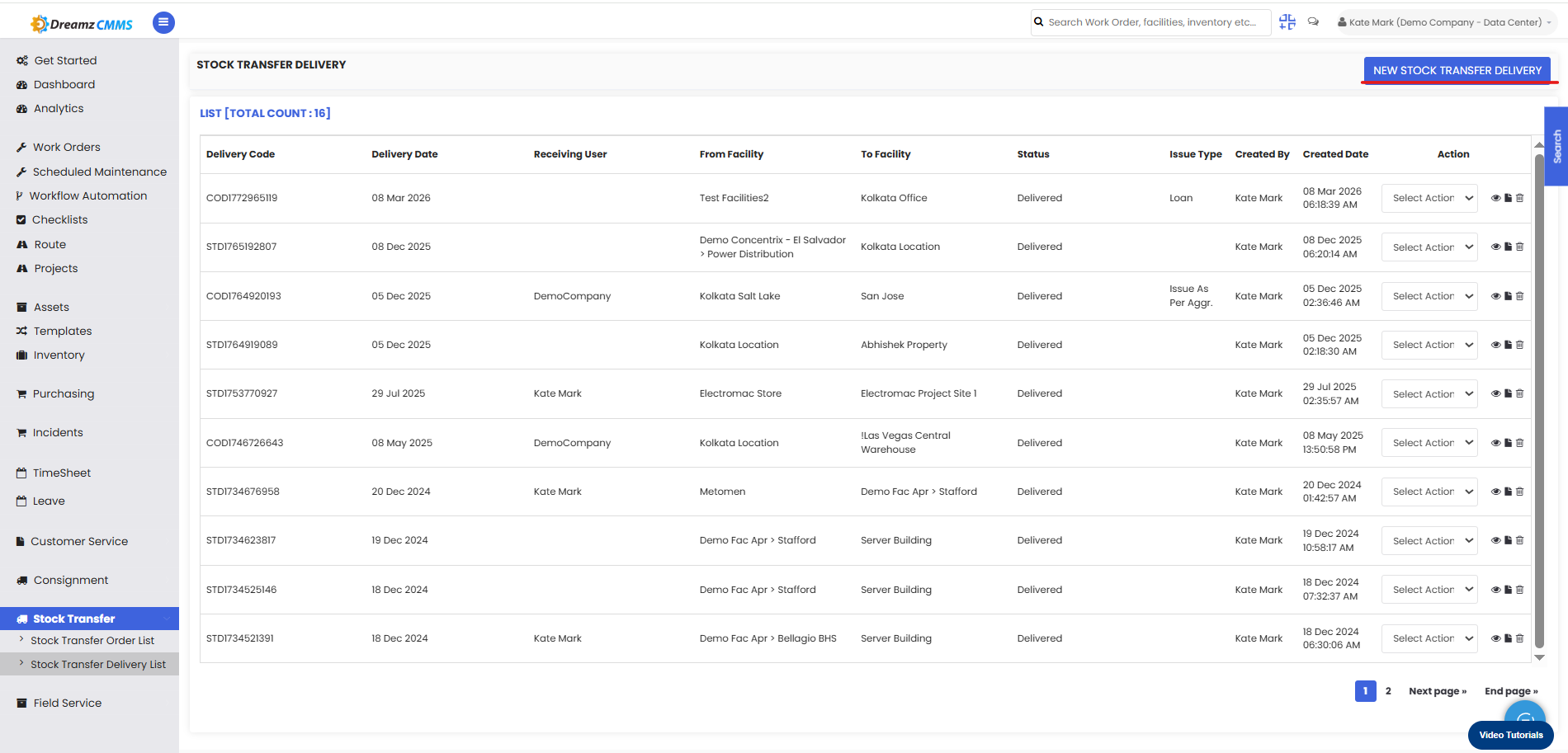
How to Create a New Stock Transfer Delivery
Step 1 – Click New Stock Transfer Delivery
On the Stock Transfer Delivery page, click New Stock Transfer Delivery located at the top-right corner.
This will open the stock transfer delivery form.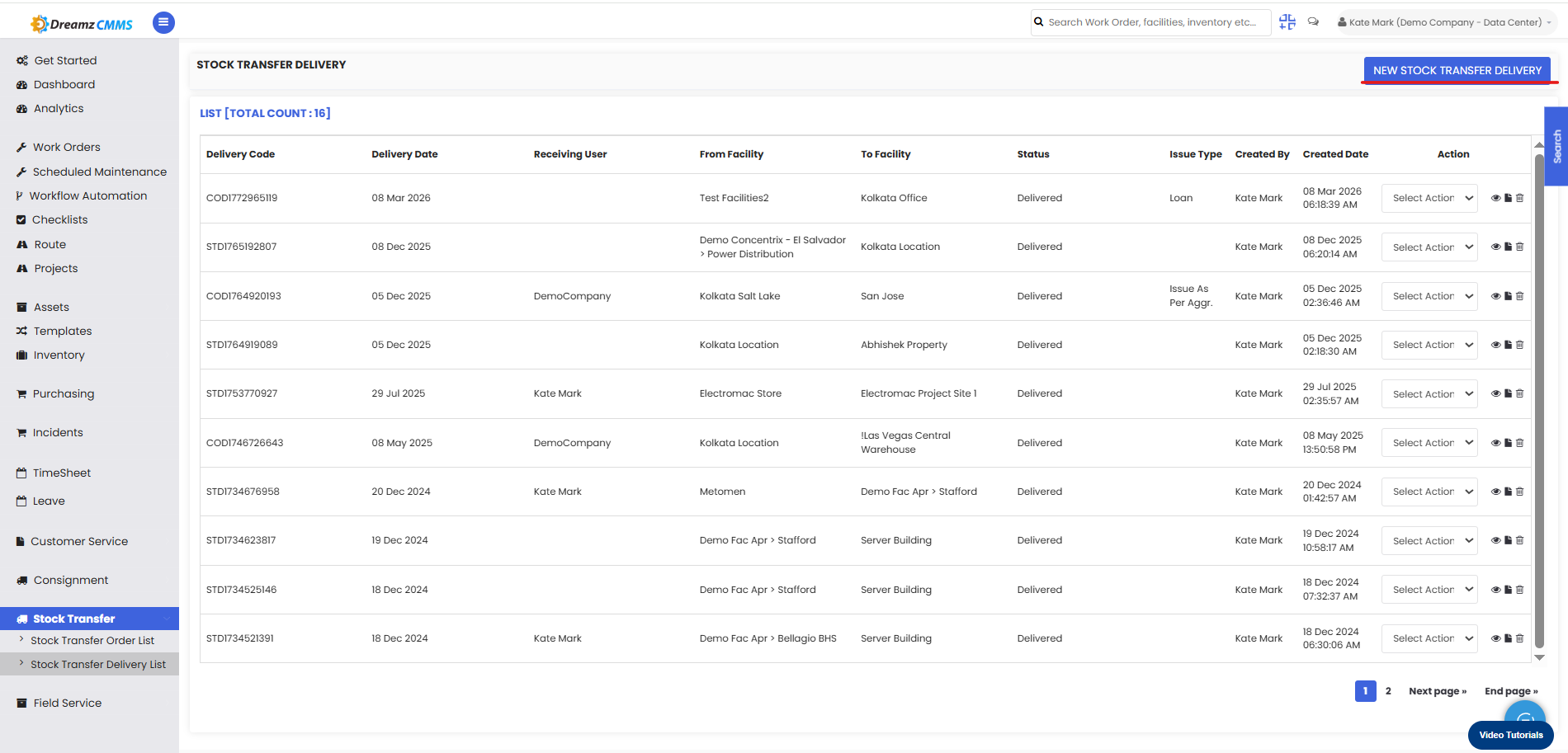
Stock Transfer Delivery Form
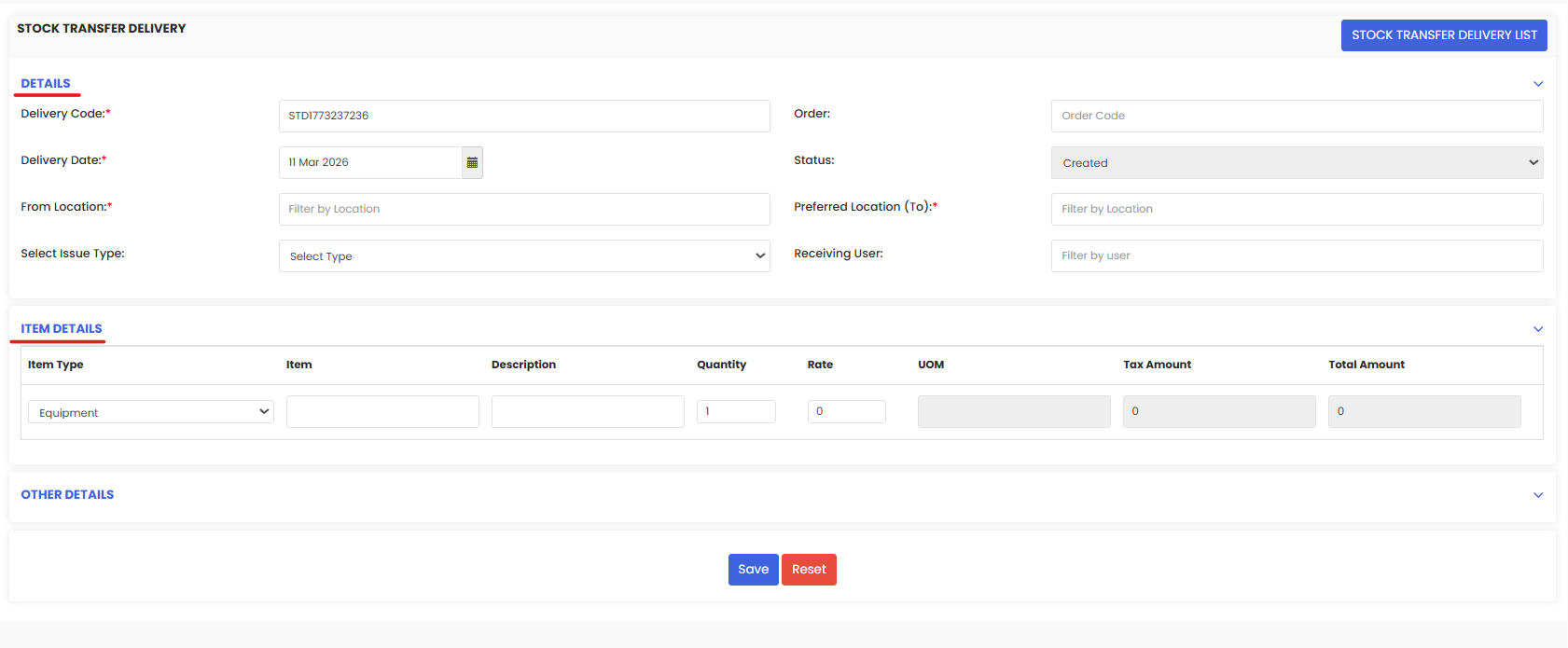
The delivery form contains several sections where users can enter delivery information.
Delivery Details
This section captures the basic delivery information.
Fields include:
Delivery Code – Unique identifier for the delivery
Delivery Date – Date when the items are delivered
Order – Reference stock transfer order
Status – Current delivery status
From Location – Facility where items are dispatched
Preferred Location (To) – Destination facility
Select Issue Type – Type of inventory issue
Receiving User – User responsible for receiving the items
Item Details
The Item Details section allows users to define the items included in the stock transfer delivery.
For each item, the following information can be entered:
Item Type
Item Name
Description
Quantity
Rate
Unit of Measure (UOM)
Tax Amount
Total Amount
Multiple items can be added to a single delivery record if required.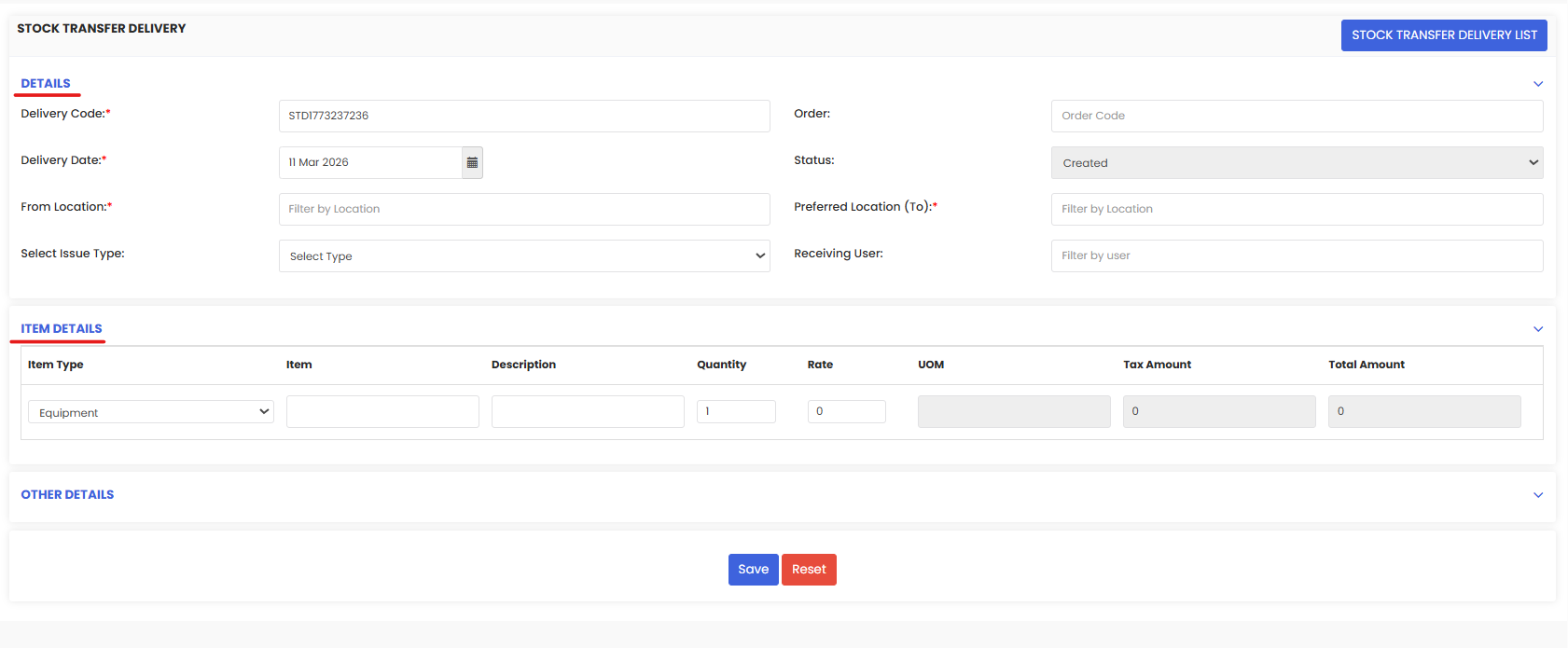
Other Details
The Other Details section allows users to include additional information related to the delivery.
This section includes:
Notes – Additional remarks or instructions
File Attachments – Upload supporting documents
Email Notifications – Send delivery notifications to:
Consignee
Yourself
Admin
These options help ensure all stakeholders are informed about stock transfer activities.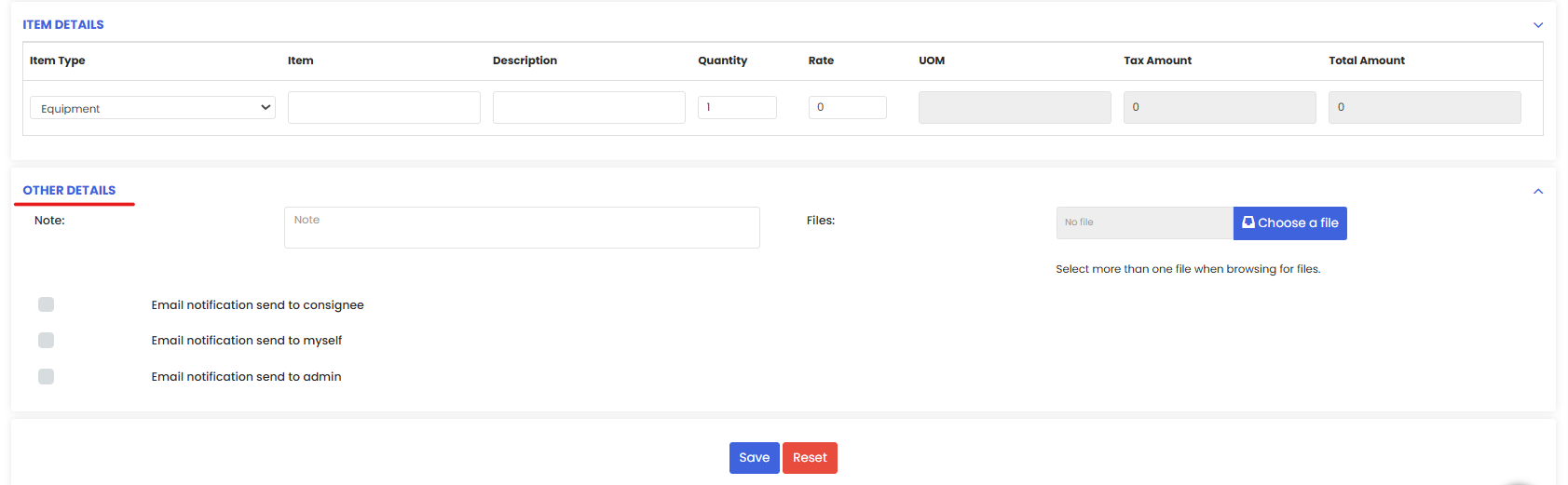
Step 3 – Save the Delivery Record
After entering all required details:
Review the delivery information
Click Save
The delivery record will now appear in the Stock Transfer Delivery List, allowing users to track and manage the transfer process.
Tips for Managing Stock Transfer Deliveries
Always verify the source and destination facilities before creating a delivery record.
Ensure the correct order reference is selected to avoid inventory mismatches.
Include accurate item quantities to maintain proper inventory balance.
Use email notifications to keep relevant users informed about deliveries.
Proper stock transfer management helps maintain accurate inventory levels and improves internal logistics efficiency.
Frequently Asked Questions
What is a stock transfer delivery?
A stock transfer delivery records the movement of inventory items from one internal facility to another after a stock transfer order has been created.
Can multiple items be added to a delivery?
Yes. The Item Details section allows multiple items to be added to a single stock transfer delivery.
Can a delivery be linked to an existing stock transfer order?
Yes. The delivery record is typically created based on a previously created stock transfer order.
Can supporting documents be attached to a delivery record?
Yes. Users can upload documents in the Other Details section when creating or editing a delivery record.