Timesheet & Leave Attendance Dashboard
In DreamzFSM, the Timesheet section goes beyond simple check-in and check-out. It provides managers and administrators with powerful tools to manage overtime requests, approve timesheets, track employee attendance in real time, map staff shifts, and view detailed attendance analytics — all from a single, unified interface.
Overview
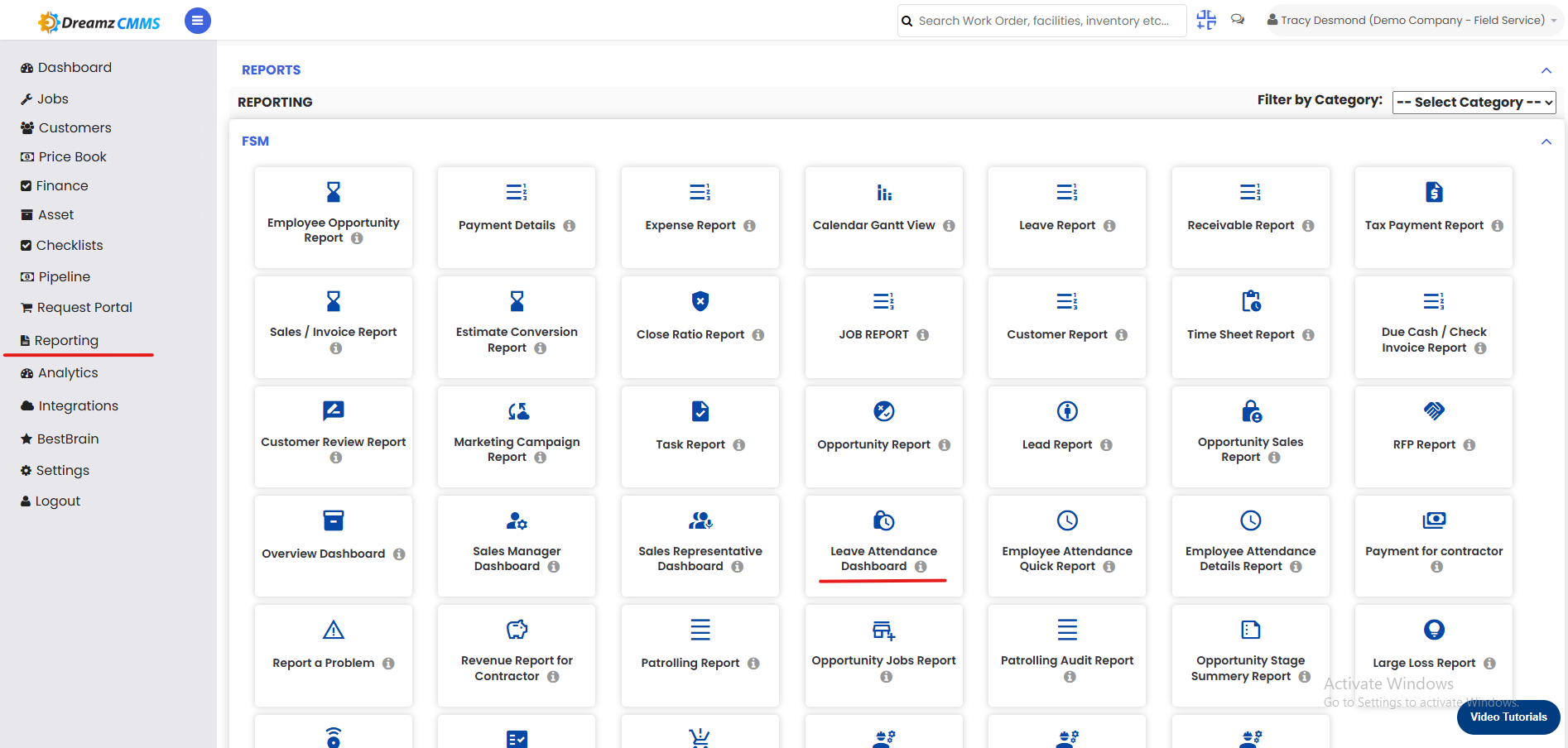
From Jobs → Timesheet, managers can review and approve Overtime Requests and OT Approval Requests, as well as manage Timesheet Approval Requests. The Overview tab provides a real-time attendance dashboard with live status, off-duty lists, and attendance summaries. The Shift tab allows shift mapping for all employees across every day of the week. The Attendance Status tab gives a date-by-date attendance view that can be exported to Excel. For deeper analytics, the Leave Attendance Dashboard under Reporting shows attendance trends, working hours, leave summaries, and weekly off schedules. The Live Location, Timeline, and Card View tabs provide real-time field visibility into where employees are and what they are working on.
Here is a reference video:
Timesheet Actions and Approvals
Step 1 – Review and Approve Overtime Requests
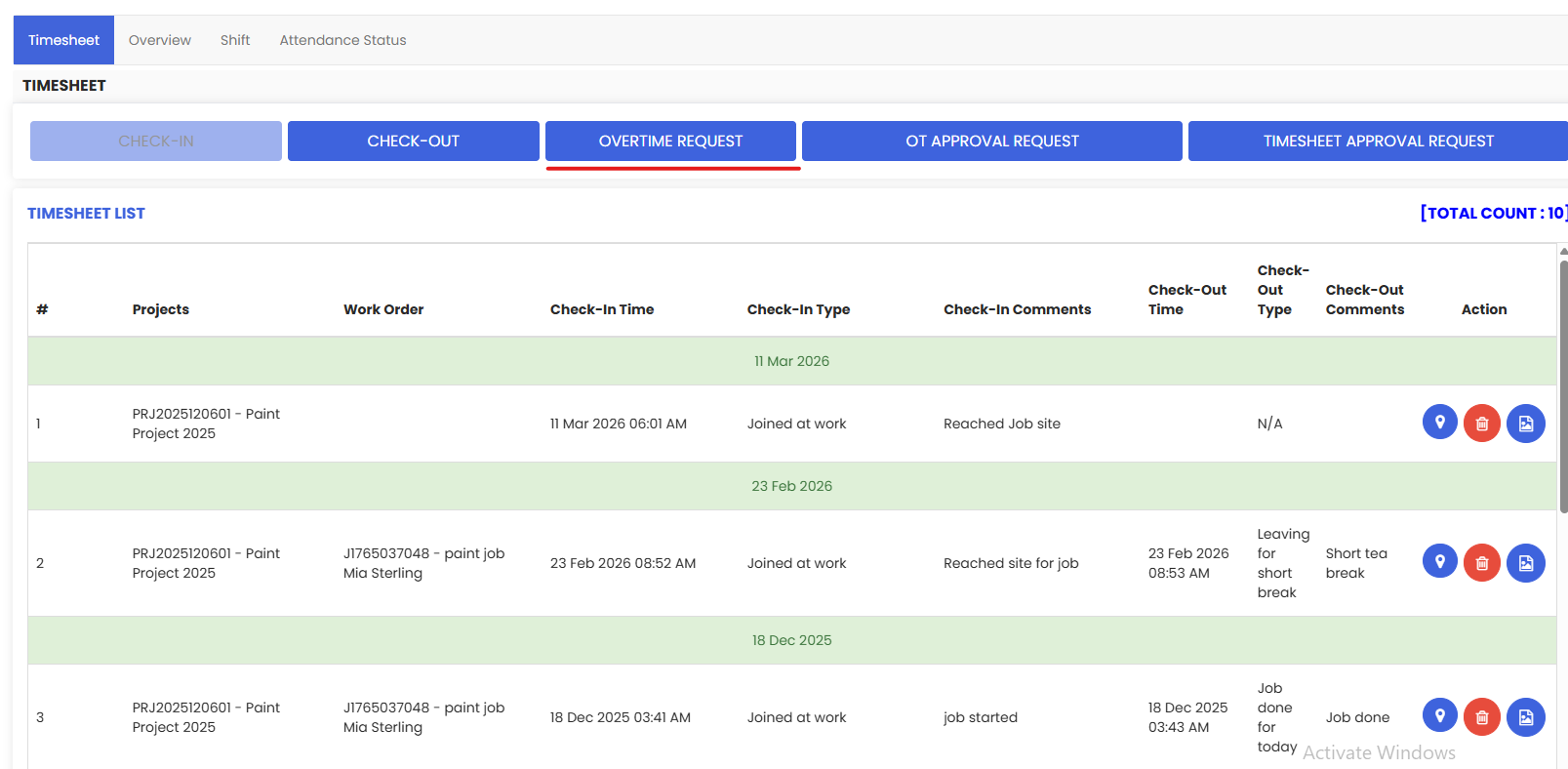
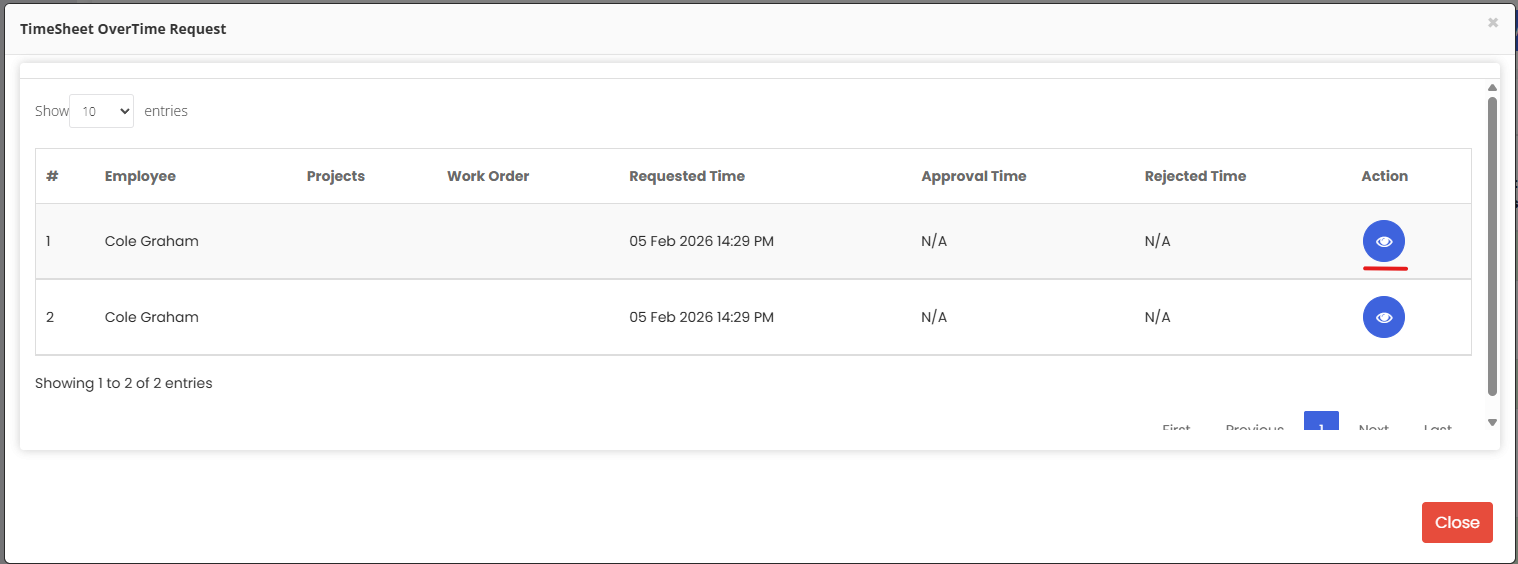
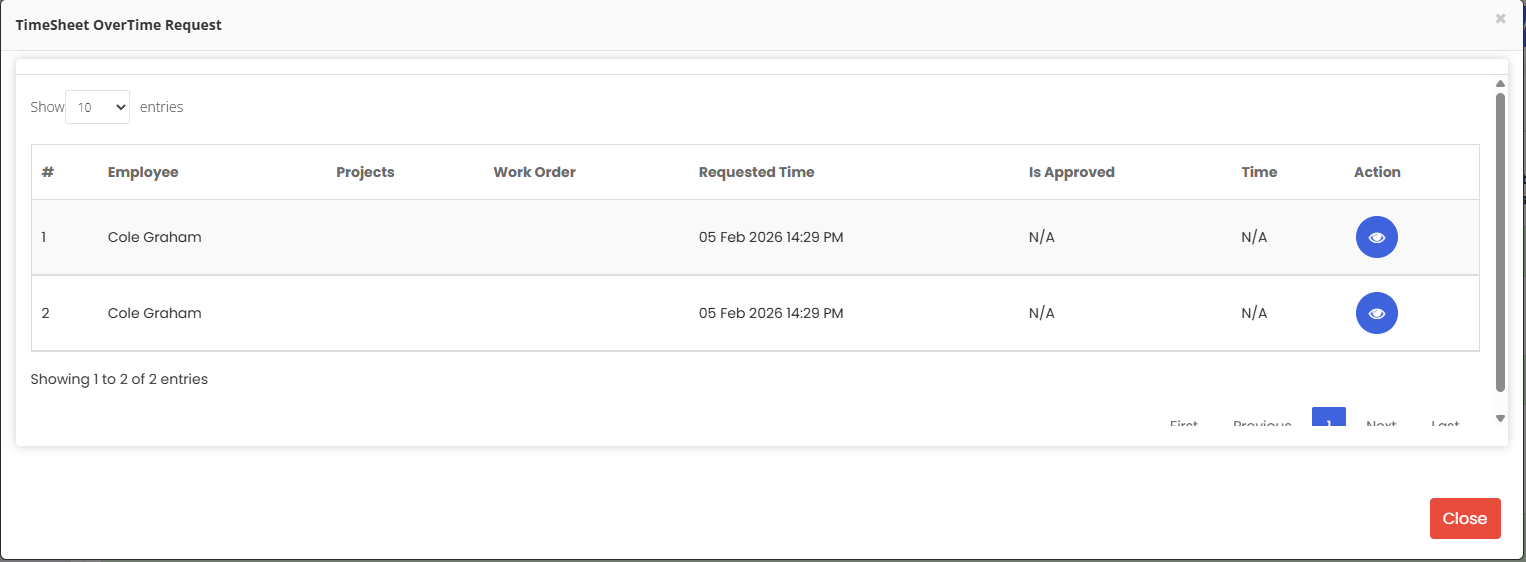
From the Timesheet page, click the Overtime Request button to open the Timesheet Overtime Request list. This displays all submitted overtime requests from employees, showing the Employee name, Project, Work Order, Requested Time, and approval status. Click the view icon on any entry to review and approve the request.
Step 2 – View OT Approval Requests
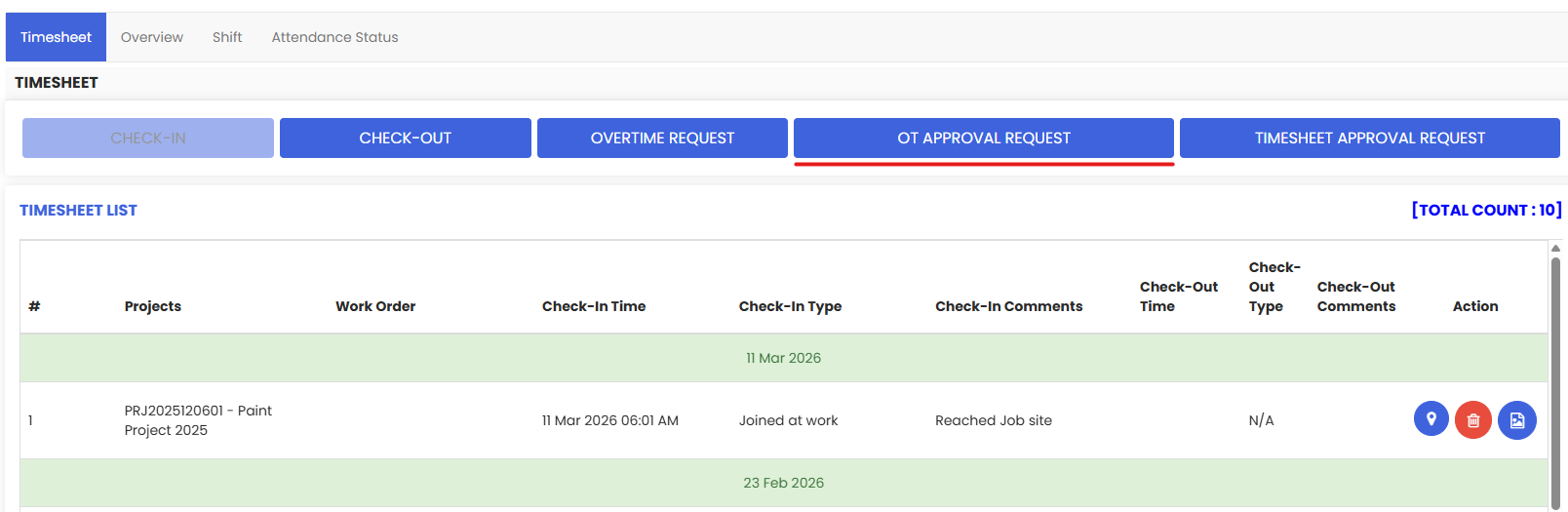
Click the OT Approval Request button to view the list of overtime requests that have been processed. This list shows the Requested Time, Approval Time, and Rejected Time for each entry, giving managers a clear audit trail of all overtime decisions.
Step 3 – View Timesheet Approval Requests
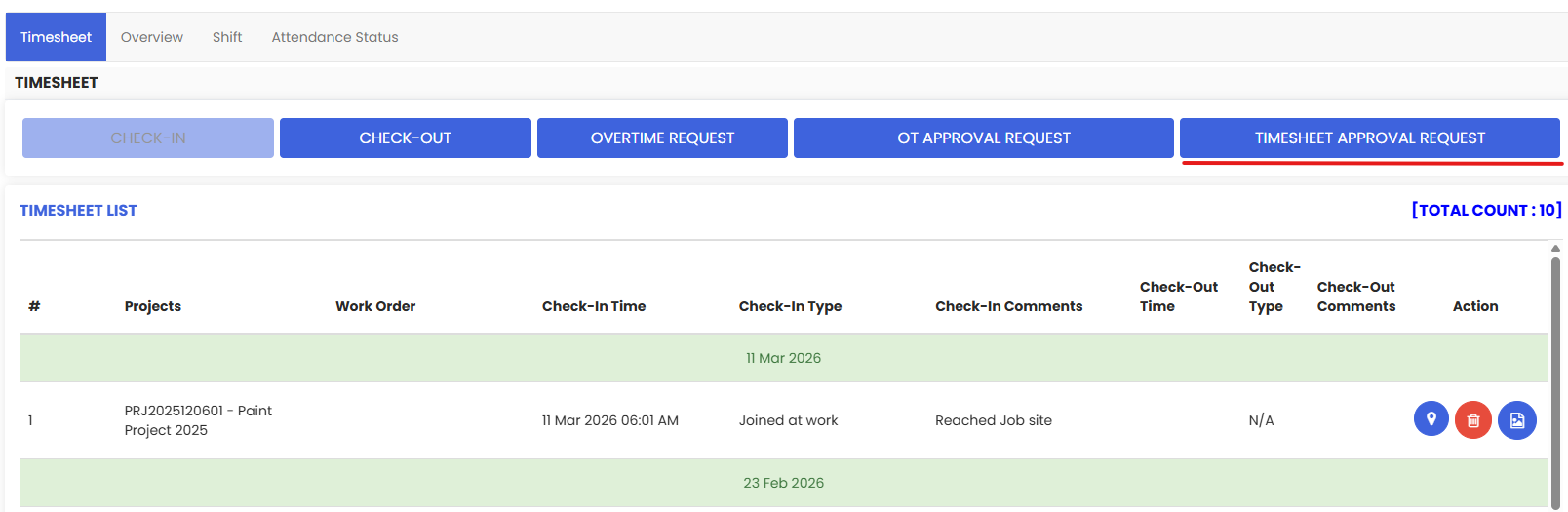
Click the Timesheet Approval Request button to view the Timesheet Approval list. This allows managers to review and approve submitted timesheets from their team members, ensuring all working hours are verified before being finalised.
Attendance Overview
Step 4 – View the Attendance Dashboard
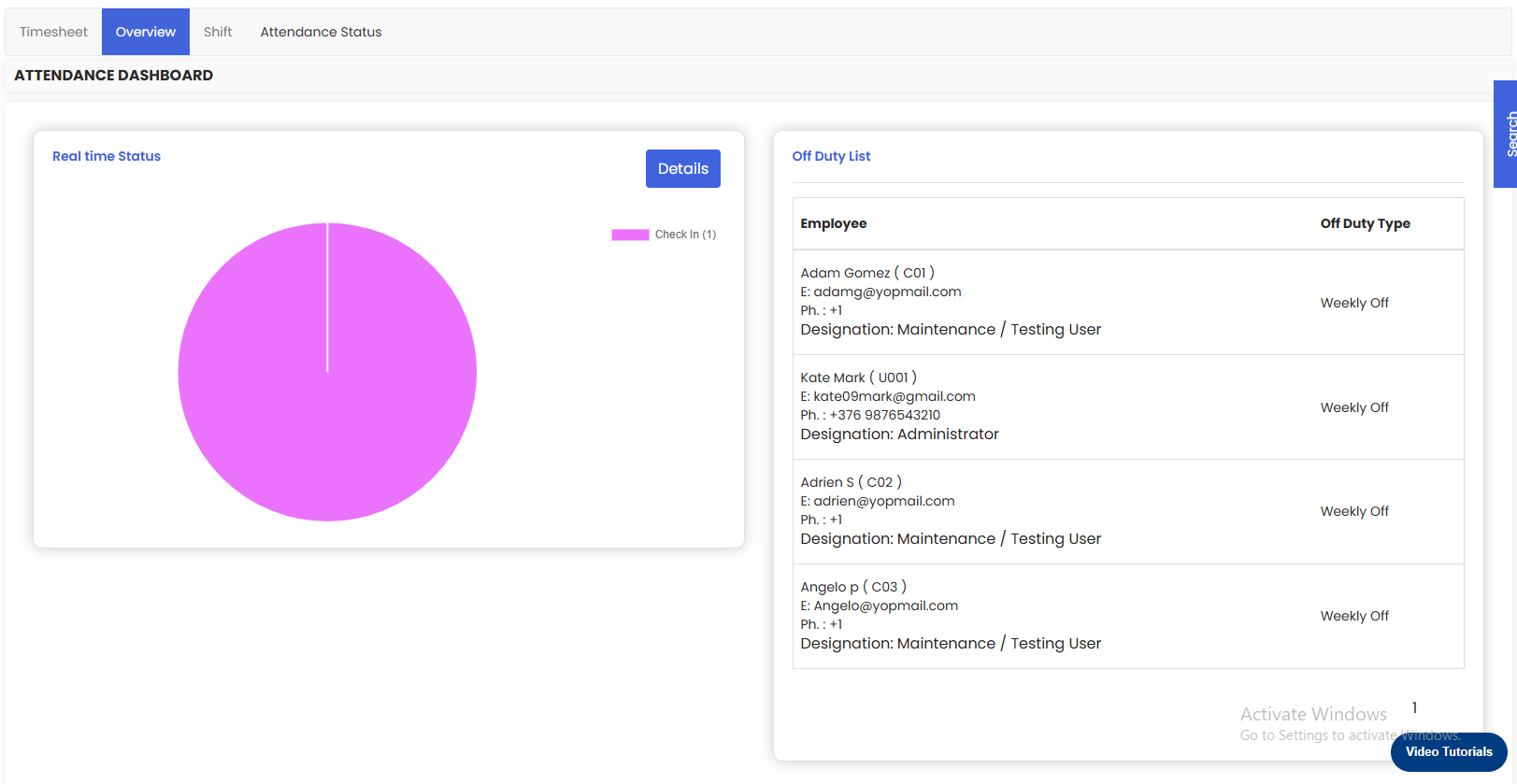
Click the Overview tab on the Timesheet page to open the Attendance Dashboard. This dashboard gives managers a real-time snapshot of their team's attendance, including:
- Real Time Status – A live pie chart showing how many employees are currently checked in.
- Off Duty List – A list of employees currently off duty and their off-duty type (e.g., Weekly Off).
- Working Hours Overview – A summary of hours worked across the team.
- Attendance Overview – An aggregated view of attendance trends.
- Employee Attendance List – A detailed breakdown of attendance by employee.
Shift Management
Step 5 – Map Employee Shifts
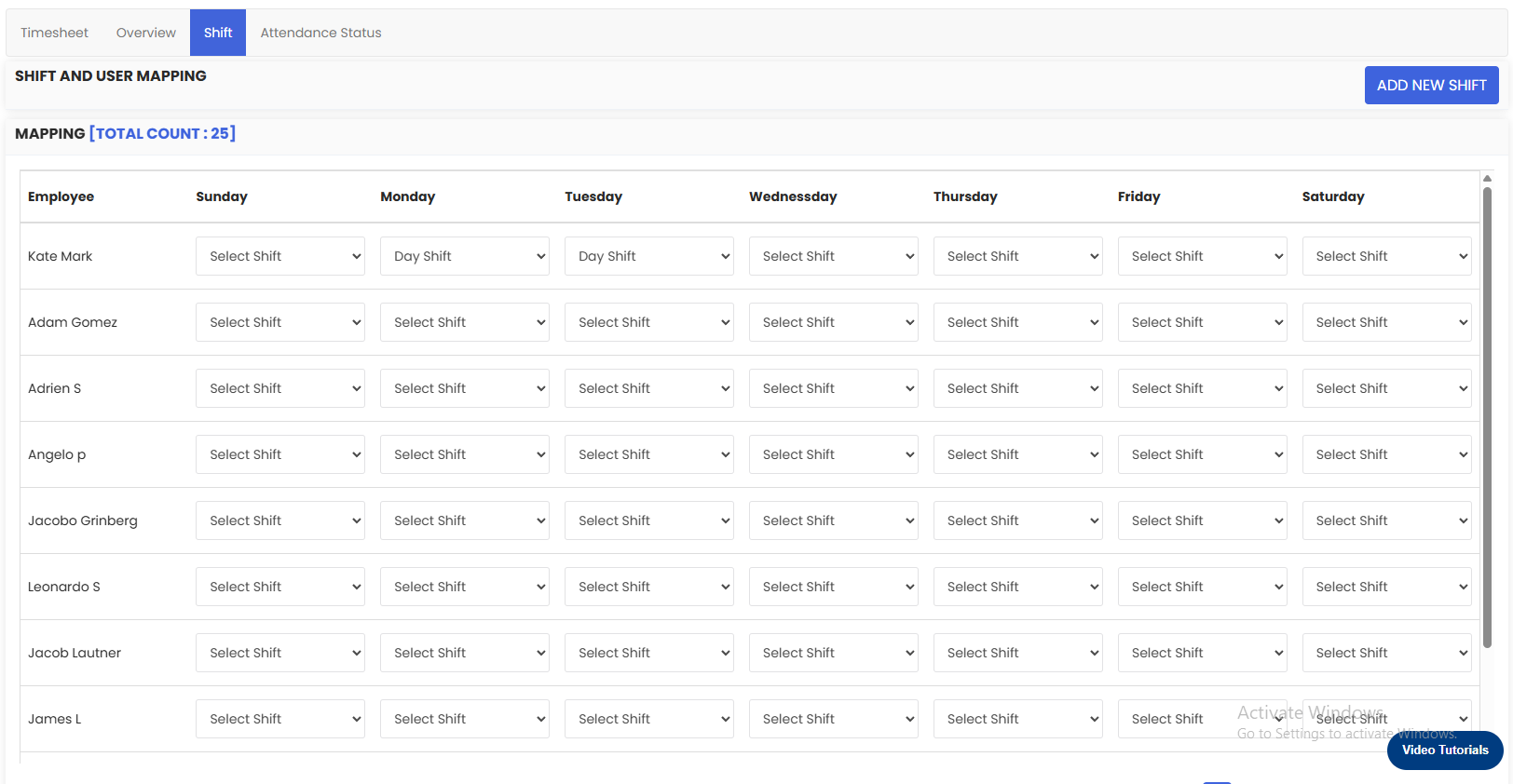
Click the Shift tab to open the Shift and User Mapping screen. Here you can assign shifts to each employee for every day of the week by selecting the appropriate shift from the dropdown against each employee and day. To create a new shift type, click the Add New Shift button in the top right corner.
Attendance Status
Step 6 – View and Export Attendance Status
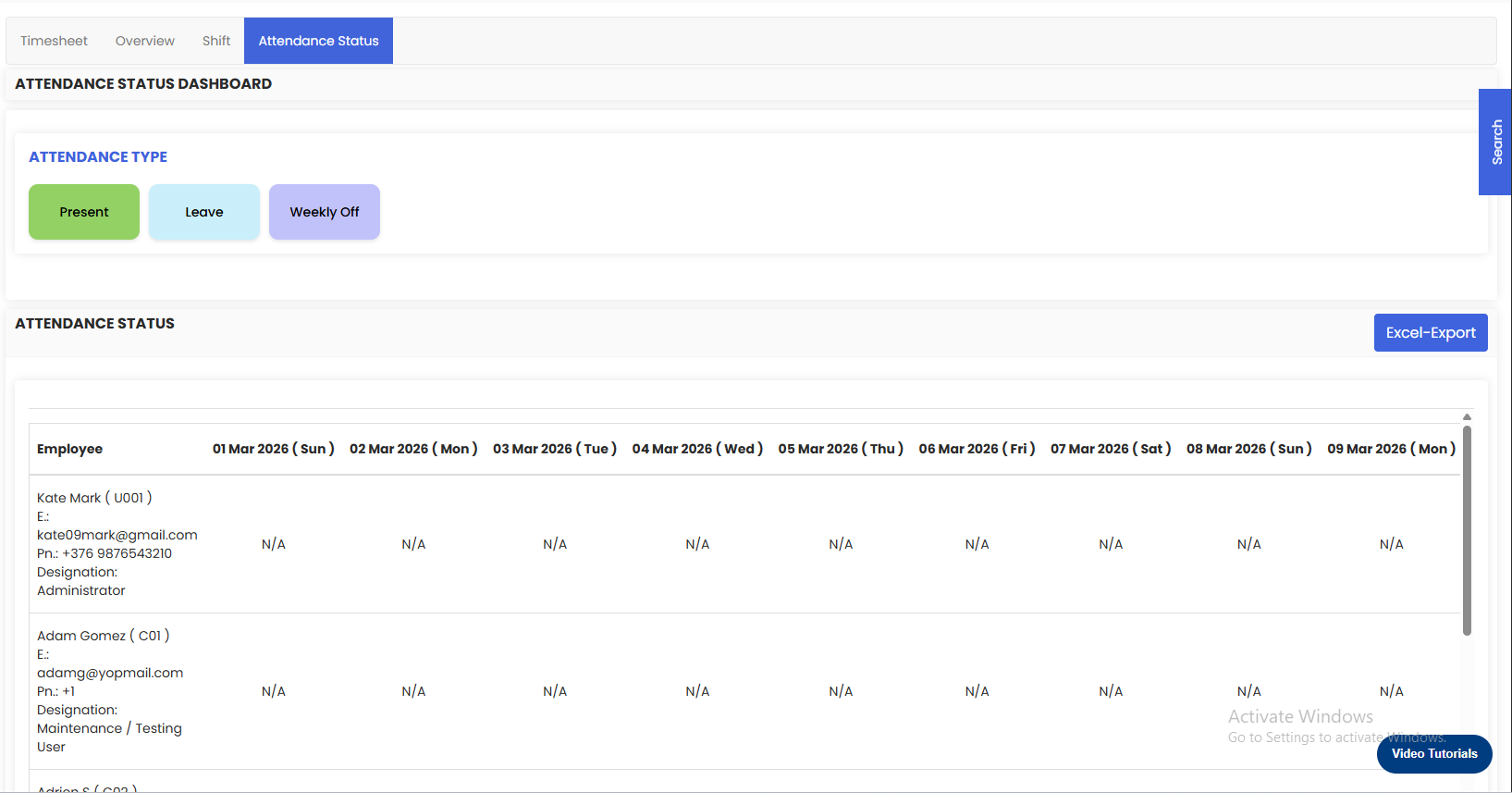
Click the Attendance Status tab to open the Attendance Status Dashboard. This view displays a date-by-date attendance grid for all employees, colour-coded by attendance type — Present (green), Leave (light blue), and Weekly Off (purple). Click the Excel-Export button in the top right corner to download the attendance report as a spreadsheet.
Leave Attendance Dashboard (Reporting)
Step 7 – Navigate to the Leave Attendance Dashboard
From the left-side menu, click on Reporting. On the Reports page, locate and click on Leave Attendance Dashboard under the FSM category.
Step 8 – Explore the Leave Attendance Dashboard
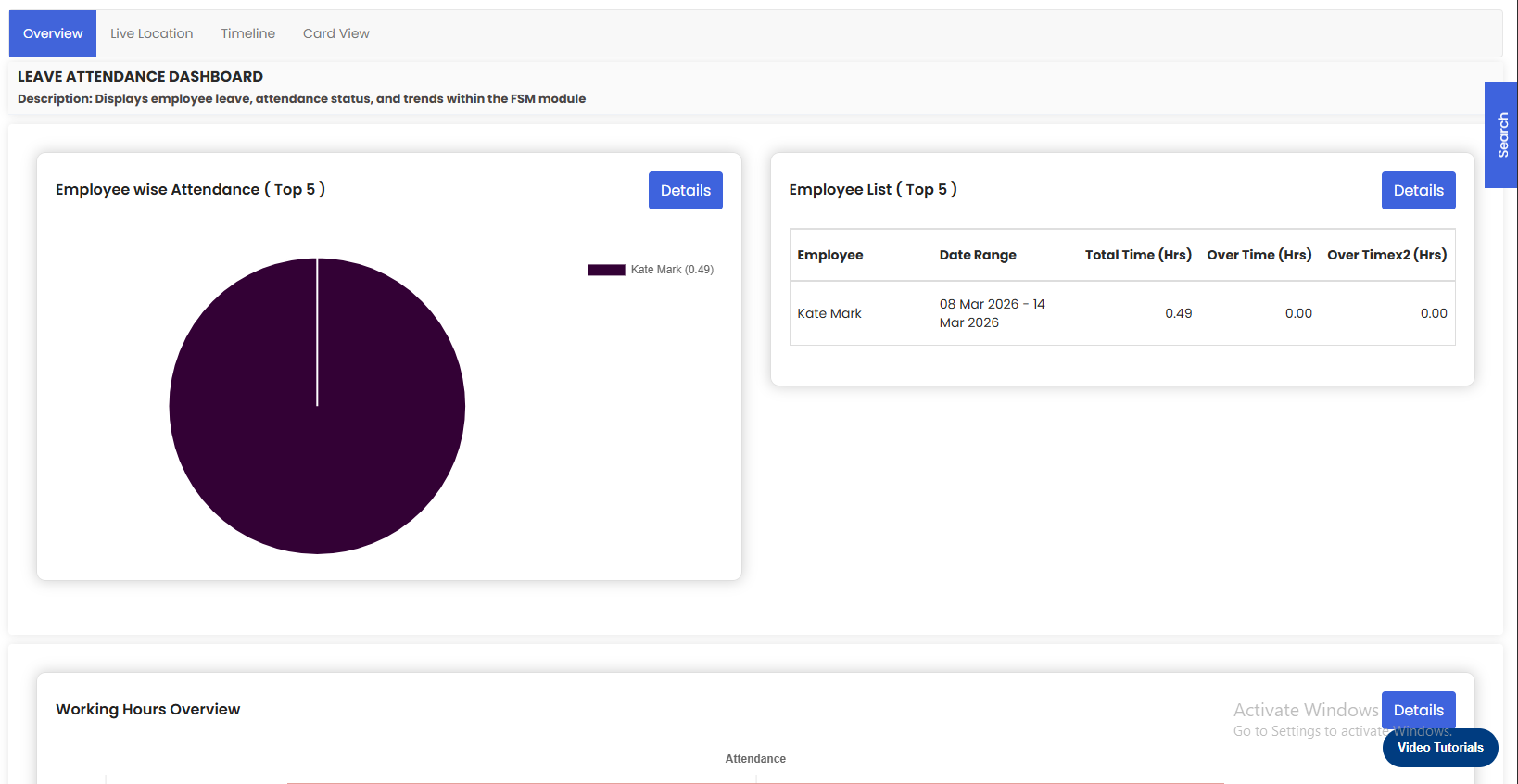
The Leave Attendance Dashboard provides a comprehensive analytics view of your team's attendance and leave. The dashboard displays the following sections:
- Employee wise Attendance (Top 5) – A pie chart showing attendance distribution across your top 5 employees.
- Employee List (Top 5) – A table showing total hours worked, overtime hours, and overtime x2 hours per employee for the selected date range.
- Working Hours Overview – A visual summary of working hours trends across the team.
- Employee Leave List (Top 5) – A breakdown of leave taken by the top 5 employees.
- Employee Weekly Off List (Top 5) – A summary of weekly off days for the top 5 employees.
Live Location, Timeline & Card View
Step 9 – View Employee Live Locations
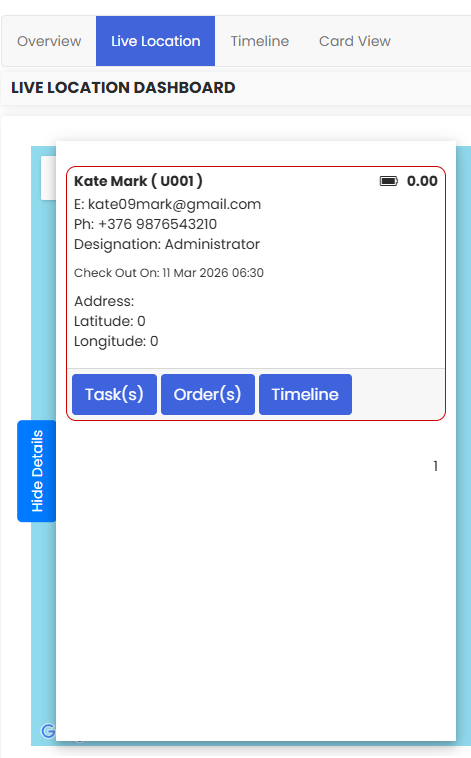
From the Leave Attendance Dashboard, click the Live Location tab to open the Live Location Dashboard. This displays a real-time map view showing the current location of each employee. Click on an employee card to view their details, including their last check-out time, address, and GPS coordinates. From the employee card, you can also click Task(s), Order(s), or Timeline to see what they are currently working on.
Step 10 – View the Attendance Timeline
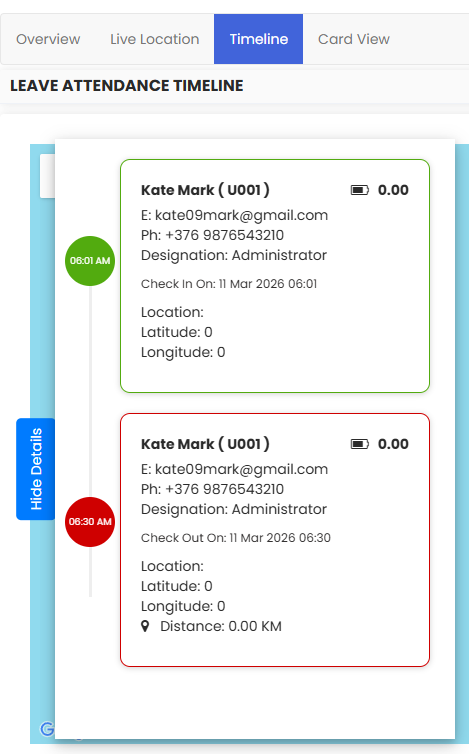
Click the Timeline tab to open the Leave Attendance Timeline. This view presents a chronological timeline of each employee's check-in and check-out events for the day, displayed as colour-coded cards — green for check-in and red for check-out — with timestamps, location coordinates, and distance travelled.
Step 11 – View the Card View
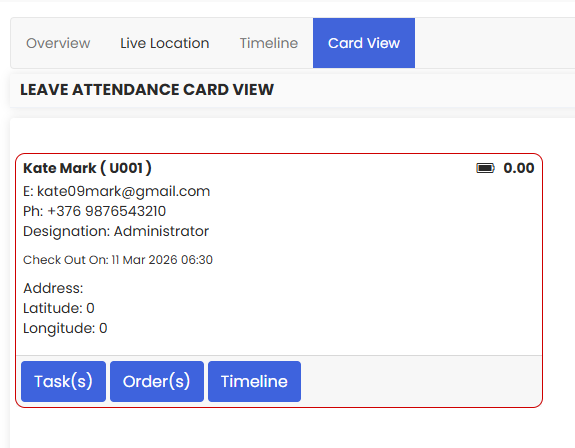
Click the Card View tab to open the Leave Attendance Card View. This displays each employee as an individual card showing their contact details, designation, last check-out time, and location coordinates. From each card, you can quickly access the employee's Task(s), Order(s), and Timeline.
Tips for Using the Timesheet & Leave Attendance Dashboard
- Review and action Overtime Requests promptly to ensure employees receive timely approval and accurate payroll processing.
- Use the Shift tab to keep employee shift mappings up to date — accurate shift data ensures the Attendance Status dashboard reflects correct Present, Leave, and Weekly Off records.
- Export the Attendance Status report to Excel regularly for payroll, HR reporting, or compliance purposes.
- Use the Live Location tab during the working day to monitor field team whereabouts and quickly access their active tasks and work orders.
- The Leave Attendance Dashboard under Reporting is ideal for weekly or monthly management reviews — use it to identify attendance trends and manage overtime proactively.
Frequently Asked Questions
How do I approve an overtime request in DreamzFSM?
Go to Jobs → Timesheet and click the Overtime Request button. In the Timesheet Overtime Request list, click the view icon next to the relevant entry to review and approve the request.
What is the difference between Overtime Request and OT Approval Request?
Overtime Request shows all pending overtime submissions from employees awaiting action. OT Approval Request shows the processed results, including which requests were approved and which were rejected, along with the corresponding timestamps.
How do I assign shifts to my employees?
Click the Shift tab on the Timesheet page to open the Shift and User Mapping screen. Use the dropdown menus to assign a shift to each employee for each day of the week. Click Add New Shift to create additional shift types if needed.
Can I export the attendance report?
Yes. Go to the Attendance Status tab on the Timesheet page and click the Excel-Export button to download the full attendance grid as a spreadsheet.
Where can I see a detailed analytics view of employee attendance and leave?
Go to Reporting from the left-side menu and click Leave Attendance Dashboard. This report provides attendance charts, employee working hours, leave summaries, and weekly off lists for your team.