How to Add a Timesheet
In DreamzFSM, the Timesheet feature allows field technicians and staff to log their working hours by checking in at the start of their day and checking out when their work is complete. Each timesheet entry is linked to a project and work order, giving managers full visibility into time spent on the field.
Overview
Navigate to Jobs → Timesheet from the left-side menu. Click Check-In at the start of your day, fill in the check-in details including the check-in message, project, work order, and any comments, then click Save. Your check-in will appear in the Timesheet List. At the end of your day, click Check-Out, provide your check-out message and comments, and click Save to complete your timesheet entry. You can also use the action icons on each timesheet record to view the check-in location on a map, delete a record, or view any attached files.
Here is a reference video:
Steps to Add a Timesheet
Step 1 – Navigate to the Timesheet Section
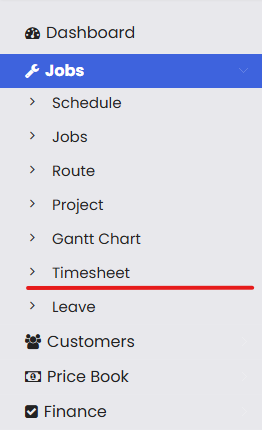
From the left-side menu, click on Jobs to expand the section, then click on Timesheet.
Step 2 – Click Check-In
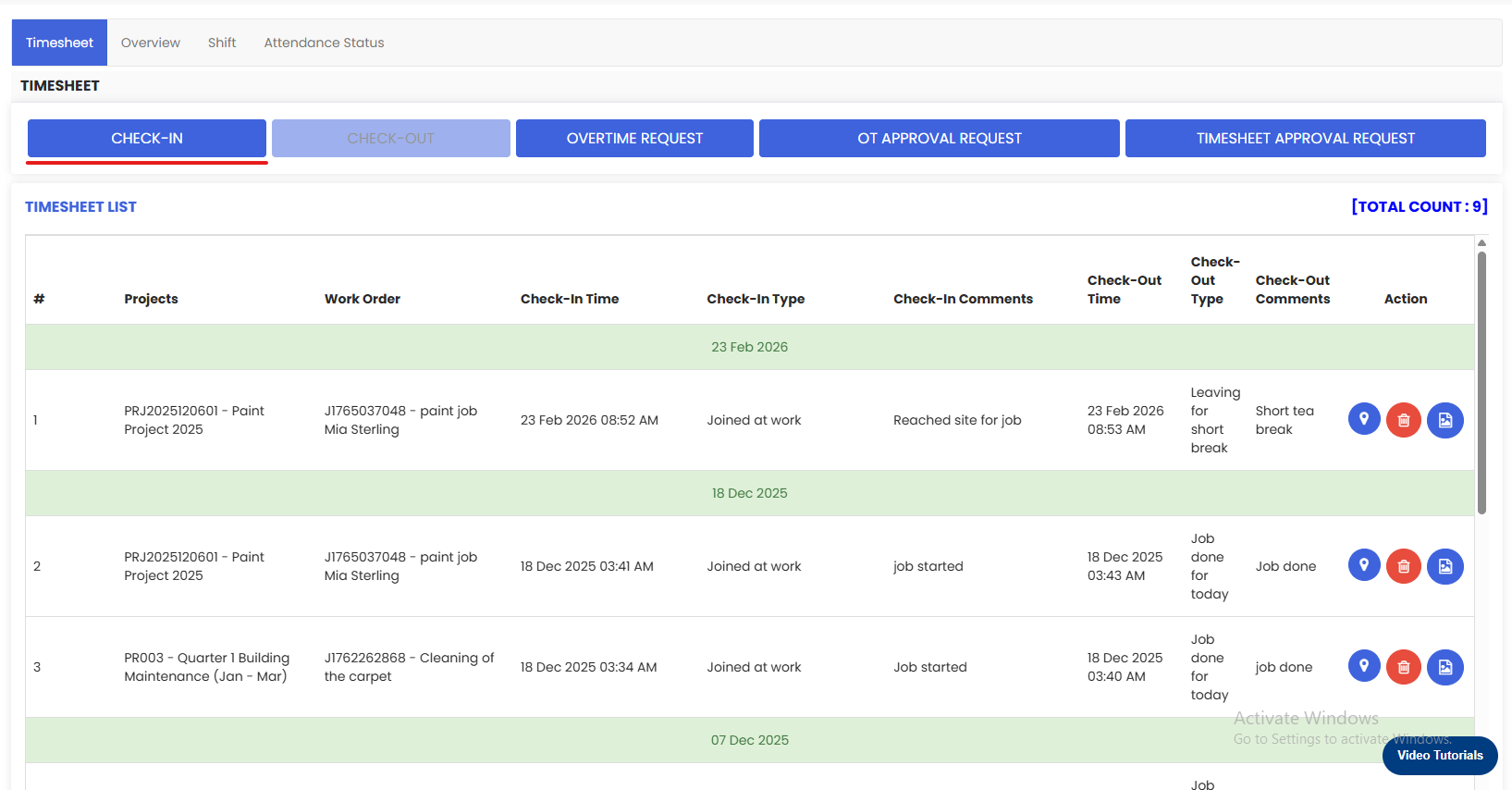
On the Timesheet page, click the Check-In button at the top of the screen to record the start of your working day. The Check-In Details pop-up will appear.
Step 3 – Fill In the Check-In Details
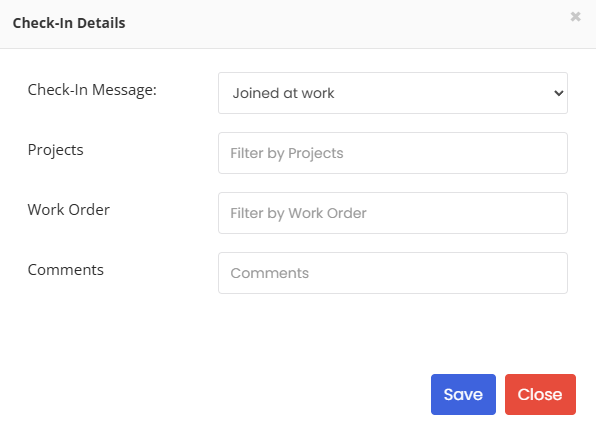
In the Check-In Details pop-up, fill in the following fields and click Save:
- Check-In Message – Select the appropriate check-in status (e.g., Joined at work).
- Projects – Filter and select the project this timesheet entry relates to.
- Work Order – Filter and select the associated work order.
- Comments – Add any relevant notes about your check-in (e.g., "Reached site for job").
Step 4 – View Your Timesheet Entry
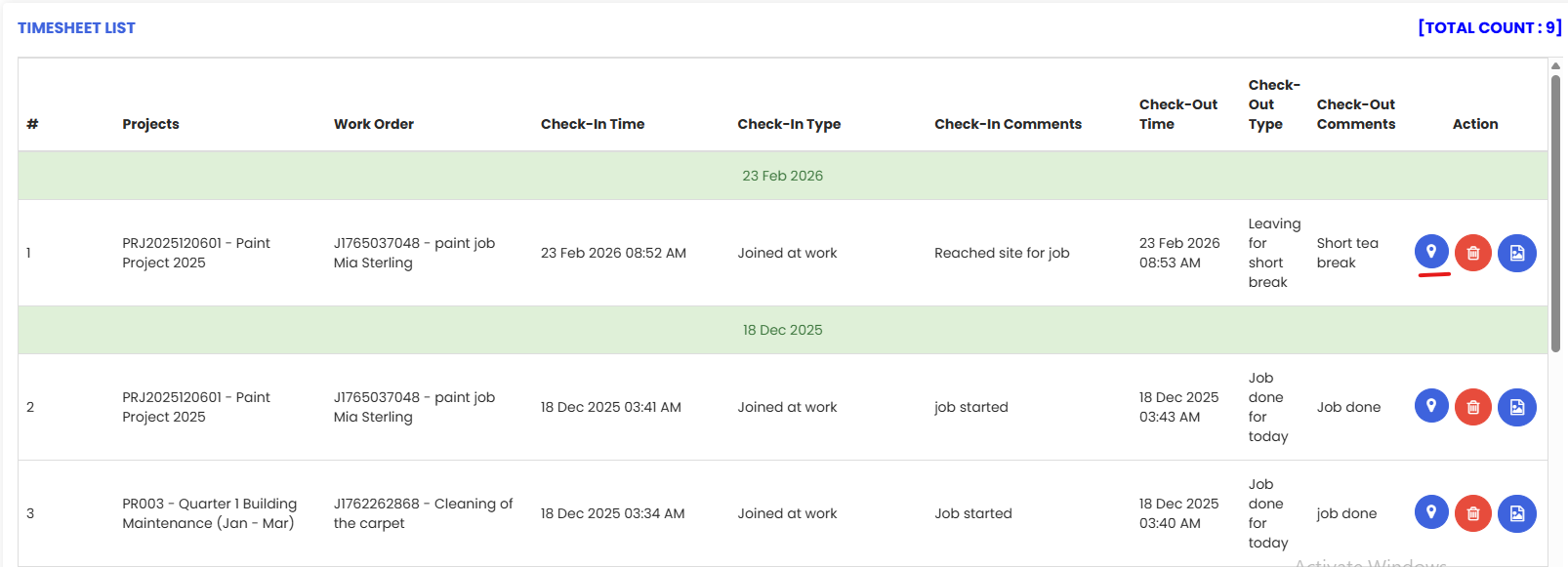
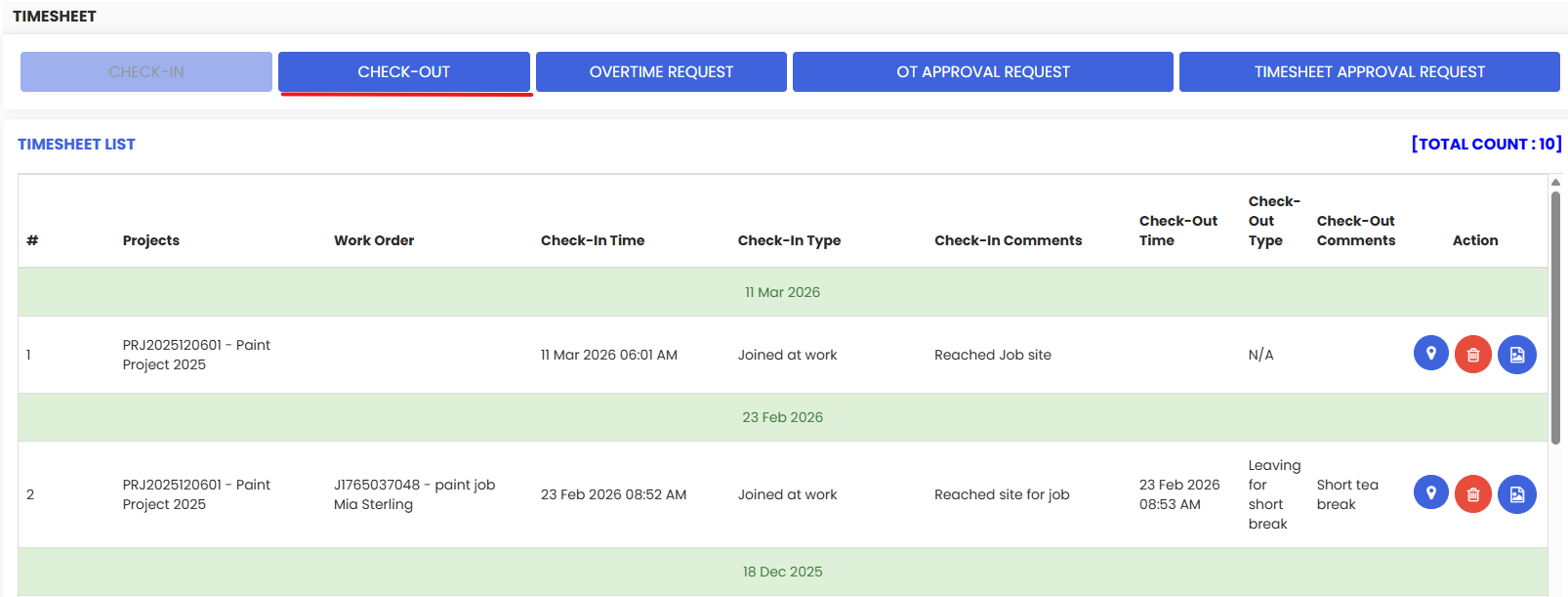
Once saved, your check-in entry will appear in the Timesheet List, showing the Project, Work Order, Check-In Time, Check-In Type, and Comments. Each entry includes three action icons:
- Map icon (blue) – Click to view the location where the check-in was recorded on a map.
- Delete icon (red) – Click to delete the timesheet entry.
- File icon (blue) – Click to view any files attached to the timesheet entry.
Step 5 – Click Check-Out
When your working day is complete, click the Check-Out button at the top of the Timesheet page. The Check-Out Details pop-up will appear.
Step 6 – Fill In the Check-Out Details and Save
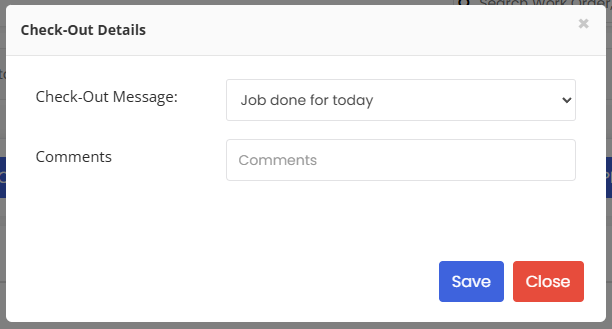
In the Check-Out Details pop-up, select the appropriate Check-Out Message (e.g., Job done for today) and add any relevant Comments. Click Save. Your timesheet entry will be updated with the check-out time and details, completing your timesheet for that session.
Tips for Adding a Timesheet
- Always check in at the start of your day and check out at the end to ensure your working hours are accurately recorded for payroll and project reporting.
- Link your timesheet entry to the correct Project and Work Order during check-in so that time is accurately attributed to the right job.
- Use the Comments field during both check-in and check-out to provide context about your work, such as arrival notes or job completion status.
- Use the Map icon on any timesheet entry to verify that the check-in location was correctly captured at the job site.
- If you need to log overtime, use the Overtime Request button on the Timesheet page to submit a request for approval.
Frequently Asked Questions
How do I add a timesheet in DreamzFSM?
Go to Jobs → Timesheet from the left-side menu. Click Check-In at the start of your day, fill in your details, and click Save. At the end of your day, click Check-Out, fill in the check-out details, and click Save to complete the entry.
Can I link my timesheet to a specific project and work order?
Yes. During check-in, you can filter and select the relevant Project and Work Order so that your time is accurately attributed to the correct job in DreamzFSM.
How can I see where a check-in was recorded?
Each timesheet entry in the Timesheet List has a map icon (blue) in the Action column. Click this icon to view the GPS location where the check-in was captured.
What happens if I forget to check out?
If you forget to check out, your timesheet entry will show the check-in details but no check-out time. You should check out as soon as possible or contact your manager to update the record manually.
Can I delete a timesheet entry?
Yes. Each entry in the Timesheet List has a delete icon (red) in the Action column. Click it to remove the entry. Note that deleted entries cannot be recovered, so use this with care.