New Stock Transfer Without Multi-level Approval
In DreamzCMMS, creating a new stock transfer allows you to move inventory — including equipment, tools, parts, and supplies — between locations seamlessly. The process covers both creating the transfer order and recording the delivery, ensuring your inventory records stay accurate across all facilities.
Overview
From the left-side menu, click Stock Transfer, then click New Stock Transfer. Select the transfer type, define the source and destination locations, choose the issue type, and add the items to be transferred with their quantities and rates. Click Save to create the transfer order. Once the order is created, return to the Stock Transfer list, click the Add Delivery icon, update the status to Delivered, and save — completing the end-to-end stock transfer process and keeping your inventory accurate across all locations.
Here is a reference video:
Steps to Create a New Stock Transfer
Step 1 – Navigate to Stock Transfer
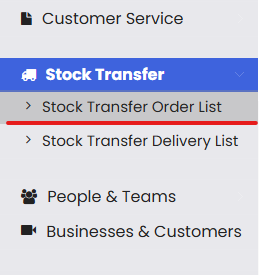
From the left-side menu, click on Stock Transfer to expand the section, then click on Stock Transfer Order List.
Step 2 – Click New Stock Transfer
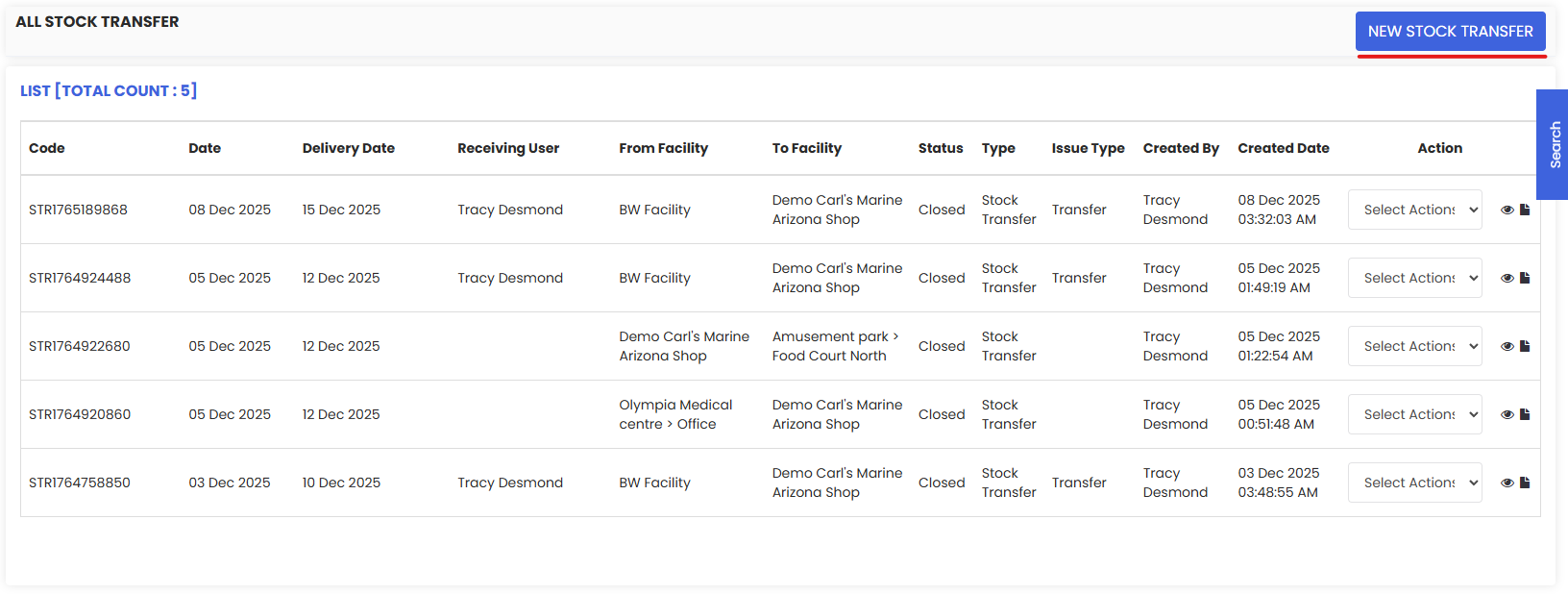
On the All Stock Transfer list page, click the New Stock Transfer button in the top right corner to open the stock transfer creation form.
Step 3 – Select the Transfer Type and Locations
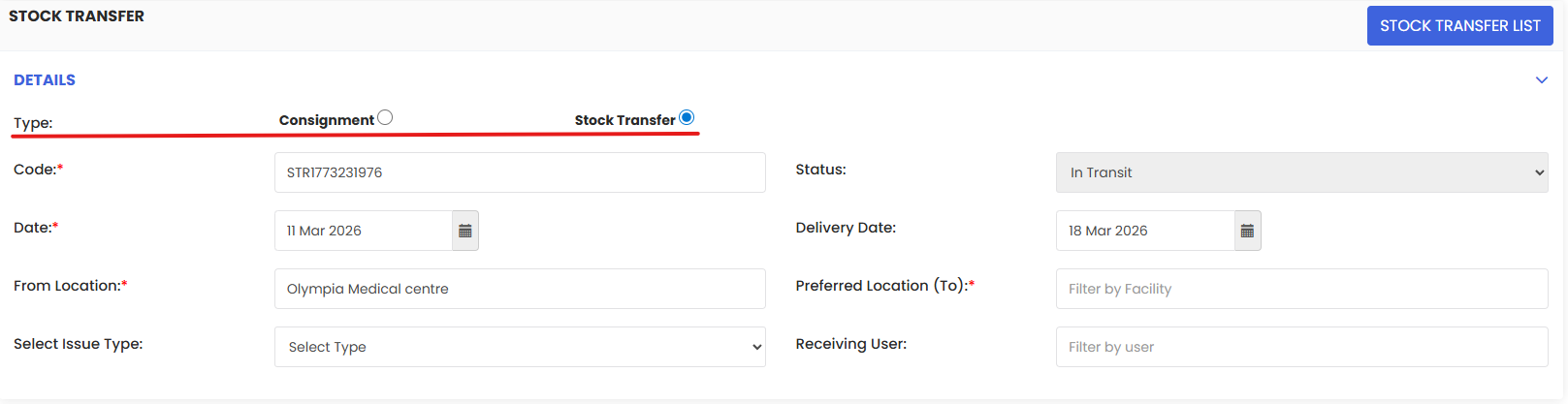
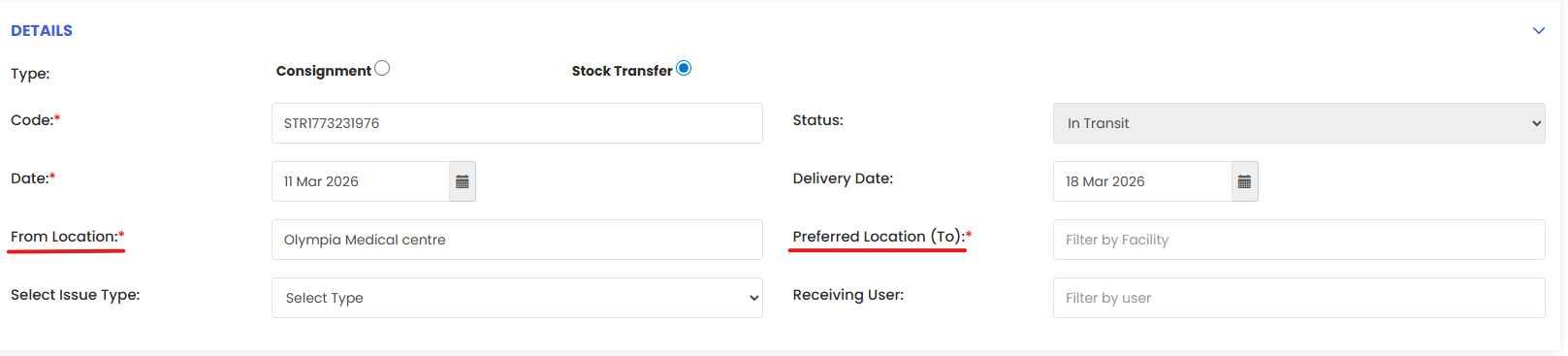
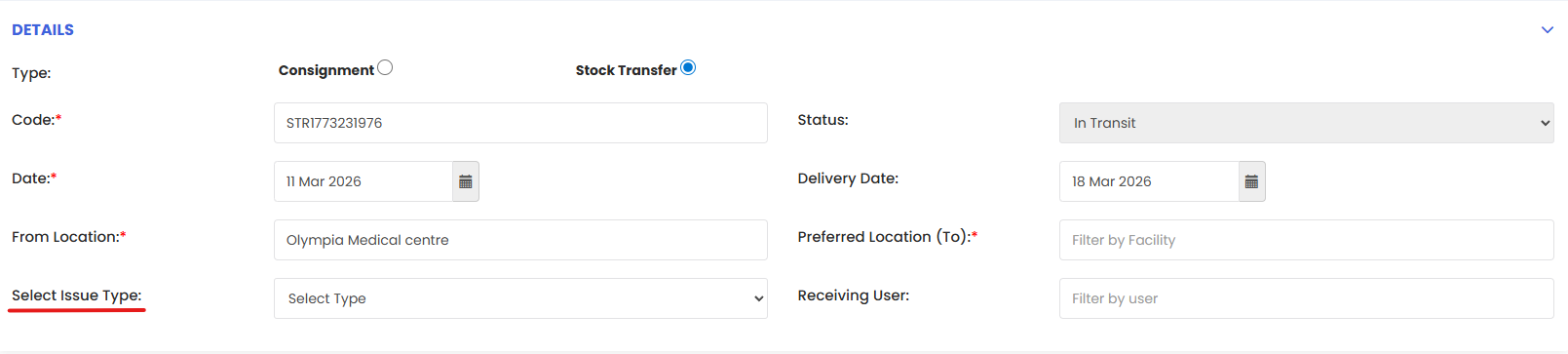
In the Details section, select Stock Transfer as the Type. The system will auto-generate a unique transfer Code and set the Date. Then enter the From Location (the source facility the stock is being transferred from) and the Preferred Location (To) (the destination facility). Optionally, set a Delivery Date and assign a Receiving User.
Step 4 – Select the Issue Type
In the Select Issue Type field, choose the appropriate issue type for this transfer (e.g., Transfer). This categorises the movement of stock for tracking and reporting purposes.
Step 5 – Add Items to the Transfer
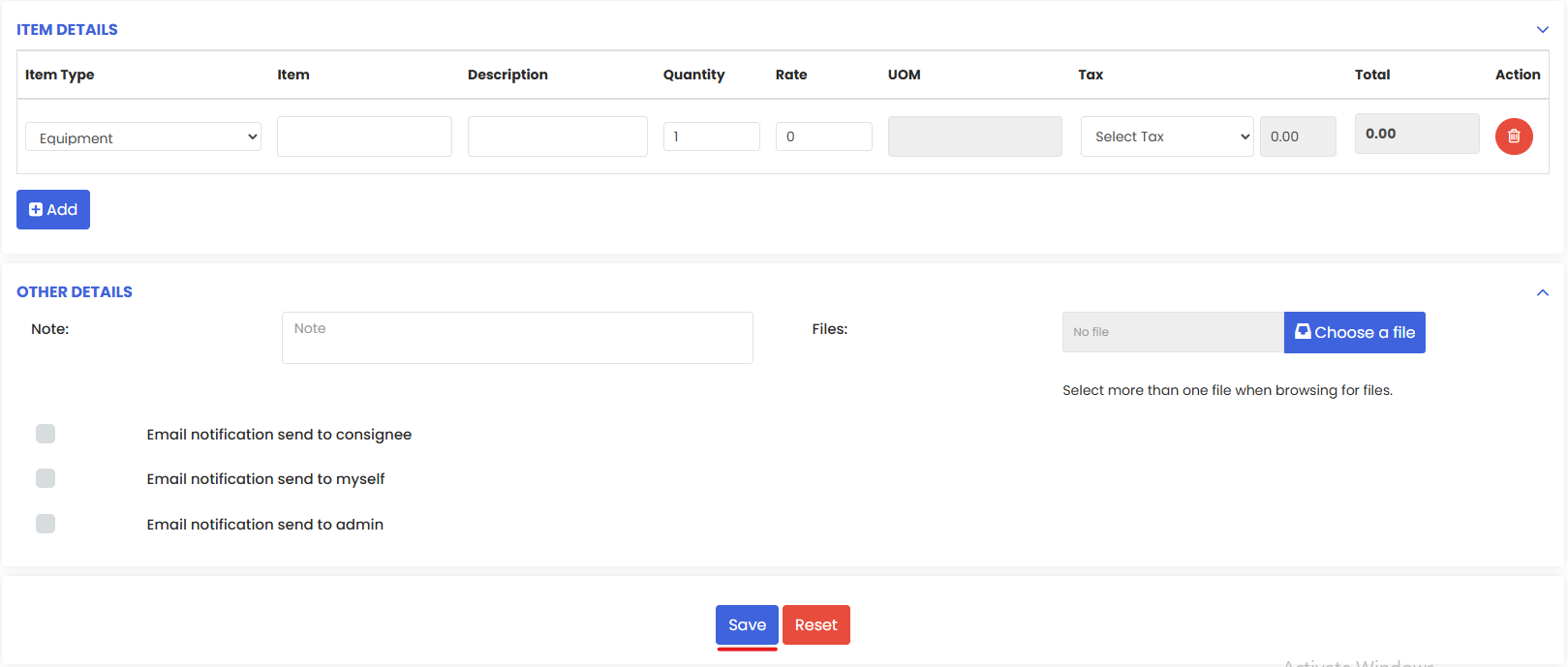
In the Item Details section, select the Item Type (Equipment, Tools, Parts, or Supplies), then select the specific Item and enter its Description, Quantity, and Rate. Apply a Tax if applicable. Click the + Add button to add more items to the transfer as needed.

Step 6 – Save the Stock Transfer Order
Once all transfer details and items have been entered, click Save. The stock transfer order will be created with a status of In Transit and will appear in the Stock Transfer Order List.
Step 7 – Add a Delivery for the Transfer
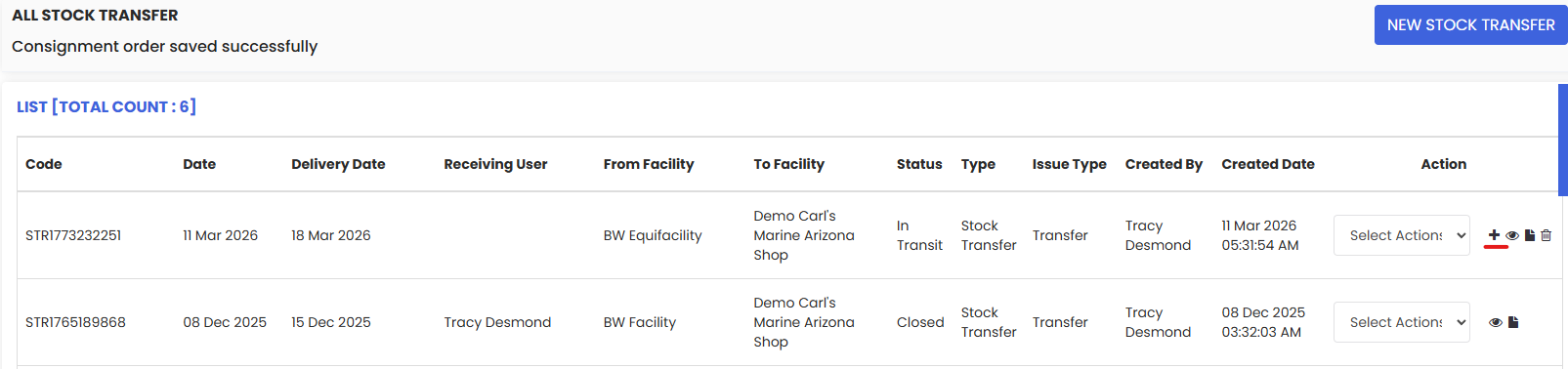
From the Stock Transfer Order List, locate the transfer you just created and click the Add Delivery icon (the + icon in the Action column). This opens the Stock Transfer Delivery form, where the delivery details and item information are pre-populated from the transfer order.
Step 8 – Mark the Delivery as Delivered and Save
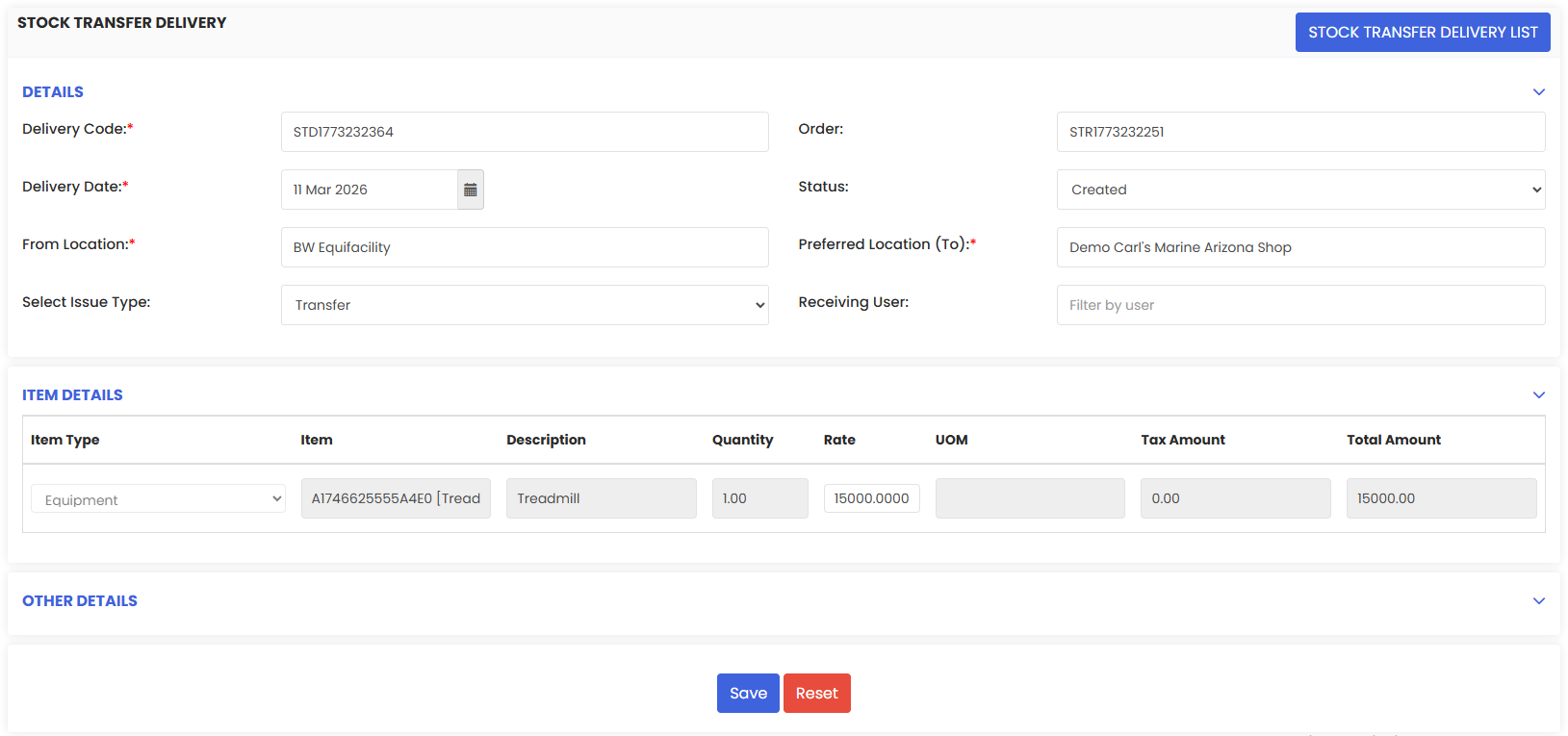
In the Stock Transfer Delivery form, verify the delivery details including the From Location, Preferred Location (To), Delivery Date, and item quantities. Change the Status to Delivered, then click Save. The stock transfer is now complete and inventory levels are updated at both locations.
Tips for Creating a New Stock Transfer
- Always verify the From Location and Preferred Location (To) before saving to ensure stock is being moved to the correct facility.
- Use the + Add button to include multiple item types — equipment, tools, parts, and supplies — within a single stock transfer order to reduce administrative effort.
- Set the Delivery Date and assign a Receiving User at the time of creation so the destination team is informed and prepared to receive the stock.
- Use the Note field in the Other Details section to add any relevant context about the transfer, such as the reason for the movement or linked work orders.
- Remember to complete Step 7 and Step 8 — adding the delivery and marking it as Delivered — to finalise the transfer and ensure inventory counts are accurately updated at both locations.
Frequently Asked Questions
How do I create a new stock transfer in DreamzCMMS?
Go to Stock Transfer → Stock Transfer Order List from the left-side menu, click New Stock Transfer, fill in the transfer type, locations, issue type, and item details, then click Save.
What types of items can I include in a stock transfer?
You can transfer Equipment, Tools, Parts, and Supplies. Each item type can be selected individually in the Item Details section, and multiple items of different types can be added to a single transfer order.
What is the difference between a Stock Transfer and a Consignment?
When creating a new transfer, the Type field lets you choose between Stock Transfer and Consignment. Stock Transfer is used for moving inventory between your own facilities, while Consignment is used for stock sent to an external party.
Why do I need to add a delivery after saving the transfer order?
Creating the transfer order sets the stock to In Transit status. To complete the transfer and update inventory levels at both the source and destination locations, you must add a delivery record and change its status to Delivered.
Can I view all past stock transfers in DreamzCMMS?
Yes. The Stock Transfer Order List displays all transfer records including their status, date, from and to facilities, issue type, and the user who created them, giving you a full audit trail of all inventory movements.
Related Articles
- Stock Transfer Order List
- Stock Transfer Delivery List
- Manage Inventory Items
- Warehouse and Facility Management
- Inventory Reports