Consignment Order List in DreamzCMMS
DreamzCMMS allows organizations to manage the movement of items through the Consignment module. The Consignment Order List helps track all consignment and stock transfer orders created within the system.
A consignment order records the movement of items from one facility to another or to a consignee customer. This helps businesses monitor inventory movement, manage delivery schedules, and maintain accurate transaction records.
By using consignment orders, organizations can ensure proper tracking of issued items, delivery status, and item details associated with each transaction.
Overview
The Consignment Order List page displays all consignment and stock transfer orders created in the system. Each order includes important details such as order code, order date, delivery date, consignee, originating facility, destination facility, and order status.
This centralized view allows administrators and inventory managers to:
Monitor all consignment transactions
Track item movement between facilities
Manage delivery timelines
View or edit existing consignment orders
Each order entry also provides action options for viewing or modifying order information.
Here is a reference video:
How to Access the Consignment Order List
Step 1 – Navigate to Consignment
From the main menu, locate the Consignment module.
Click Consignment Order List.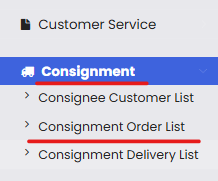
Step 2 – View All Consignment Orders
Once opened, the All Consignment Order page will display all existing consignment and stock transfer orders.
Information displayed typically includes:
Order Code
Date
Delivery Date
Consignee
From Facility
To Facility
Status
Type
Issue Type
Created By
Created Date
You can also perform actions on each order using the Select Action dropdown.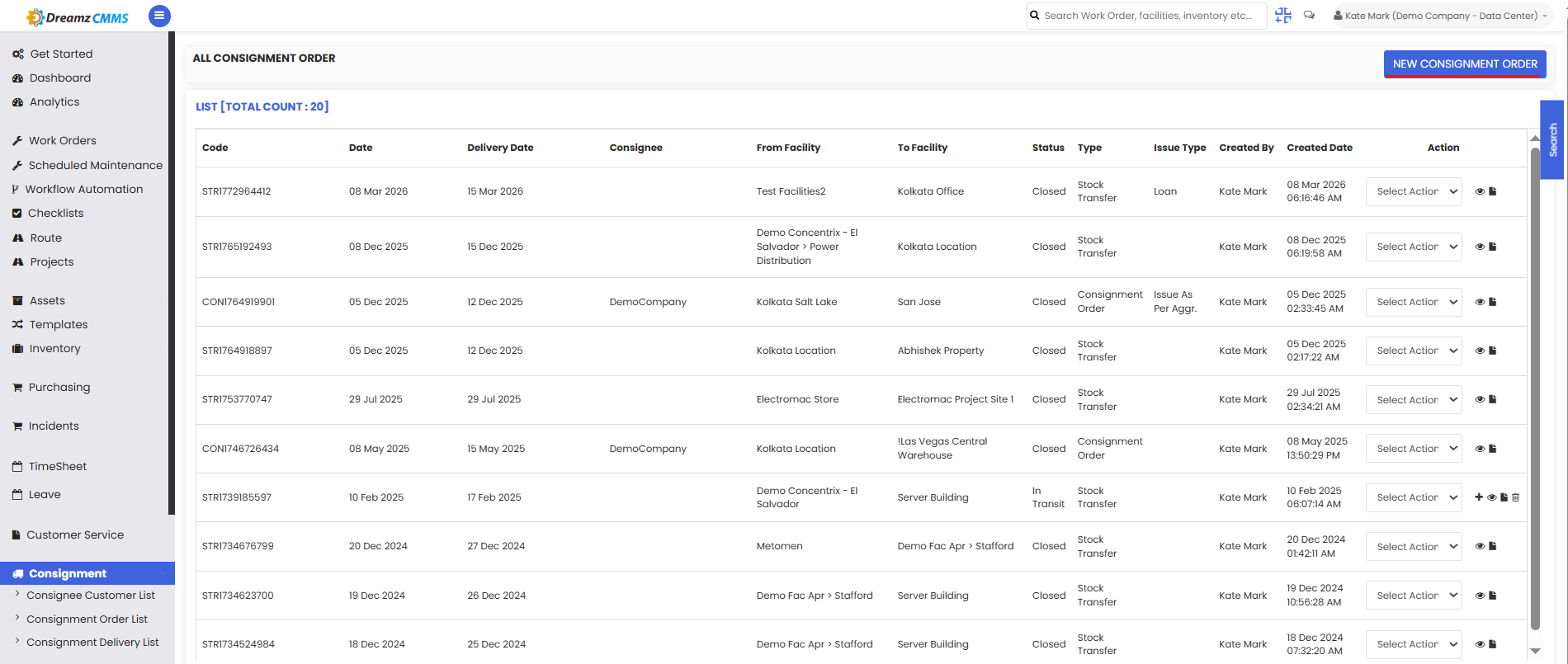
How to Create a New Consignment Order
Step 1 – Click New Consignment Order
On the Consignment Order List page, click New Consignment Order located in the top-right corner.
This will open the consignment order creation form.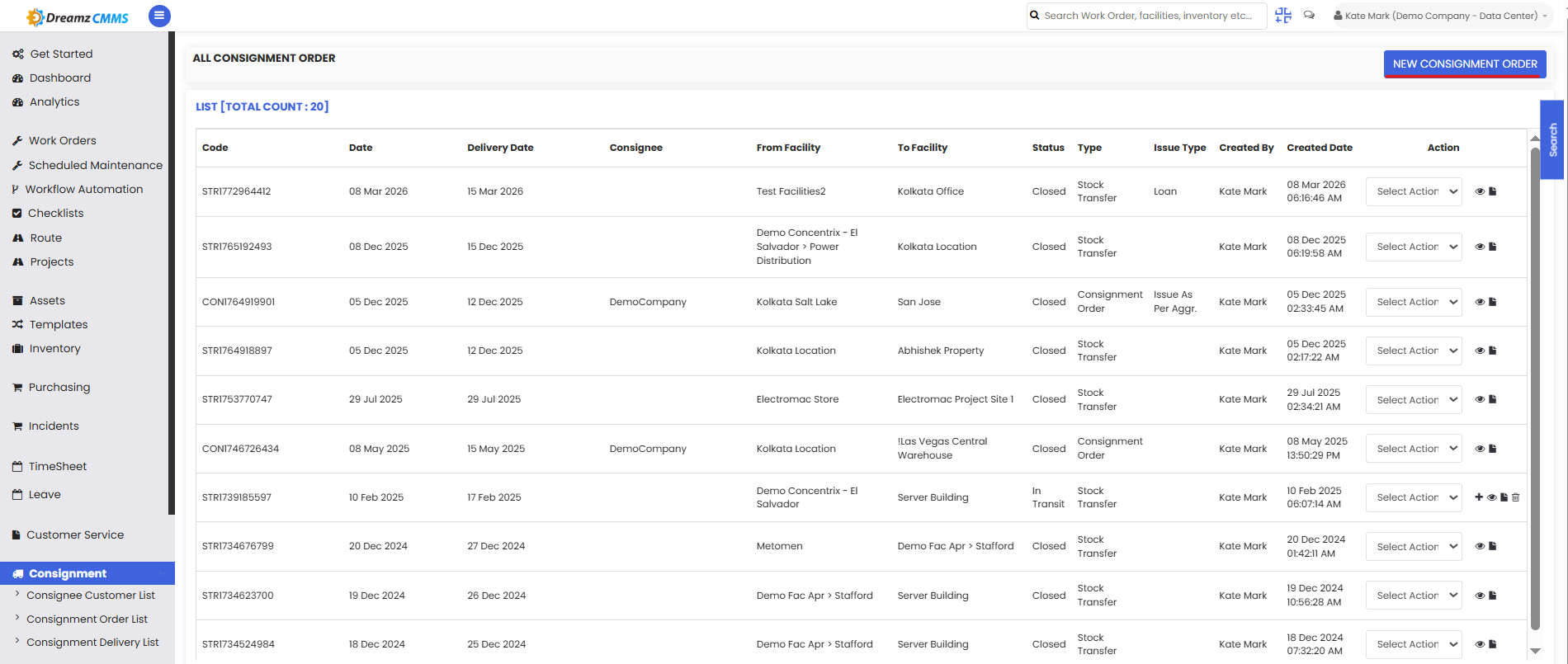
Consignment Order Form
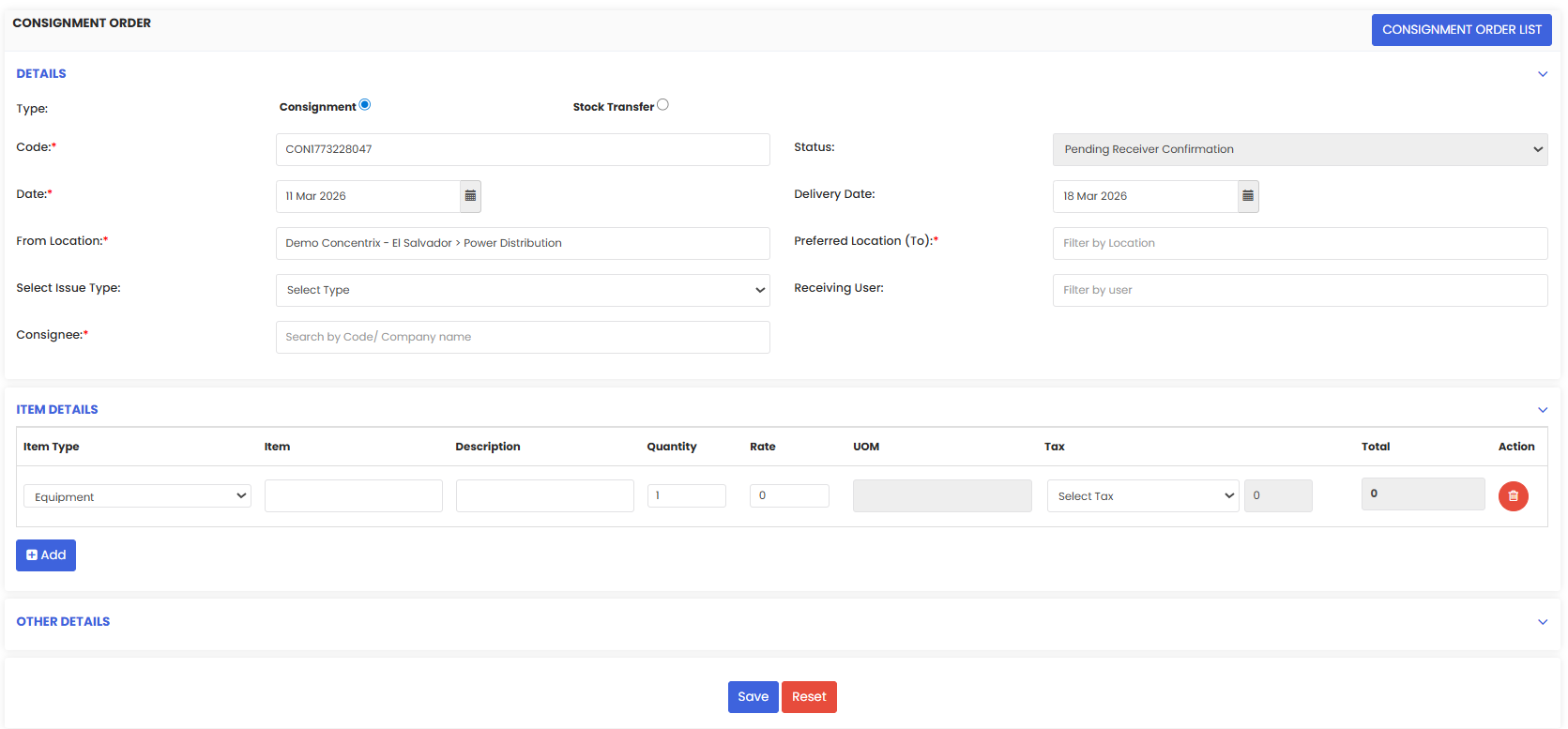
The form is divided into multiple sections to capture all necessary information.
Order Details
This section captures the primary details of the consignment order.
Fields include:
Type – Choose between Consignment or Stock Transfer
Code – Unique identifier for the consignment order
Date – Order creation date
Delivery Date – Expected delivery date
From Location – Facility where the items are issued from
Preferred Location (To) – Destination location
Issue Type – Type of inventory issue
Consignee – Customer or entity receiving the consignment
Receiving User – User responsible for receiving the items
Status – Current status of the order
Item Details
The Item Details section allows users to add items included in the consignment order.
For each item, the following details can be entered:
Item Type
Item Name
Description
Quantity
Rate
Unit of Measure (UOM)
Tax
Total
Click Add to include multiple items in the order.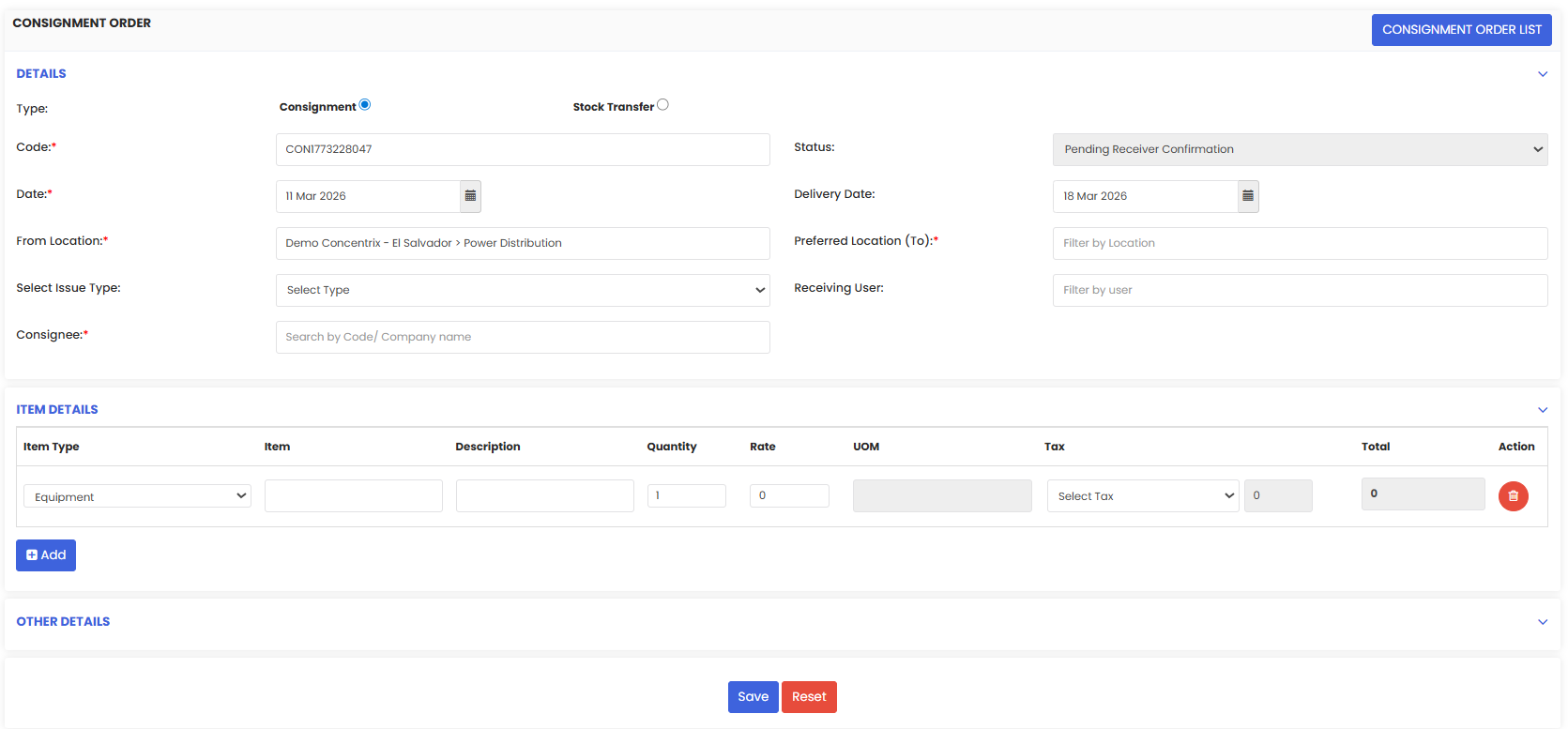
Other Details
The Other Details section provides additional configuration options.
These include:
Notes – Add comments or additional instructions
File Attachments – Upload related documents
Email Notifications – Send order notifications to:
Consignee
Yourself
Admin
These options help ensure that relevant stakeholders are informed about the order.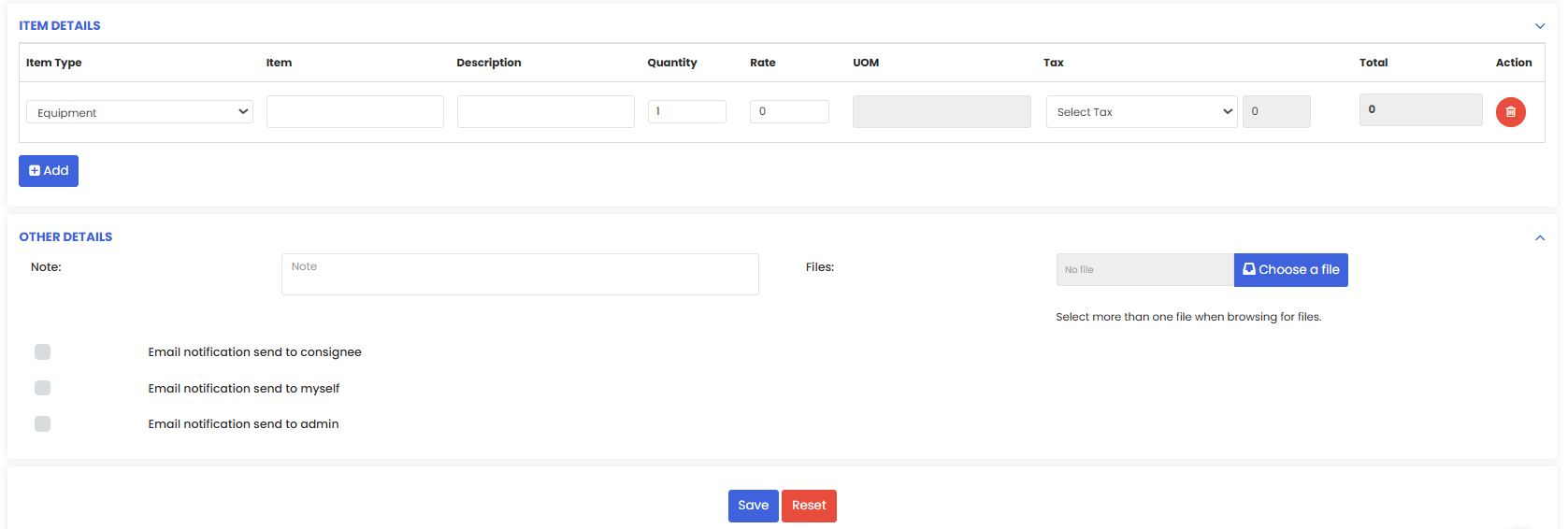
Step 3 – Save the Consignment Order
After entering all required information:
Review the order details
Click Save
The new consignment order will now appear in the Consignment Order List and can be tracked throughout the delivery process.
Tips for Managing Consignment Orders
Ensure delivery dates are correctly configured to avoid shipment delays.
Verify facility locations before issuing items to prevent inventory errors.
Add clear descriptions for items to improve traceability.
Enable email notifications to keep stakeholders informed about order updates.
Consignment orders help organizations maintain accurate records of inventory movement and streamline distribution processes.
Frequently Asked Questions
What is a consignment order in DreamzCMMS?
A consignment order records the transfer of items from one facility to another location or consignee while maintaining proper tracking within the system.
What is the difference between Consignment and Stock Transfer?
Consignment sends items to a customer or external entity, while Stock Transfer moves inventory between internal facilities.
Can multiple items be added to one consignment order?
Yes. The Item Details section allows users to add multiple items within the same order.
Can attachments be added to a consignment order?
Yes. Supporting documents can be uploaded in the Other Details section when creating or editing an order.