Set the Color of Floor Plan Pins
Setting distinct colors for floor plan pins in DreamzCMMS helps you visually differentiate points on a map — such as assets, safety features, or custom markers — based on type or priority. This makes navigating complex floor layouts faster and easier for maintenance and field teams.
Overview
When you create an interactive floor plan, pins appear on the layout to represent assets or points of interest. Assigning custom colors to those pins helps users quickly identify and categorize these items at a glance — improving clarity and reducing search time on site.
Before You Begin
Ensure you have access to Settings in DreamzCMMS.
Confirm that floor plans and associated pin types (like assets or locations) are already created.
Decide on a color scheme that will help your team easily recognize different pin types.
How to Set the Color of Floor Plan Pins
Step 1 — Open Settings
From the DreamzCMMS main menu, click Settings to open system configuration options.
Step 2 — Navigate to Pin Color Options
Under the Asset section in Settings, select the option that lets you configure floor plan pin properties. This area allows you to control how pins appear on floor plans.
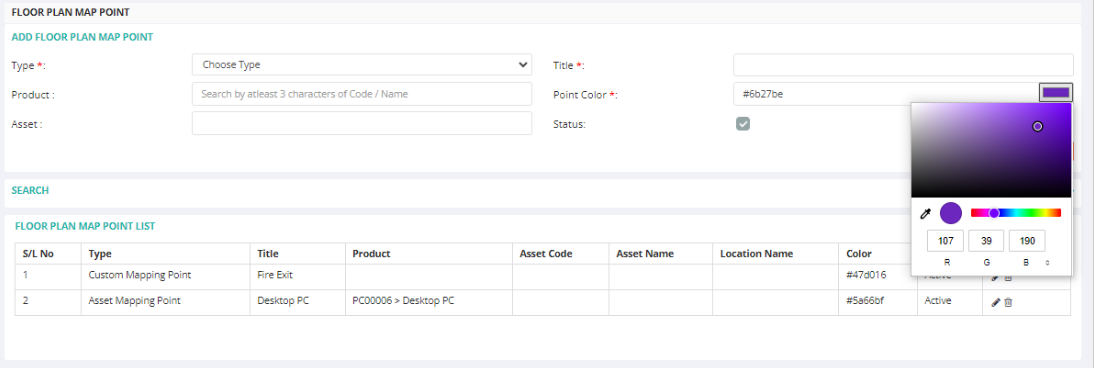
Step 3 — Choose Pin Type and Color
Select the pin type you want to customize (e.g., equipment, safety point).
Enter a descriptive name for the pin type if needed.
Choose the color that should be associated with that pin type — this will help users instantly differentiate it on the floor plan.
Click Save to apply your selected pin color.
Step 4 — Edit or Update Pin Settings
You can return to this configuration screen at any time to:
Change the name or color of a pin type.
Mark a pin type as active or inactive based on your current mapping needs.
Update colors if your floor layout changes or you want a refreshed visual scheme.
After Setting Pin Colors
Once configured:
Your new pin colors will display on all floor plans that use those pin types.
Technicians and planners can more quickly locate assets or key points during inspections, audits, or maintenance tasks.
Consistent color coding enhances situational understanding and speeds up operational workflows.
Tips for Effective Use
Use consistent colors for similar asset types (e.g., blue for electrical, red for safety hazards).
Avoid using too many colors — simplicity helps teams recall meanings faster.
Review pin settings periodically to keep the map up to date with any location or workflow changes.
Frequently Asked Questions (FAQs)
1. Where do the pin colors show up in DreamzCMMS?
Pin colors appear directly on the floor plan view and help visually distinguish assets or points of interest when viewing or managing floor layouts.
2. Can I change the color after the pin has already been placed on a floor plan?
Yes — you can edit a pin type’s settings in Settings > Asset > Pin Color Options, update the color, and then save. The new color will automatically update across all floor plans using that pin type.
3. Do pin colors affect other parts of the system?
No — pin colors are only used for visual identification on floor layouts and do not affect other modules like work order lists or reports.
4. How many different pin colors can I set?
You can set unique colors for as many pin types as needed, but it’s best to stick to a simple, meaningful palette so users can easily remember what each color represents.