Map or Pin Equipment to a Floor Plan
Floor Plan Management in DreamzCMMS lets you visually place assets and important markers on facility layouts, so you can easily see where equipment is located and improve space planning, asset tracking, and team coordination. Once a floor plan is uploaded, you can pin assets, safety points, emergency exits, and more directly on the map.
Overview
Mapping equipment to a floor plan gives you a spatial view of where assets reside within a facility. This enhances maintenance planning, helps with inspections, and supports faster on-site navigation by technicians. After adding a floor plan image, you can place pins at precise locations to represent equipment, exits, safety points, or other facility markers.
Before You Begin
Make sure you have added or uploaded a floor plan image to DreamzCMMS.
Ensure the assets you want to pin already exist in the system (with proper names or codes).
Know the approximate locations on the floor plan where equipment should be placed.
How to Pin Equipment on a Floor Plan
Step 1 — Open Your Floor Plan
Navigate to Floor Plan Management and open the specific floor plan where you want to mark assets.

Step 2 — Select the Point Tool
Click on the Point icon. This tool lets you place pins anywhere on the floor plan.
Step 3 — Place a Pin
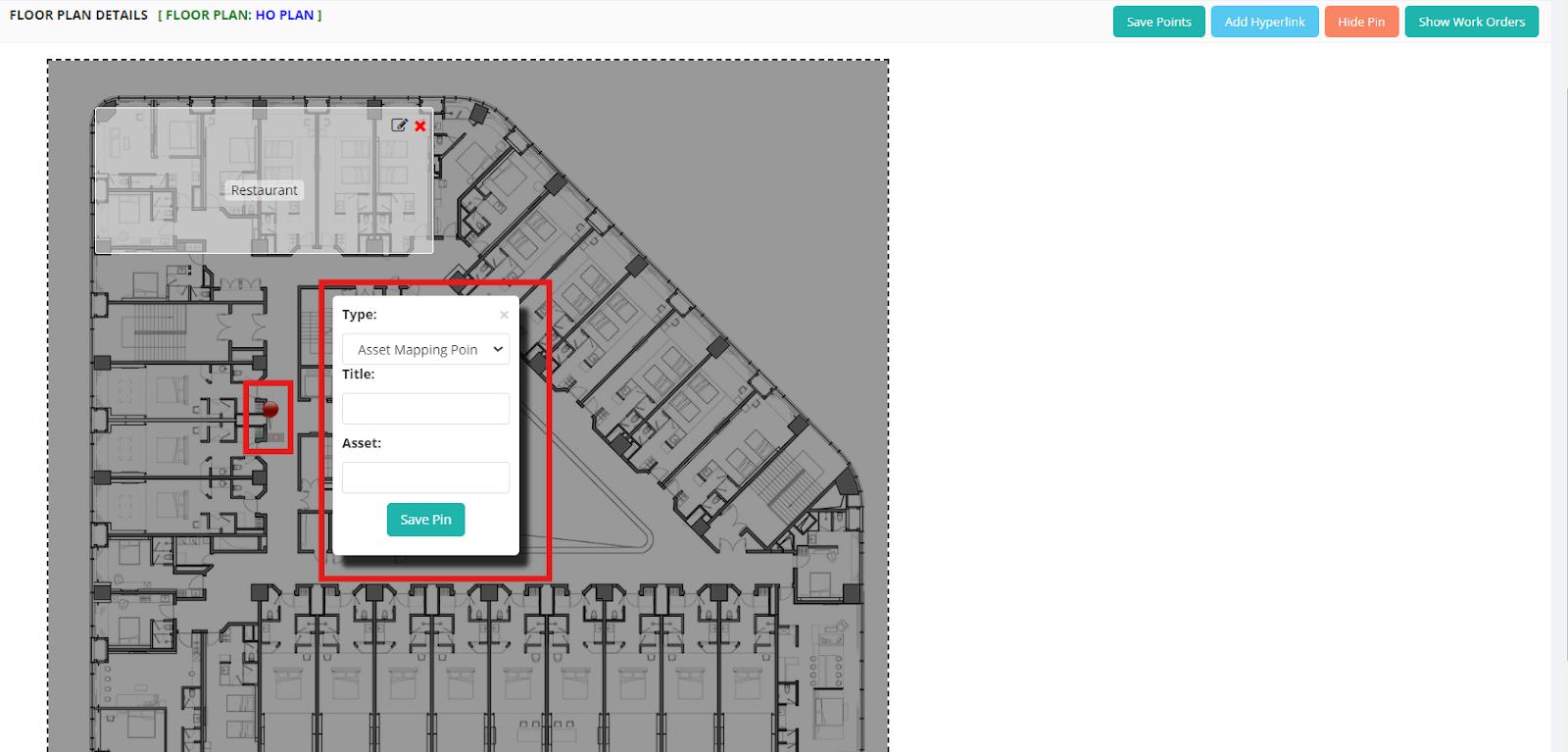
Move your cursor over the floor plan until you see a tiny plus (+) sign with an arrow. Click on the exact spot where the asset or point of interest is located.
Step 4 — Tag the Pin
Once the pin appears:
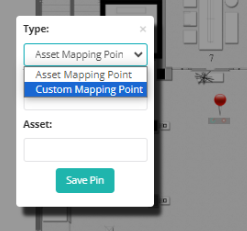
Choose the type of pin (e.g., asset, safety point, emergency exit).
Enter the first 3 characters of the asset name or code to tag the correct equipment.
Click Save to confirm the pin on the floor plan.
Step 5 — Save All Pins
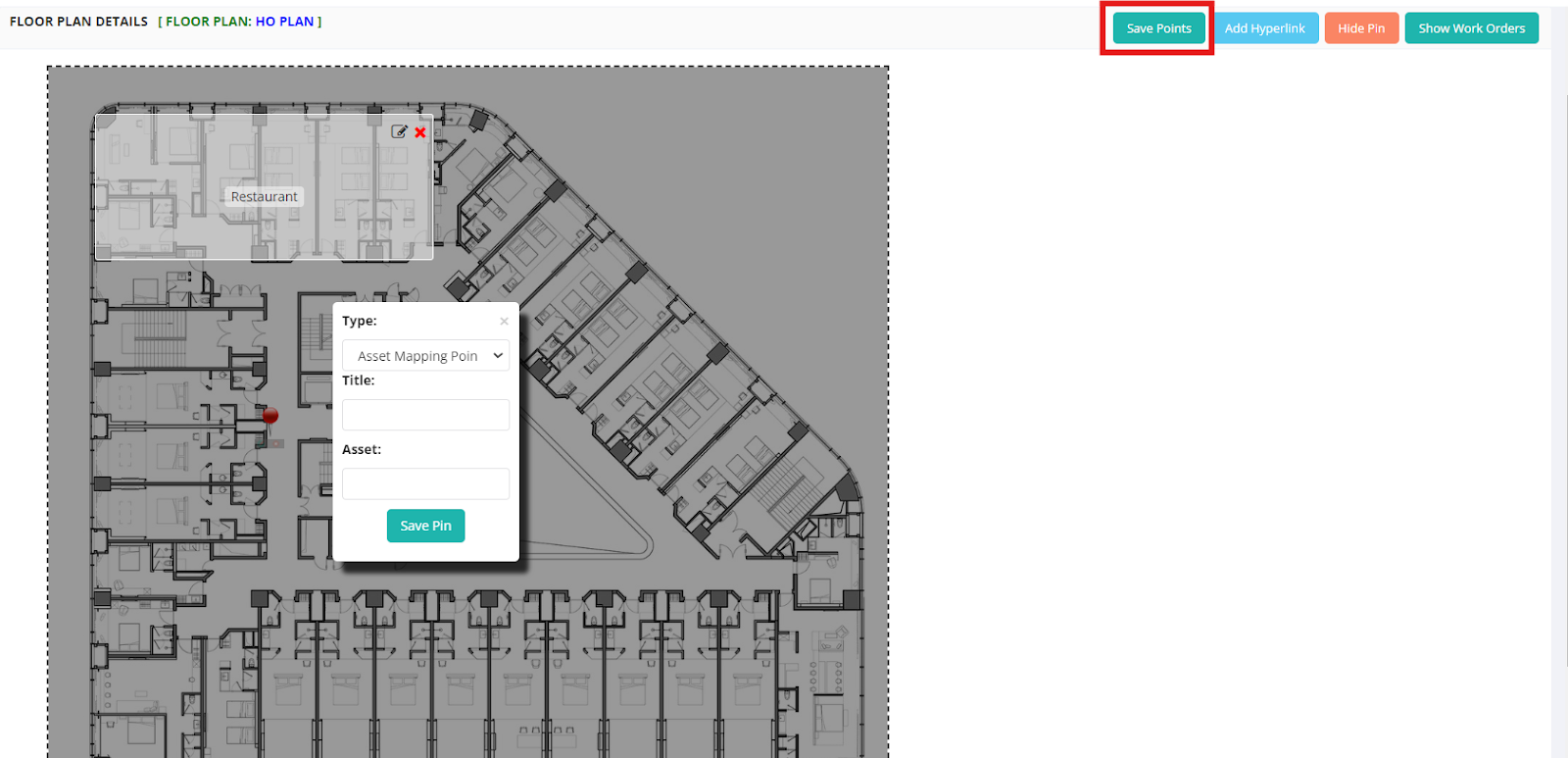
You can repeat this process to add multiple pins to a floor plan. When you’re done, click the Save Points button to store all the mapped asset locations.
After Mapping Equipment
The pinned assets will now be visible on the floor plan for reference during maintenance, inspections, or audits.
Technicians can use floor plans on mobile devices to find equipment faster on site.
Managers and planners can use these visual layouts to optimize space and plan workflows.
Tips for Effective Floor Plan Mapping
Use standardized naming and codes for assets so they are easy to find when tagging.
Mark critical safety points such as emergency exits and fire safety stations.
Keep floor plans updated when equipment is moved or re-located.
Use color-coded pins for different asset types to make the map easier to read.
Frequently Asked Questions (FAQs)
1. Can I pin multiple assets on the same floor plan?
Yes — you can place as many pins as needed on a floor plan and save them all together.
2. What types of pins can I add to a floor plan?
You can pin any asset or point of interest, such as equipment, emergency exits, or other facility markers, based on what you choose from the pin type list.
3. How do I find an asset when tagging it on the floor plan?
Type at least three characters of the asset name or code after placing the pin to quickly find and tag the correct asset.
4. Can I update or move pins after saving them?
Yes — you can edit the floor plan later to move, update, or delete pins whenever asset locations change.