The Online Booking feature in Dreams CMMS enables customers to book services online using a shared booking link. Admins can configure availability, time slots, technicians, booking forms, and notifications.
Bookings are tracked through a centralized dashboard, and automated emails are sent on key actions. Based on settings, the system can automatically generate estimates, quotations, or jobs, seamlessly integrating bookings with field service operations.
- Log in to Dreams CMMS as an Admin user.
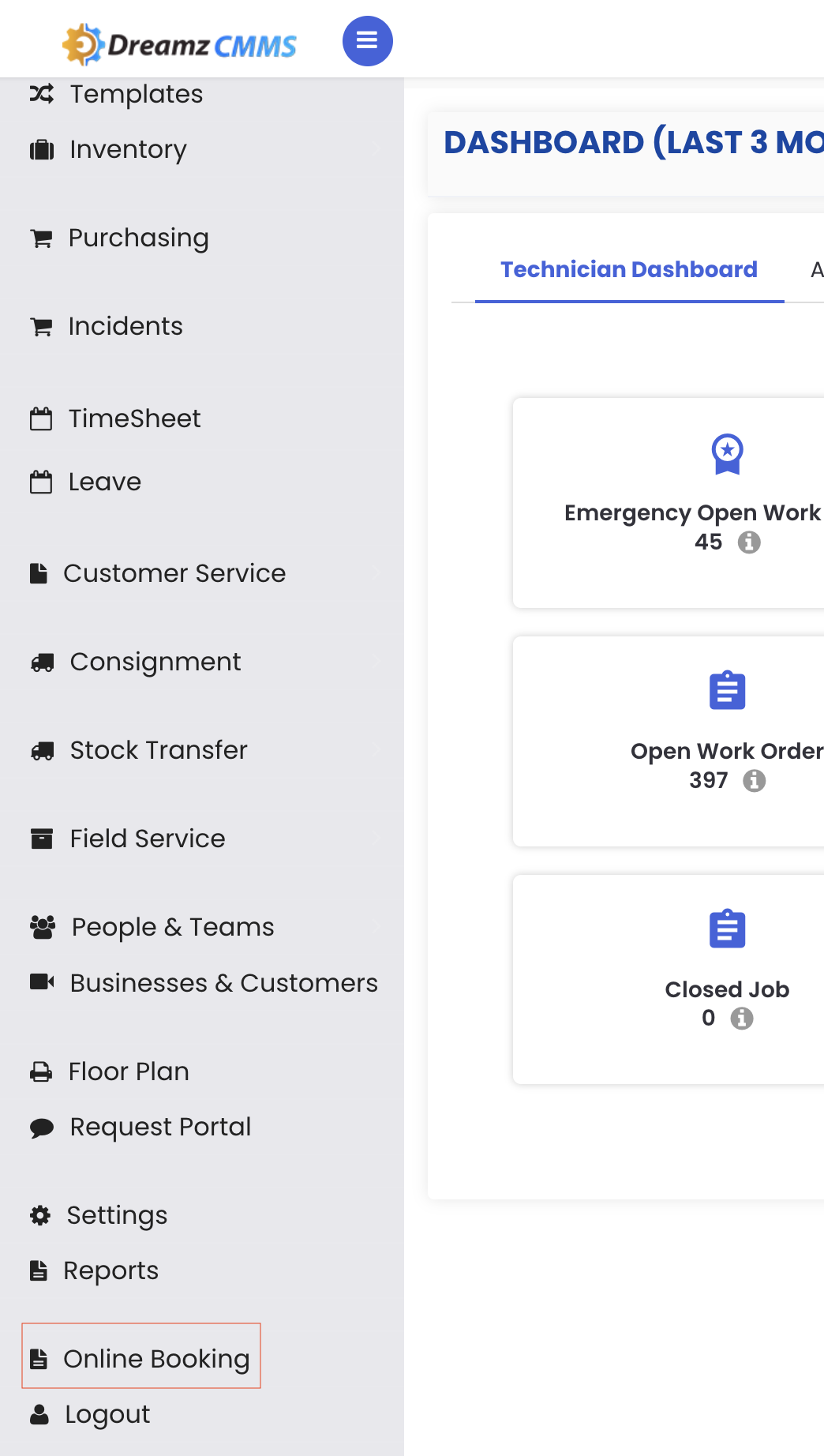
- From the left-hand navigation menu, click Online Booking.
The system redirects you to the Online Booking platform Dashboard from Dreams CMMS
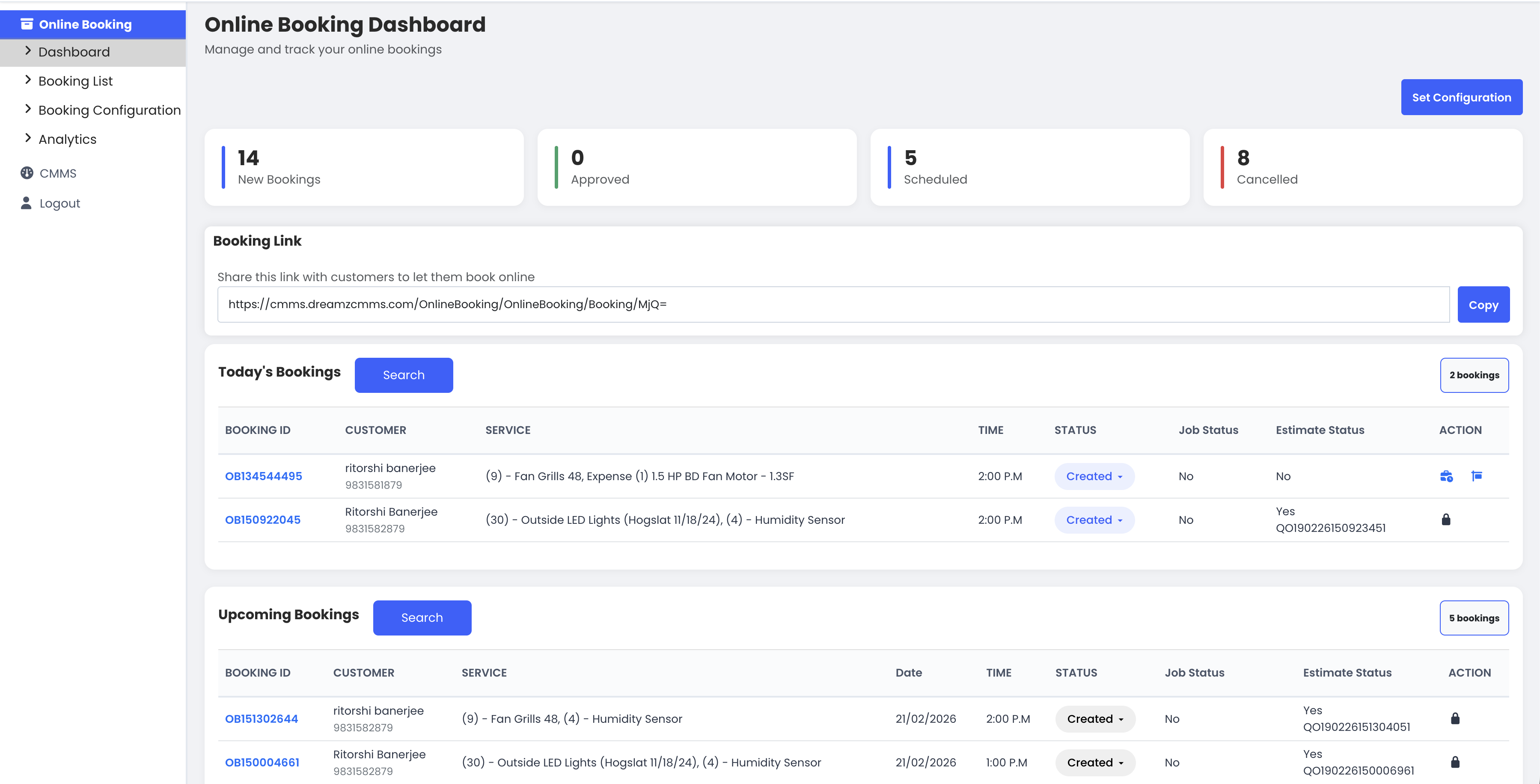
Online Booking Dashboard Overview
- View booking summary tiles:
- New bookings
- Approved bookings
- Scheduled bookings
- Cancelled bookings
- Review Today’s Bookings and Upcoming Bookings.
- Use the Search option to find a specific booking.
Admin gets a real-time overview of all booking activities
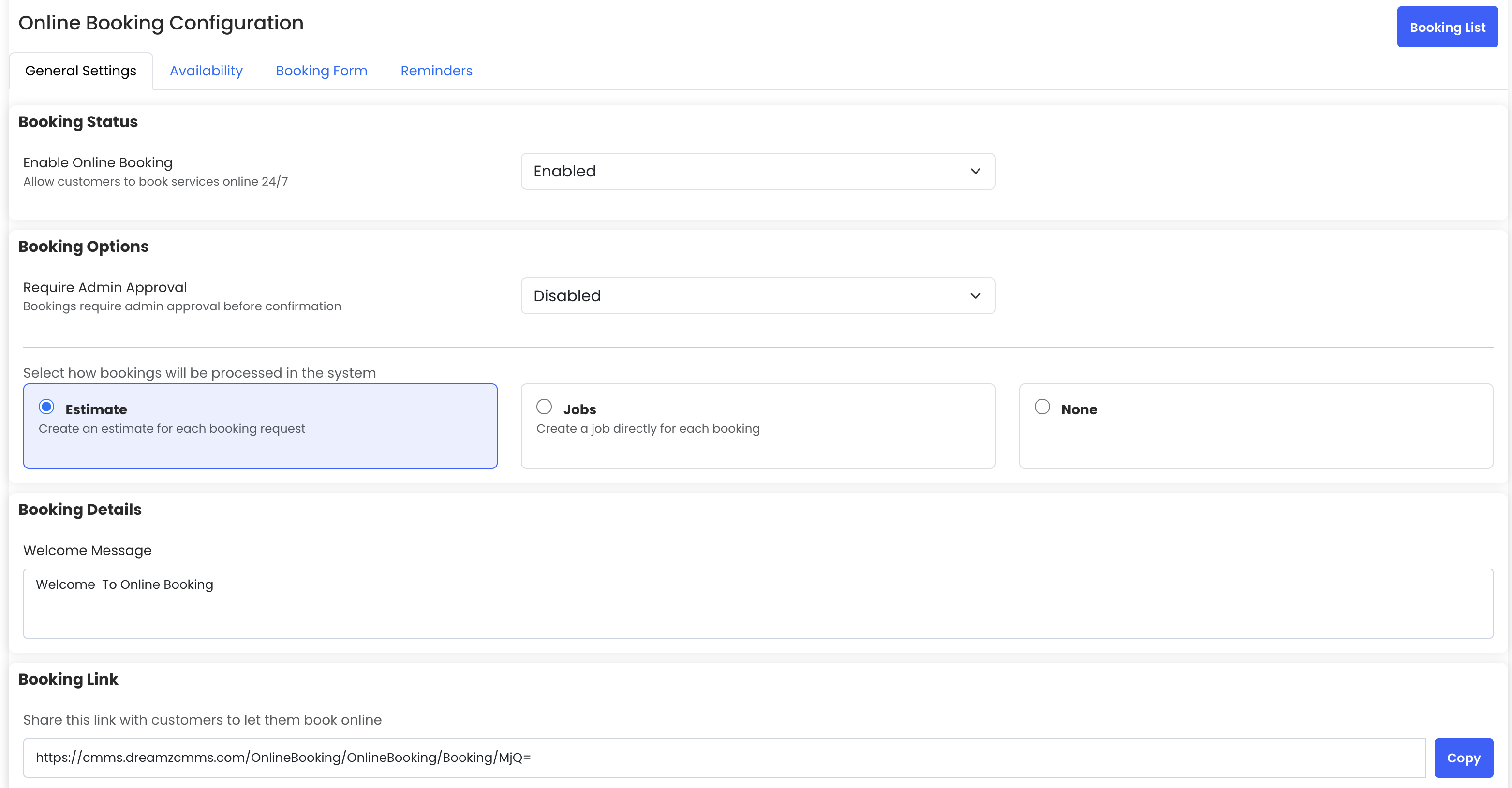
General Settings
- Navigate to Booking Configuration → General Settings.
- Choose the post-booking action:
- Create Estimate
- Create Job
- No Action
- Enter a Welcome Message for customers.
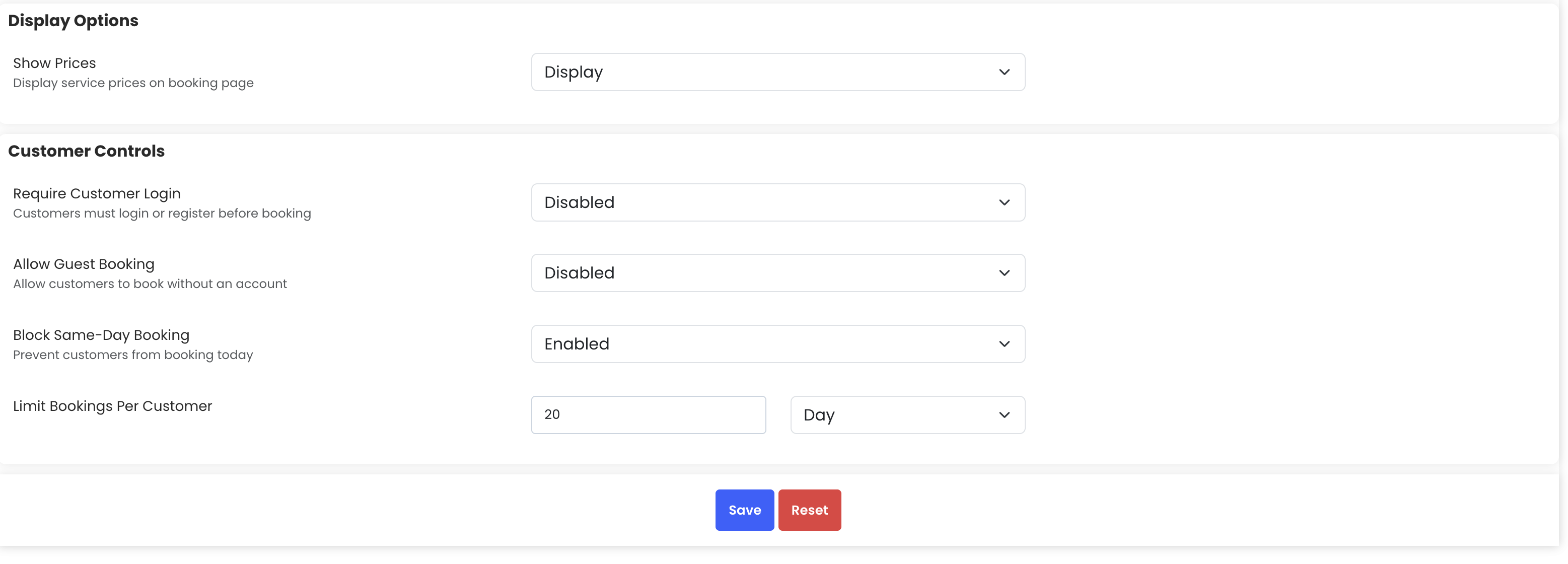
- Configure booking link and display options as required.
- Click Save.
Availability Settings
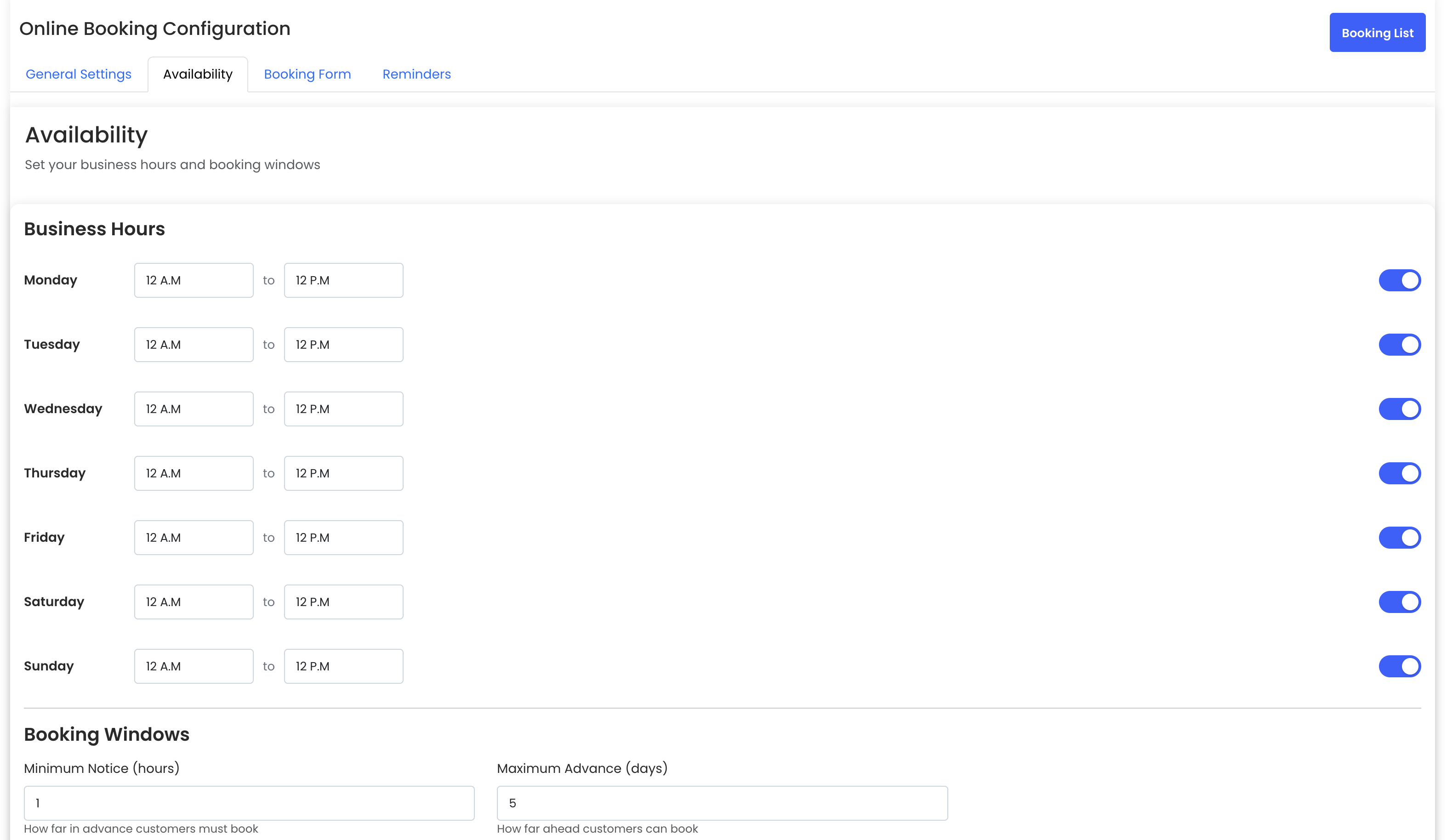
- Go to Booking Configuration → Availability.
- Define business hours (example: 12:00 AM – 12:00 PM).
- Configure:
- Minimum booking notice (example: 1 hour)
- Maximum advance booking days (example: 5 days)
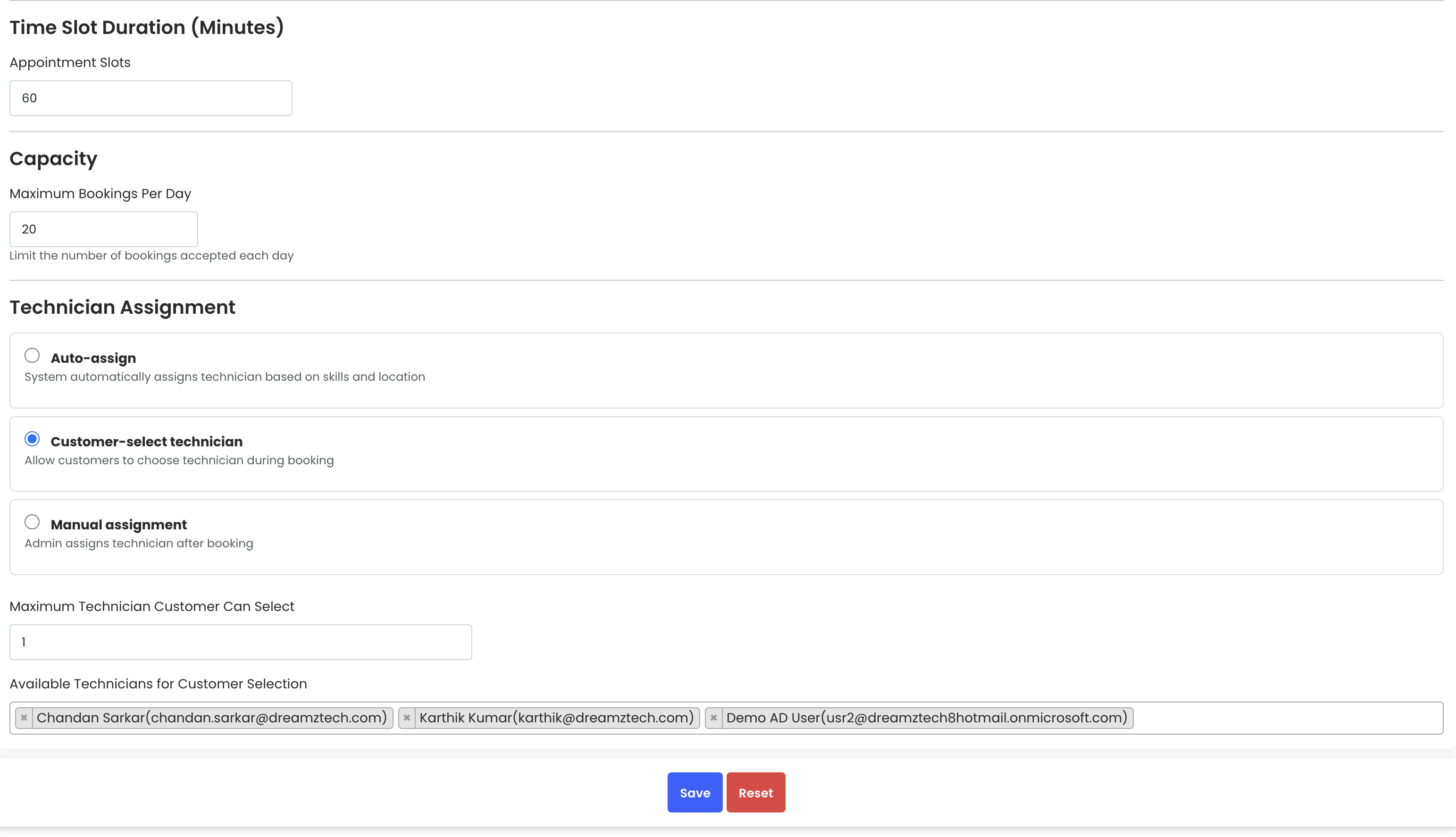
- Set slot duration (45 or 60 minutes).
- Define maximum bookings per day.
- Select technician assignment mode:
- Auto assignment
- Customer selection
- Manual assignment
- If customer selection is enabled, set maximum technicians selectable.
- Select available technicians.
- Click Save.
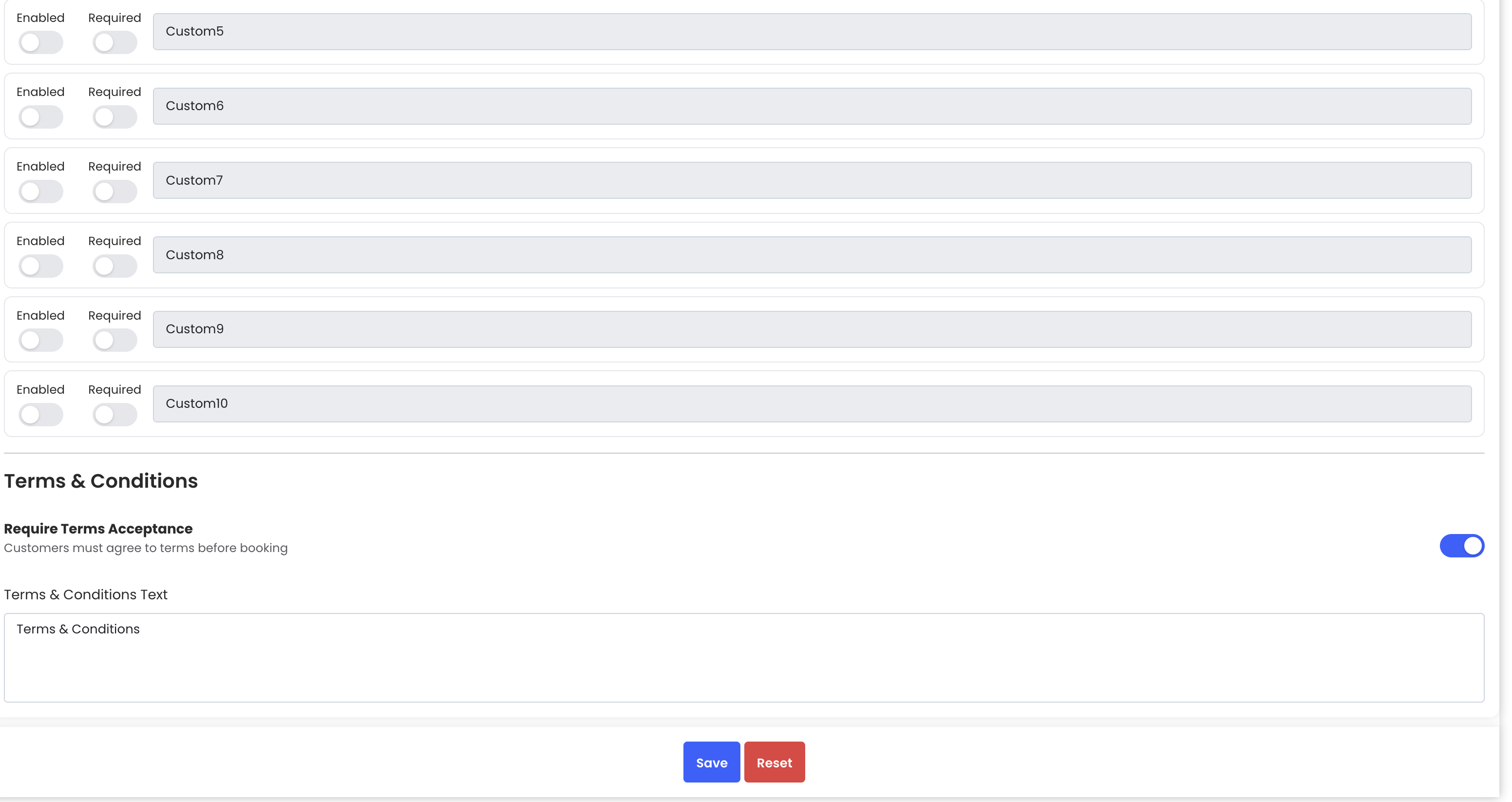
Booking Form Settings
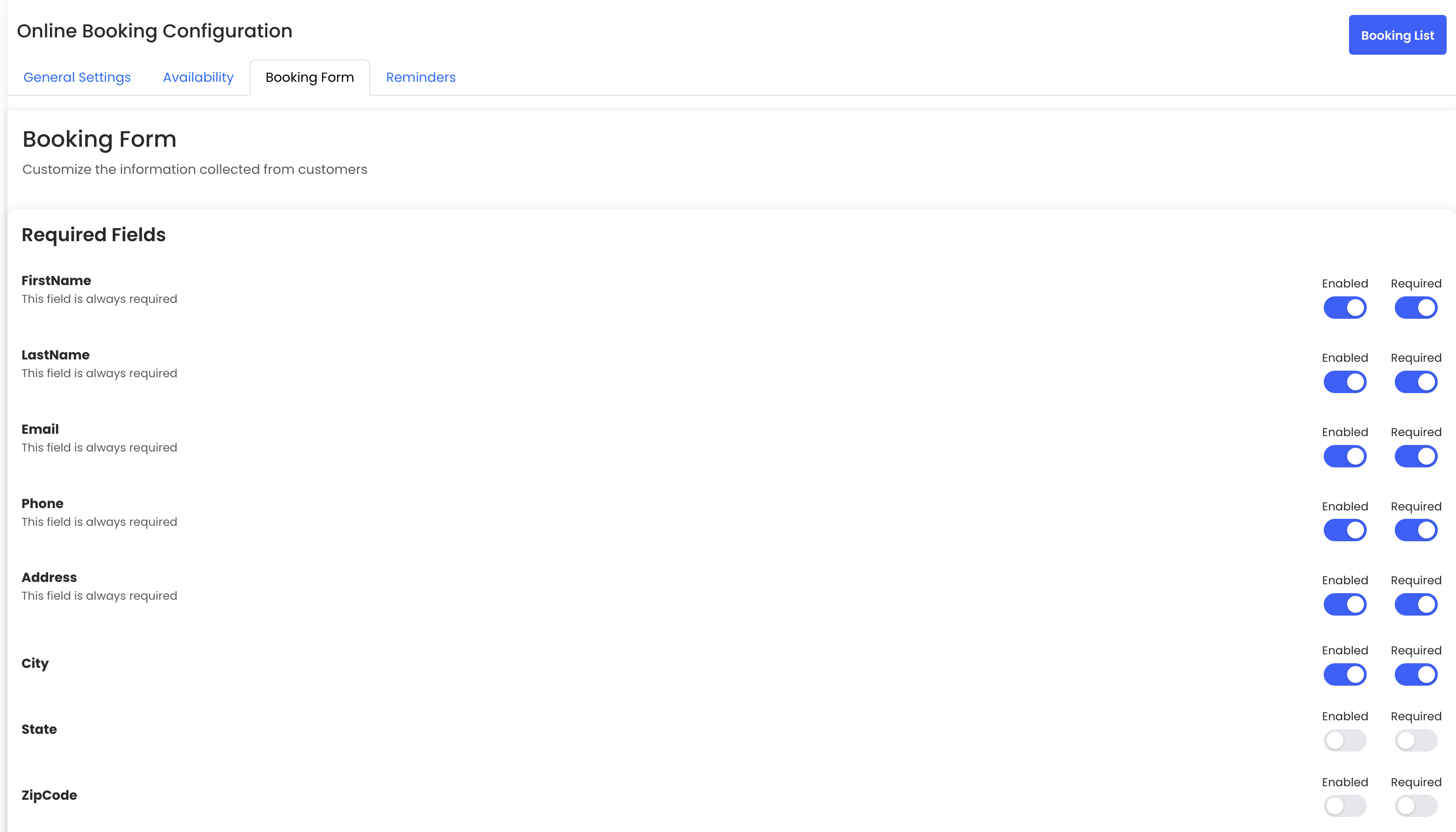
- Open Booking Configuration → Booking Form.
- Mark mandatory fields (First Name, Last Name, Email, Phone).
- Enable/disable optional fields as required.
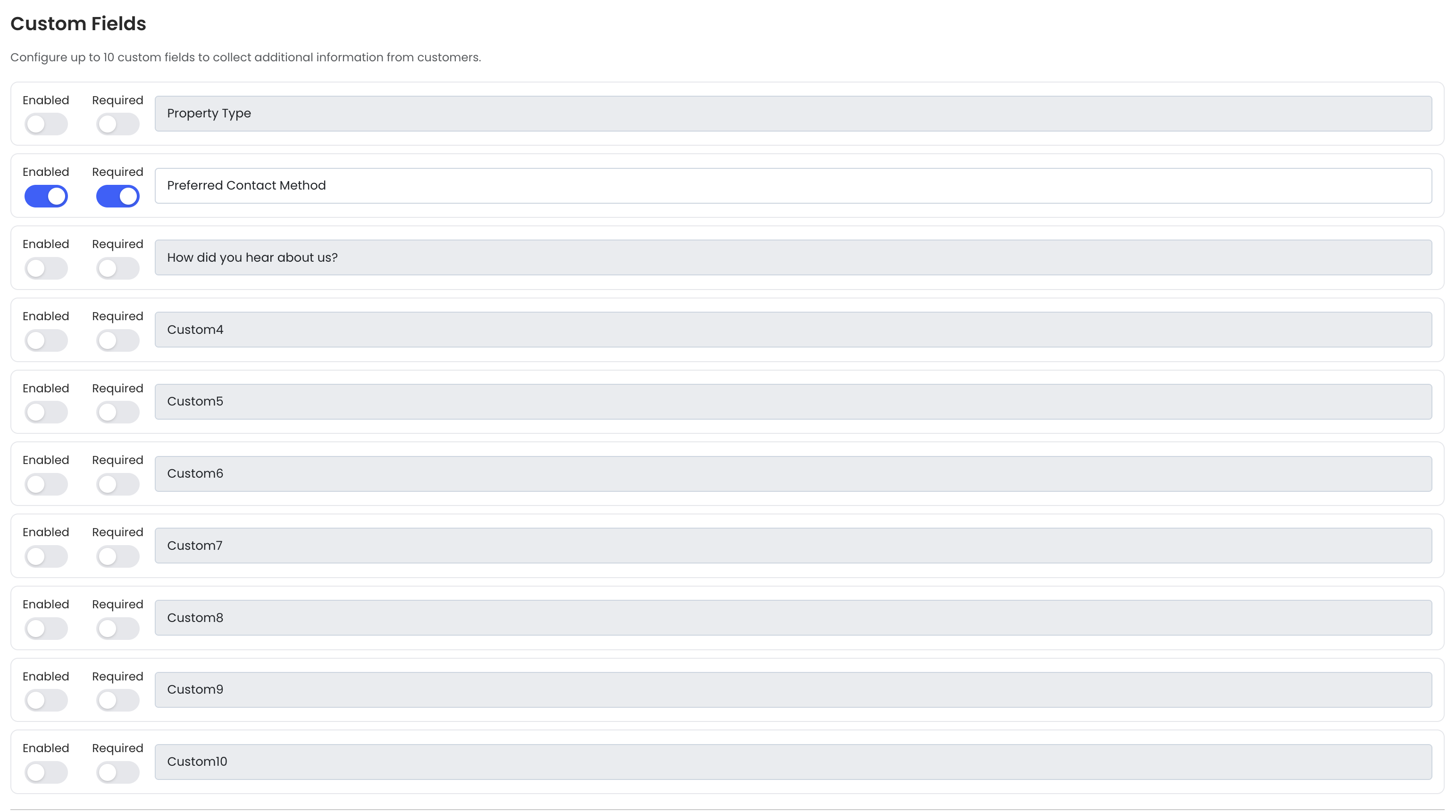
- Add Custom Fields if additional information is needed.
- Add Terms & Conditions.
- Click Save.
Reminders & Notifications
- Go to Booking Configuration → Reminders.
- Set reminder timing (hours before appointment).
- Enable notification types:
- Booking confirmation
- Booking approved
- Booking rescheduled
- Booking cancelled
- Follow-up request
- Click Save.
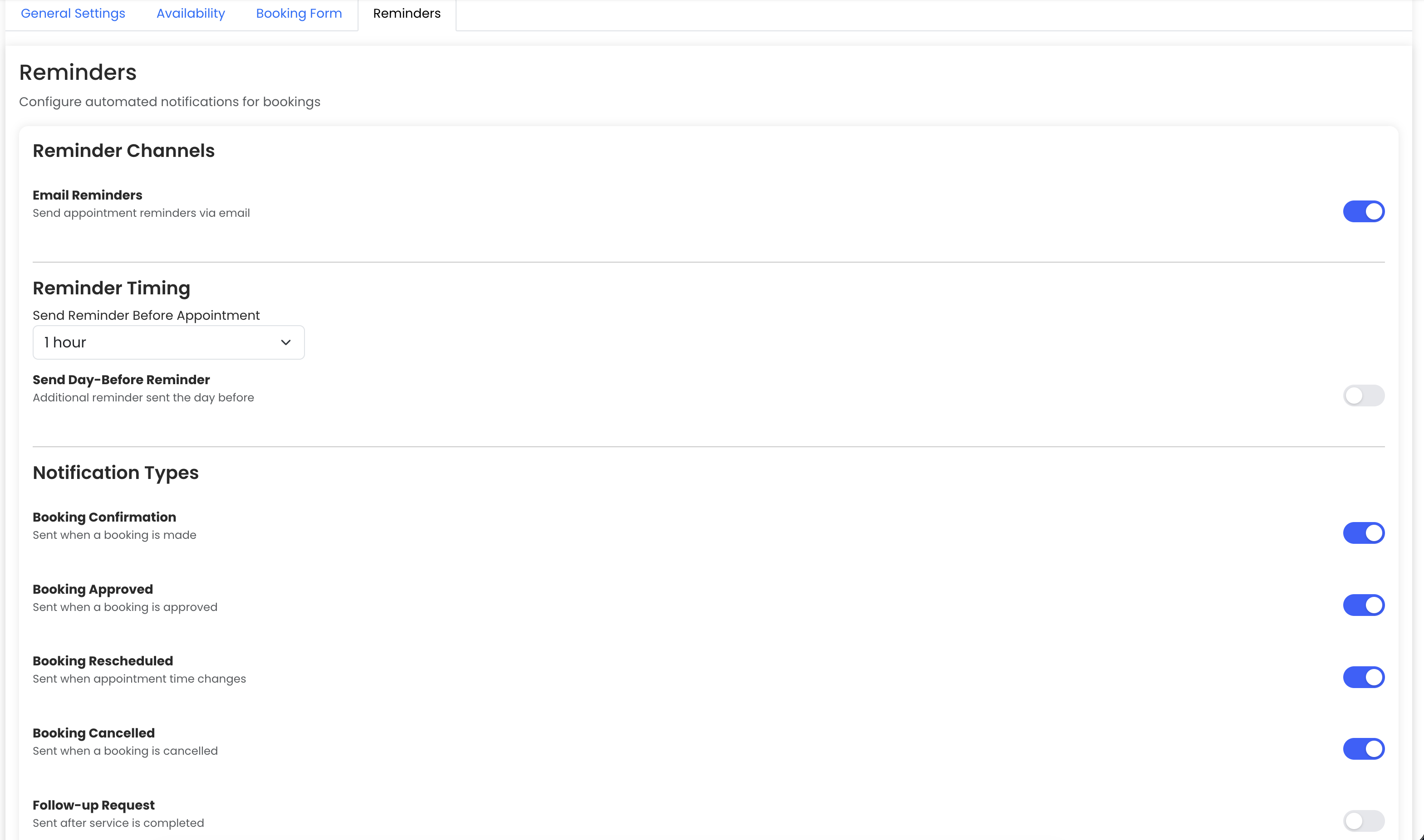
Automated email notifications are enabled
Booking List Management
- Navigate to Booking List.
- View all bookings in a single list.
- Use Search to locate a booking.
Filter bookings by status (Created, Approved, Cancelled).
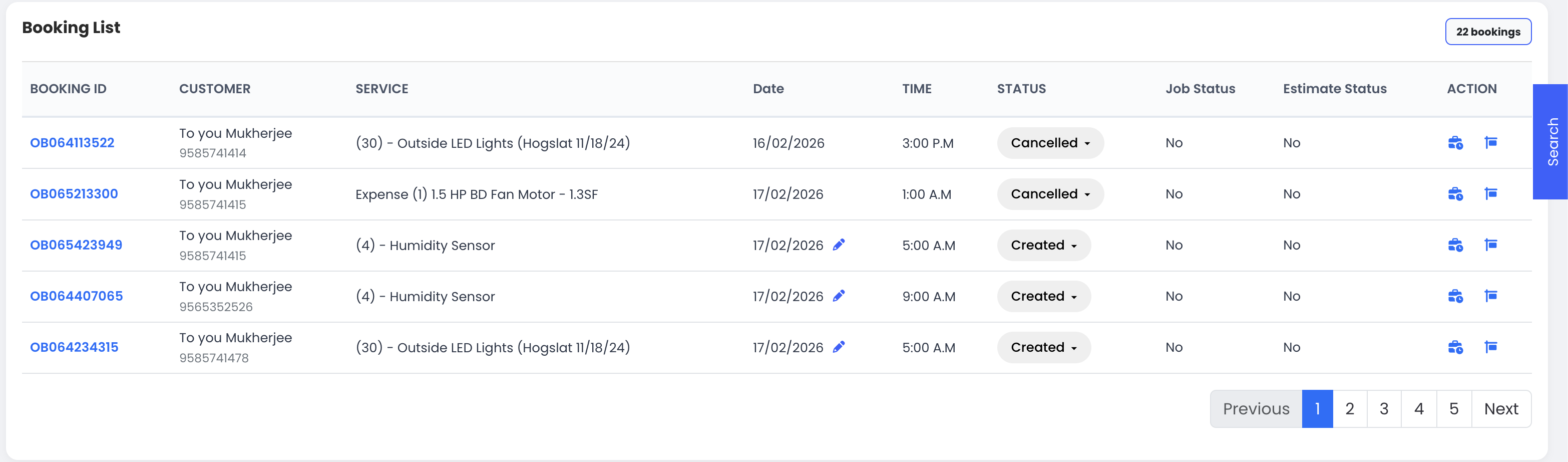
Admin can easily monitor and manage bookings
Linking Inventory Items to Online Booking
- Go to DreamzCMMS and then to Inventory → Parts & Supplies.
- Open a part/supply item and click Edit.
- Navigate to the Financials tab.
- Enable Available for Online Booking.
- Click Save.
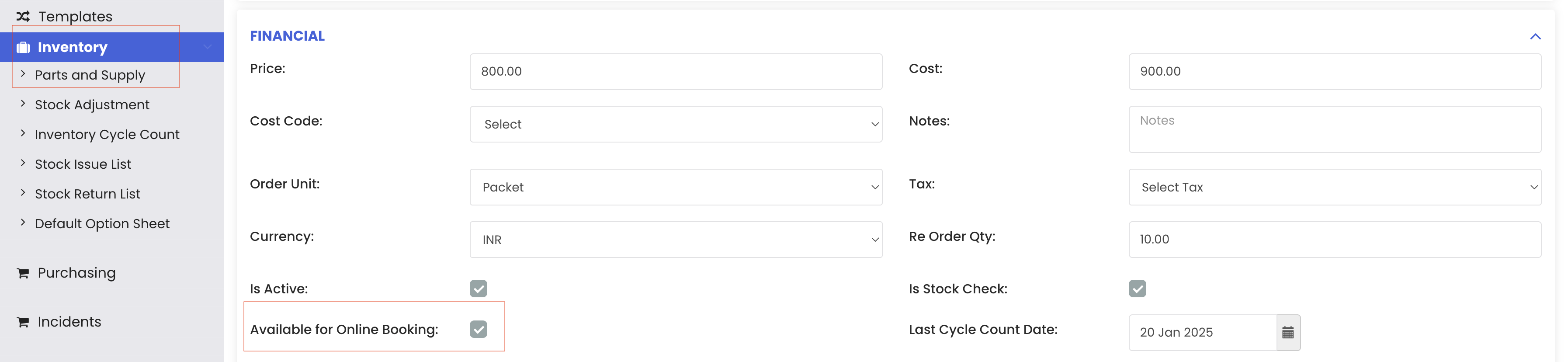
Item becomes selectable during customer booking
Customer Booking Process
- Open the shared Booking Link.
- Select required parts/supplies and click Continue.
- Choose an available date.
- Select an available time slot and click Continue.
- Fill in booking form details:
- Name, email, phone, address
- City and preferred contact method
- Problem description and fault code
- Technician selection (if enabled)
- Additional notes
- Accept Terms & Conditions.
- Click Confirm Booking.
- Note the generated Booking Reference Number.
- Customer receives a confirmation email.
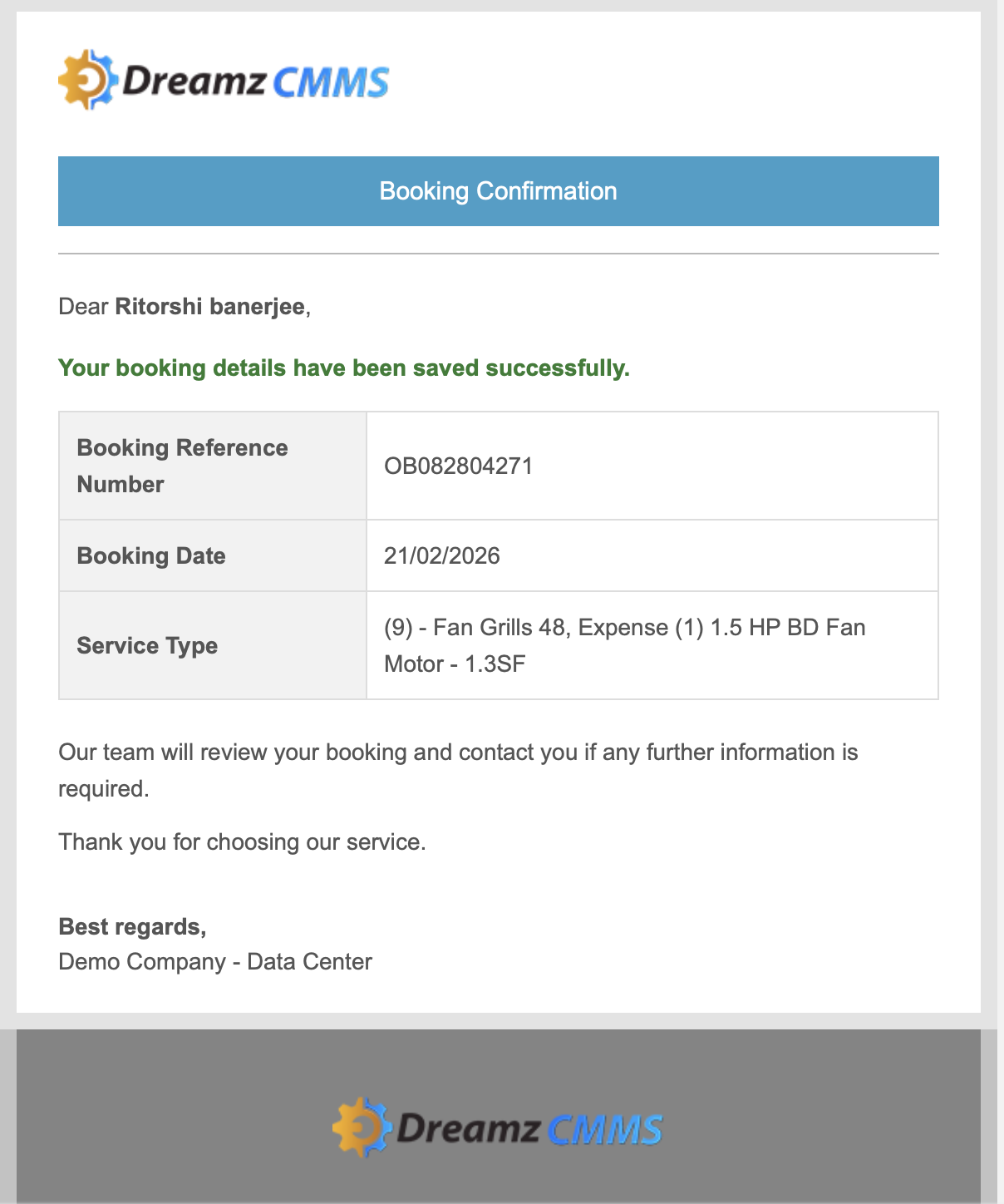
Booking is successfully created and mail is received.
Automatic Estimate / Quotation Creation
- Go to Booking Configuration → General Settings.
- Select Create Estimate as post-booking action.
- Click Save.
- Create a new booking via the booking link.
- Navigate to Field Service → Quotation in Dreams CMMS.
- Verify the quotation is auto-created.
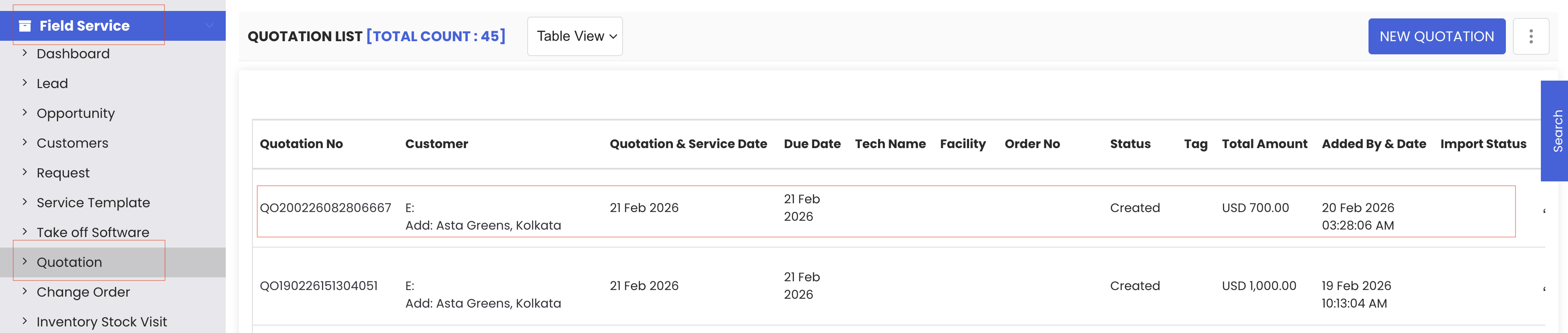
Booking automatically generates an estimate/quotation.
Conclusion
The Online Booking module streamlines appointment scheduling, improves customer experience, and automates service workflows by integrating bookings with inventory, estimates, and field service operations.