Managing Work Shift
Work Shift Management allows organizations to define and control employee work schedules — including shift start and end times, break periods, and shift patterns. This ensures accurate workforce planning, proper attendance tracking, and alignment of labor resources with operational needs.
Overview
In DreamzCMMS, managing work shifts helps coordinate team availability and assignments. By configuring shift definitions, managers can assign employees to specific shifts, define shift durations, and schedule recurring patterns. Accurate shift management supports time-based reporting, labor tracking, and greater visibility into resource utilization.
Here is a reference video:
Before You Begin
Ensure you have access to the Shift Management or Settings area of your system.
Know the organizational work patterns you want to support (e.g., day, swing, night shifts).
Be prepared with the shift names, start/end times, break periods, and any rotation rules you want to configure.
Confirm that users (employees) whose schedules you will assign are already created in the system.
How to Manage Work Shifts
Step 1 — Open Work Shift Configuration
Navigate to Settings and select Shift Master. This screen displays a list of configured shifts and options to create new ones.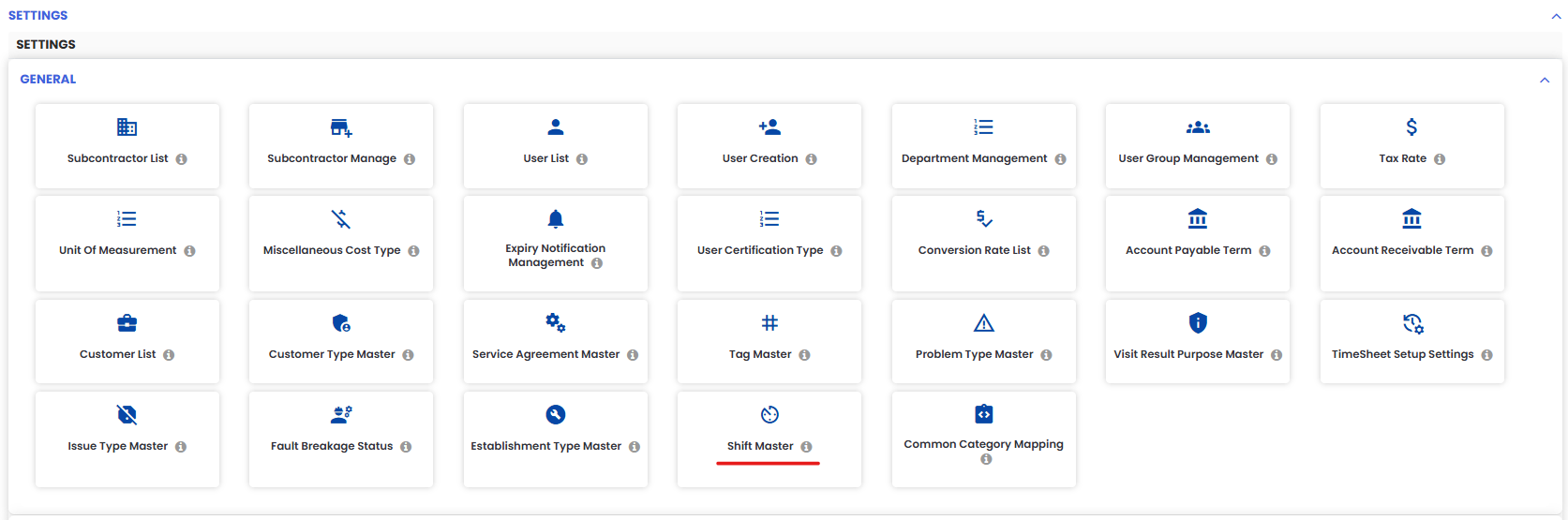
Step 2 — Create a New Shift
Click New Shift to open the shift creation screen.
Shift Name — Enter a descriptive title (e.g., “Day Shift”, “Night Shift”).
Start Time — Set the time the shift begins.
End Time — Set the time the shift ends.
Break Duration (if applicable) — Specify any scheduled break periods during the shift.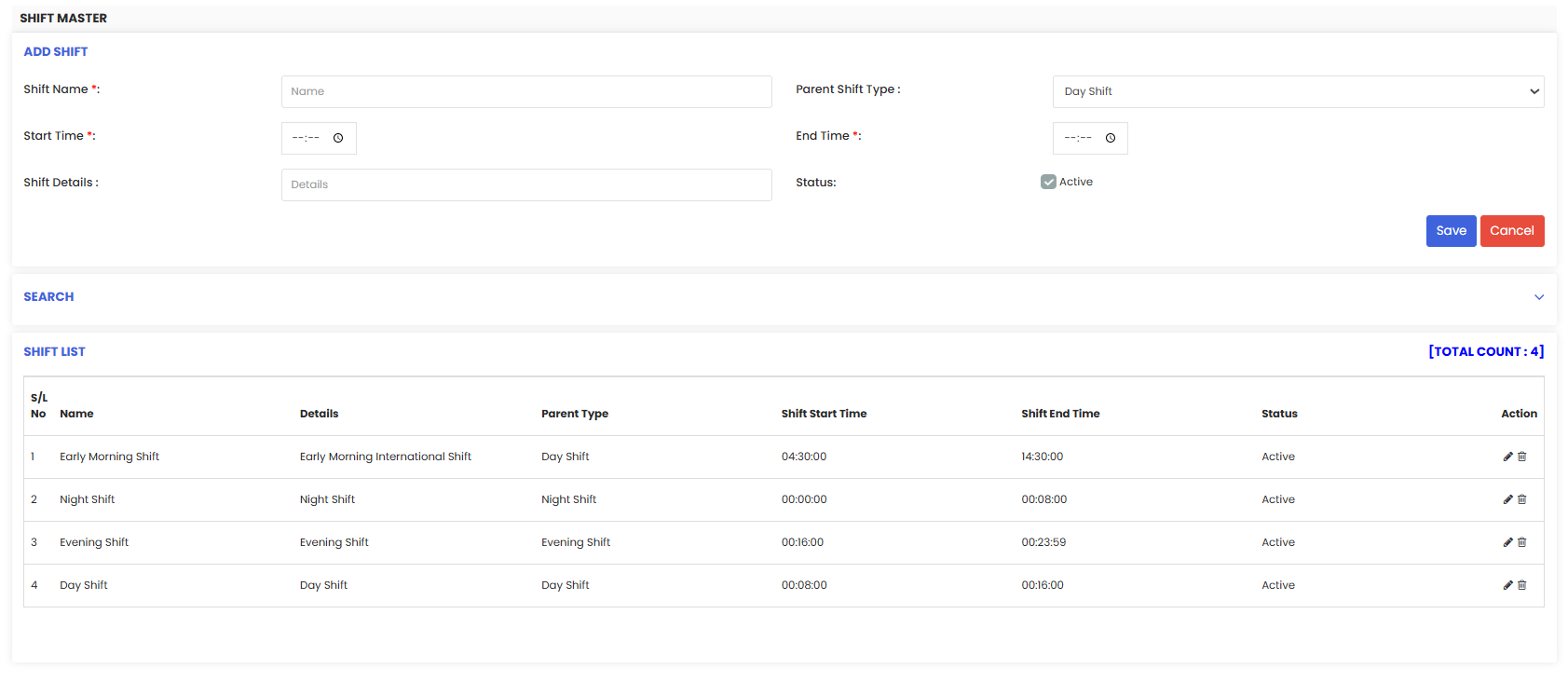
Step 3 — Save the Shift
Once the required fields are filled:
Click Save to add the shift to the system.
The new shift will now be available for assignment to employees.
Step 4 — Assign Employees to Shifts
After creating shift definitions:
Go to the Employee or Shift Assignment area.
Select the employee(s) who will follow the shift.
Choose the appropriate shift from a dropdown or selection list.
Set shift start date (and end date if applicable).
This enables the system to track employee availability based on shift schedules.
After Managing Work Shifts
Employees will be associated with specific shift times, improving labor scheduling accuracy.
Time-related reports (including attendance, hours worked, utilization) will reflect shift patterns.
Coordinators can plan staffing across different shifts to meet operational requirements.
Tips for Effective Work Shift Management
Standardize shift naming (e.g., “Morning”, “Evening”) so teams clearly understand schedules.
Include break times to ensure accurate accounting of work hours.
Document rotation patterns if employees work rotating shifts (e.g., 4-on/4-off).
Review shift assignments regularly to avoid conflicts or gaps in coverage.
Frequently Asked Questions (FAQs)
1. What is a work shift?
A work shift defines a scheduled block of working hours — including start and end times — during which an employee is expected to be on duty.
2. Can I assign multiple employees to the same shift?
Yes — you can assign any number of employees to a specific shift based on your workforce planning needs.
3. Can I edit a shift after it’s created?
Yes — existing shifts can be updated with new times or break information, and changes will apply to future assignments.
4. What happens if a shift is deactivated?
If a shift is deactivated, it will no longer appear in assignment options, helping prevent scheduling errors for future planning.
Related Articles
- Import Asset Locations
- How to Add BOM to a Facility/Location
- How to Assign Personnel to a Location/Facility
- Create and Manage Work Orders