Work Permit and Risk Management
The Work Permit and Risk Management module in DreamzCMMS enables organizations to digitize safety permits, integrate risk assessments into maintenance processes, and ensure controlled work environments. This helps teams assess hazards, enforce safety controls, issue compliant permits, and reduce incidents — all while maintaining clear documentation and audit readiness.
Overview
Work Permit and Risk Management connects risk assessment and work permit creation so that high-risk tasks — such as confined space entry, hot work, or electrical maintenance — are properly authorized, monitored, and recorded in real time. This framework supports both safety compliance and operational risk reduction, contributing to a safer workplace and better regulatory alignment. Integrating risk and permits ensures that safety considerations are built into maintenance workflows rather than treated as an afterthought — improving hazard awareness and control across teams.
Here is a reference video:
Before You Begin
Ensure you have access to the Risk Management and Work Orders modules in DreamzCMMS.
Prepare the safety, hazard, and PPE (Personal Protective Equipment) information required for risk records.
Understand the types of permits you will issue (e.g., hot work, shutdown permit) and the associated risk criteria.
How to Use Work Permit and Risk Management
Step 1 — Access the Risk Management List
Log in to the DreamzCMMS Web Portal.
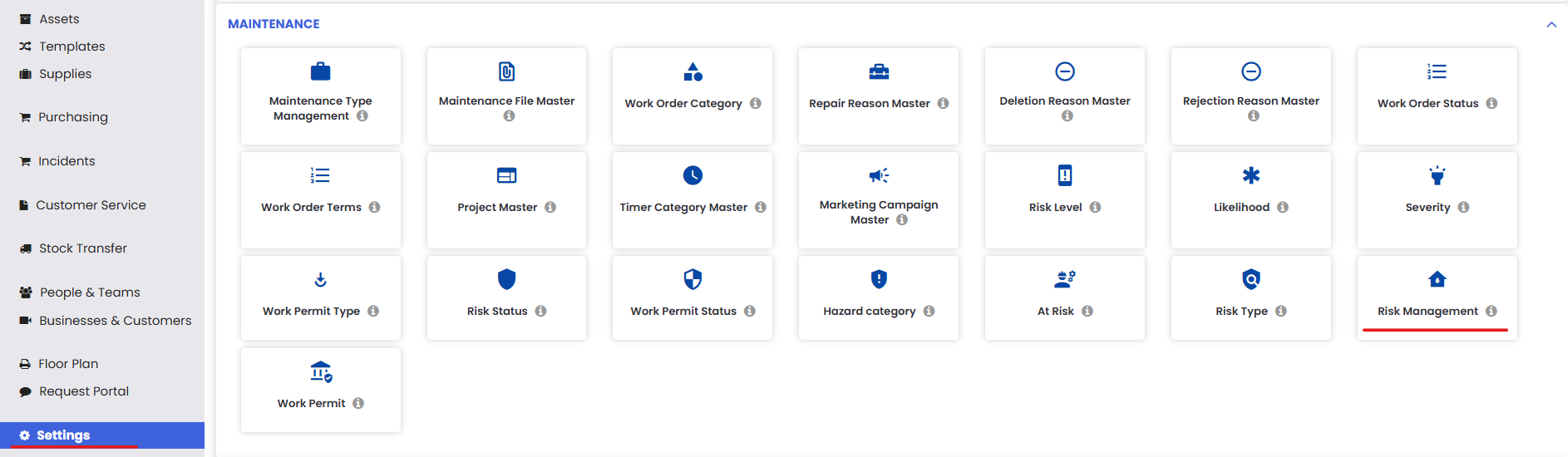
Go to Settings from the left navigation.
Under the Maintenance section, click Risk Management.
The Risk Management List displays all configured risk records.
Step 2 — Create or Edit a Risk Record
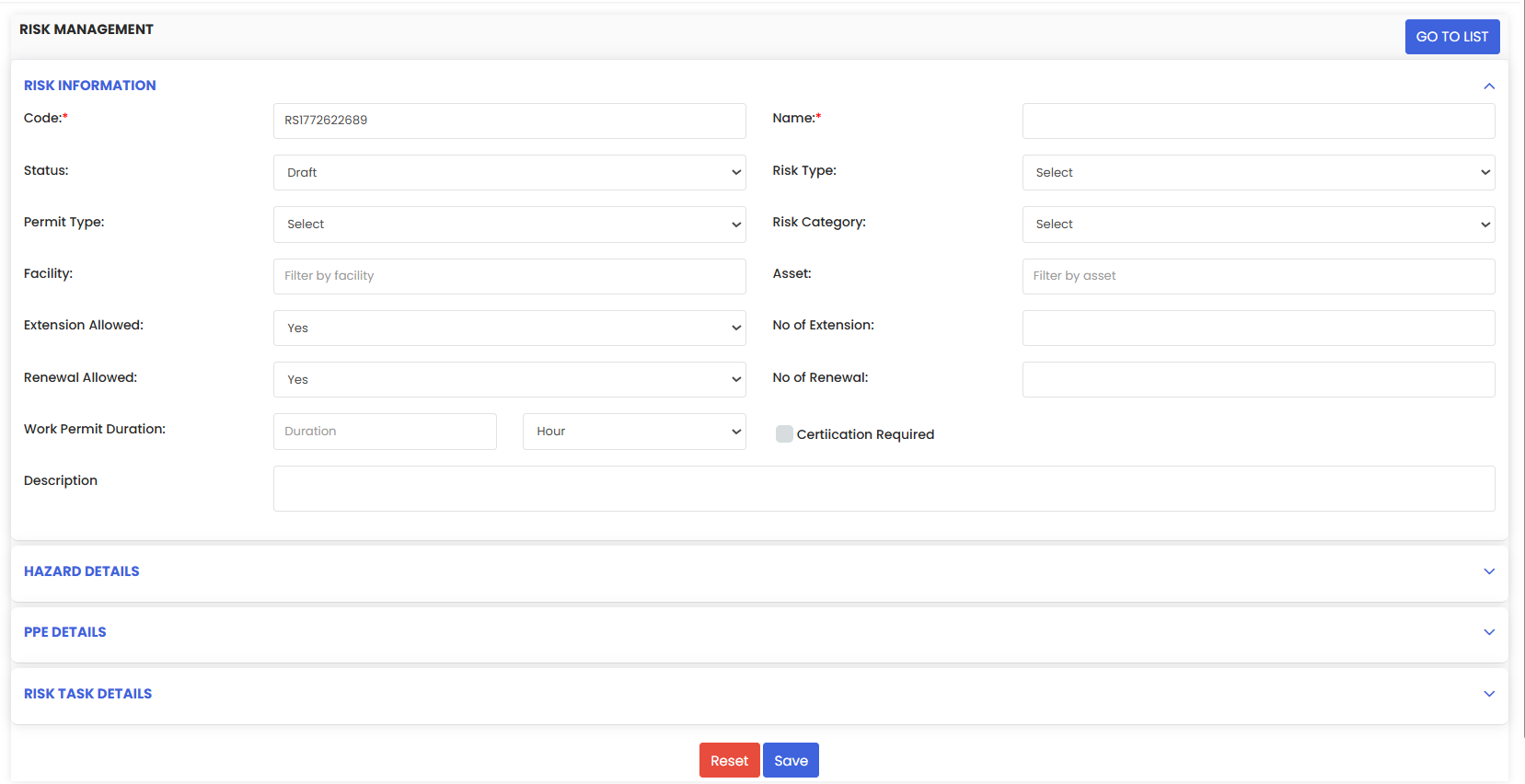
In the Risk Management List, select a risk to edit, or click New to create one.
Under General Information, fill in:
Risk Status (e.g., Open)
Risk Type (Operational, Safety, etc.)
Permit Type
Risk Category
Facility
Associated Asset
Permit Duration
Extension/Renewal Settings
Risk Description
Complete the Hazard Details, PPE Requirements, and Risk Task Details sections.
Click Save to store the risk record.
Note: Risk Management records form the basis for issuing work permits.
Step 3 — Create a Work Permit from a Work Order
Navigate to Work Order Dashboard.
Open the Work Order List and select a specific work order.
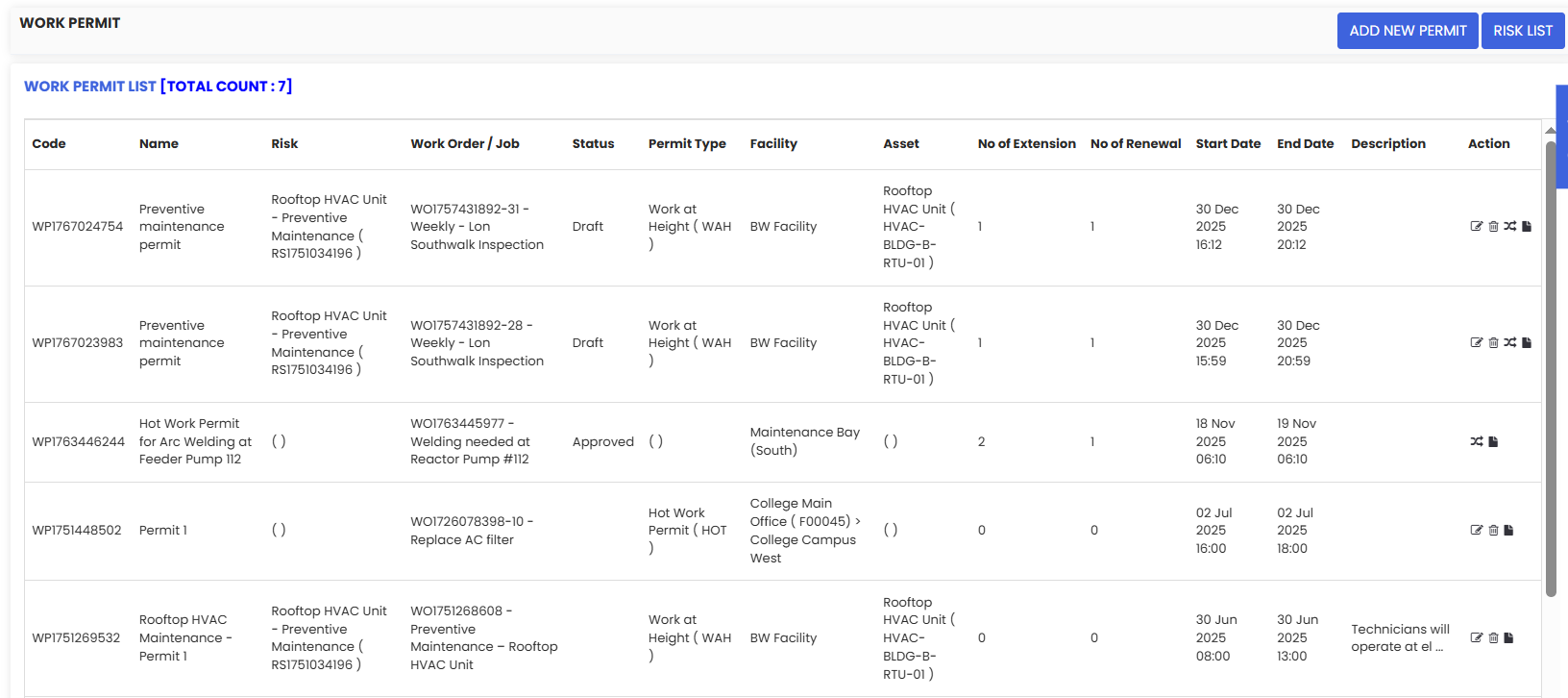
Click the Work Permit tab — if no permits exist, this list will be empty.
Step 4 — Add a Work Permit to a Work Order
In the Work Permit tab, click the three-dot menu and choose Add Work Permit.
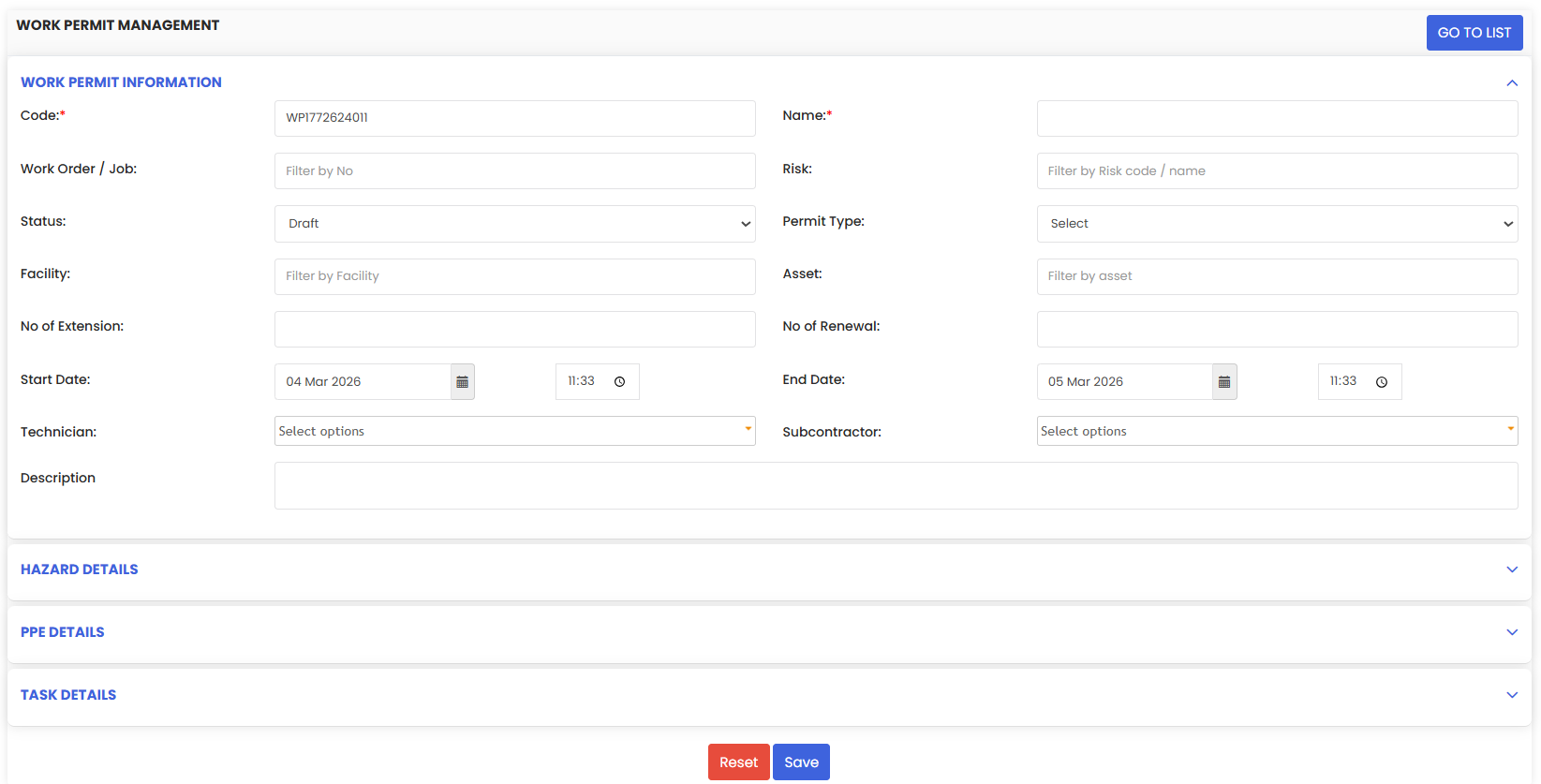
DreamzCMMS automatically generates a Work Permit Code.
Enter the Permit Name (e.g., Preventive Maintenance Permit).
Select the associated Risk Management Record — hazard, PPE, and task details are auto-populated.
Set Start and End Date/Time.
Assign a Technician or Subcontractor.
Enter a brief Work Permit Description.
Click Save to finalize the work permit.
Step 5 — View and Download Work Permits
Refresh the Work Order screen.
Return to the Work Permit tab.
Confirm the permit is linked to the selected work order.
Use the PDF icon under Actions to download the permit for field reference, compliance documentation, or audits.
Step 6 — Access Work Permits on Mobile
Open the DreamzCMMS Mobile App.
Select the relevant work order.
Open the linked Work Permit.
View or download the PDF on-site for safety briefings and execution.
After Using Work Permit and Risk Management
Once configured and applied:
Risk records help standardize hazard evaluations and ensure that hazards are consistently assessed before field work starts.
Work permits guide on-site personnel through required safety steps and documentation.
Digital permit records support audit compliance, incident review, and safety assurance programs.
Linking permits with work orders ensures risk controls are front and center for high-risk activities.
Tips for Effective Permit & Risk Management
Define clear risk categories and PPE standards to reduce ambiguity during evaluations.
Use auto-populated hazard details from risk records to prevent errors during permit creation.
Keep permit durations realistic based on task complexity and on-site hazards.
Train technicians to access and download digital permits via mobile for safety compliance on the ground.
Frequently Asked Questions (FAQs)
1. What is the purpose of linking risk records to work permits?
Linking risk records to permits ensures that hazard assessments, PPE requirements, and control steps are automatically included whenever a permit is issued — improving safety and compliance.
2. Can I download a permit after it’s created?
Yes — Work Permits can be downloaded as PDF documents directly from the Work Permit tab for on-site use, compliance documentation, or audits.
3. Do technicians need access to the mobile app to view permits?
No — permits can also be viewed and downloaded via the mobile app, giving field teams access to safety information wherever they are.
4. Can I modify a risk after a permit is issued?
Yes — you can edit risk records in the Risk Management List; however, changes only apply to future permits unless the permit record itself is updated.