Stock Transfer Order
The Stock Transfer Order feature in DreamzCMMS ensures that every asset or spare part moved between locations is properly tracked, documented, and updated in real time. It eliminates inventory discrepancies, improves accountability across sites, and gives planners full visibility into where materials are at all times.
Overview
A Stock Transfer Order records the movement of parts, consumables, or equipment from one location (source) to another (destination) within your organization. Each transfer captures who requested it, what was moved, the quantities involved, and the current status — giving you a complete audit trail for every internal movement.
If you haven't set up your locations yet, see Create Asset Locations first.
Before You Begin
- You must have Admin or Manager permissions to create a Stock Transfer Order.
- The items you want to transfer must already exist in your inventory at the source location.
- Both the source location and destination location must already be set up in the system.
- Ensure the receiving user is already registered in DreamzCMMS.
How to Create a Stock Transfer Order
Step 1 – Navigate to Stock Transfer
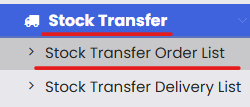
From the main menu, go to Stock Transfer → Stock Transfer Order List. This opens the list of all existing transfer orders.
Step 2 – Click "New Stock Transfer"
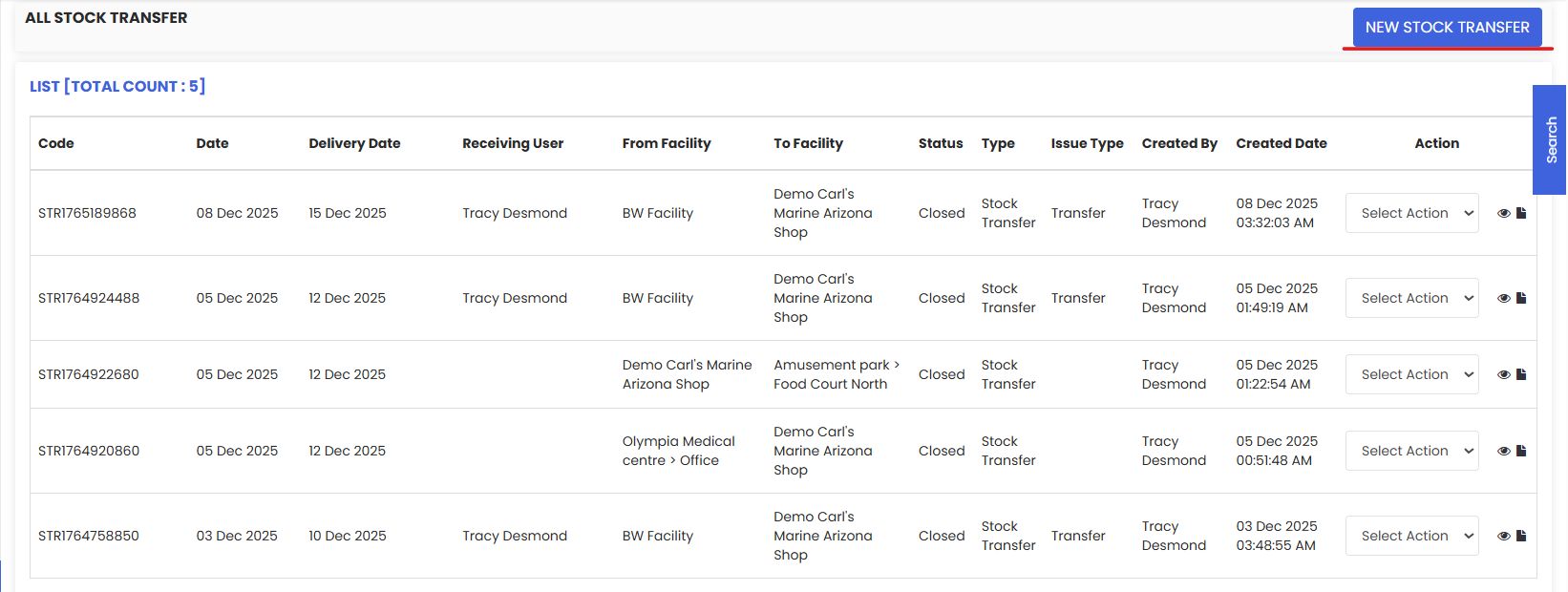
On the listing page, click New Stock Transfer to open the transfer order form.
Step 3 – Fill in the Details Section
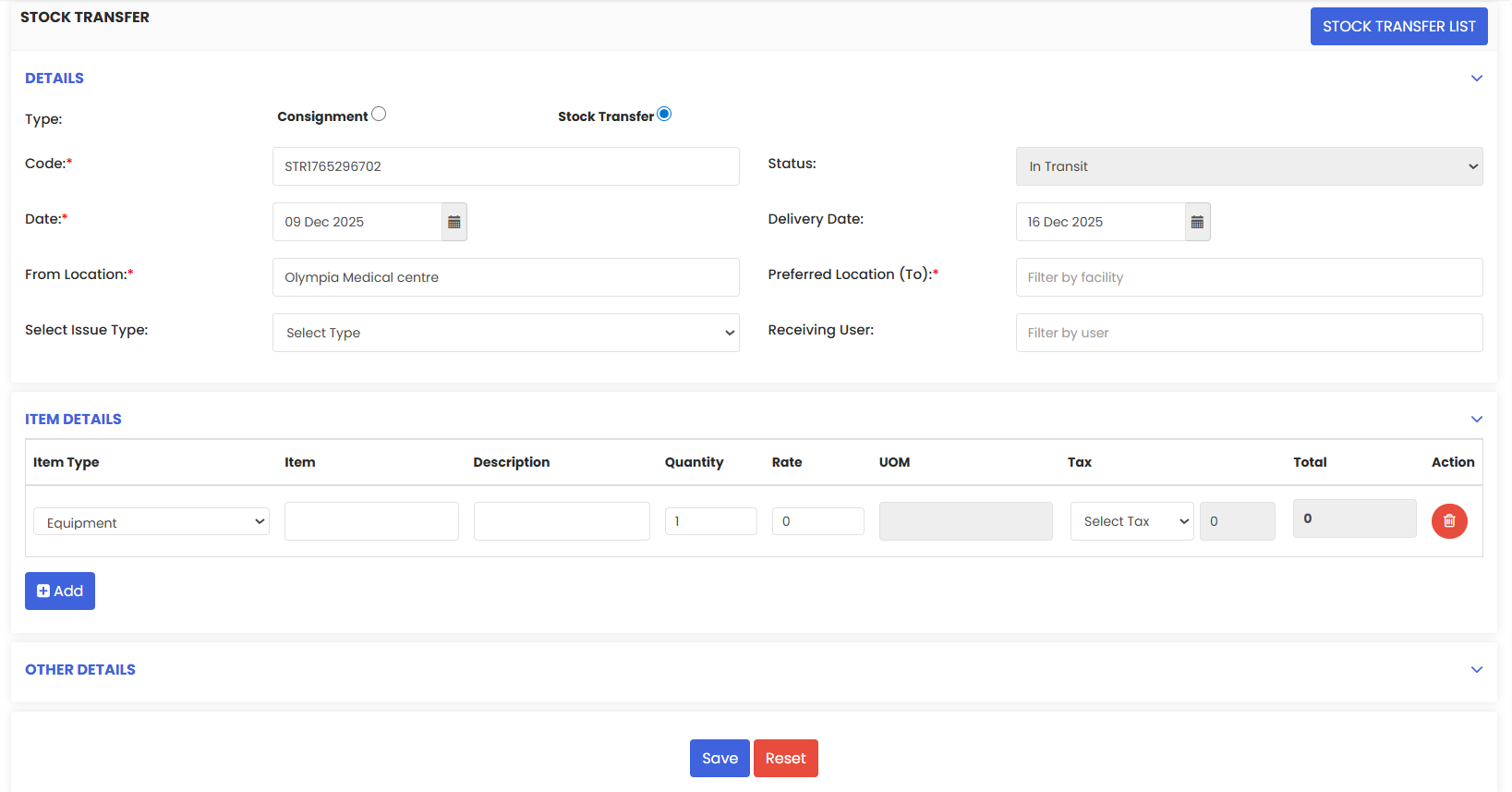
Complete the following fields in the Details section:
- Transfer Type — Select the type of transfer (e.g., internal transfer, return).
- Code — Enter or auto-generate the transfer reference code.
- Date — Set the date of the transfer.
- Status — Set the current status (e.g., Draft, In Progress, Completed).
- Delivery Date — Enter the expected or actual delivery date.
- Source Location — Select the location from which the items are being transferred.
- Destination Location — Select the location the items are being transferred to.
- Issue Type — Select the appropriate issue type for this transfer.
- Receiving User — Assign the user responsible for receiving the transferred items.
Step 4 – Add Items in the Item Details Section
Click Add Item to add the parts, consumables, or equipment being transferred. For each item, enter:
- Item Type — Select the type (e.g., Part, Consumable, Equipment).
- Item — Search for and select the item from your inventory.
- Quantity — Enter the number of units being transferred.
- Rate — Enter the unit cost if applicable.
- Tax — Apply any relevant tax.
- Total Value — This will calculate automatically based on quantity, rate, and tax.
Repeat this step for each additional item included in the transfer.
Step 5 – Add Other Details (Optional)
Expand the Other Details section to add any supporting information:
- Notes — Add any relevant notes or instructions for the receiving team.
- Attachments — Attach supporting documents such as delivery notes or approvals.
Step 6 – Save the Transfer Order
Once all details are complete, click Save to create the Stock Transfer Order. To discard your entries, click Reset.
Tip: You can also print the transfer order directly from this page for physical documentation or sign-off.
Tips for Managing Stock Transfer Orders
- Use clear transfer codes. A consistent naming convention makes it easy to search and audit transfers later.
- Set accurate delivery dates. This helps receiving teams plan and ensures timely updates to stock levels.
- Assign the right receiving user. This ensures accountability and avoids confusion when items arrive at the destination.
- Add notes when needed, especially for partial transfers or items requiring special handling.
- Review the transfer list regularly. Follow up on any orders stuck in "In Progress" status to keep inventory accurate.
Frequently Asked Questions
Can I transfer multiple items in a single order?
Yes. You can add as many items as needed in the Item Details section of a single Stock Transfer Order.
What happens to inventory levels after a transfer?
Once the transfer is saved and confirmed, the system automatically deducts the quantity from the source location and adds it to the destination location.
Can I edit a transfer order after saving it?
This depends on the order's status. Orders in Draft status can typically be edited. Orders that are completed may be locked to protect the audit trail.
Can I print a Stock Transfer Order?
Yes. Use the Print option available on the transfer order page to generate a printable copy.
What is the difference between Transfer Type and Issue Type?
Transfer Type defines the nature of the movement (e.g., internal transfer, return to supplier). Issue Type specifies the reason or context for issuing the items (e.g., maintenance, project use).
Can I attach documents to a transfer order?
Yes. Use the Other Details section to attach supporting files such as delivery receipts, approval emails, or inspection reports.
Related Articles
How to Manage Various Asset Information