Once you finalize the winning RFQ in DreamzCMMS, convert it directly into a Purchase Order (PO). The system pulls in the awarded supplier, items, quantities, agreed prices, taxes, and delivery terms, so you only confirm dates, ship-to/location, and payment terms. Submit for approval (if required) and issue the PO to the vendor via email/PDF. The PR → RFQ → PO link and documents are kept for a full audit trail and easy receiving/invoicing later.
In Purchase Request List, you can either Add PO or Create multiple PO at a time.

To create a Purchase Order from the RFQ, click on the + icon
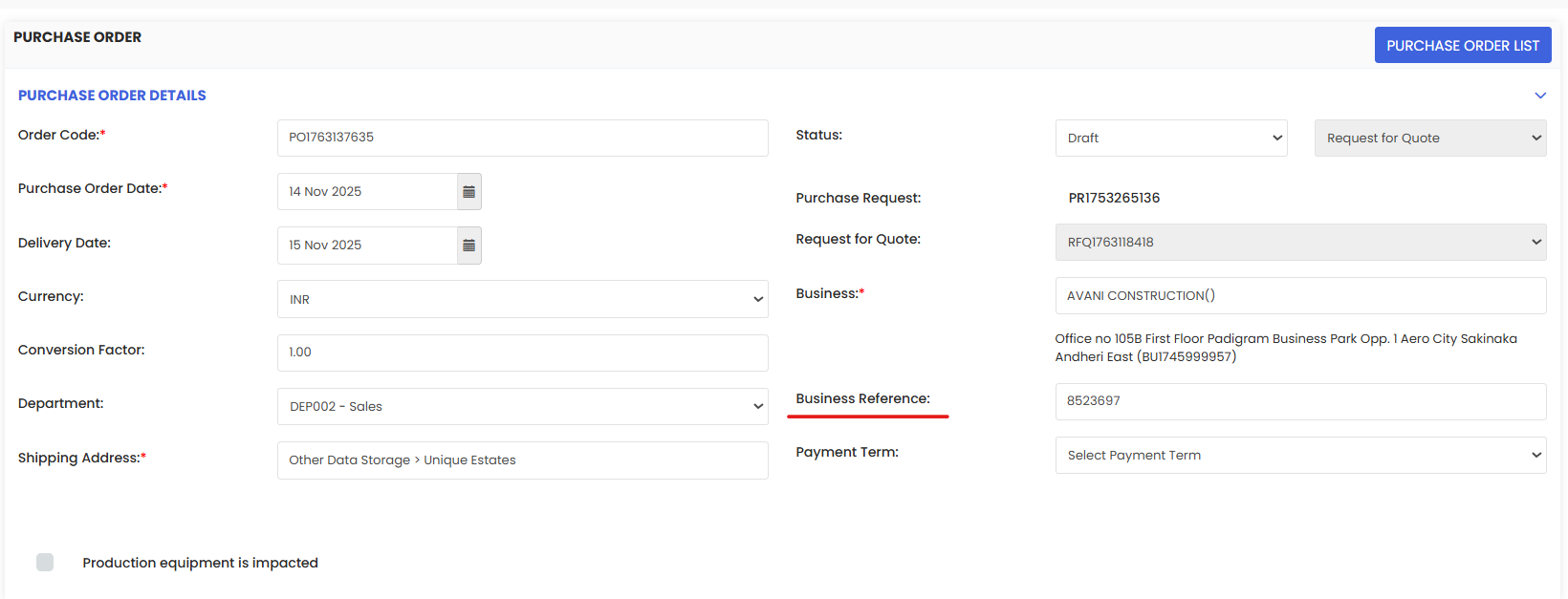
Add Business Reference number.
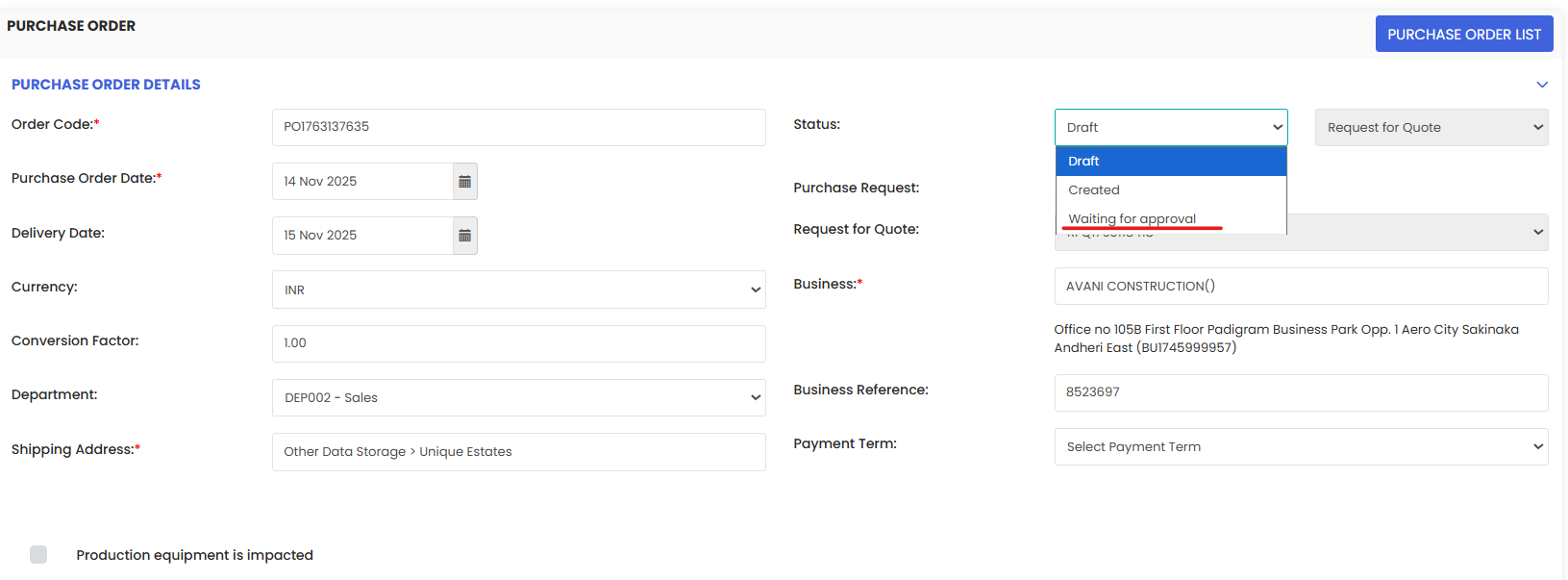
Change the status to Waiting for Approval and click on Submit.
Again click on the Edit icon.

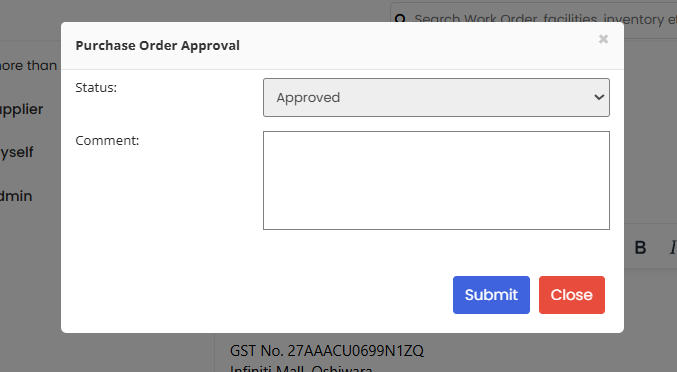
Check to send notification to suppliers click Approved. Then provide your comments and Submit.