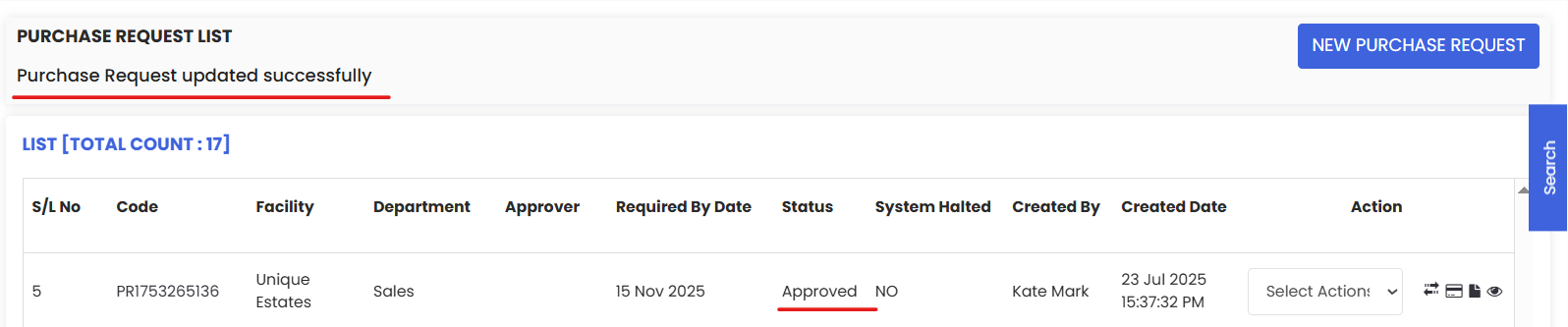
Purchase Requests are created and sent for further processing as and when required.
Here is a reference video:
Step by Step instructions to create a Purchase request
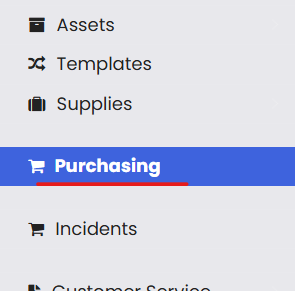
From the menu click on Purchasing.
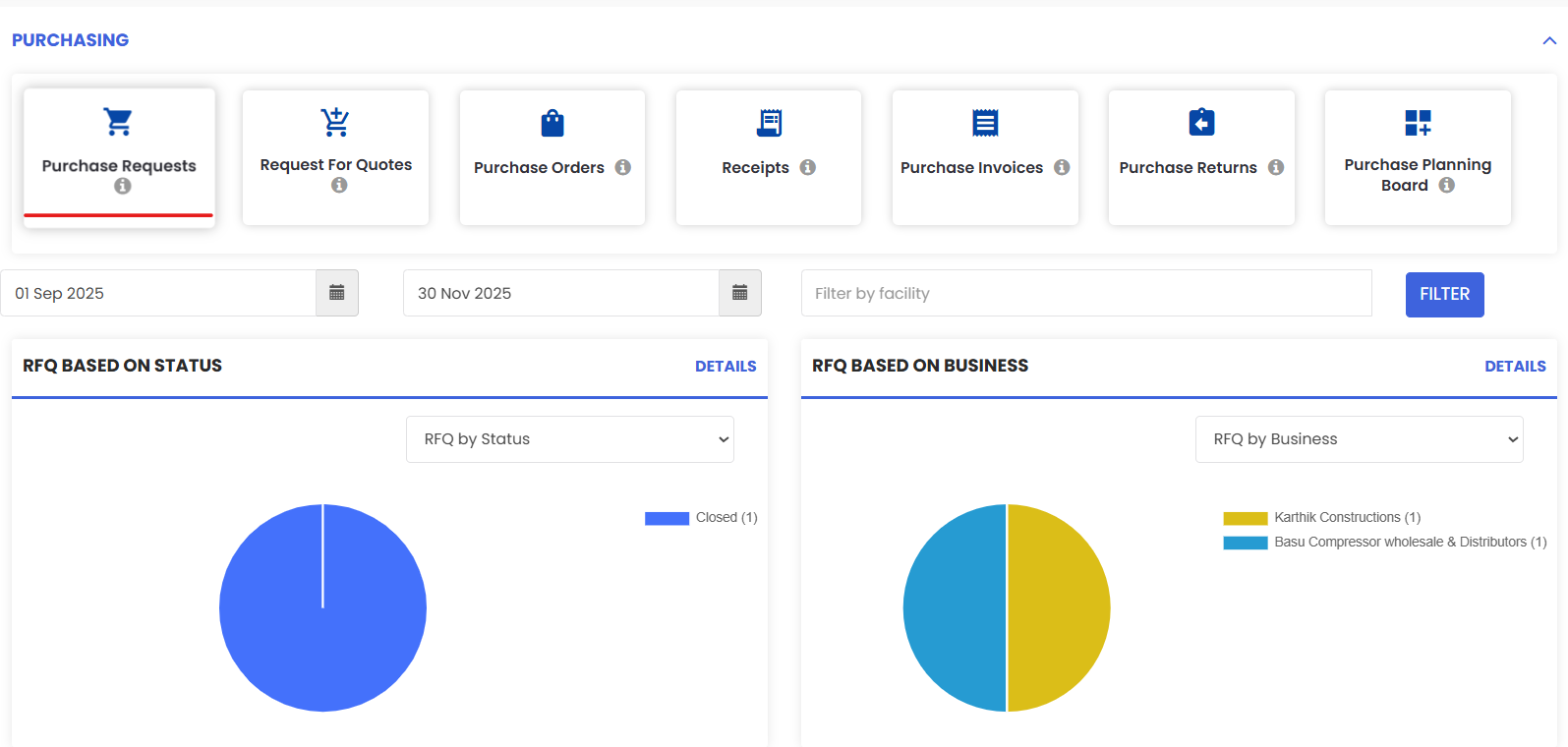
Click on Purchase Requests
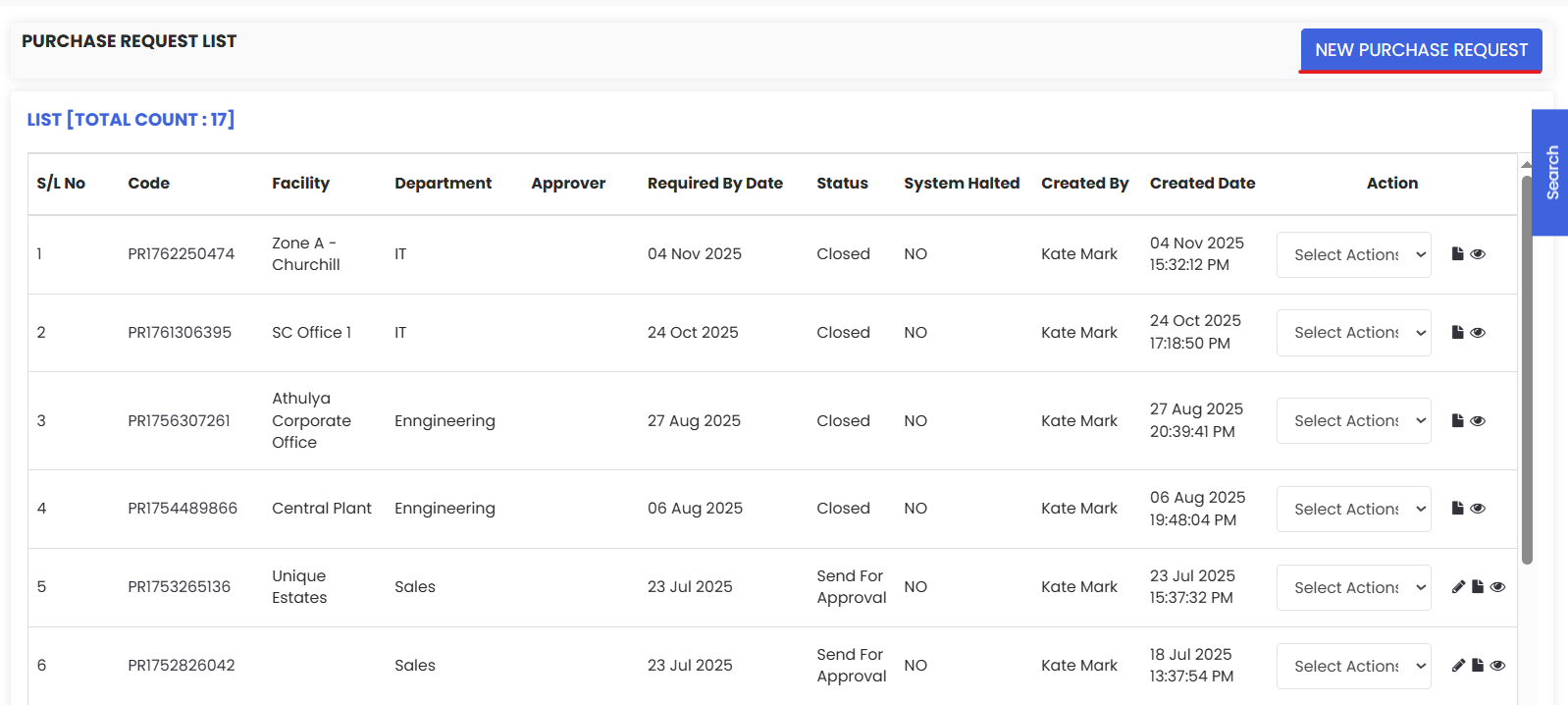
Click on New Purchase Request
Add the department from where the request is made.
Add the location where the item is required
Here Approver is the one who approves the request for further process.
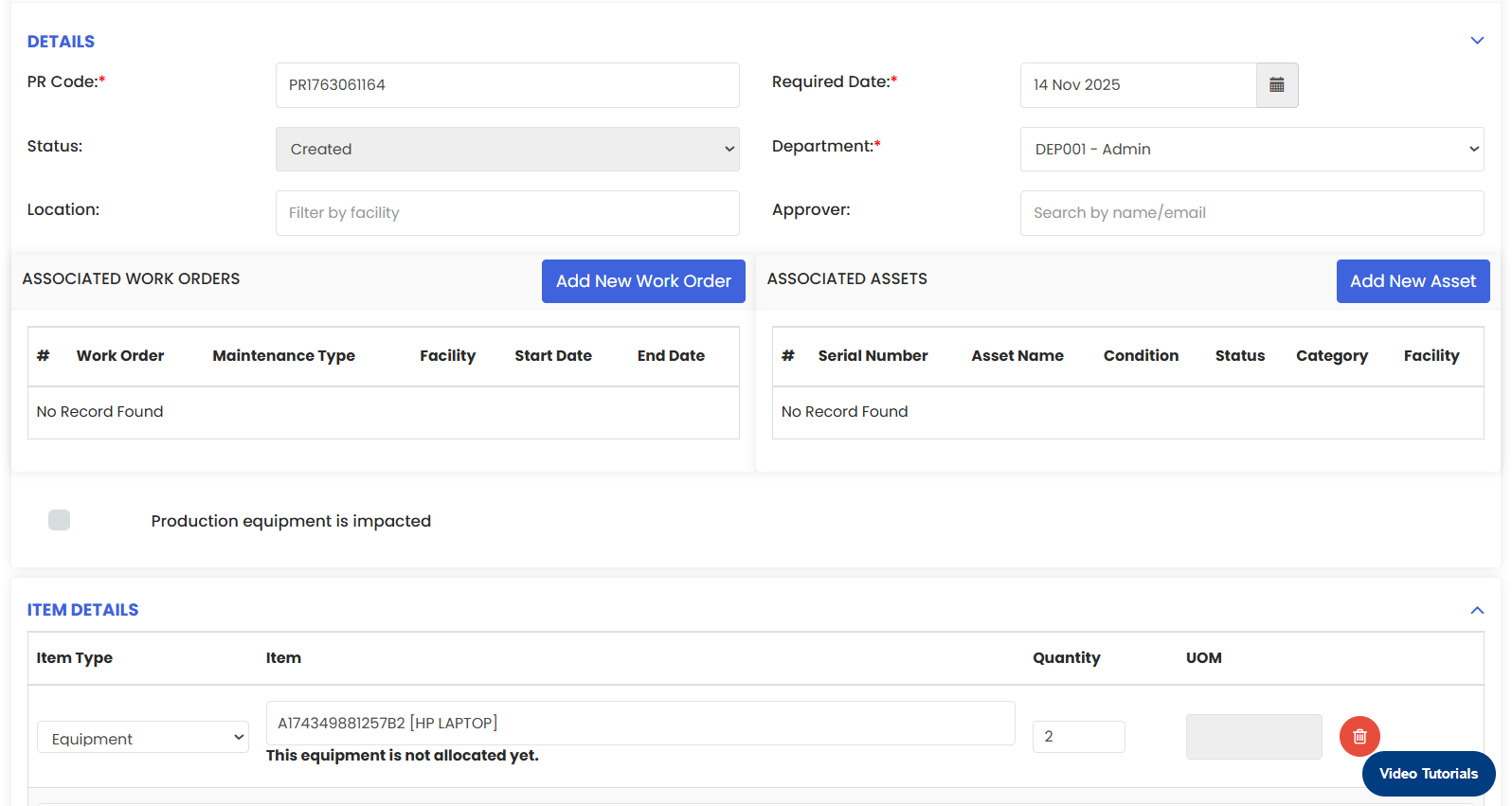
Under ITEM DETAILS section select the item type as Equipment for Asset purchasing.
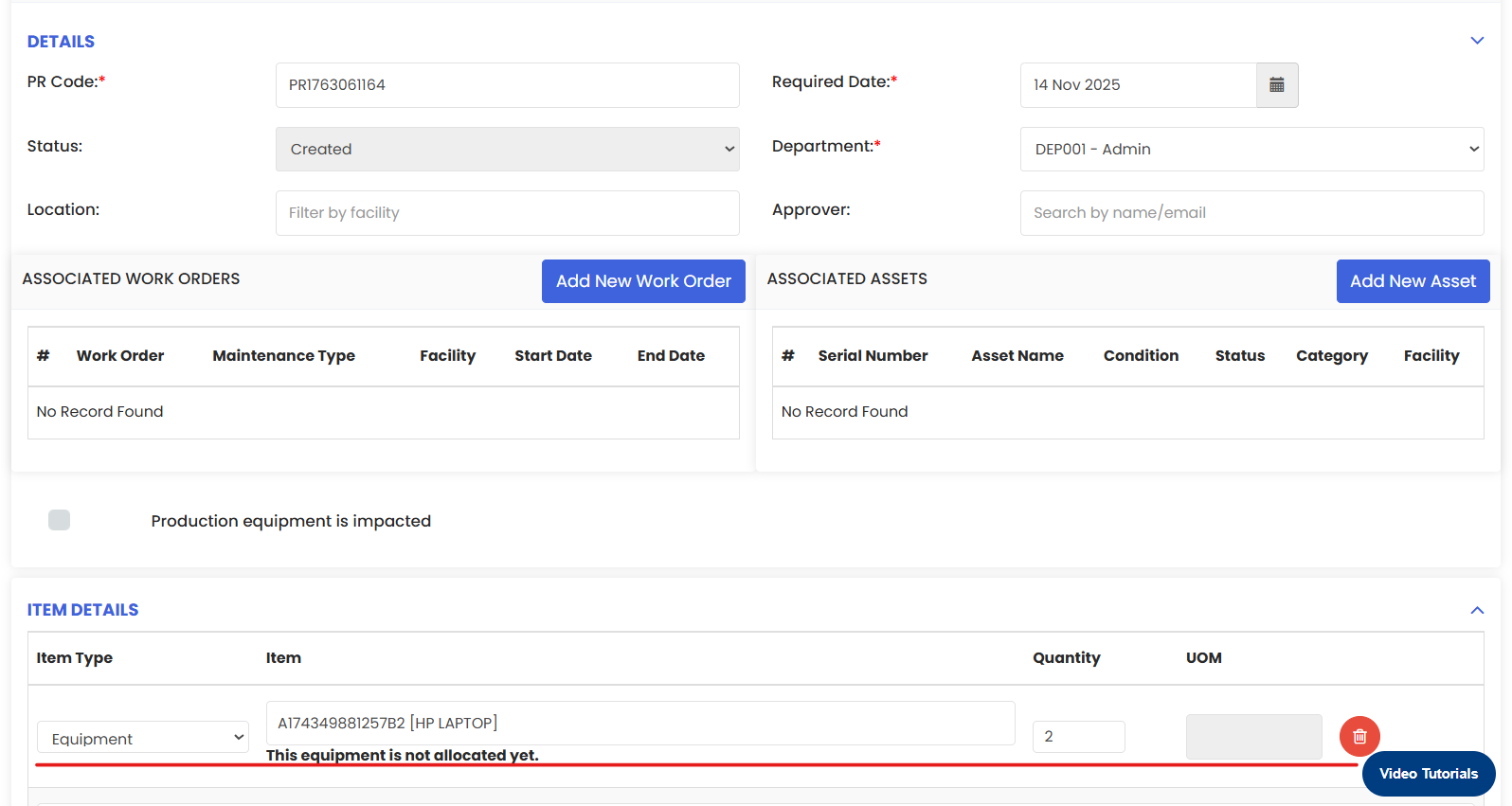
Type the asset code or asset name (atleast 3 characters) to get a list of suggested items to select. If similar item present but not allocated then it will show a message
Add the item quantity.
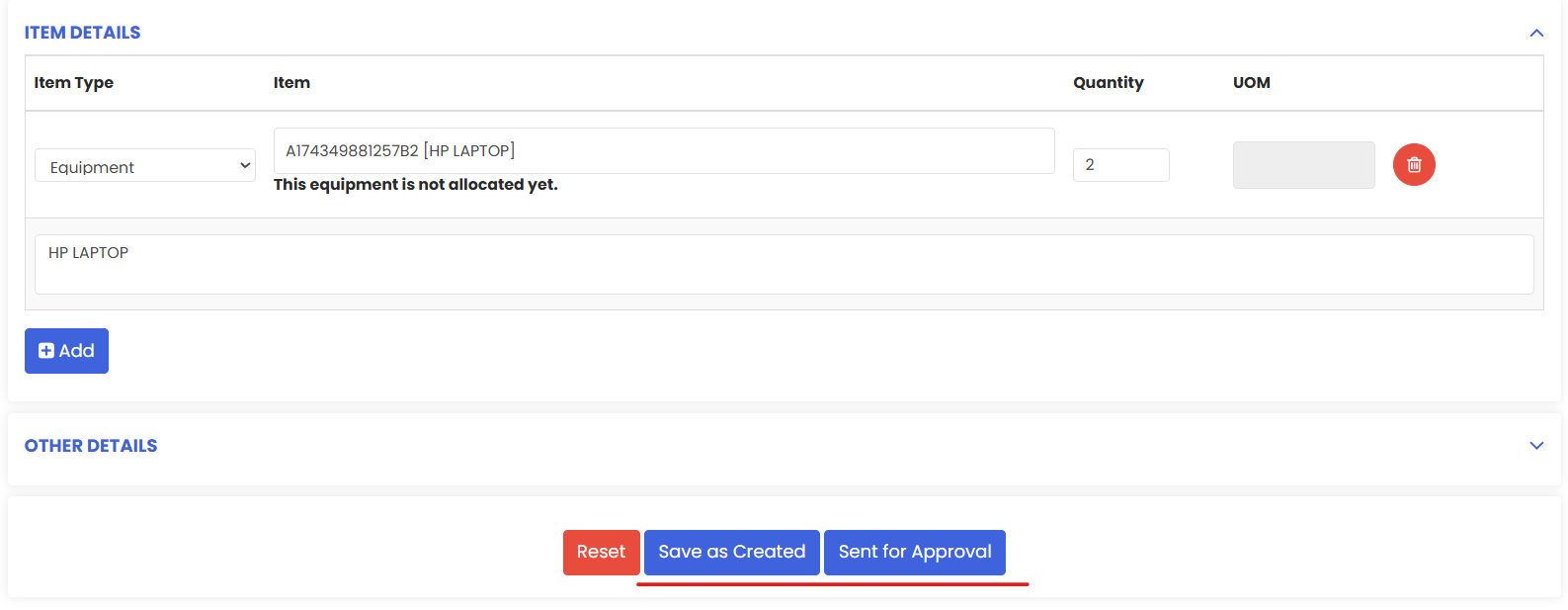
Click on Save as Created or Sent for Approval.
New request is added to the list.
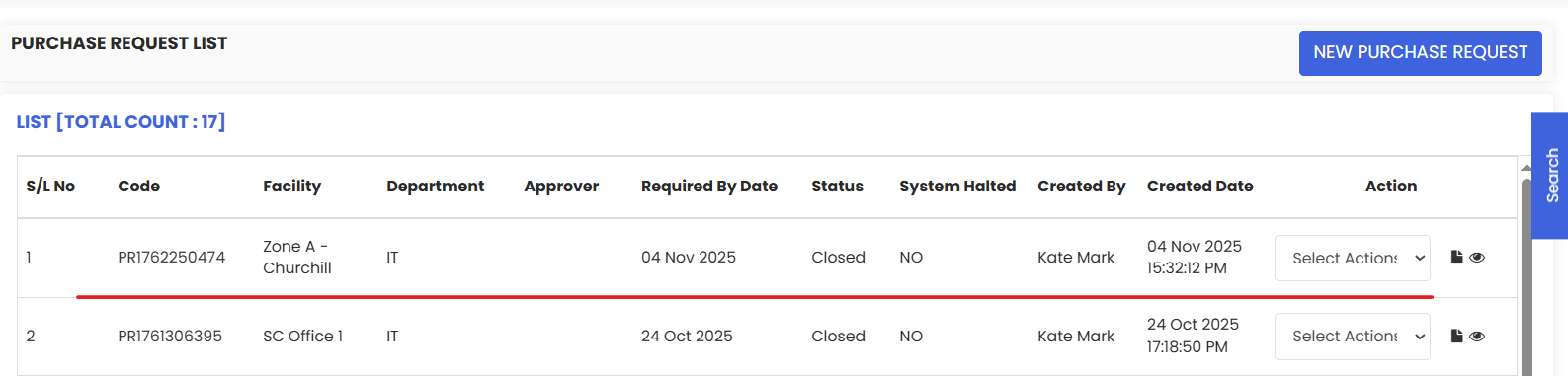
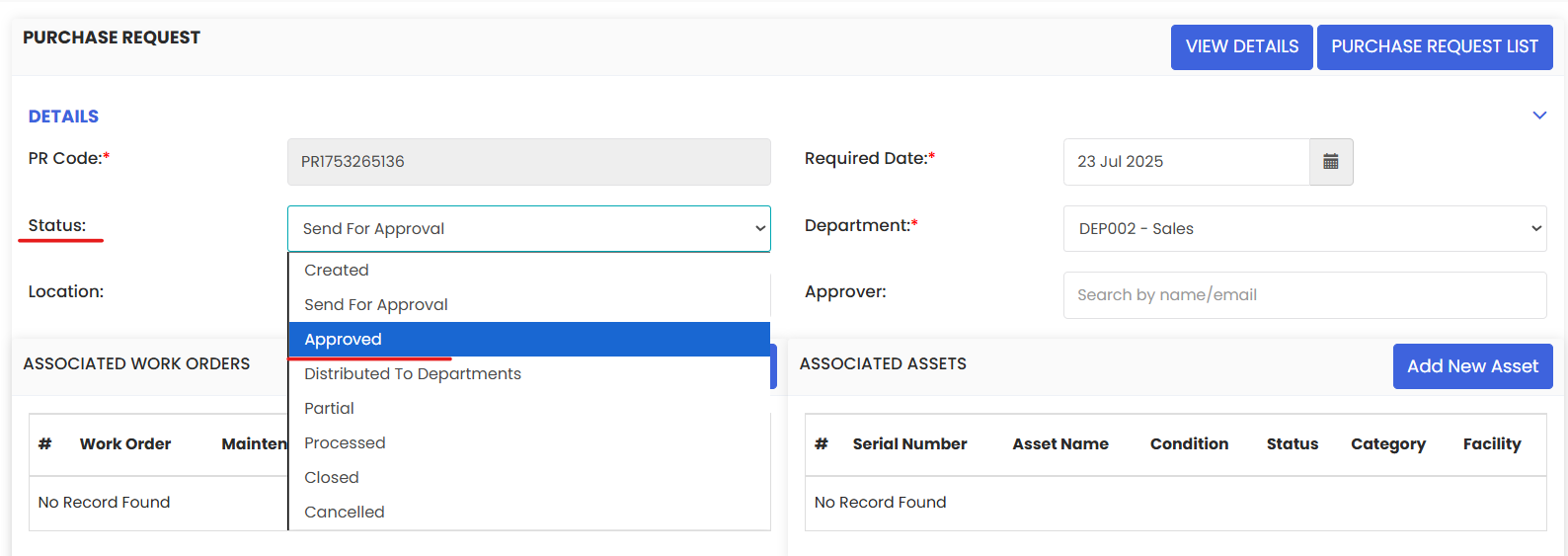
Click on the edit icon on the right to approve the request.

Change the status as Approved.
Click on Submit.
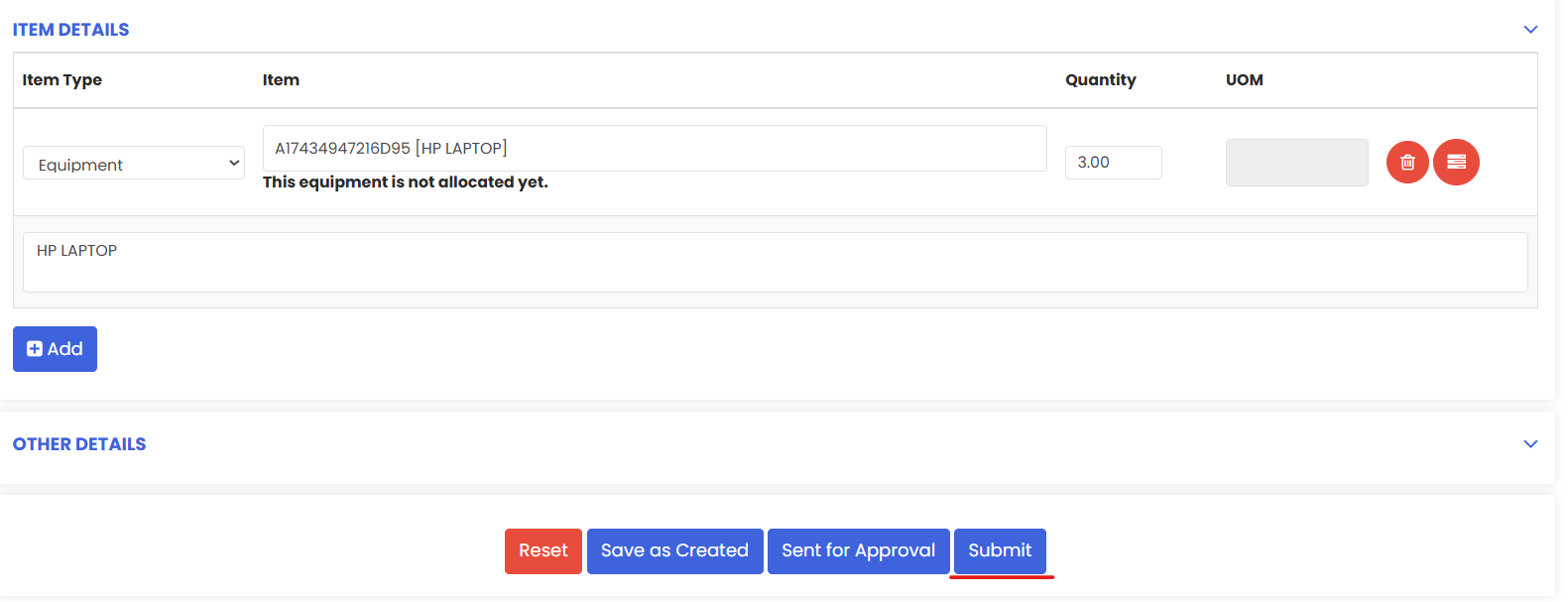
The status of the request is updated.