The work order serves as the core of the maintenance process. For any breakdown or preventive maintenance, a work order must be created to assign a technician to complete the maintenance process.
Here is a reference video:
Step by step instructions to create a work order
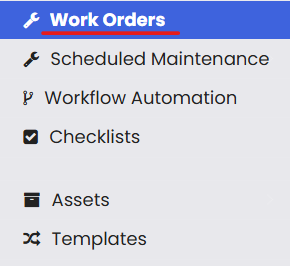
Navigate to the Work Orders option in the menu
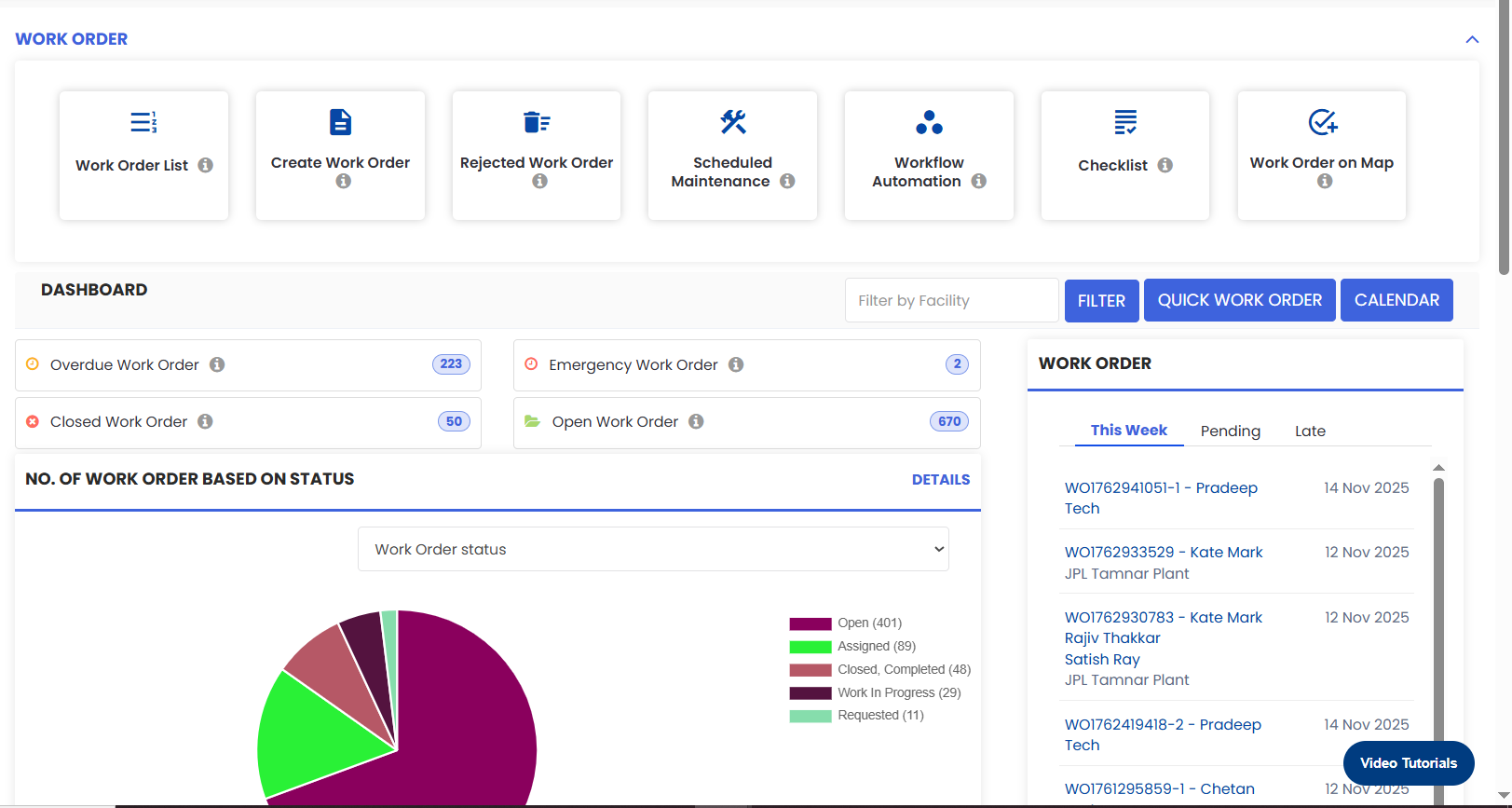
The work order dashboard will open.
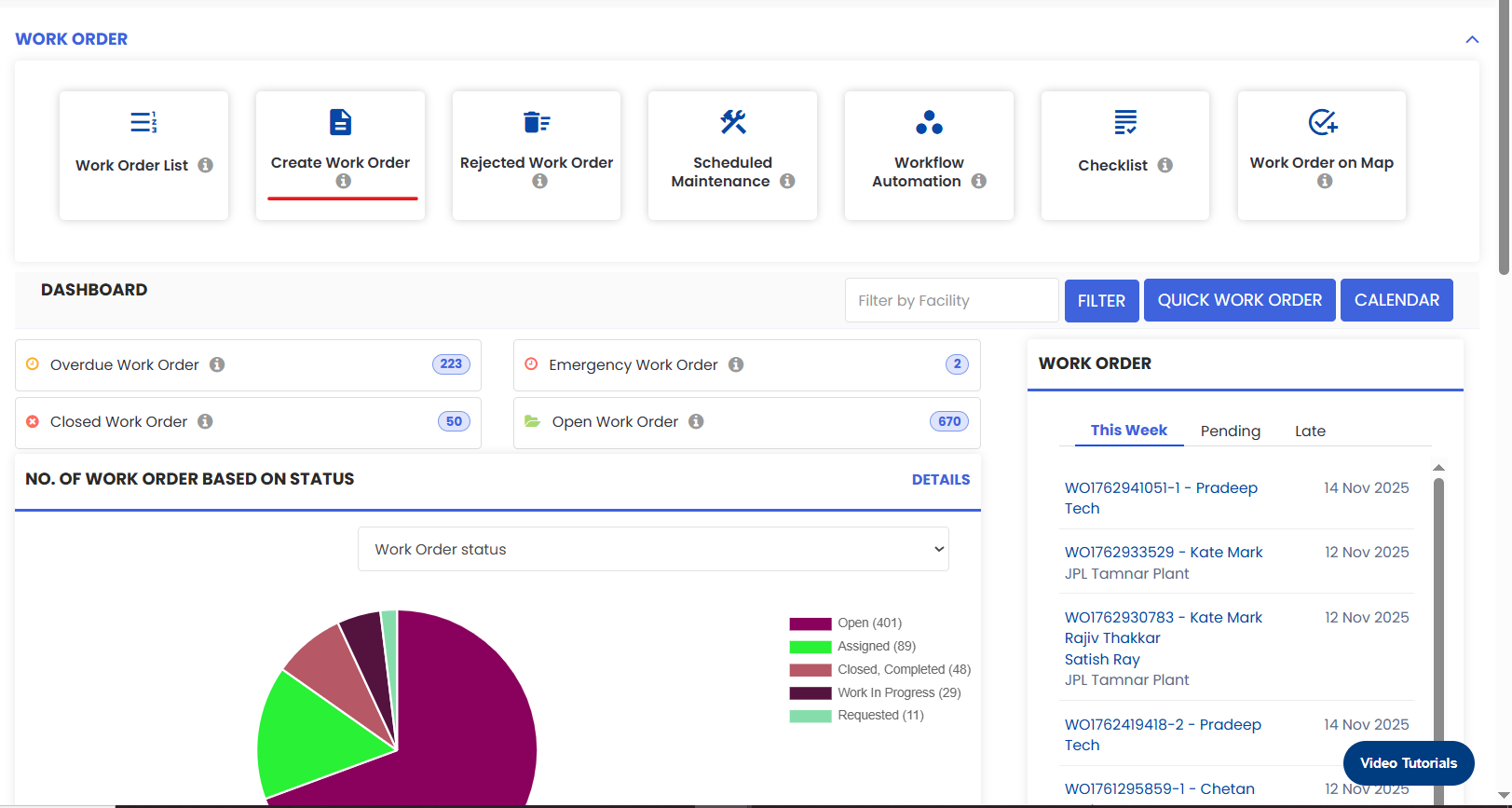
Now click on the Create Work Order Tab.
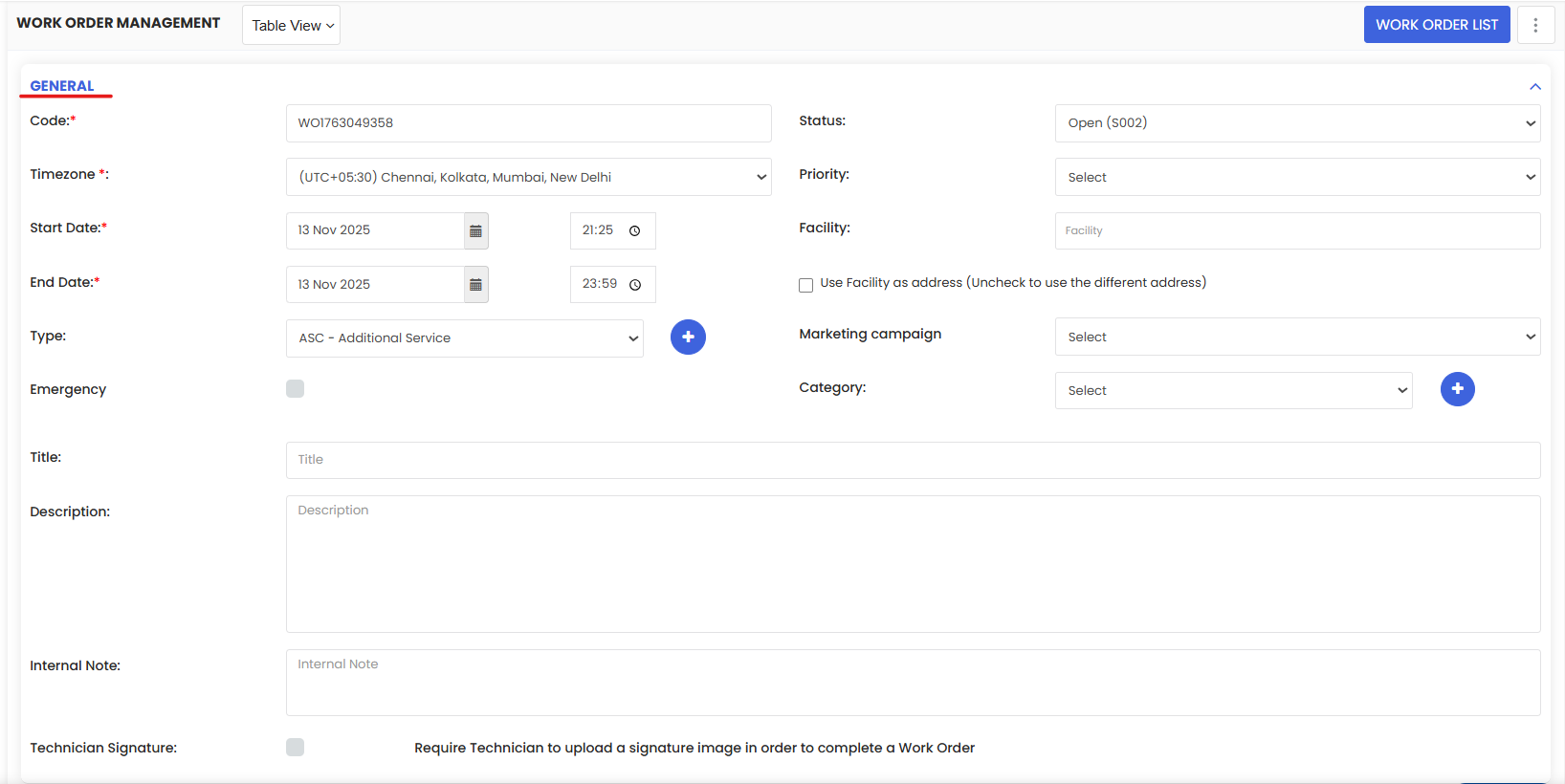
This work order create page consists of multiple sections. The first section is general
Status, Priority and Timezone value comes from system default setting
Select the start and End date as per estimated completion or due date
Type Facility/ location name to select it from the options
Select maintenance type from the drop down or create from tiny plus (+) sign
Check the emergency checkbox to indicate the highest level of priority
Add Title & description.
Add internal note which will reflect technician app separately.
Select the Project dropdown from Project section to tag the work order with a project.

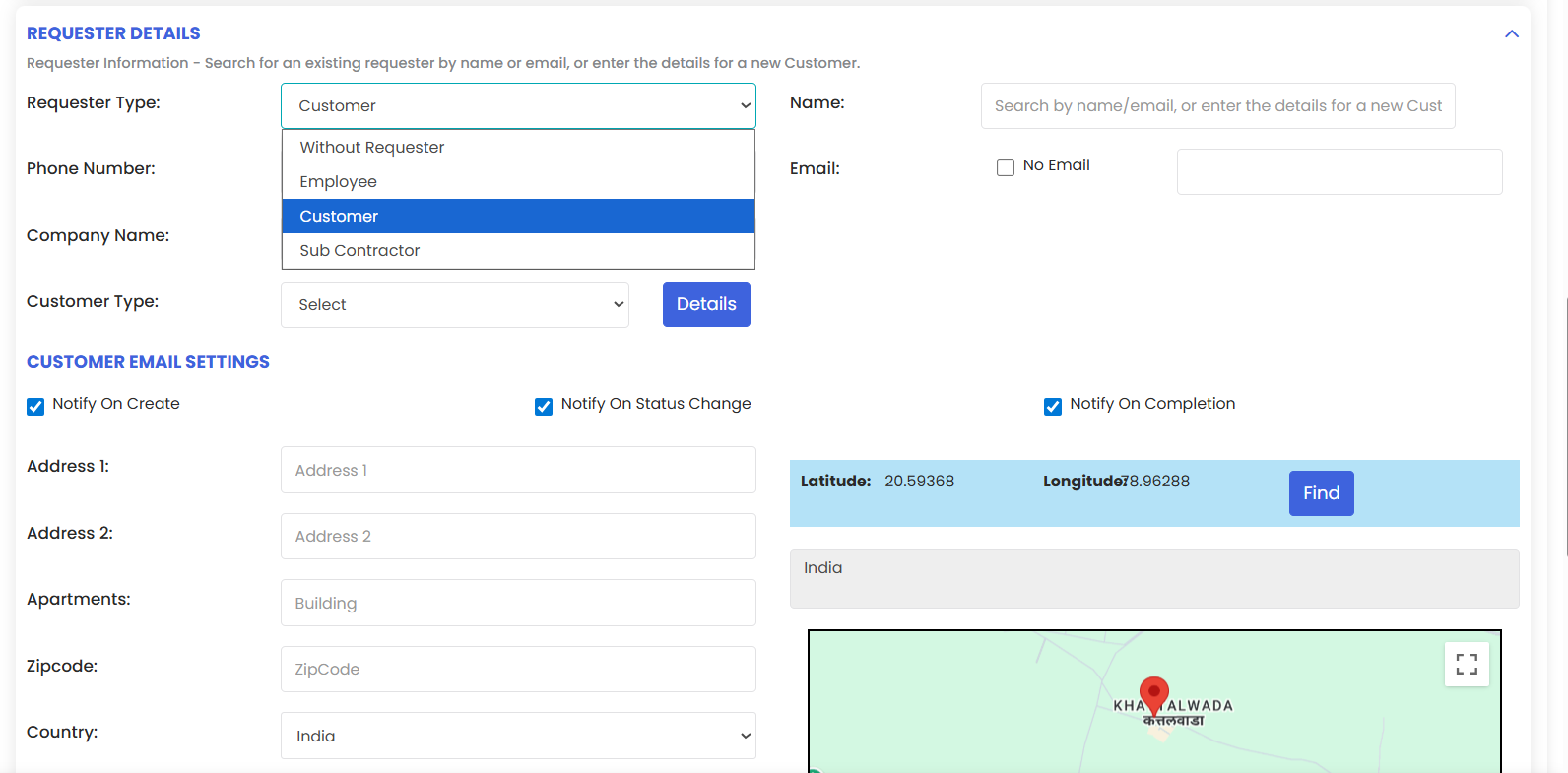
Next set the requester details which means who have reported the issue.
Next you need to assign this work order to a technician. It can be a in-house technician or a subcontracted technician as per your choice.
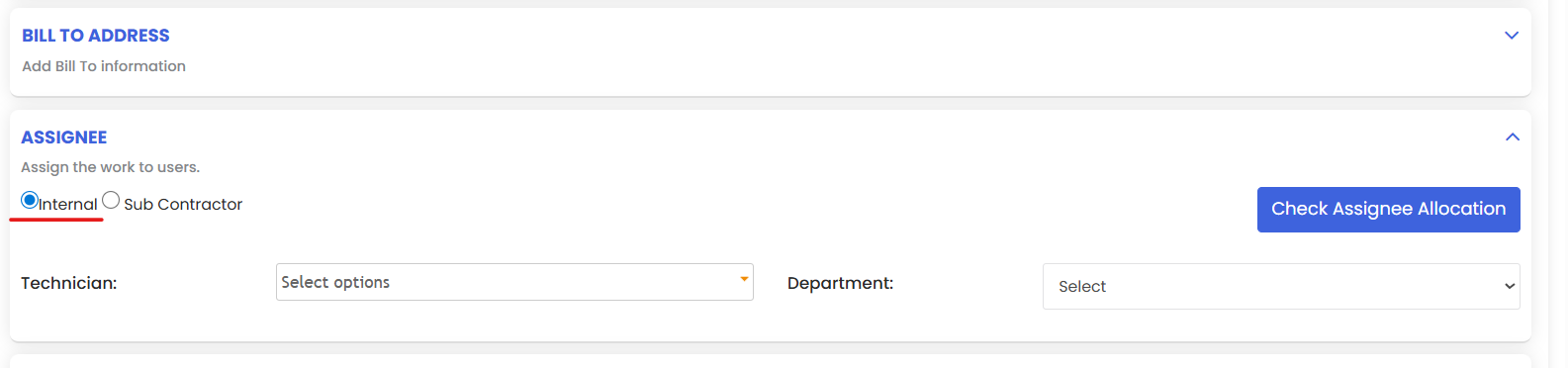

You can assign a work order to one or multiple technicians.
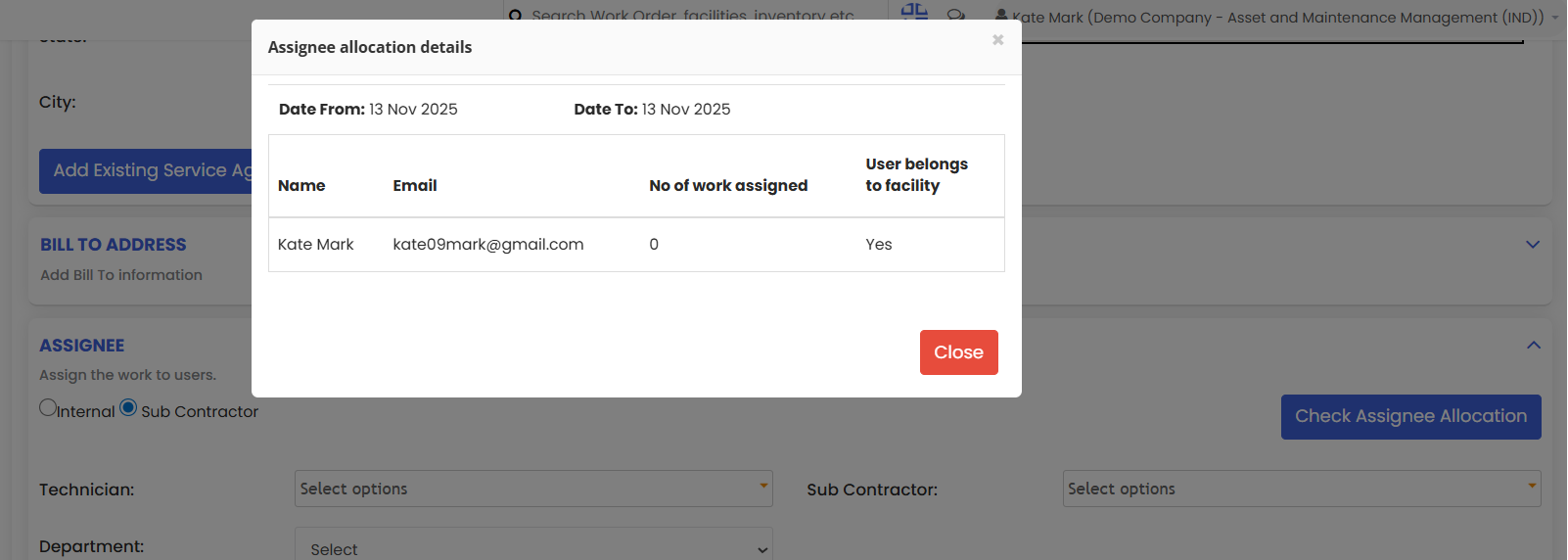
Check the assignee allocation by clicking the button on the right side. This action will prompt a popup displaying the work allocation.
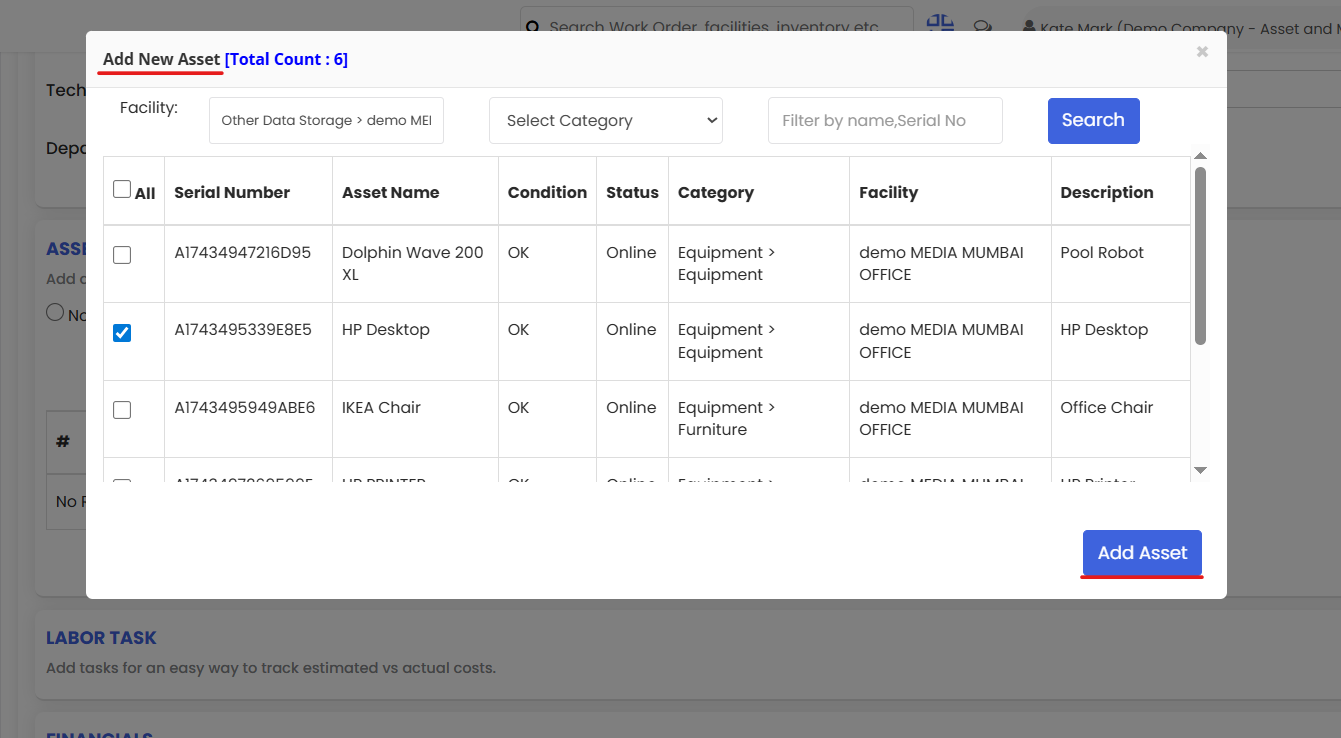
Now from the assets section click on Select Assets then click on Add New Asset button to tag an asset with this work order.
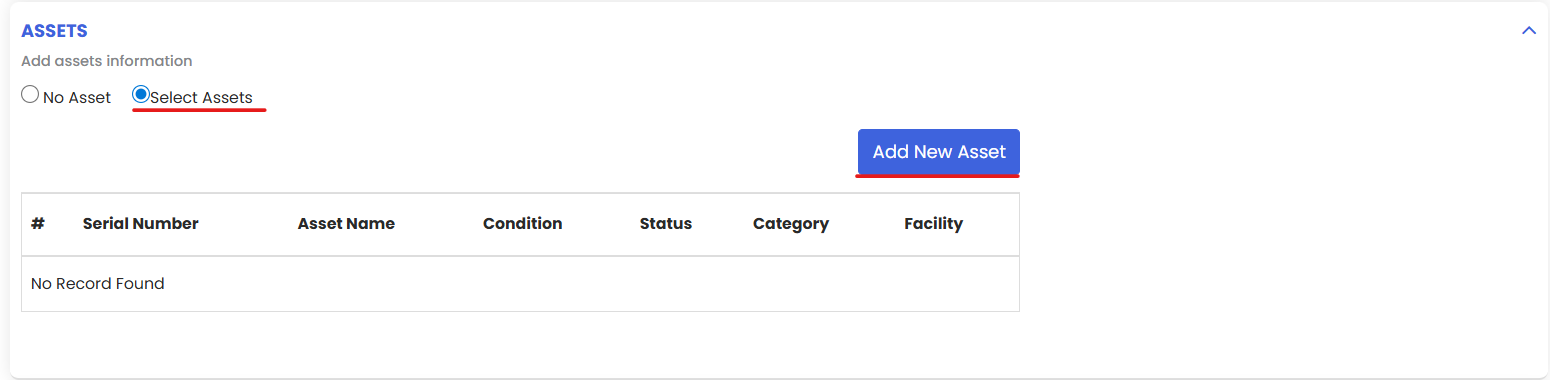
In the popup, choose the assets by clicking on the checkboxes on the left side. Only assets belonging to the previously selected facility will be displayed.
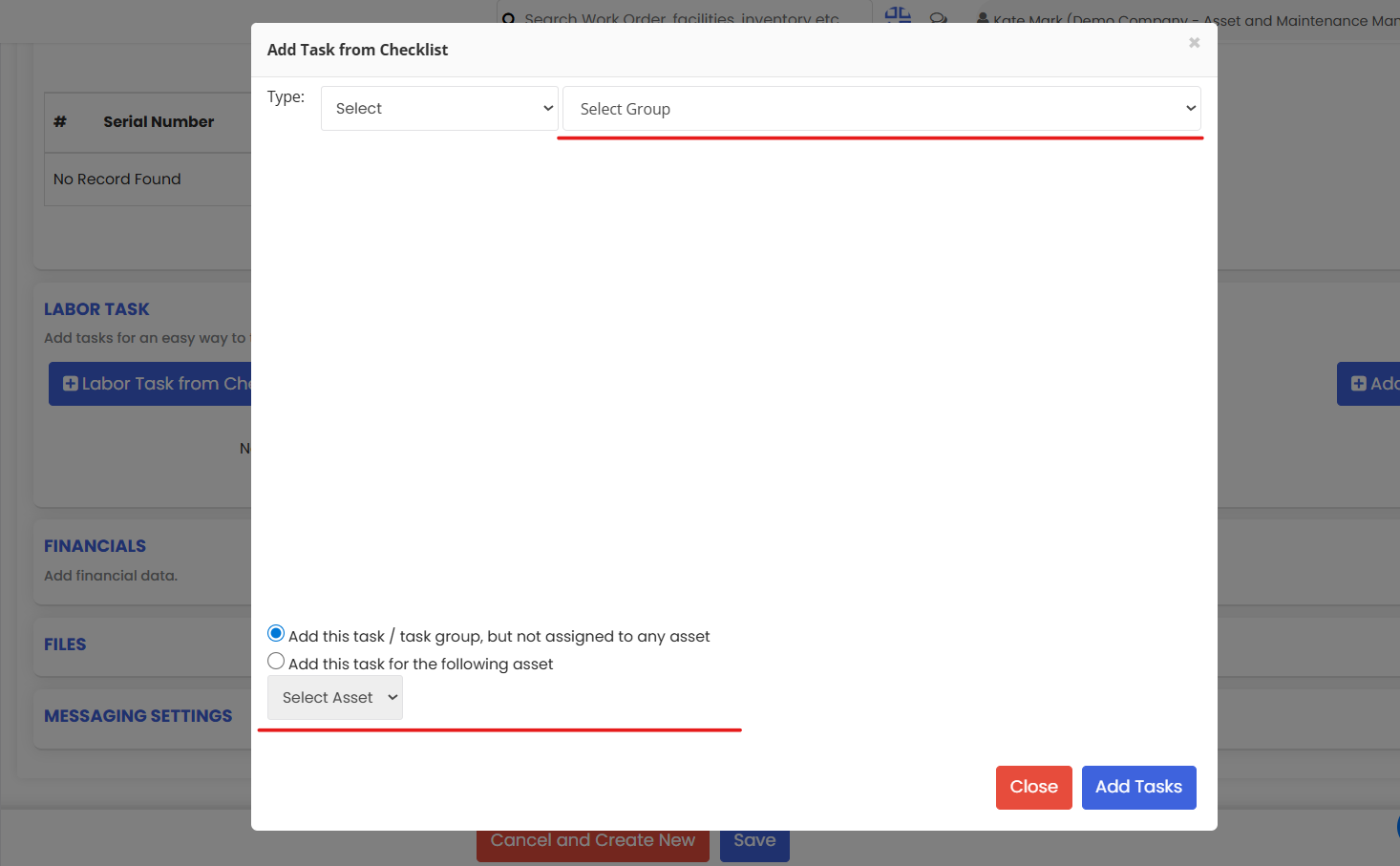
From Labor task section the checklist tasks can be included for technician. Click on the left button Labor Task from checklist to select the existing checklist.

From the popup select the dropdown for checklists from library
Select the radio button for individual asset selection to add the task for selected asset
Choose the hourly radio button from the financial section. This will compute the total estimated hours for all tasks from checklist.
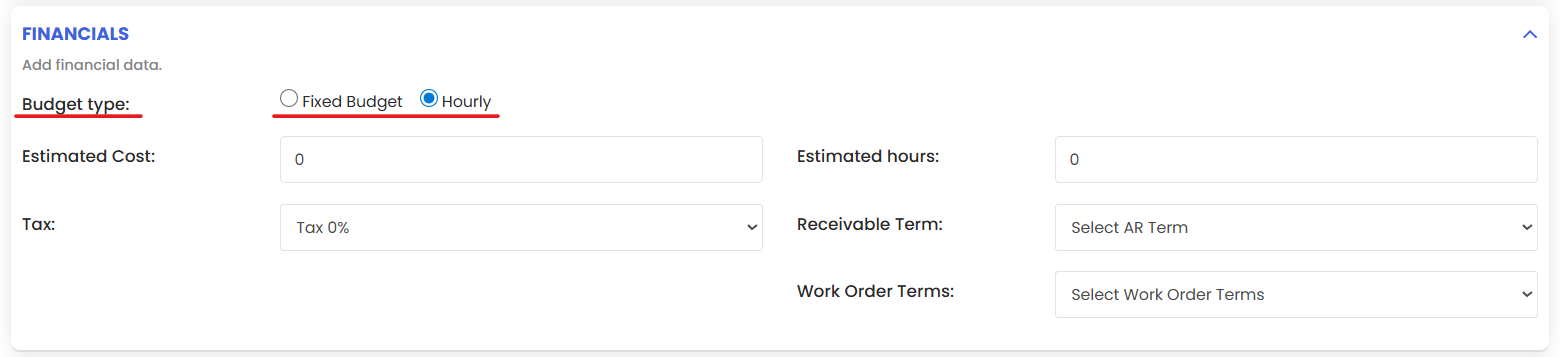
Note: Selecting this radio button is important for hour basis calculations.
File section provides document sharing with technicians. For upload click on choose file
To set user notifications for different events, click on the checkboxes in the corresponding user - event matrix.
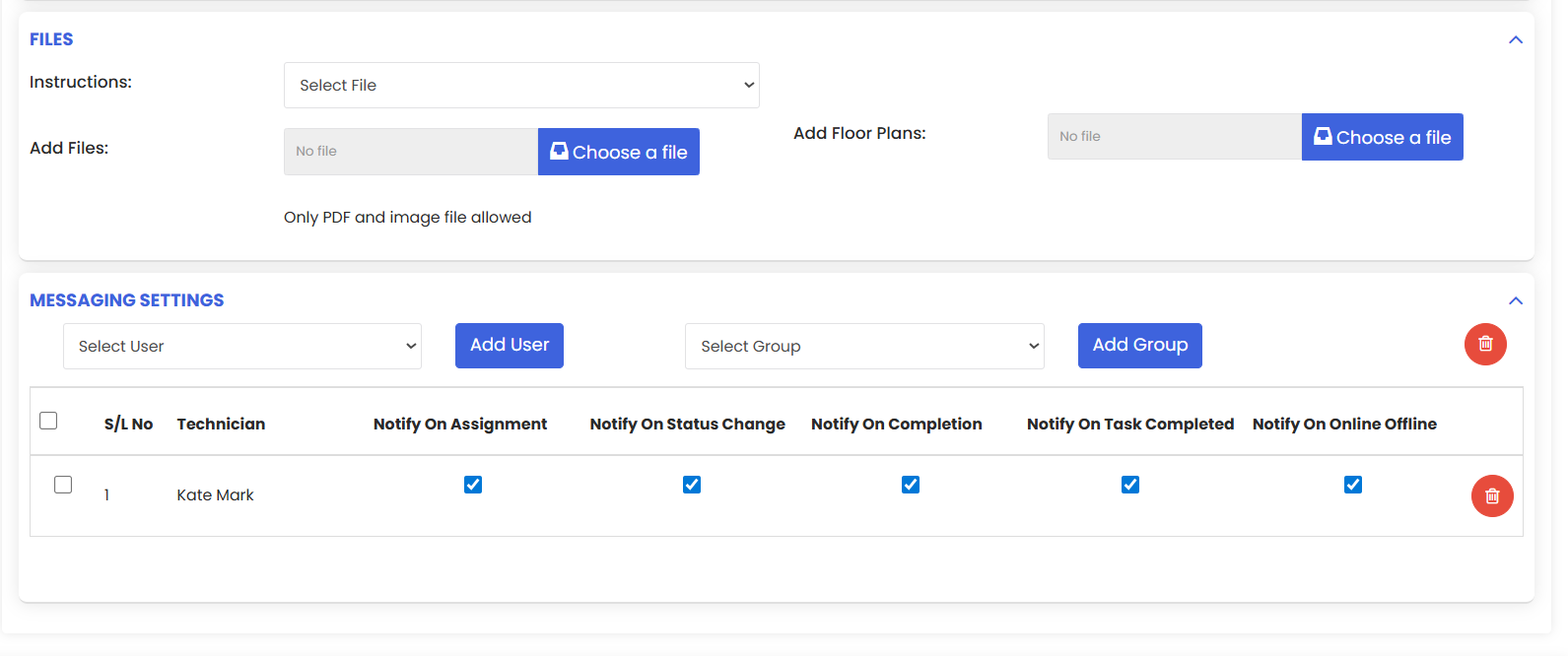
Click on save button to create the work order and notify the assignee.