Work Order Dashboard

Created by Binita Goswami, Modified on Thu, 27 Nov at 11:08 PM by Binita Goswami

Get a live snapshot of maintenance workload, status, and quick actions everything you need on one screen.

Work Order Dashboard — at a glance

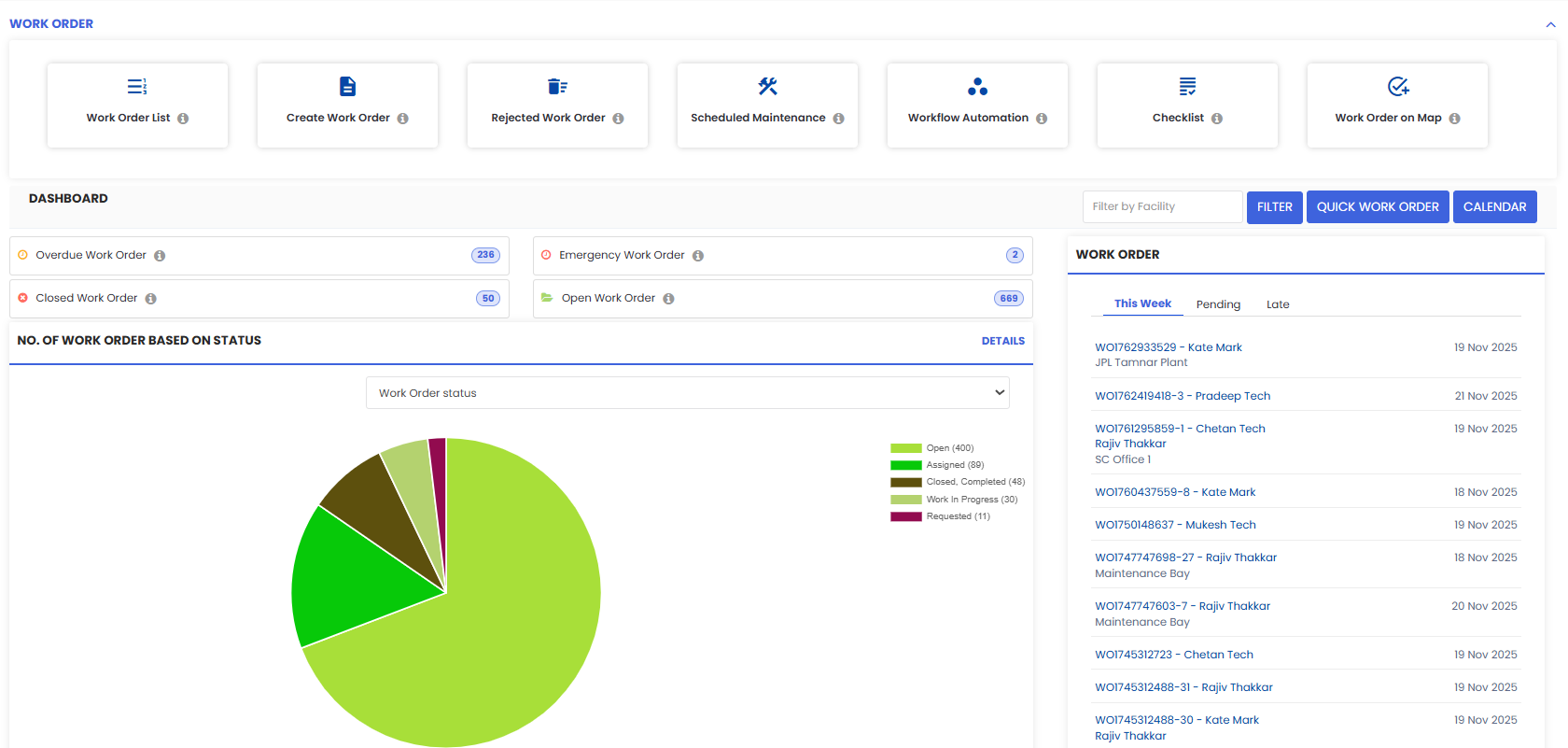
  • Quick actions: open Work Order ListCreate Work Order, view RejectedScheduled MaintenanceWorkflow AutomationChecklists, and Work Order on Map.

  • Filters & shortcuts: filter by facility, use Quick Work Order, or jump to the Calendar.

  • Key counters: tiles for OverdueClosedEmergency, and Open work orders show current volumes.

  • Status chart: pie shows distribution (Open, Assigned, In Progress, Closed–Completed, Requested).

  • This week panel: rolling list of This Week / Pending / Late jobs with due dates.

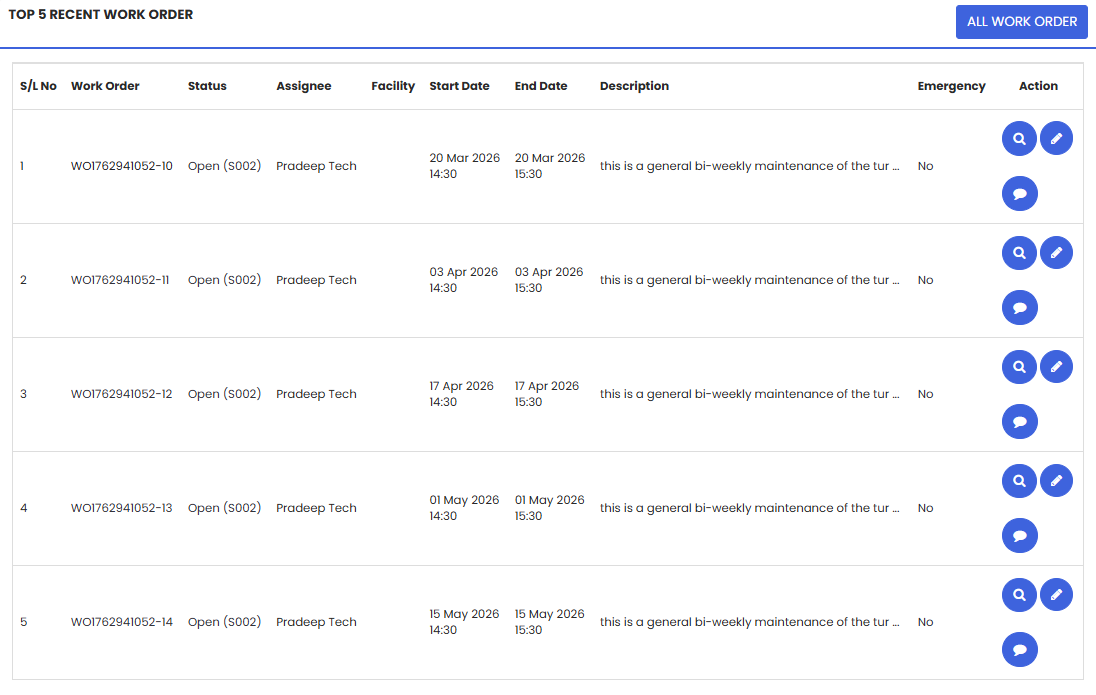
  • Recent activity: “Top 5 Recent Work Orders” table with status, assignee, dates, and quick actions.

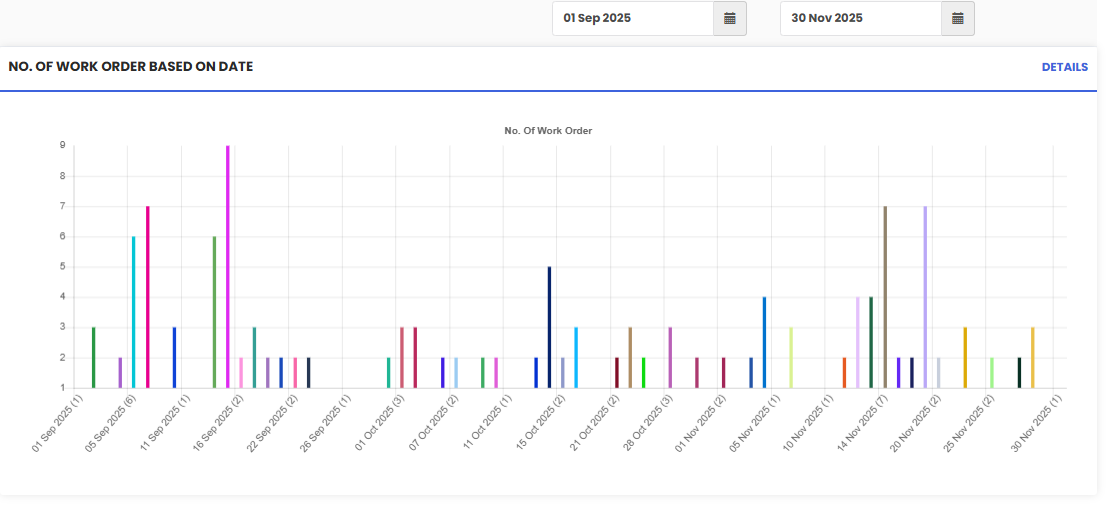
  • Trend graph: “No. of Work Orders by Date” visual to spot peaks and gaps over a selected range.

Here is a reference video: 


Follow these steps:


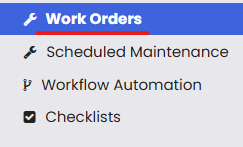
1. From the menu click on Work Orders.
2. On clicking, you will see the Dashboard.

Was this article helpful?

That’s Great!

Thank you for your feedback

Sorry! We couldn't be helpful

Thank you for your feedback

Let us know how can we improve this article!

Select at least one of the reasons

Feedback sent

We appreciate your effort and will try to fix the article